
Help Center
Plain-language answers. Look for the chat bubble in the corner if you'd rather just ask a question.
Training Manuals
Complete written guides — pick whichever fits what you're looking for.
What's New: Training Manual (PDF) Word — every new feature from employee records to payroll approval and checklists (updated 23 Oct 2026)
Complete Help Center Training Guide (PDF) — every question below, answered step by step with real screenshots (now includes What's New)
Full Training Manual (PDF) — Employees, Managers & Admins, cover to cover (now includes What's New)
Training Videos
A guided walkthrough of the Admin console — watch it here or download it to share with your team.
What's new: step-by-step training
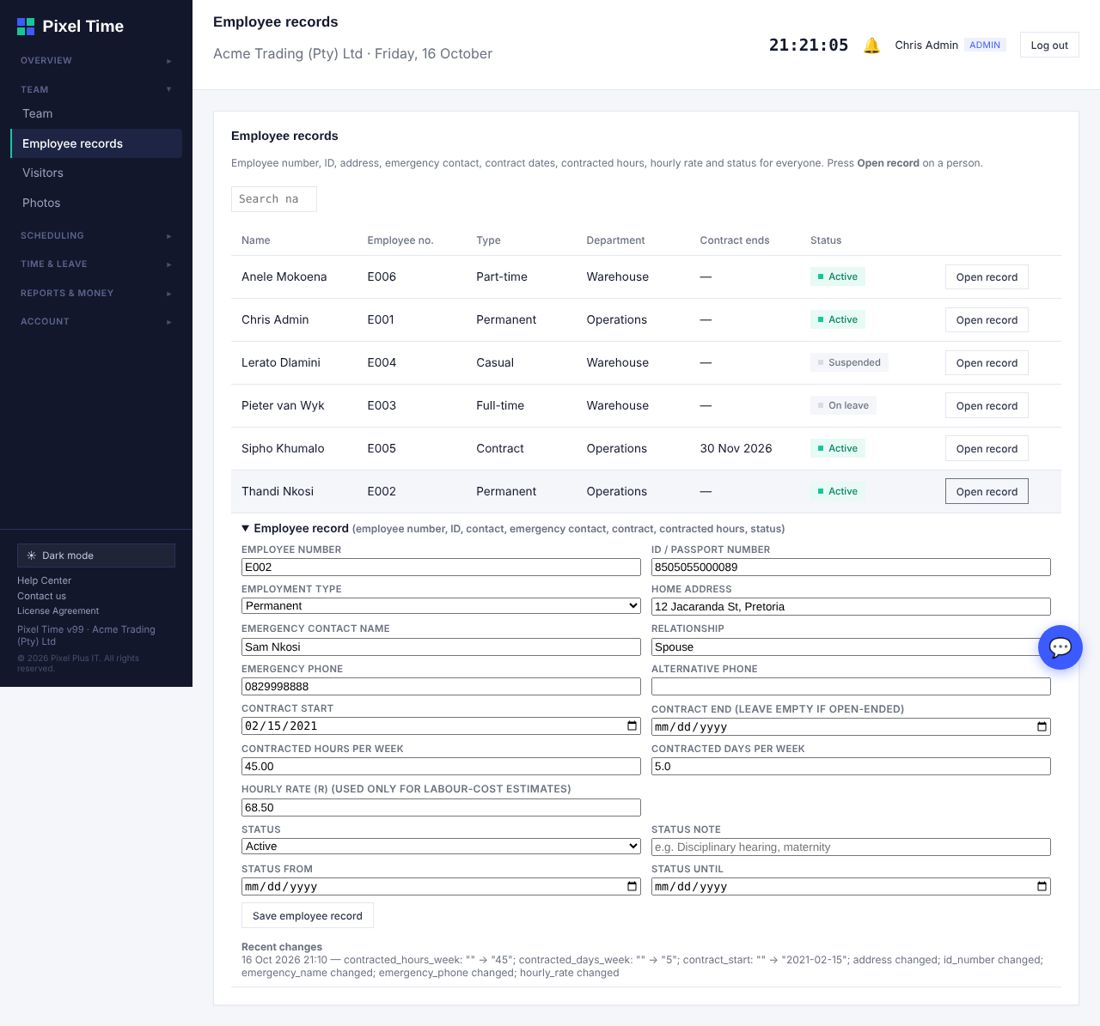
Employee record
Who: Administrators
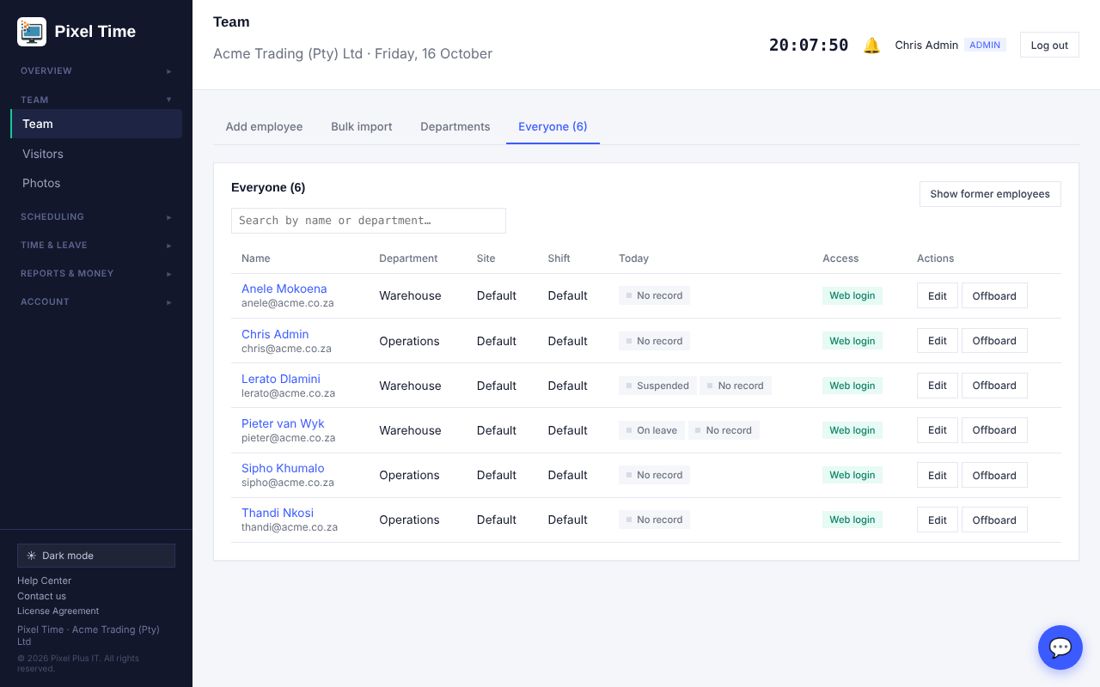
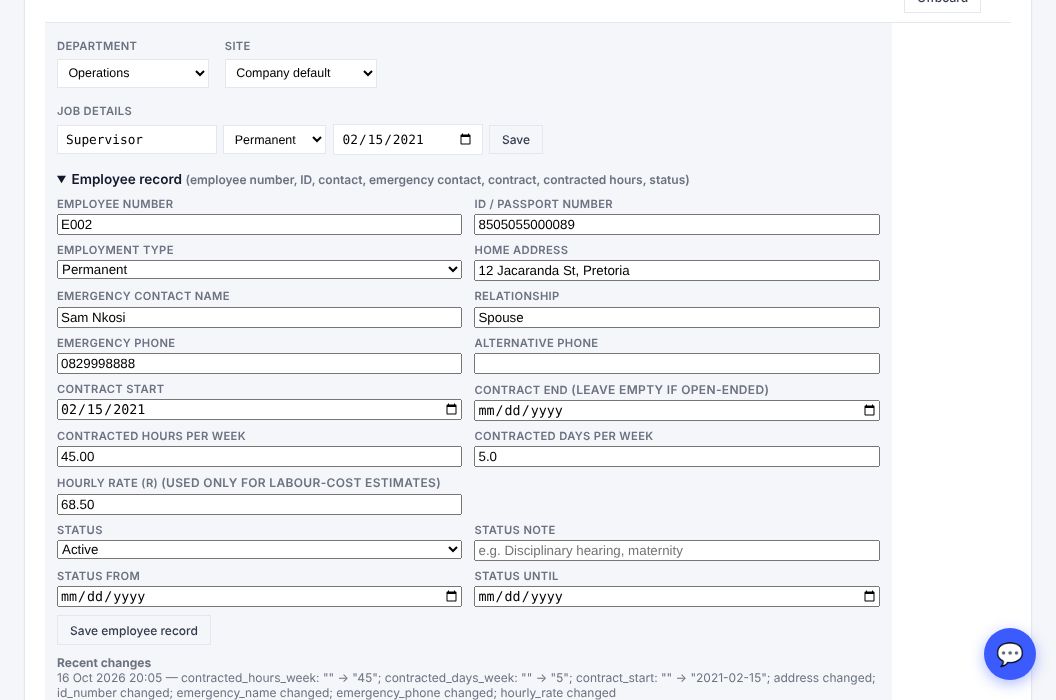
- Go to Team > Employee records in the menu and press Open record on the person (it is also under Team > Everyone > Edit > Employee record).
- Fill in the employee number (unique), ID, address, emergency contact, contract dates, contracted hours, hourly rate and status.
- Suspended and On leave show as badges on the Team list. Use Offboard to remove access, because a suspended person can still clock in.
Leave
Who: Everyone
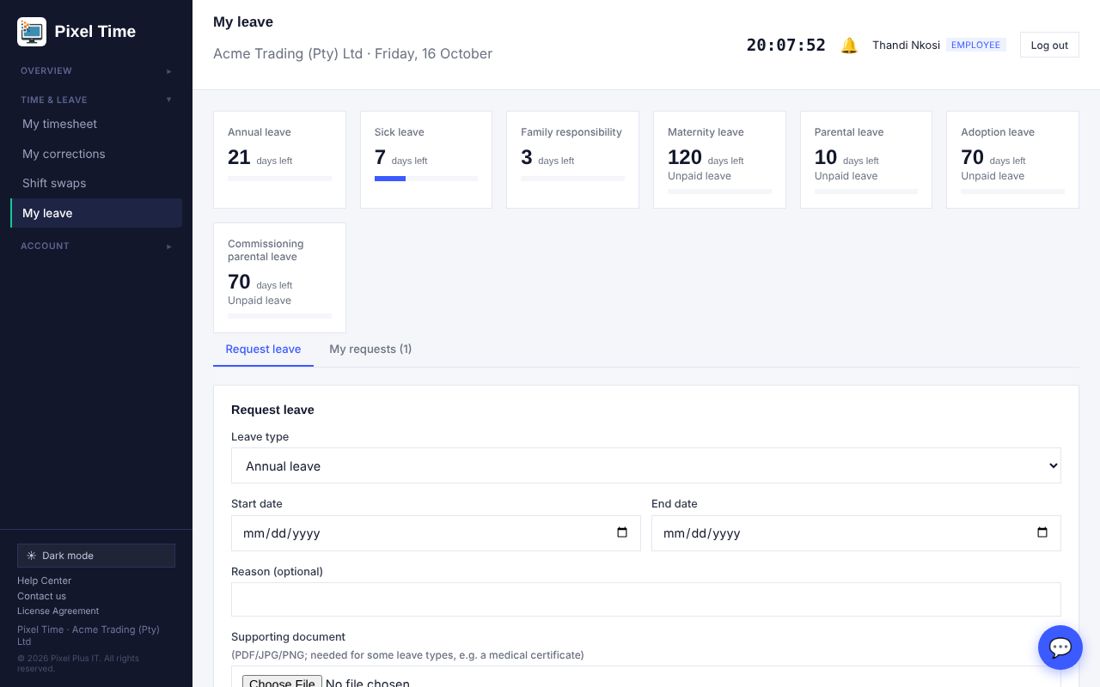
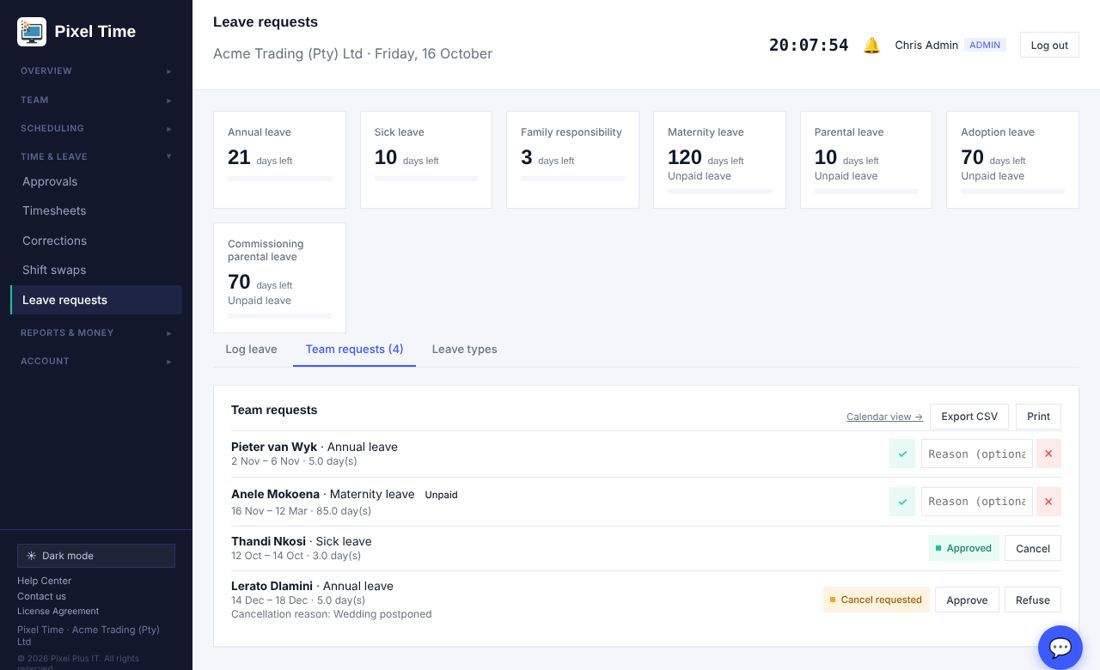
- Employees: My leave > Request leave. Pick the type and dates (weekends and public holidays are not counted) and attach a document if the type needs one.
- Managers and administrators approve or decline, with an optional reason the employee sees. Employees can ask to cancel approved leave.
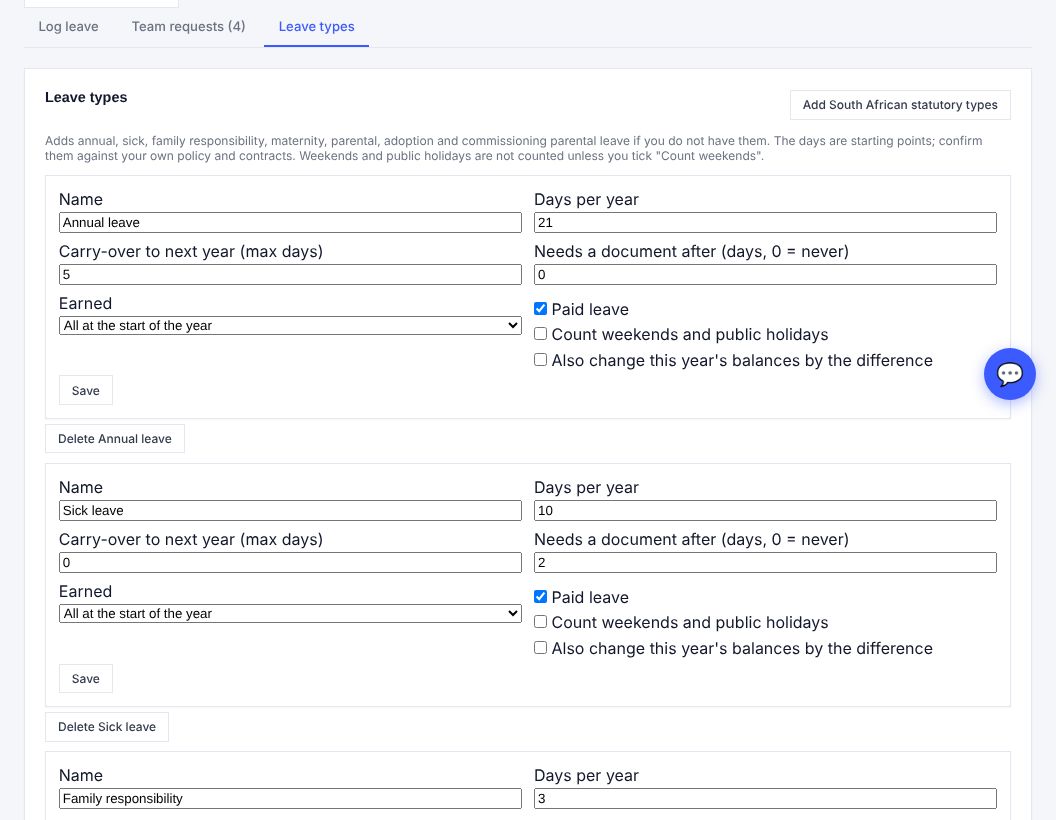
- Administrators: the Leave types tab adds the South African statutory types and sets days, carry-over, monthly earning, paid or unpaid, and when a document is needed.
Pay rules and labour cost
Who: Administrators and auditors
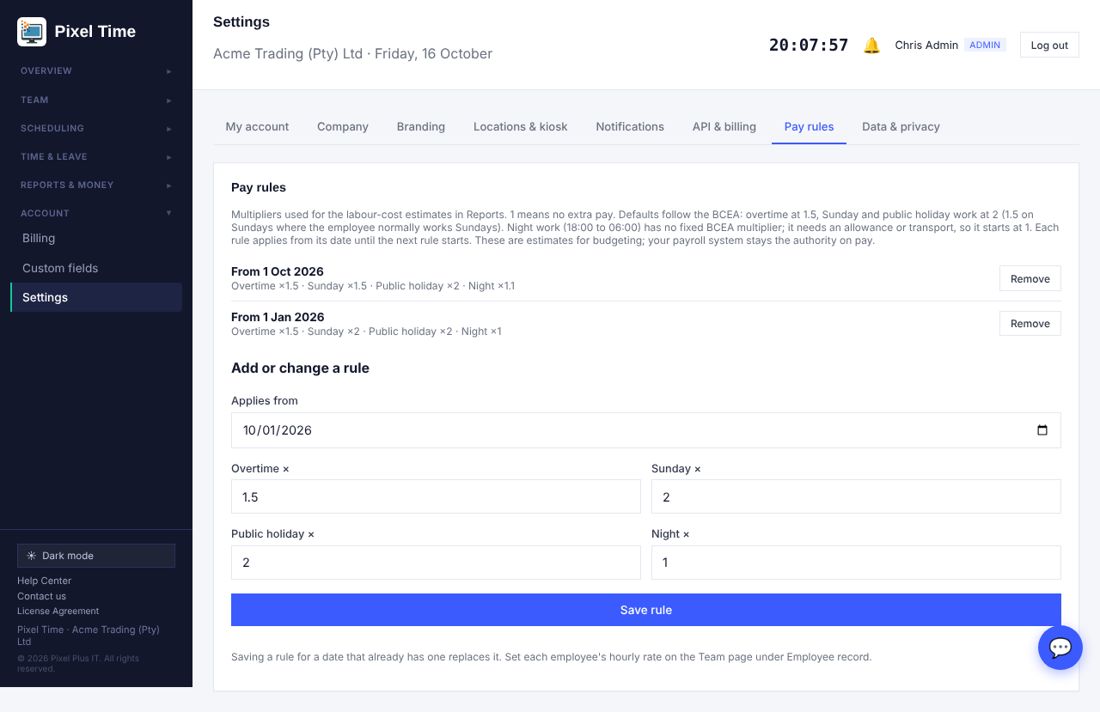
- Go to Settings > Pay rules, choose a start date and set the overtime, Sunday, public holiday and night multipliers.
- Set each hourly rate in Employee record. Labour-cost reports are estimates; your payroll system remains the authority.
More reports
Who: Administrators, managers and auditors
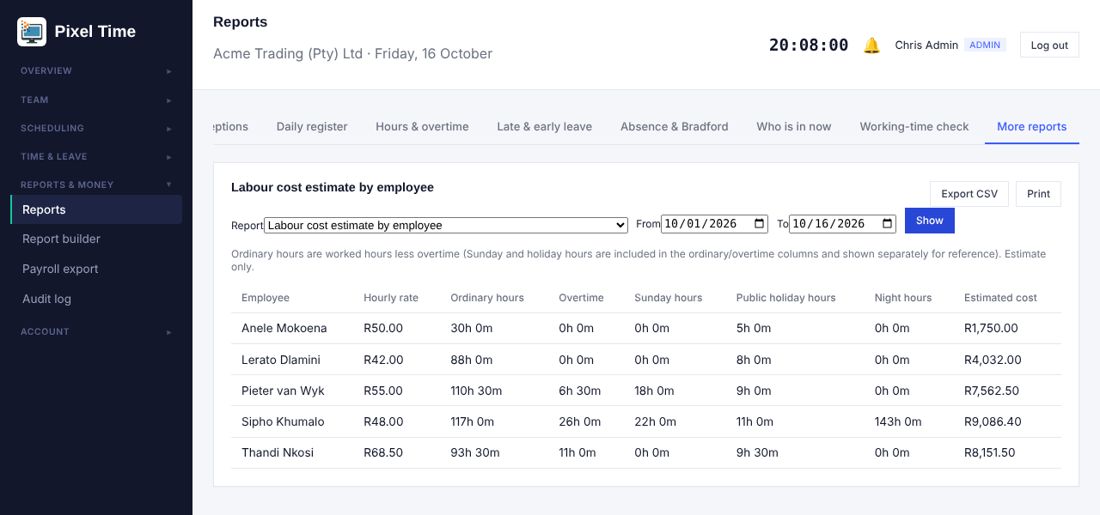
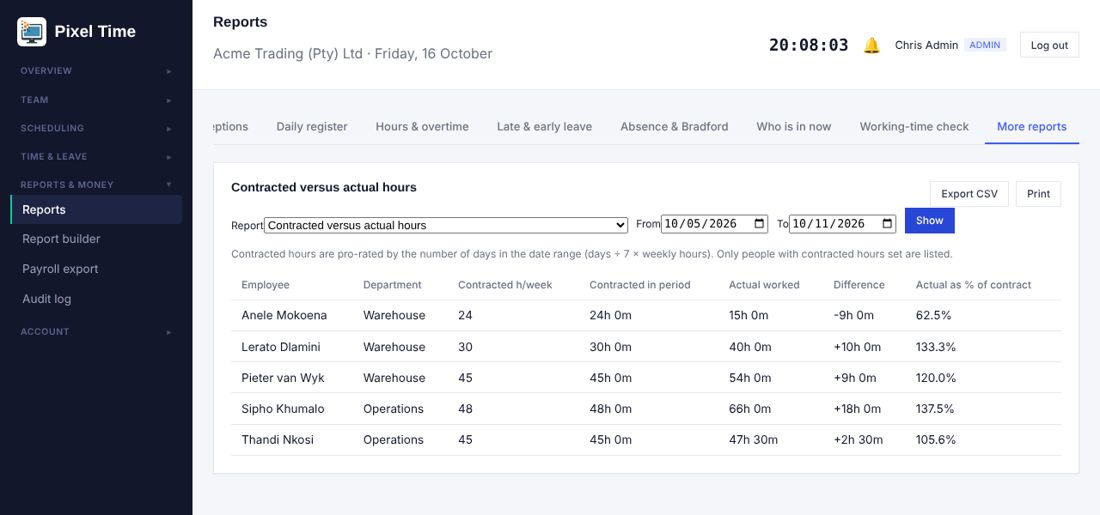
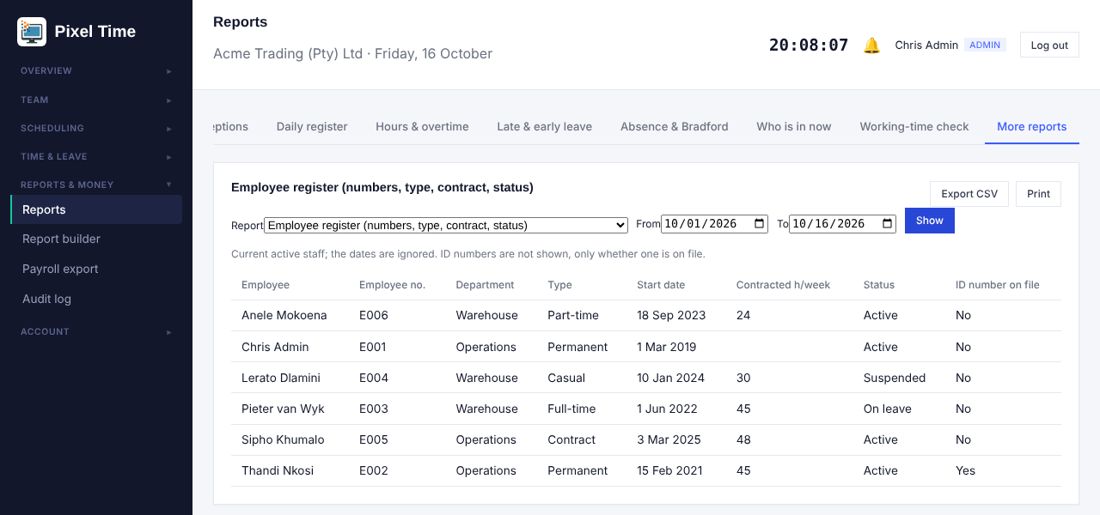
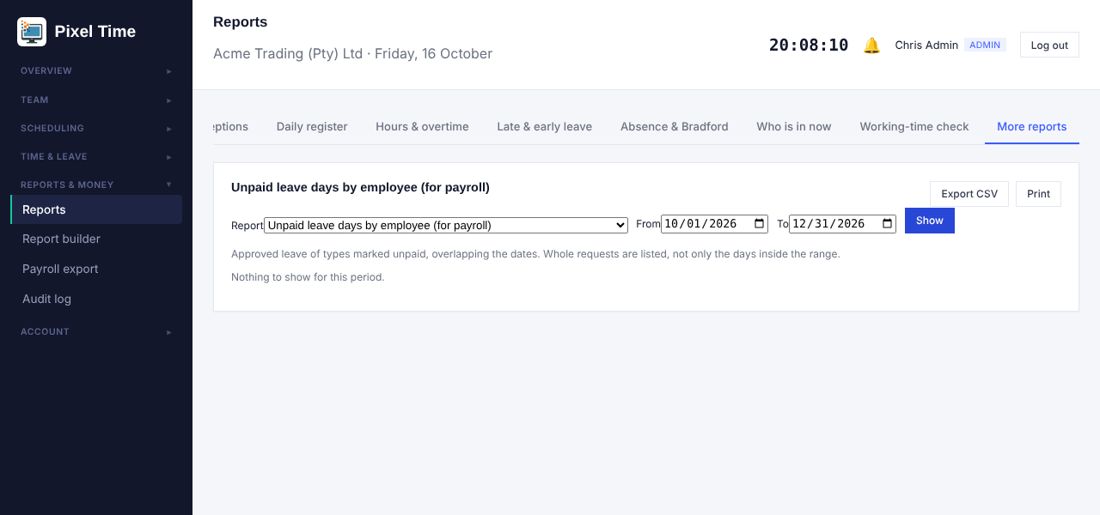
- Open Reports > More reports, choose a report, set the dates and press Show. Export to CSV or print.
- Managers see their own department only. Cost reports are for administrators and auditors.
Payroll export controls
Who: Administrators, managers (own department) and auditors
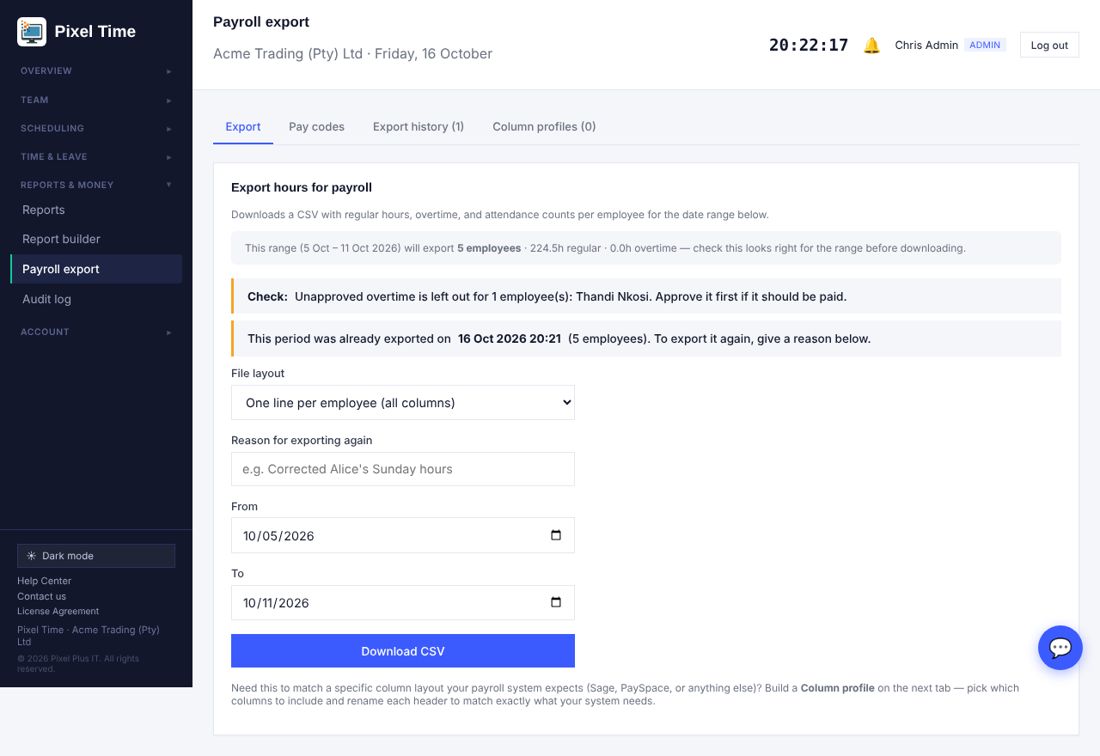
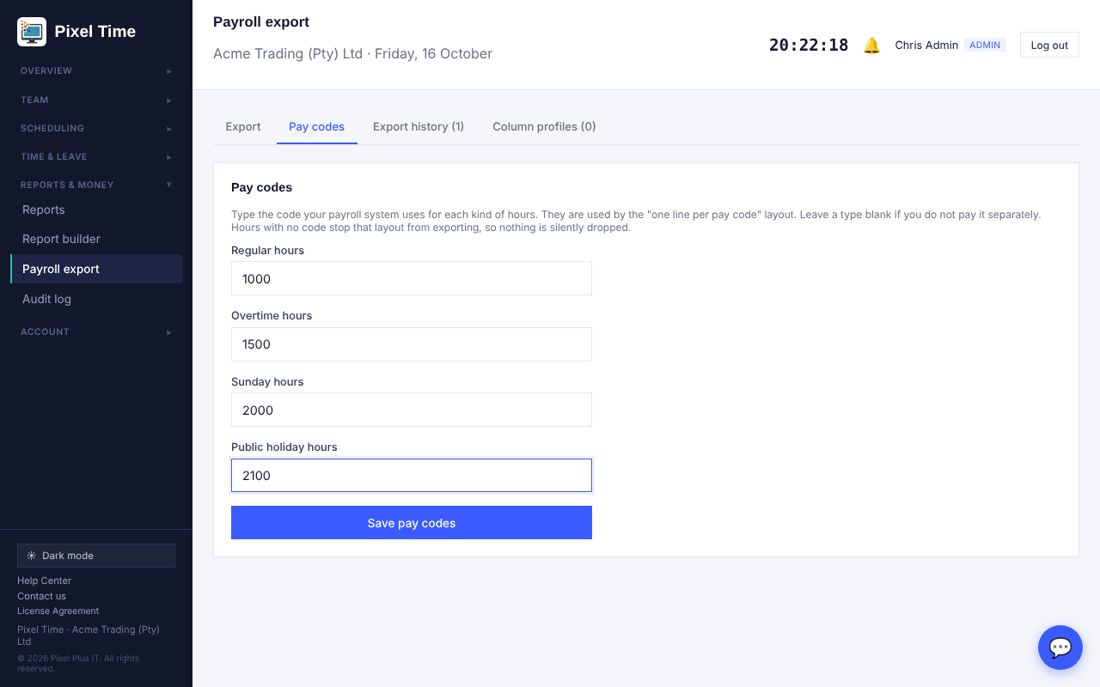
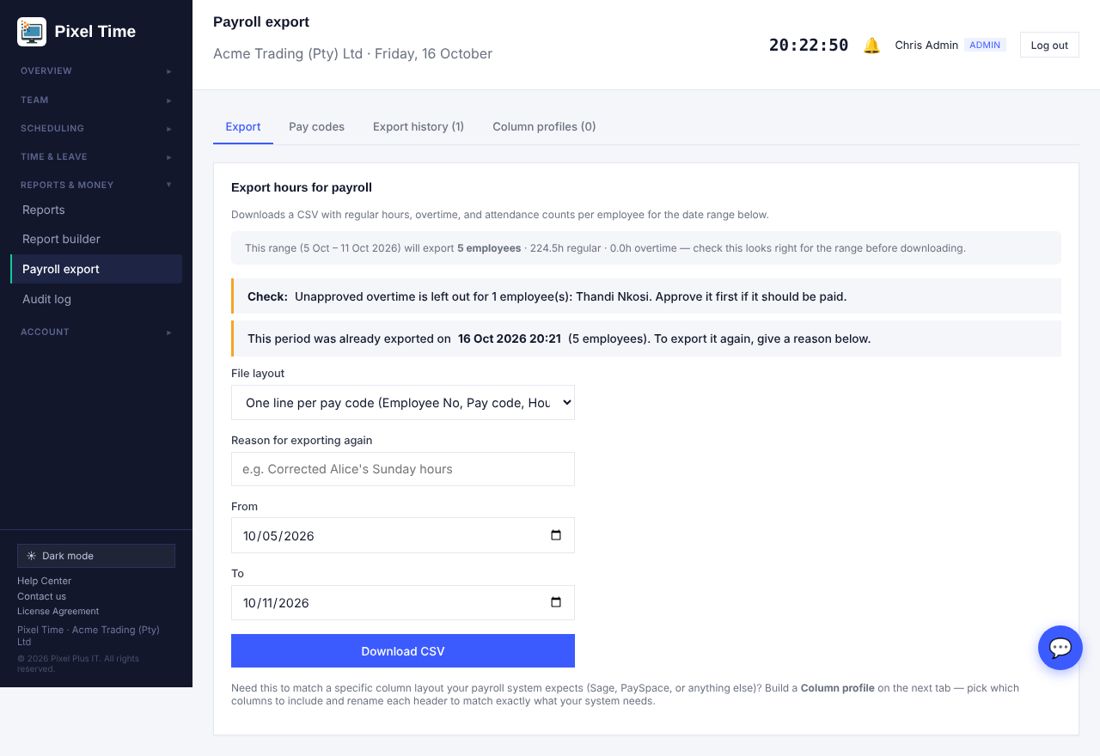
- Pick the dates on Payroll export. The page lists what must be fixed first (missing or duplicate employee numbers, hours with no pay code) and what to check (unapproved overtime).
- Set your payroll system's codes on the Pay codes tab and choose "One line per pay code".
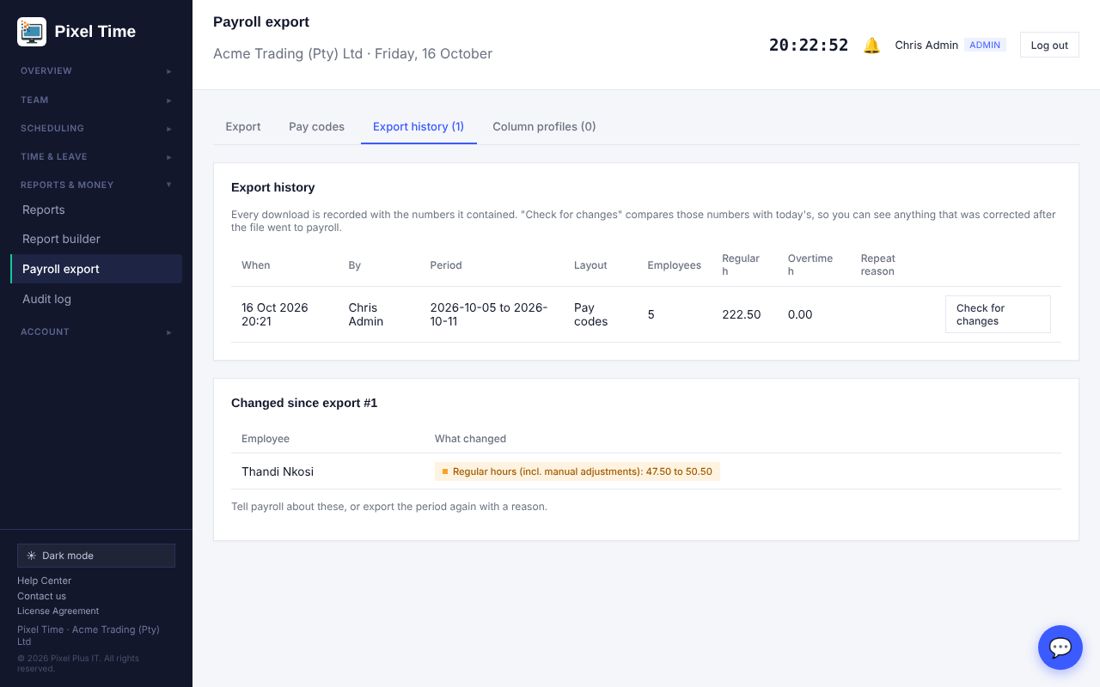
- A period that was already exported asks for a reason before it exports again. Export history > Check for changes shows whose hours were corrected after export.
6. Alerts
Who: administrators set the rules and see every alert. Managers are told about their own department.
Switch checks on and set the numbers
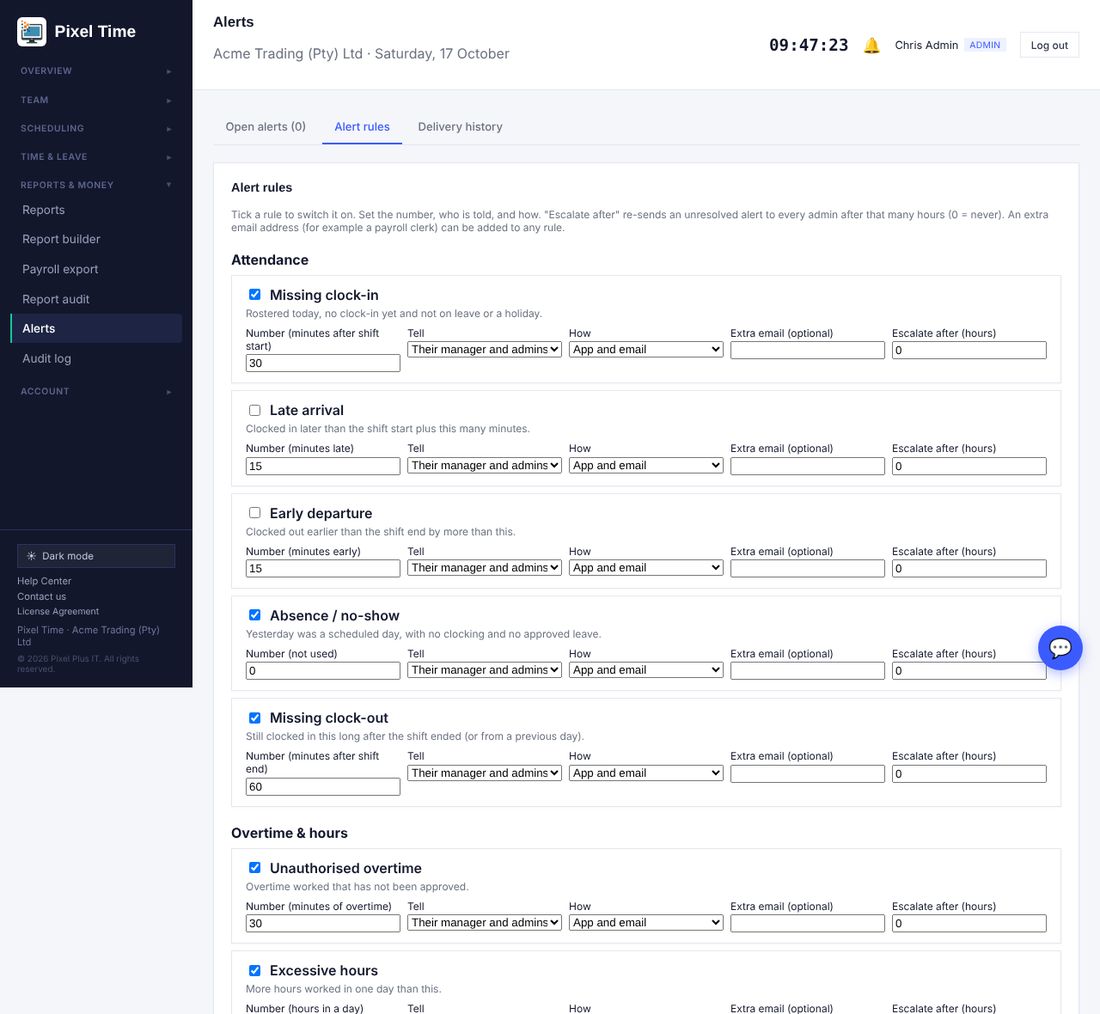
- Open Alerts in the menu (Reports & money), then the Alert rules tab.
- Tick each check you want. Set the number (for example 30 minutes after shift start).
- Choose who is told: the manager and admins, admins only, or the employee. Choose app, email or both.
- Optional: add an extra email address (for example a payroll clerk) and an Escalate after time, in hours. An alert nobody resolves is then sent to every admin again.
- Set the payroll cut-off day of the month at the bottom, then press Save alert rules.
Work through open alerts
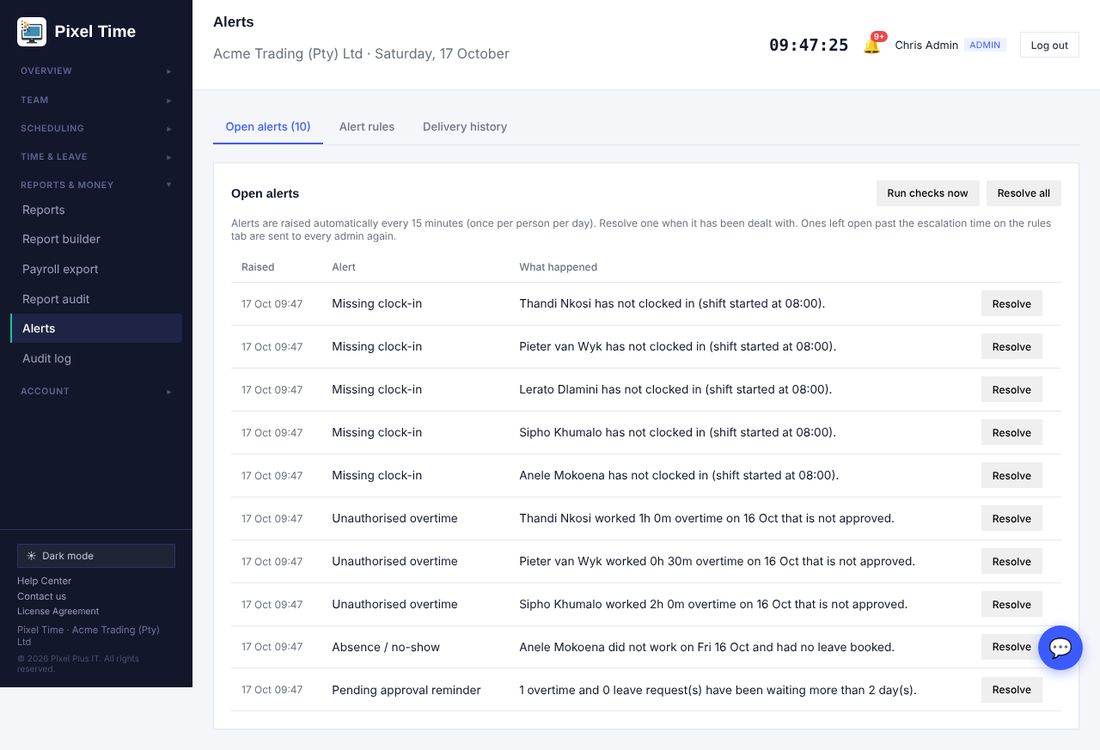
- Checks run every 15 minutes and raise each alert once per person per day. Run checks now does it straight away.
- The checks cover missing clock-in and clock-out, late arrival, early departure, absence, unauthorised and excessive overtime, rest period, missed break, pending approvals, payroll cut-off, contract expiry, upcoming shifts, roster changes, uncovered shifts, failed reports, clocking exceptions and offline devices.
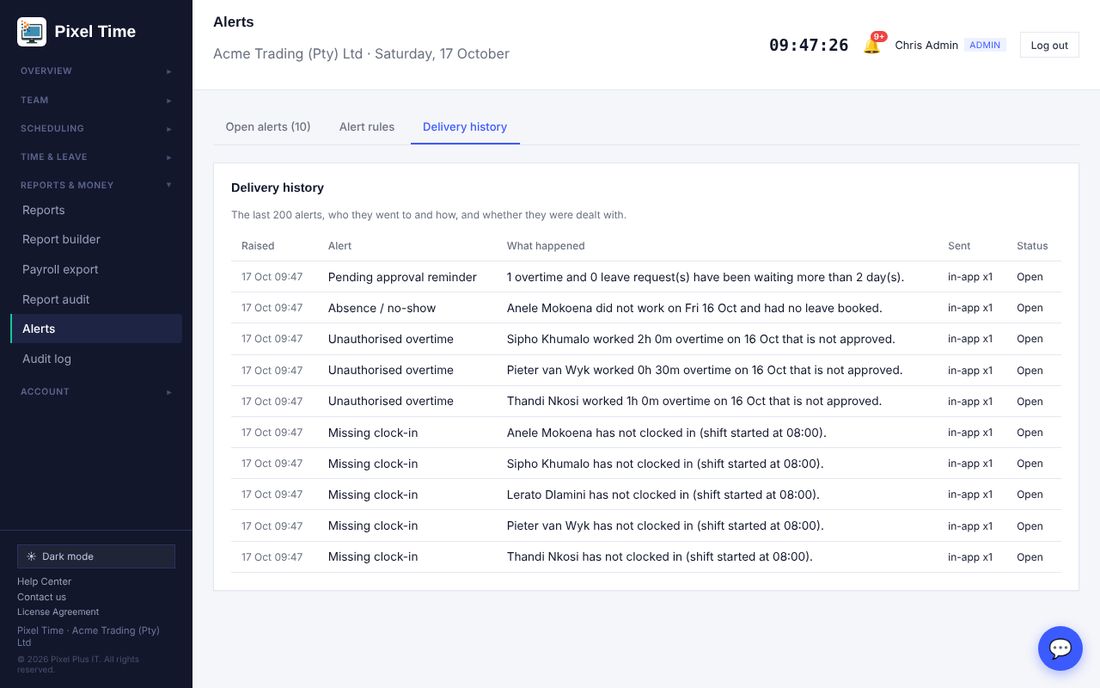
- The Delivery history tab shows what was sent, to whom and when.
7. Roster planning
Who: administrators and managers (own department). Only administrators set staffing levels.
Coverage and staffing
- Open Roster planning (Scheduling menu, or the link at the top of the Roster page).
- On Coverage & staffing choose one week, two weeks or a month.
- Type the minimum and maximum people each shift needs, then save (administrators).
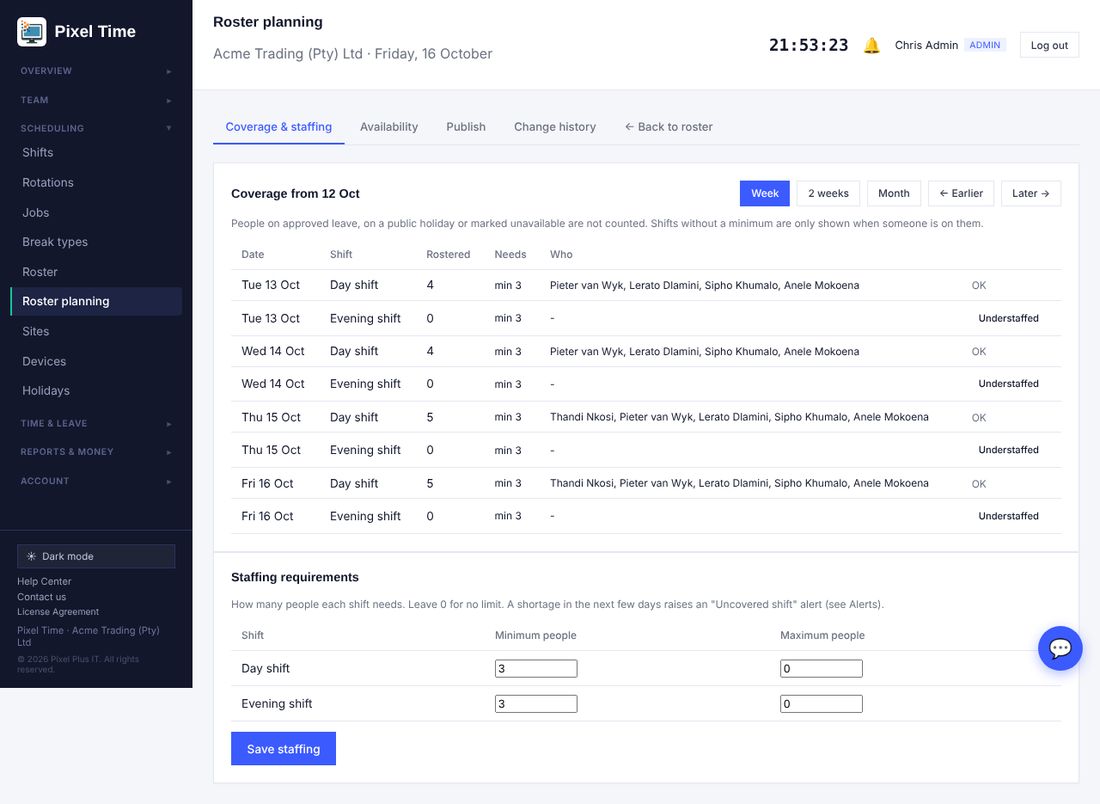
- People on leave, on a public holiday or unavailable are not counted.
- A shift that is short in the next few days also raises an Uncovered shift alert.
Availability and days off
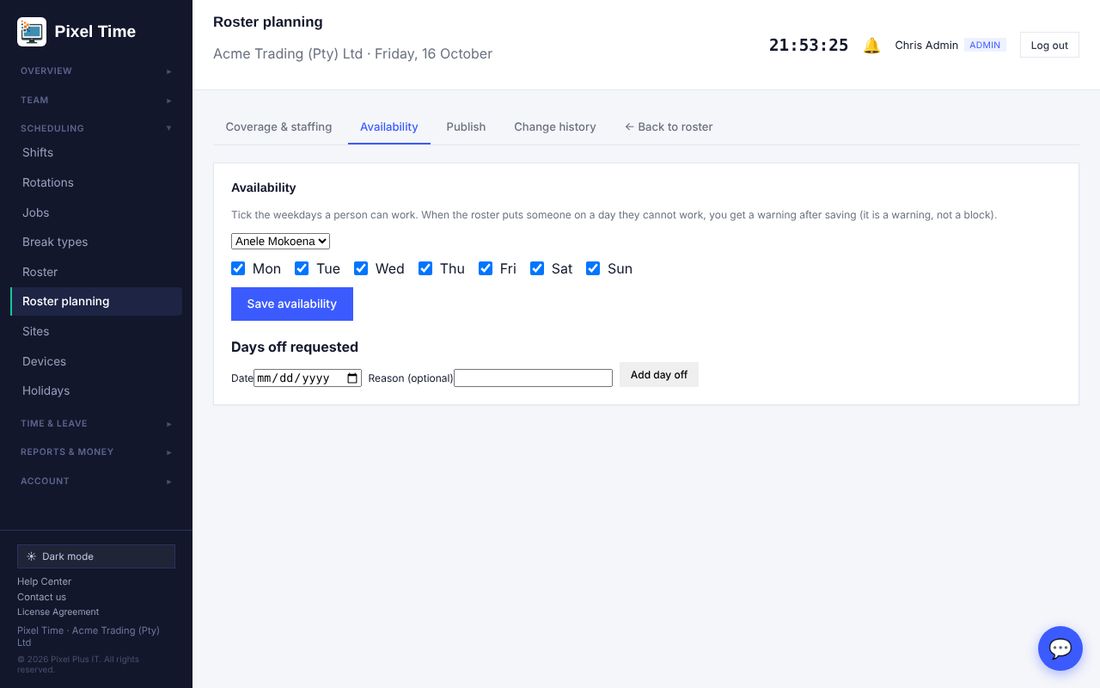
- If you roster someone on a day they cannot work, the Roster page saves it but warns you: "Check availability".
Publish and change history
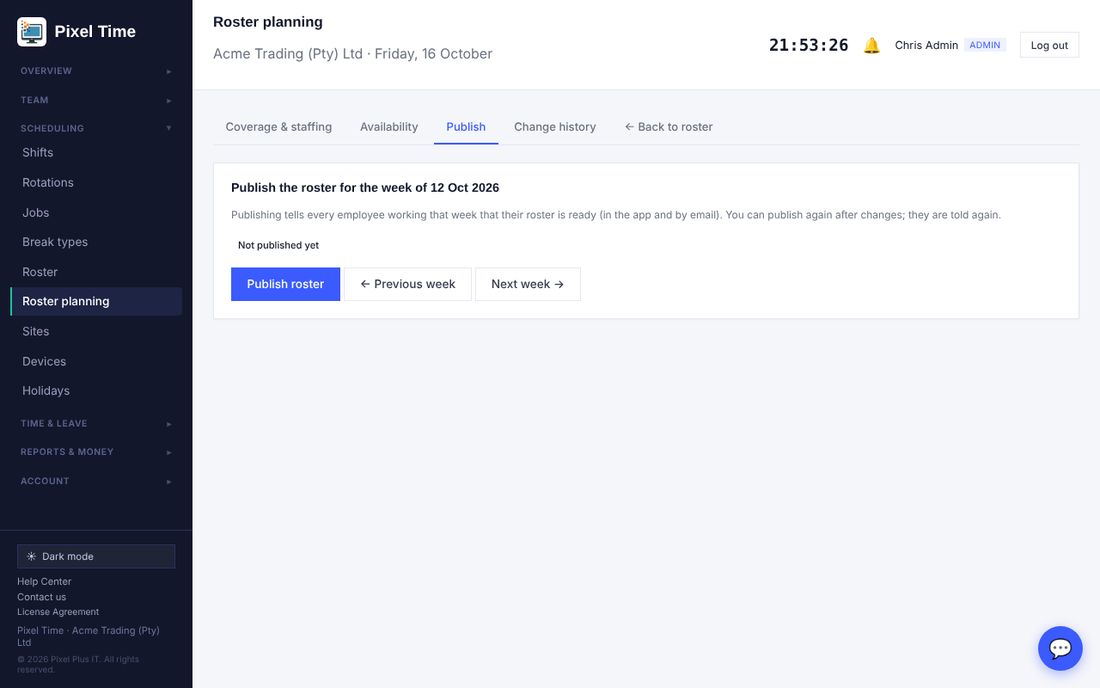
- Change history lists every roster change: who changed it, which day, and from what to what.
- An employee whose shifts change after publishing gets a Roster change notice.
8. Report audit and delivery
Who: administrators only.
Delivery history
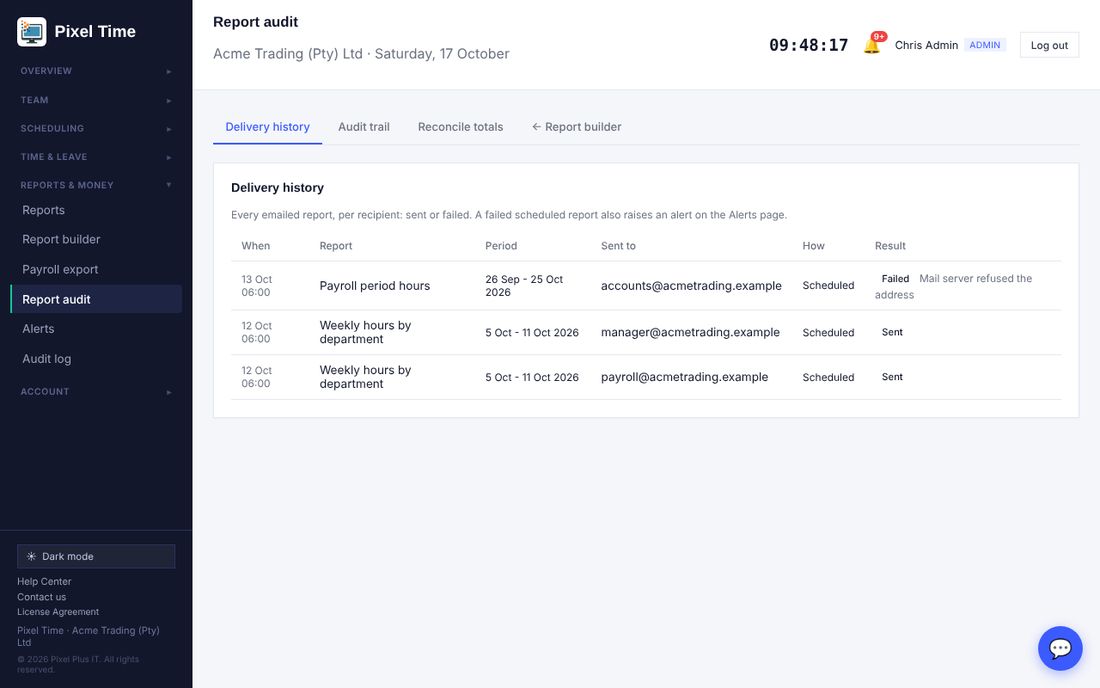
- A failed scheduled report also raises a Report failed alert.
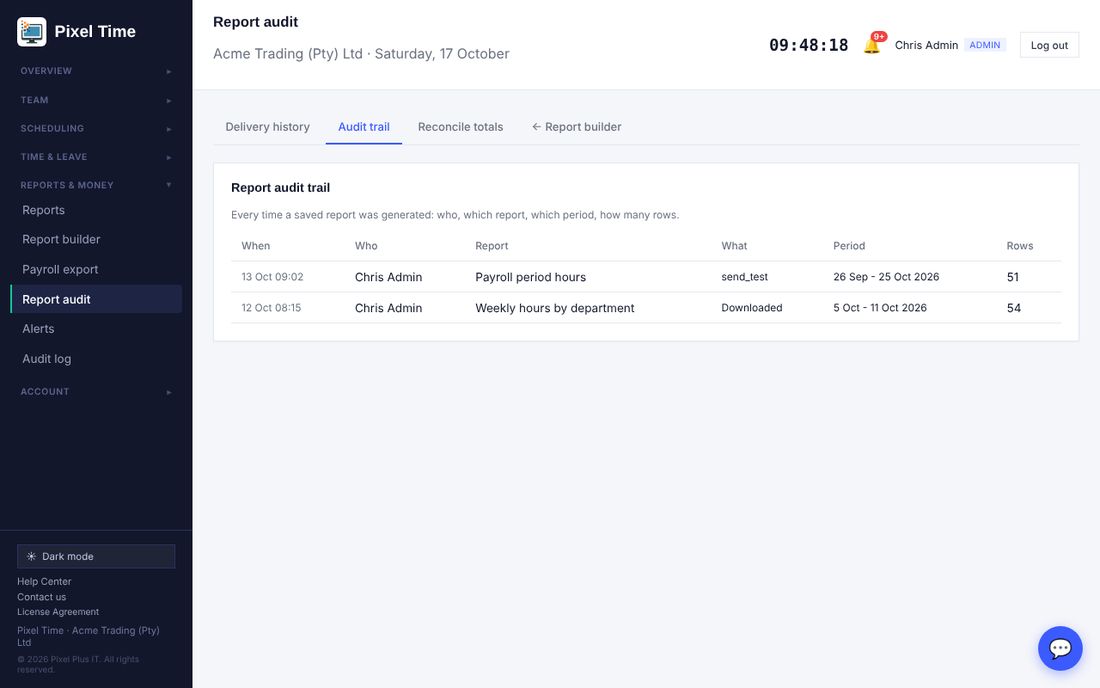
Audit trail
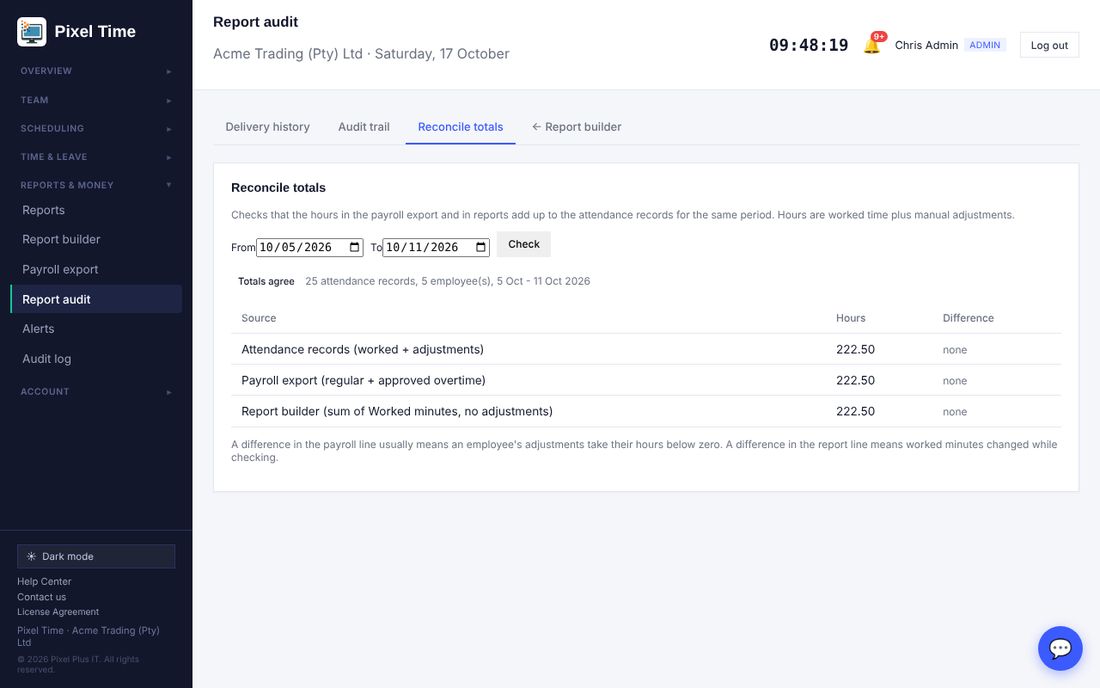
Reconcile totals
Send a report on payroll cut-off day
- Open Report builder and save the report you want.
- In the schedule list choose On the payroll cut-off day (pay period).
- The report is emailed for the pay period that just ended. The cut-off day is set on the Alerts page.
9. Clocking integrity
Who: administrators see everyone. Managers see their own department.
Exceptions
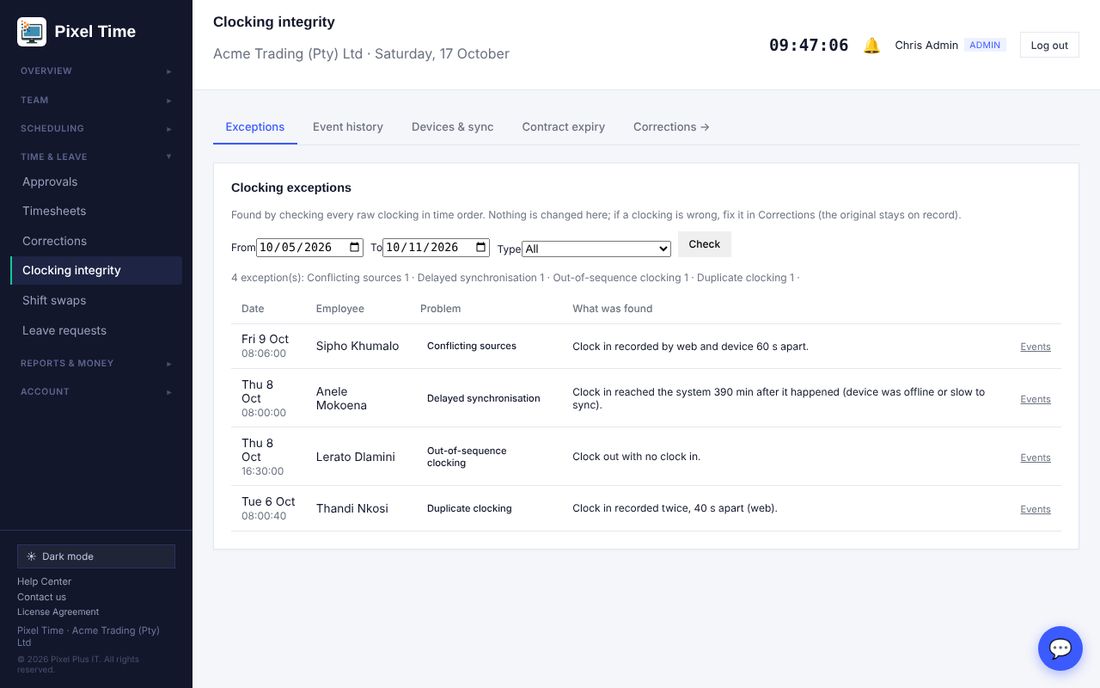
- Open Clocking integrity (Time & leave). Choose the dates and press Check.
- Each line is a problem found by checking every raw clocking in time order.
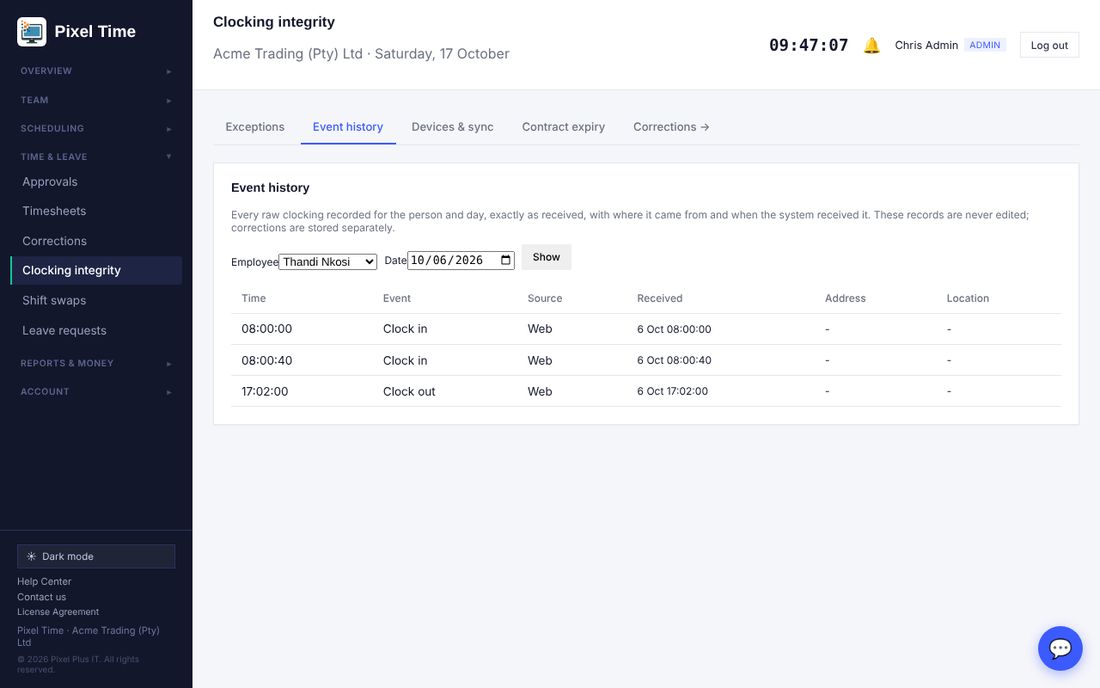
- Press Events to see the person and day in full, then fix a mistake in Corrections. The original clocking stays on record.
Event history
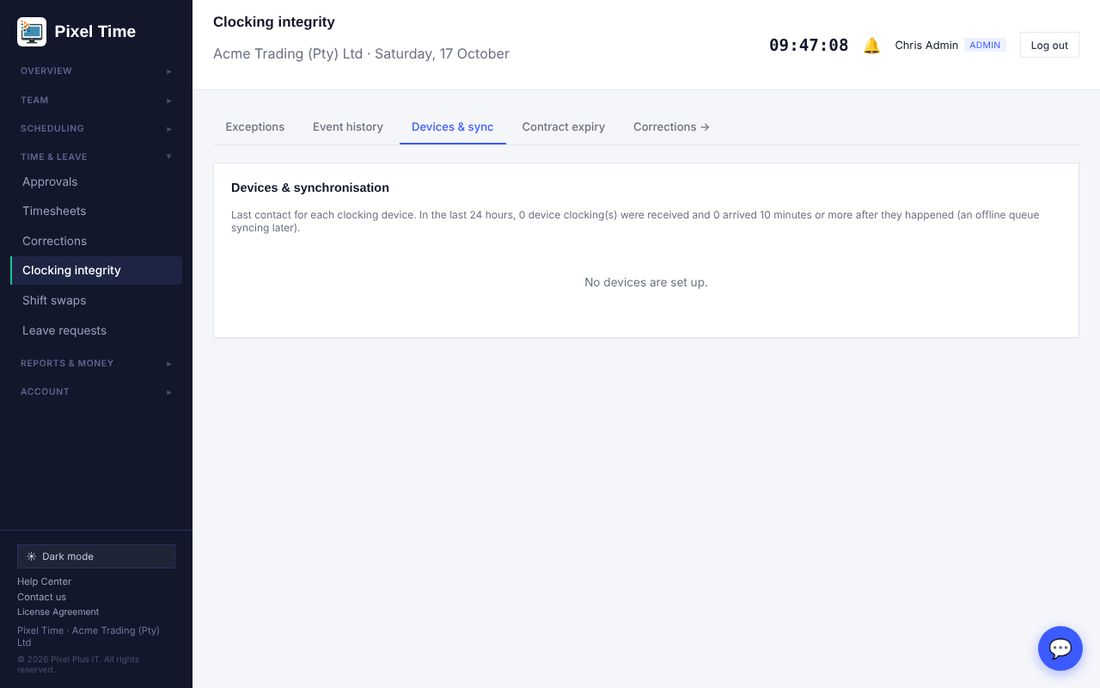
Devices and sync
- Contract expiry lists contracts ending in the next 90 days.
10. Overtime requests
Who: employees ask. Managers and administrators approve, change or decline. Administrators set limits and budgets.
Employees: ask before you work it
- Open My overtime (Time & leave).
- Choose the day, the hours and a short reason, then press Send request.
- Your manager and the administrators are told. You are told when it is approved, changed or declined.
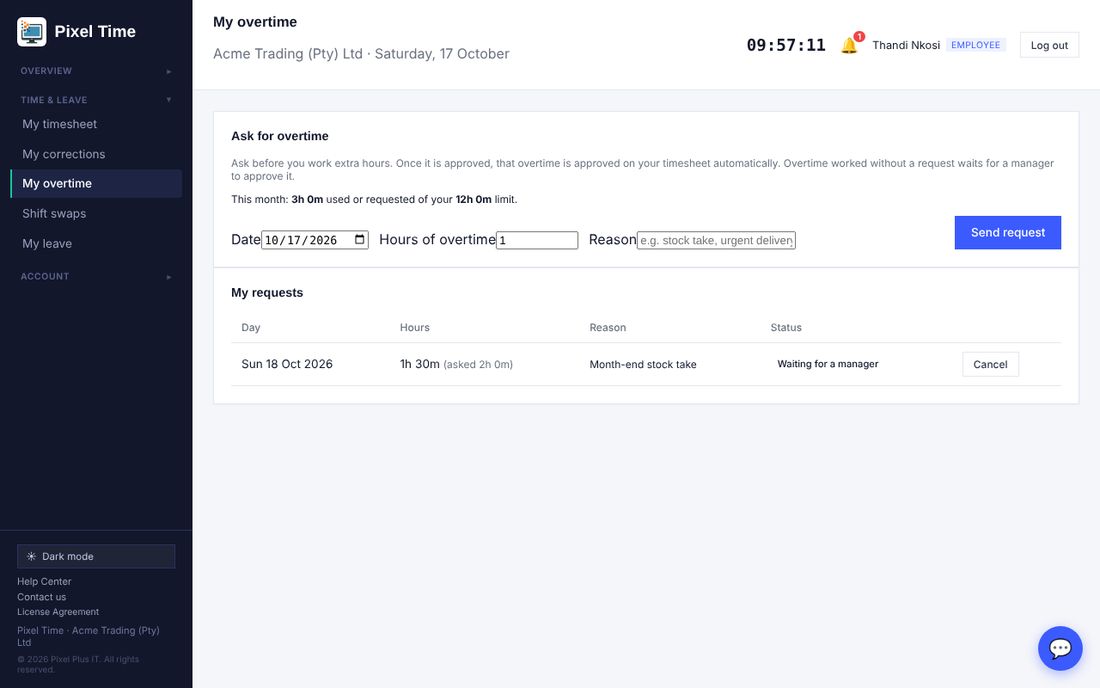
- Once a request is approved, the overtime you work that day is approved on your timesheet automatically, up to the hours approved.
- Overtime worked without a request still waits for a manager to approve it.
- If a monthly limit is set and the request would go over it, the page says so and the request is not sent.
Managers and administrators: decide
- Open Overtime, or Approvals, where requests appear with leave and corrections.
- Press Approve or Decline. Type a reason when declining; the employee sees it.
- To change the hours, type the new hours and a reason, then press Change hours. The change is kept in the history.
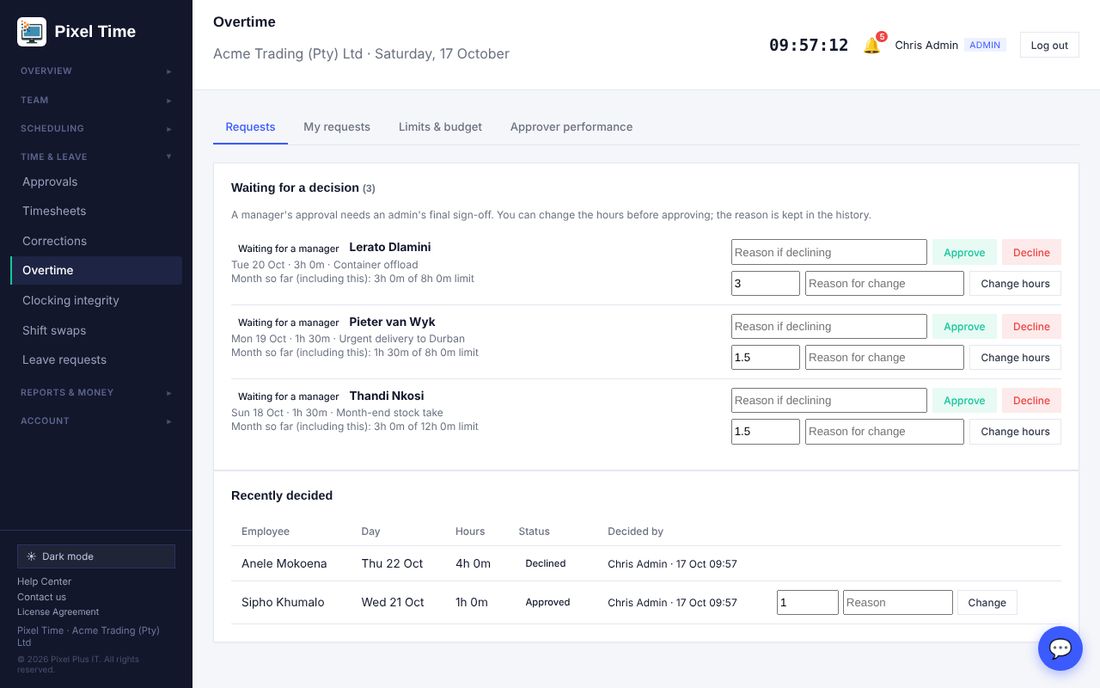
- A manager's approval needs an administrator's final sign-off, the same as corrections.
- Only an administrator can change a request that is already approved.
Limits and budget
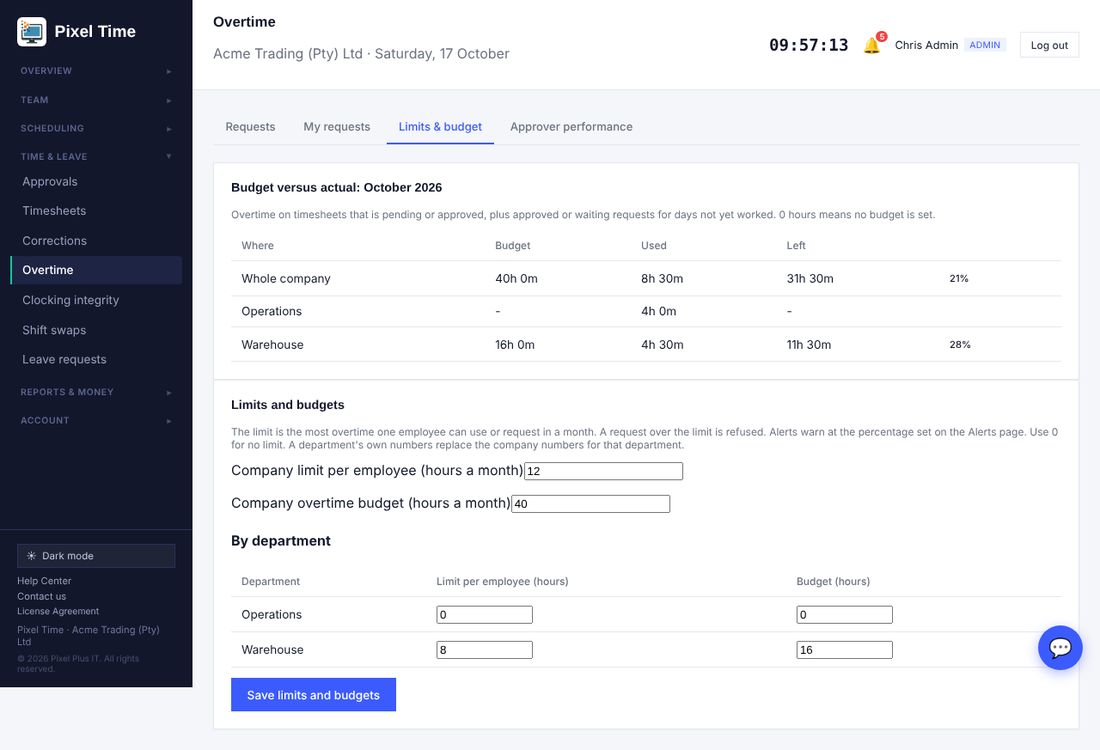
- The limit is the most overtime one employee can use or request in a month. A department's own numbers replace the company numbers for that department. Enter 0 for no limit.
- The budget is the overtime hours the company, or a department, plans to spend each month.
- On the Alerts page, Overtime near monthly limit and Overtime budget warning tell you when 80% (or the percentage you choose) is reached. Pending approval reminder now includes overtime requests nobody has decided.
Approver performance
11. Leave balances, history and rules
Who: administrators change things. Managers see their own department. Auditors see everyone. The liability estimate is for administrators and auditors only.
Balances on any date
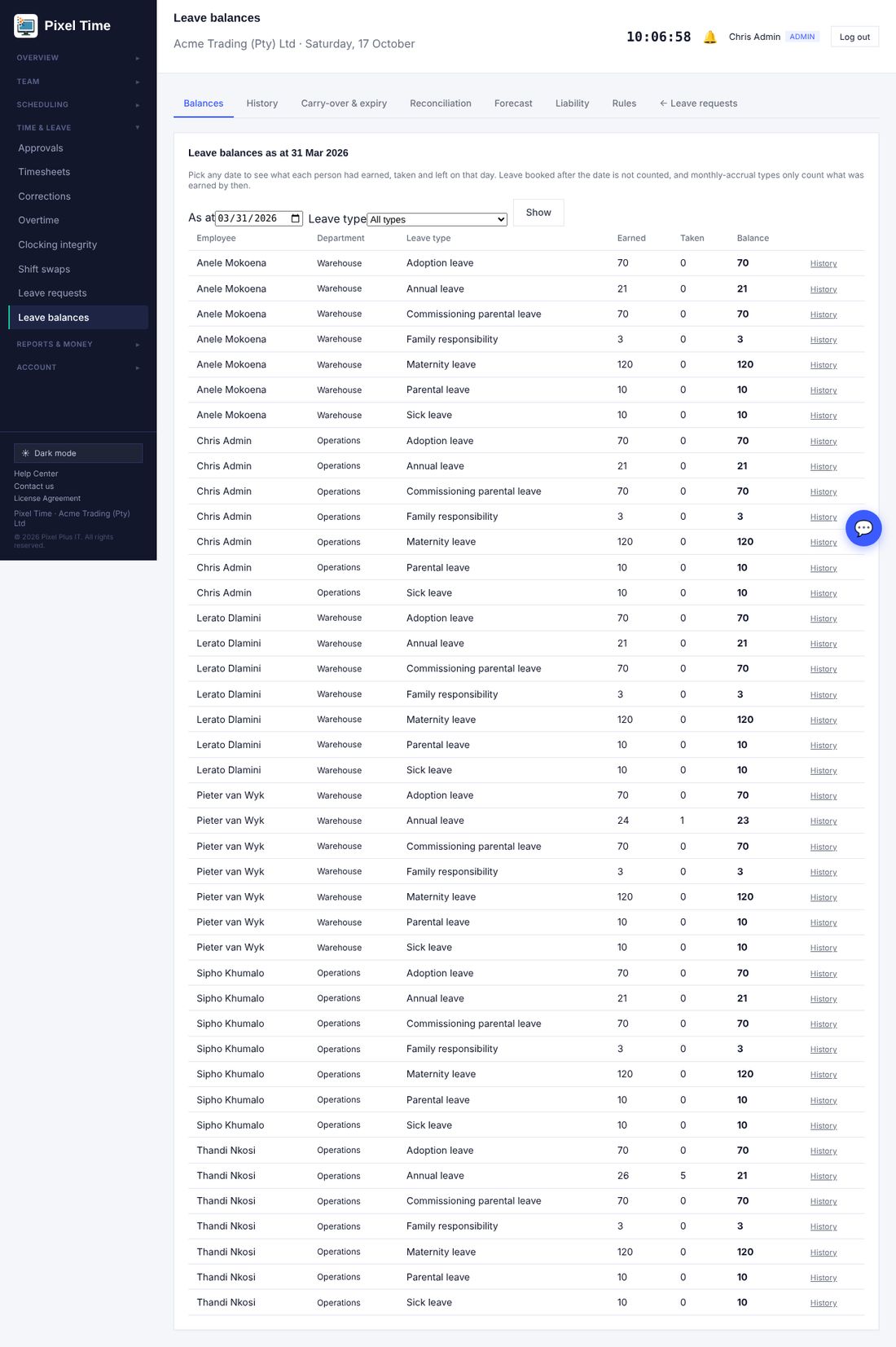
- Choose a date and, if you like, one leave type, then press Show.
- Each person shows what they had earned, taken and left on that day. Leave booked after the date is not counted.
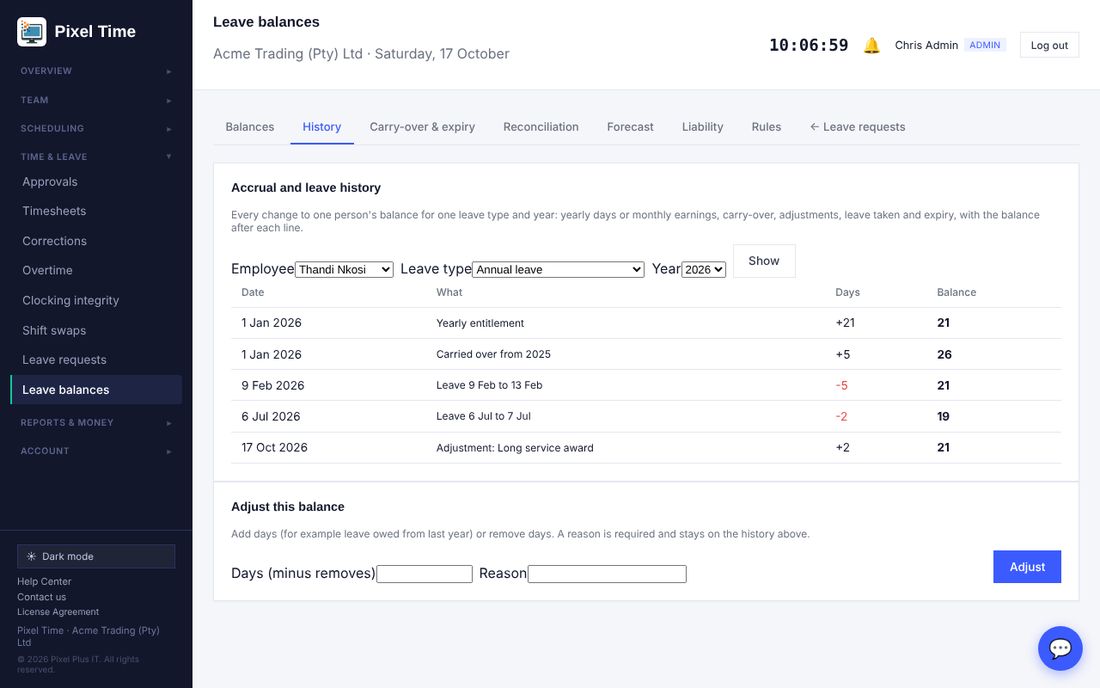
History for one person
- Choose the employee, leave type and year.
- Every line is shown with the balance after it: yearly days (or monthly earnings), carry-over, adjustments, leave taken and expired days.
- Administrators can add or remove days at the bottom. A reason is required and stays on the history.
Carry-over and expiry
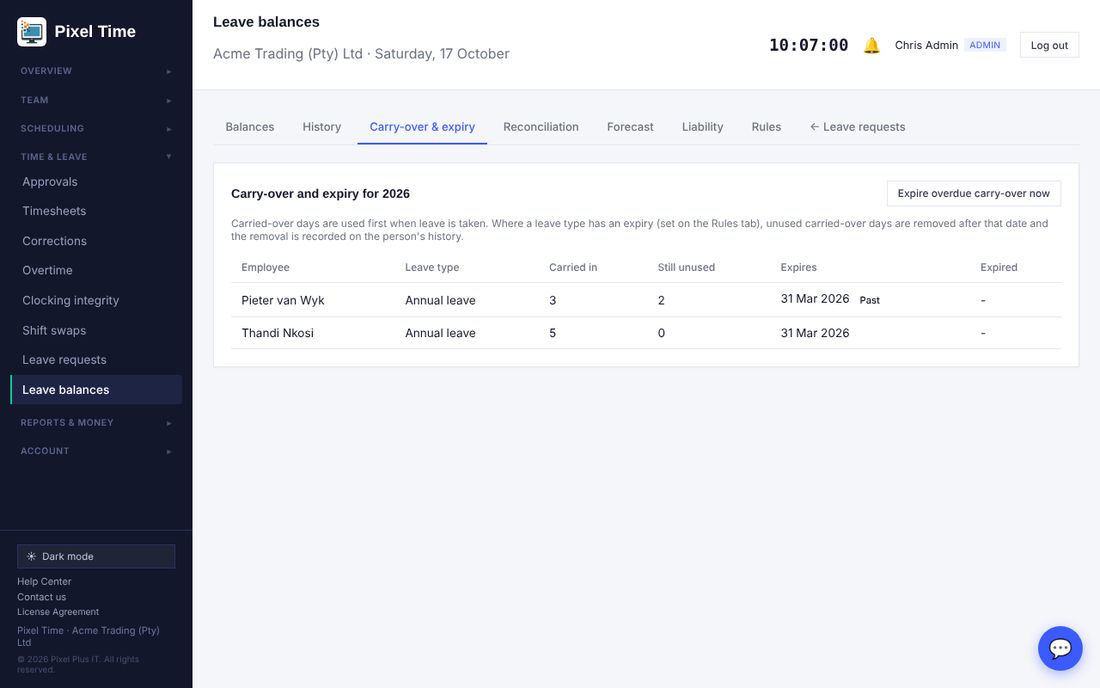
- Carried-over days are used first when leave is taken.
- Set how many months after 1 January carried-over days expire on the Rules tab. After that date, Expire overdue carry-over now removes the unused days. It is recorded on the person's history.
- The Alerts page has a Leave about to expire check that warns before the date.
Reconciliation
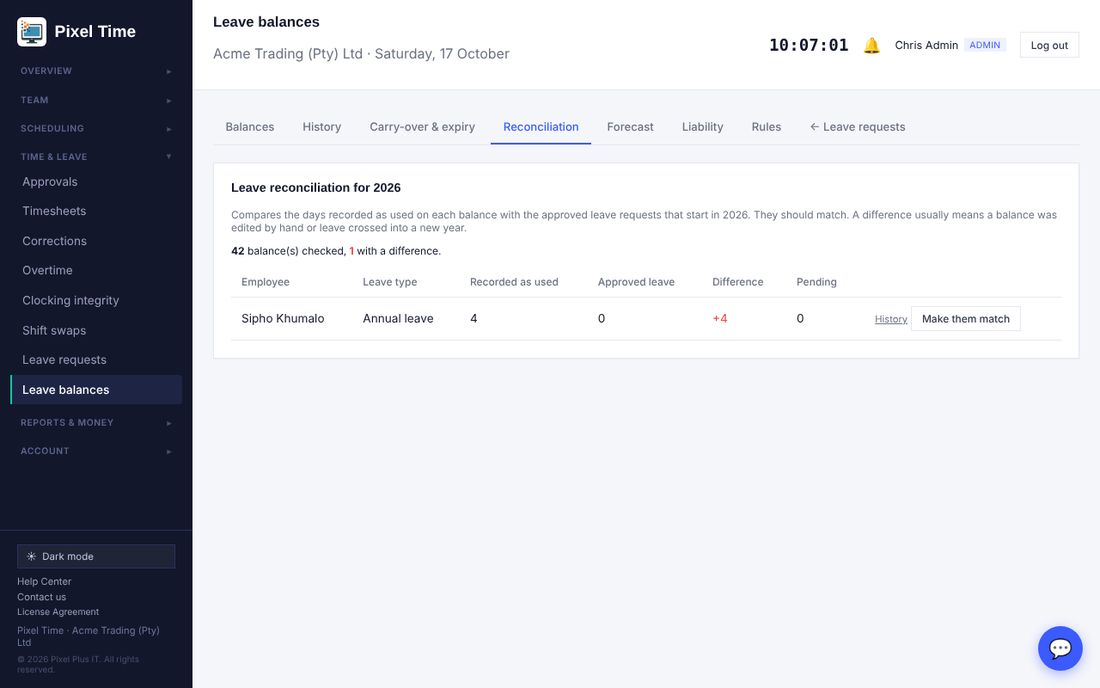
- The two should match. A difference usually means a balance was edited by hand or leave crossed into a new year.
- Make them match sets the used days to the approved leave. Check the history first.
Forecast
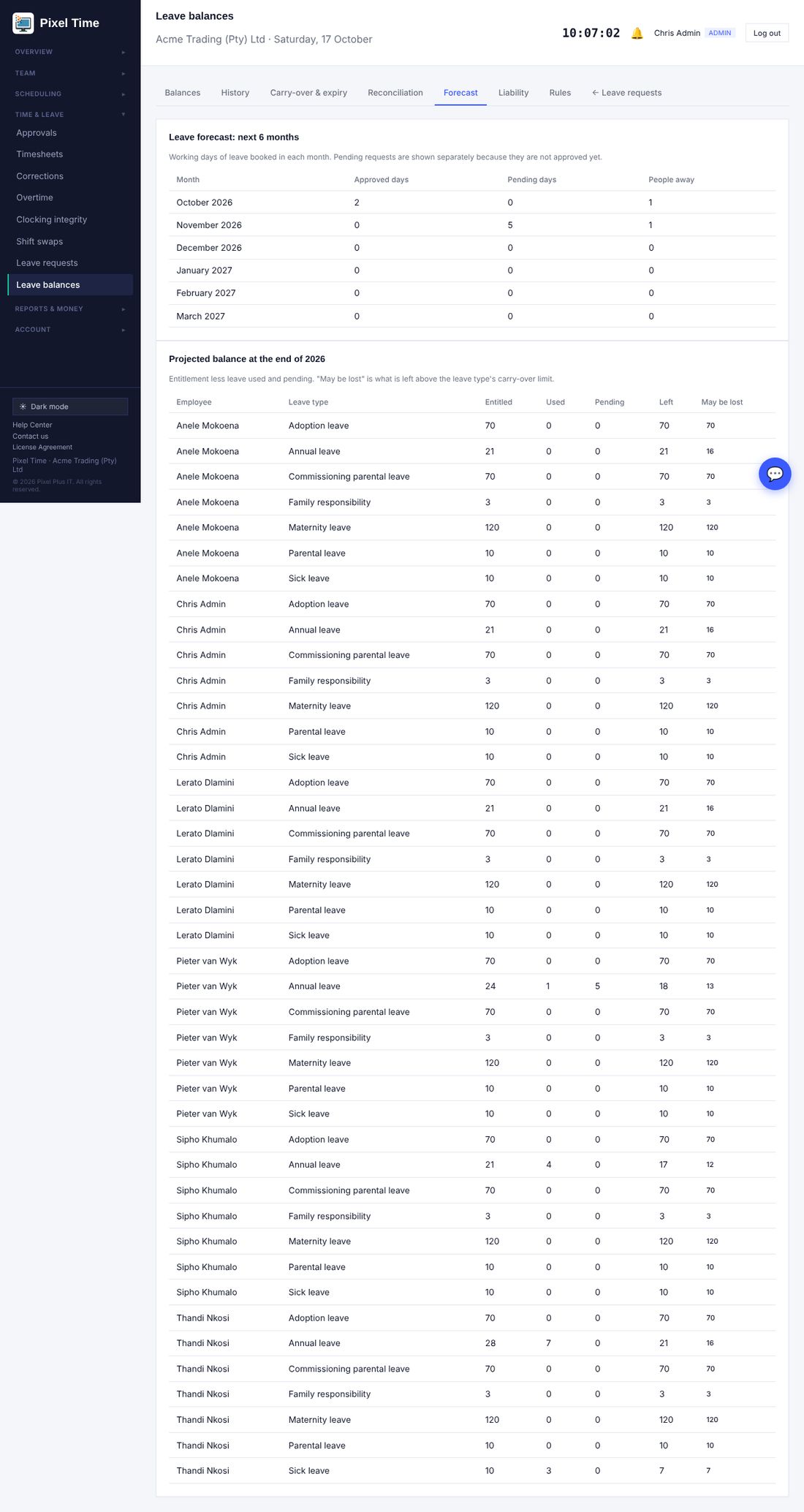
- May be lost shows days left over the leave type's carry-over limit.
Liability estimate
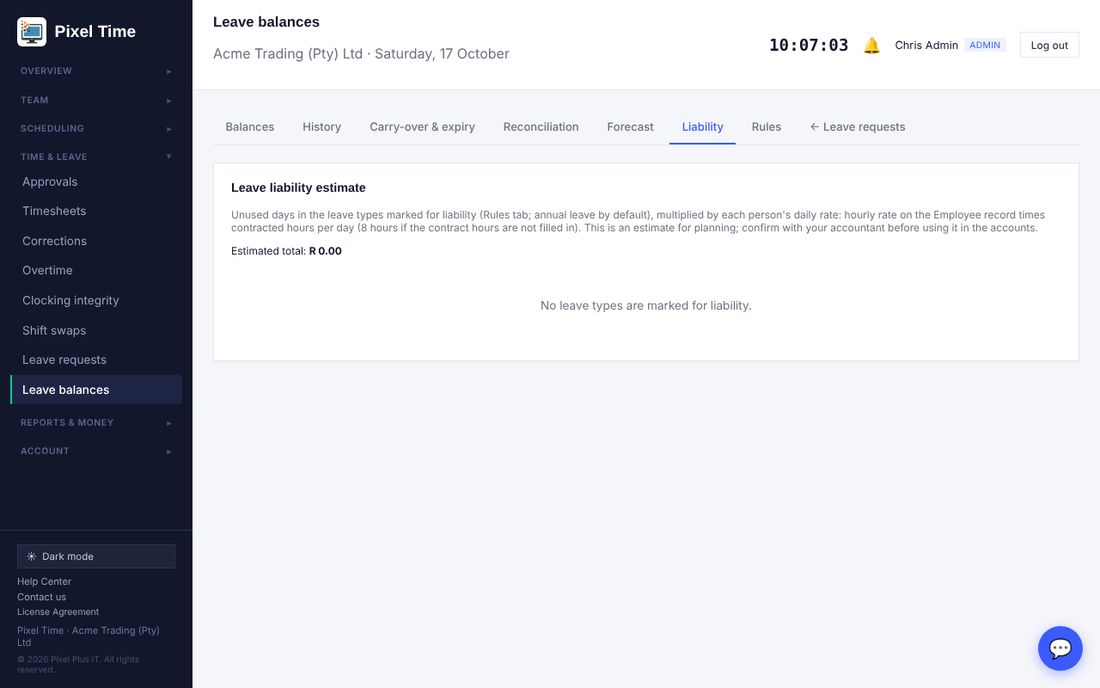
- The daily rate is the hourly rate on the Employee record times the contracted hours per day (8 hours is assumed when contract hours are blank).
- People with no hourly rate are left out and counted. This is an estimate for planning, not an accounting figure.
Rules
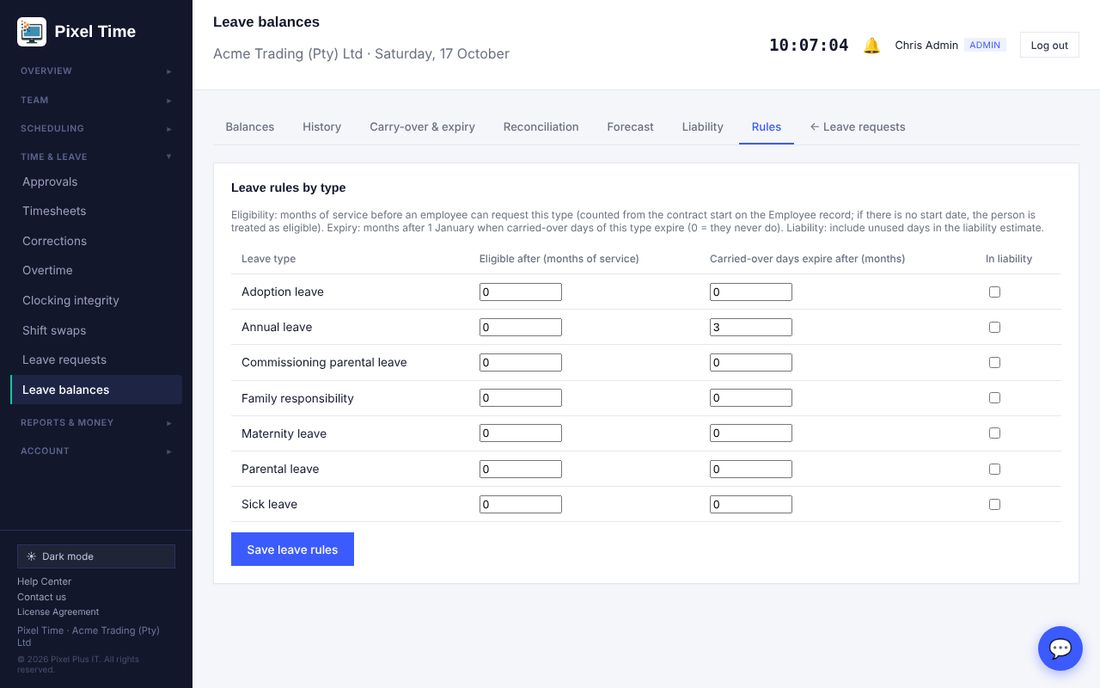
- Eligible after: months of service before an employee can request this type. It uses the contract start date on the Employee record. If there is no start date, the person is treated as eligible.
- Carried-over days expire after: months after 1 January. 0 means they never expire.
- In liability: tick the types to include in the liability estimate. Annual leave is ticked by default.
12. Timesheet sign-off
Who: employees submit their week. Managers and administrators approve or send it back. Administrators set the levels and deadlines and can reopen a week.
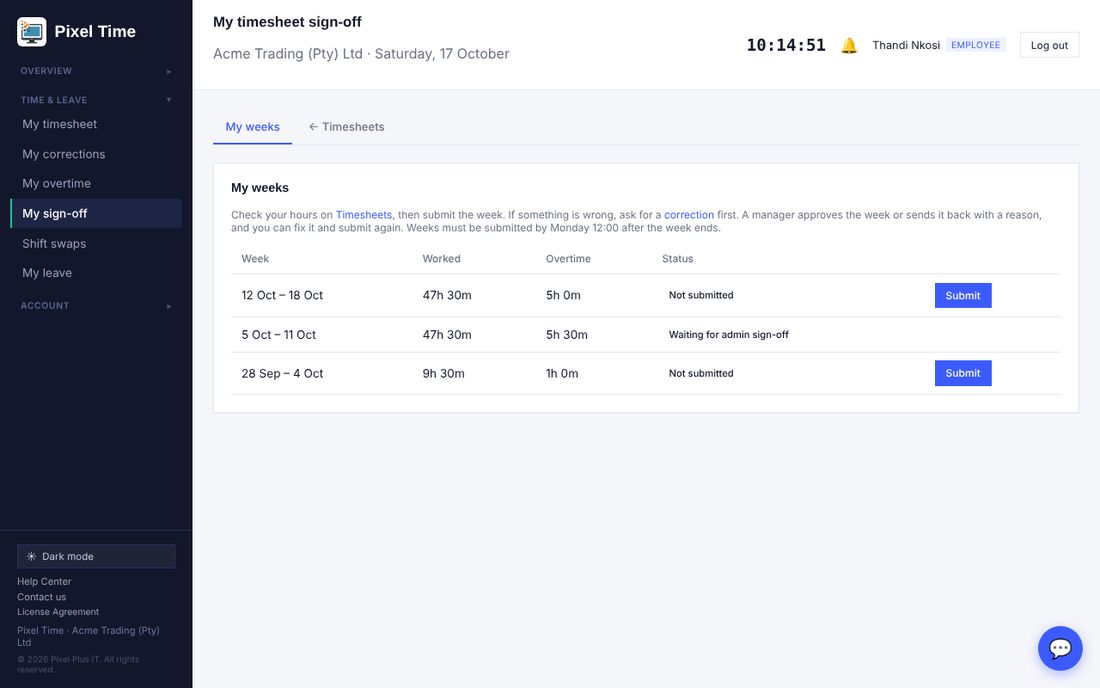
Employees: submit your week
- Open My sign-off (Time & leave).
- Check the hours for the week. If a day has a missing clock-in or clock-out, ask for a correction first.
- Press Submit. A manager approves the week or sends it back with a reason.
- If it is sent back, fix the problem (usually a correction) and press Resubmit.
Managers and administrators: approve or send back
- Open Timesheet sign-off, or Approvals, where submitted weeks appear with leave and overtime.
- Open the timesheet if you want to check it. Then press Approve, or type what needs fixing and press Send back.
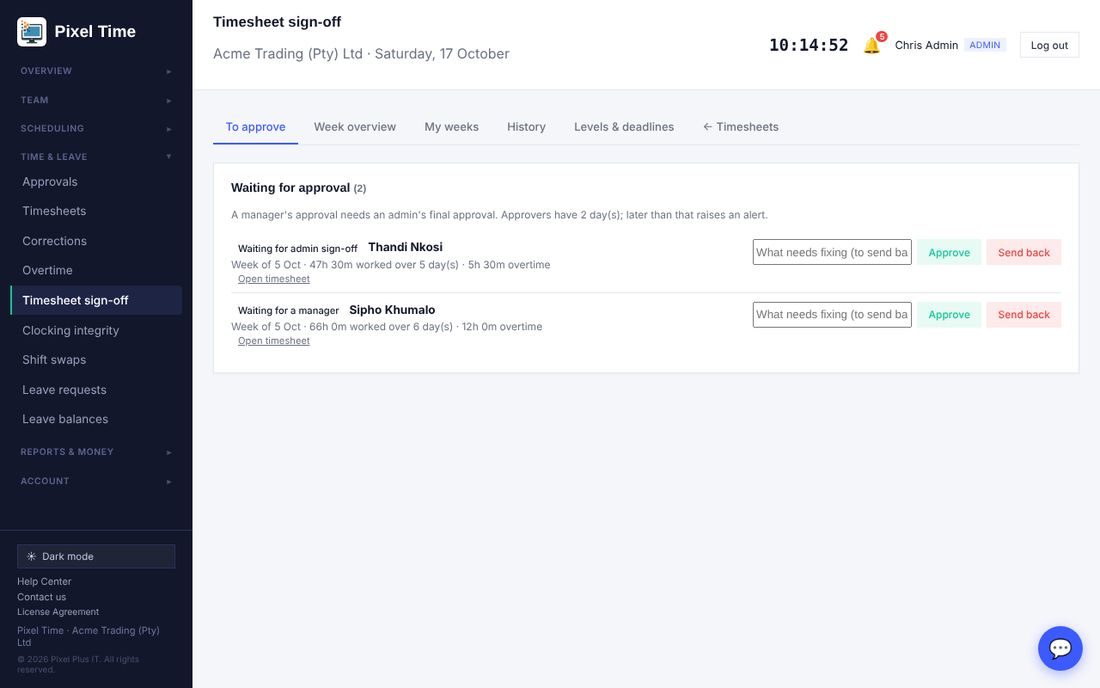
- When two levels are on, a manager's approval waits for an administrator's final approval.
- Sending a week back from the Approvals page uses a standard message. Use this page to write your own.
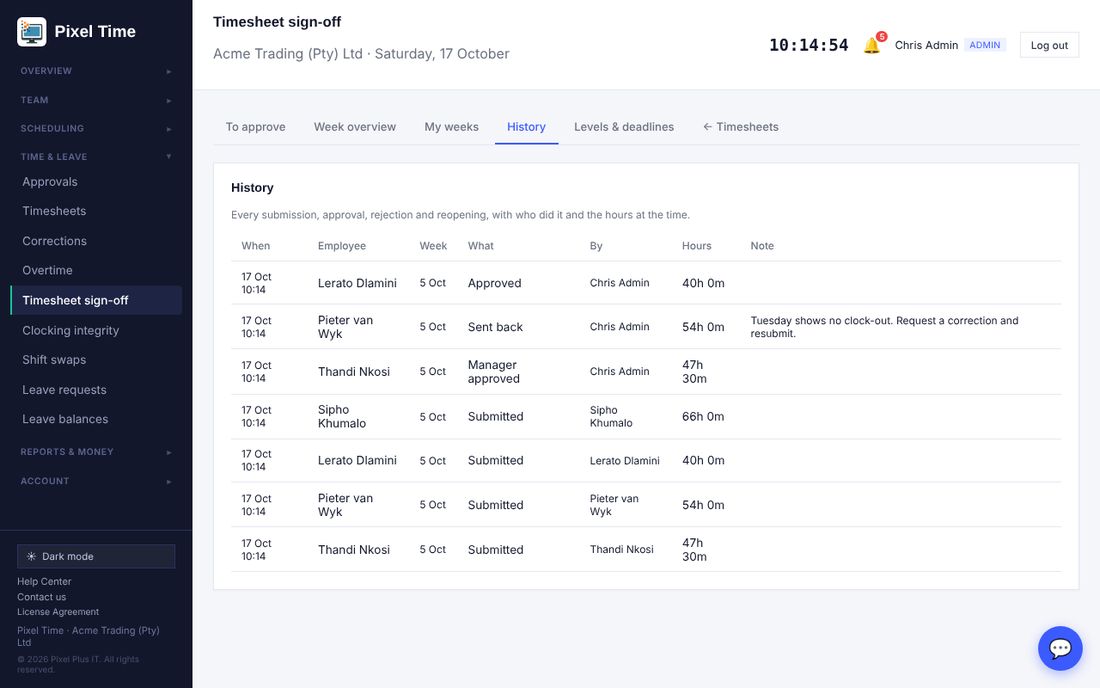
Week overview and history
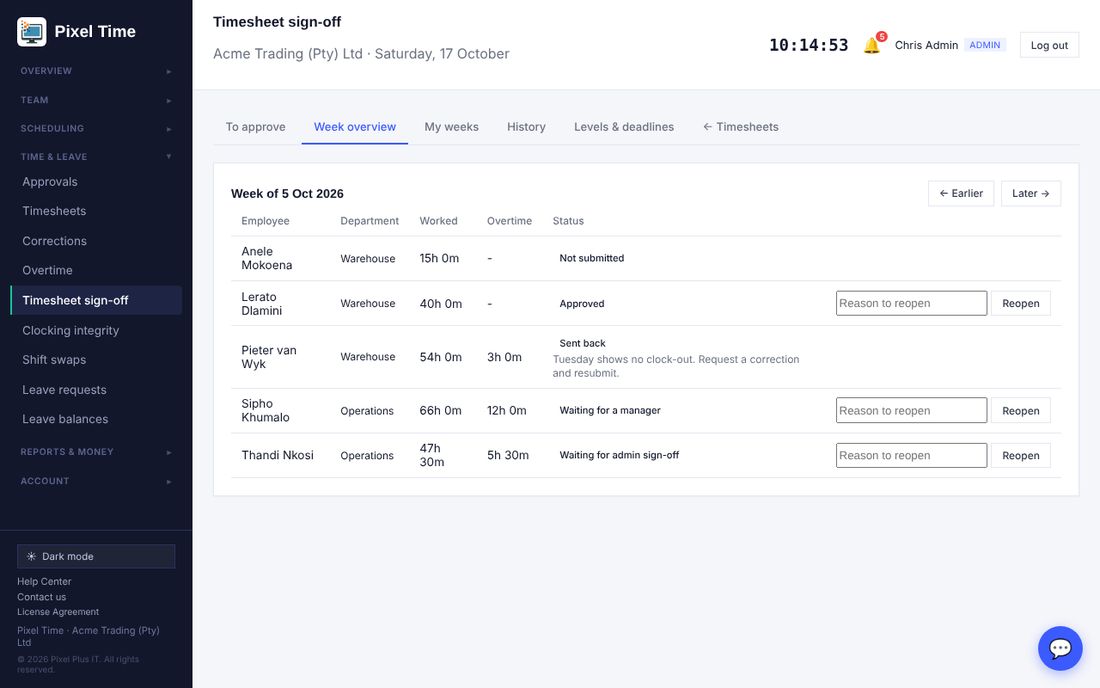
- If hours change after a week was approved, the overview says so, with the difference.
- Reopening needs a reason and is recorded as its own event. If the week is inside a locked payroll period, unlock the period on Timesheets first.
Levels and deadlines (administrators)
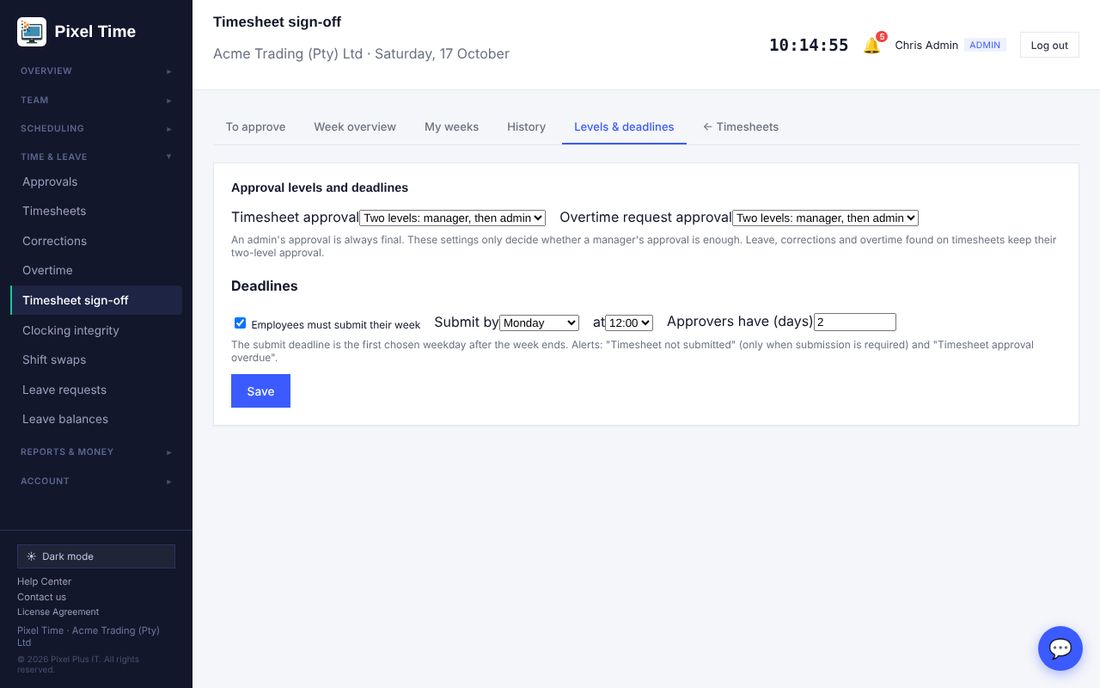
- Approval levels: choose whether a manager's approval is final, or needs an administrator. This is set separately for timesheets and for overtime requests. Leave, corrections and overtime found on timesheets keep two levels.
- Deadlines: tick Employees must submit, then choose the day and hour after the week ends. Choose how many days approvers have.
- The Alerts page has Timesheet not submitted and Timesheet approval overdue.
13. Management reports and labour budgets
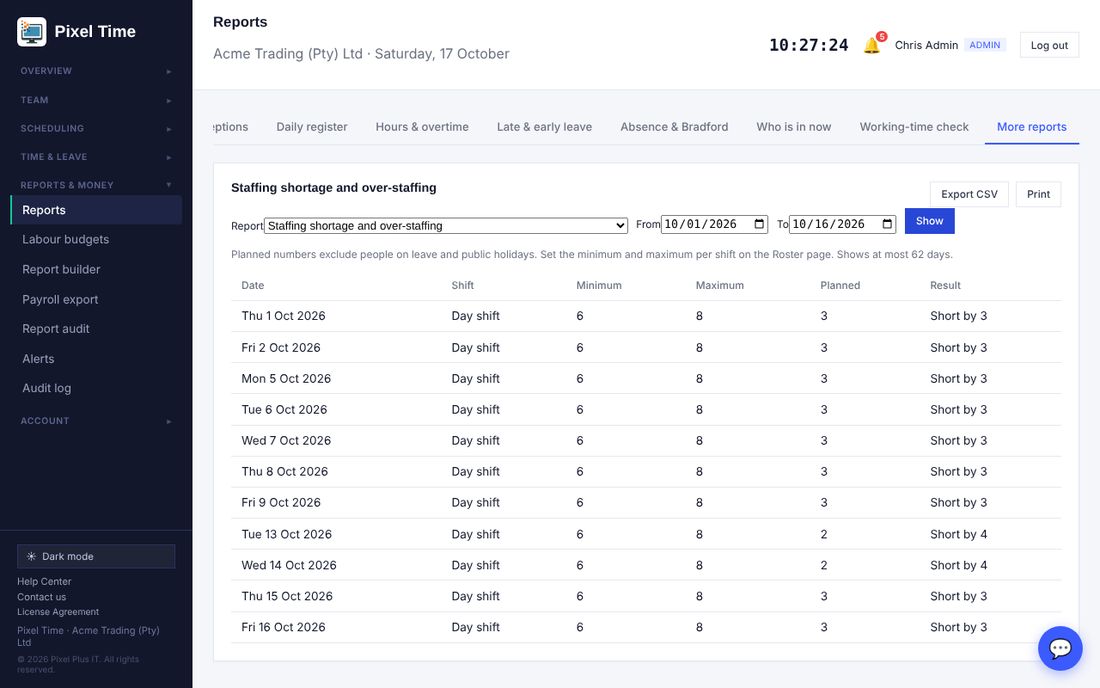
Who: administrators and auditors see every report. Managers see the reports that do not show money, for their own department. Where: Reports > More reports, group "Management". Administrators set budgets under Labour budgets.
The reports
- Payroll variance against the previous period: each employee's estimated cost this period against the period of the same length just before it.
- Staffing shortage and over-staffing: every date and shift where the planned numbers are under the minimum or over the maximum.
- Staff availability: each person's days they cannot work, and one-off days off in the range.
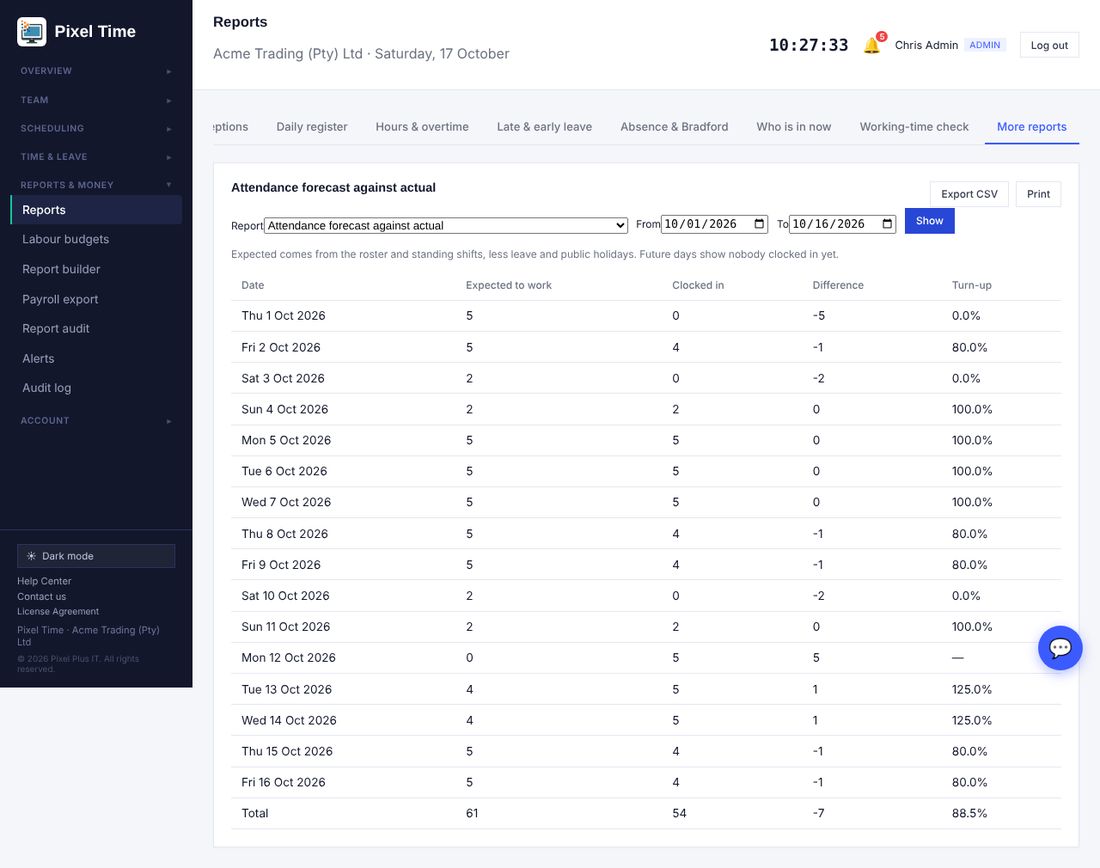
- Attendance forecast against actual: who was expected to work each day against who clocked in.
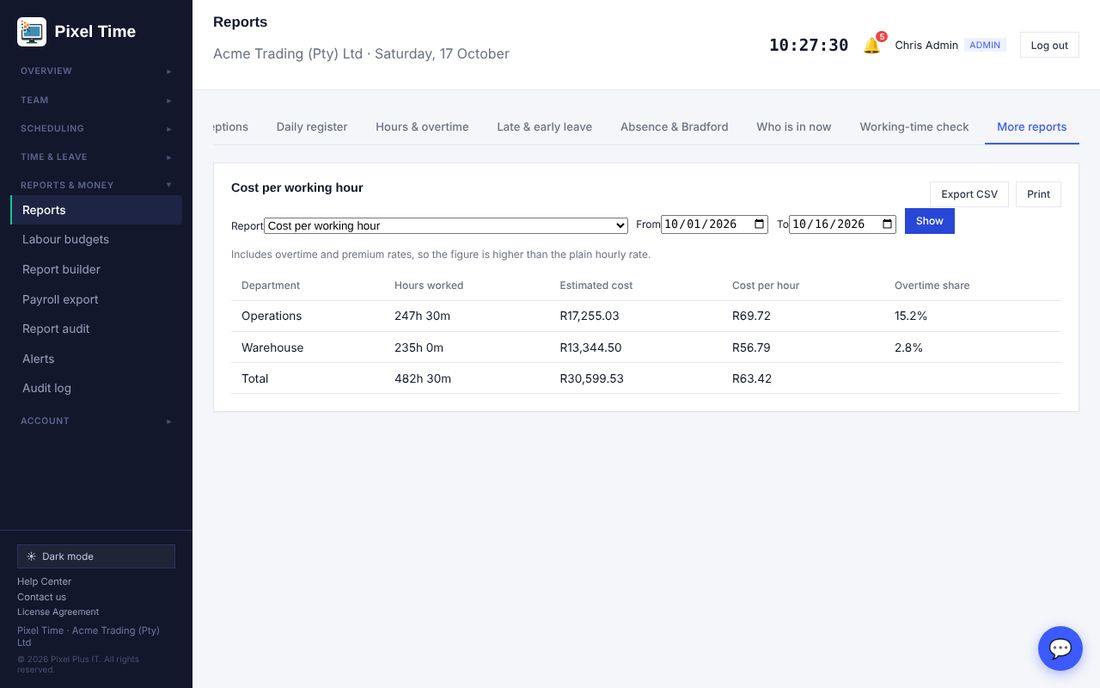
- Cost per working hour: total cost divided by hours worked, per department, including overtime and premium rates.
- Labour cost, last six months: hours, overtime and estimated cost for each month, with the change on the month before.
- Time correction resolution time: how long each correction request took to decide, and the average. Decision times come from the audit log.
- Costs are estimates from clocked hours, hourly rates and your pay rules. Payroll stays the authority.
Labour budgets (administrators)
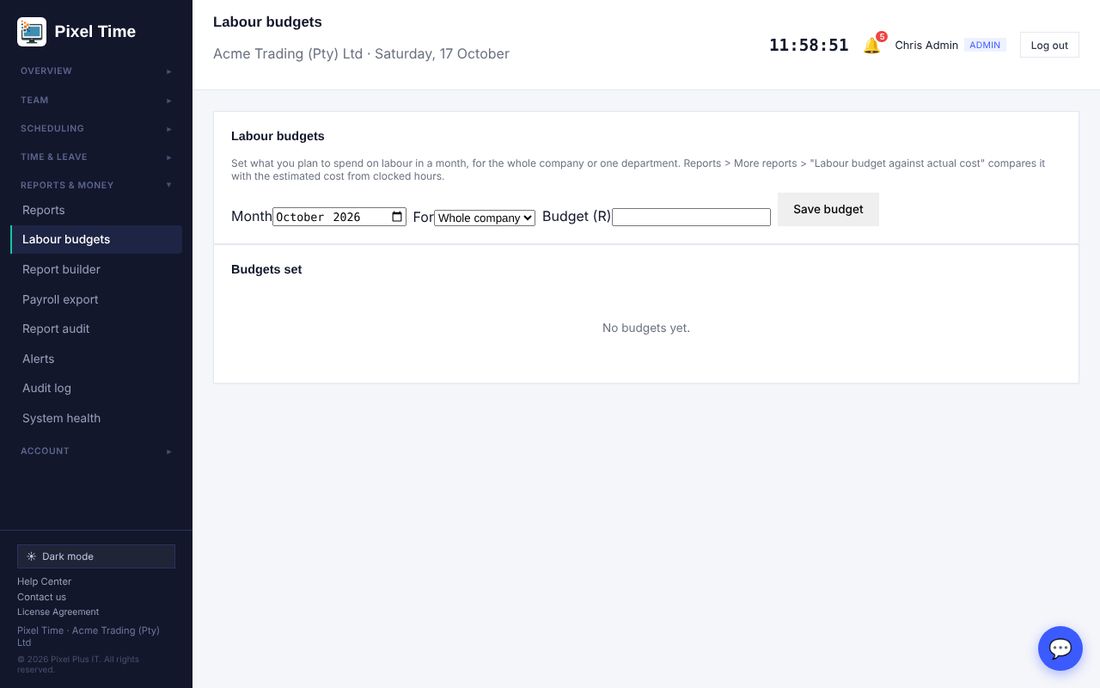
- Open Labour budgets (Reports & money).
- Choose the month, whole company or one department, type the budget in rand and press Save budget. An amount of 0 removes it.
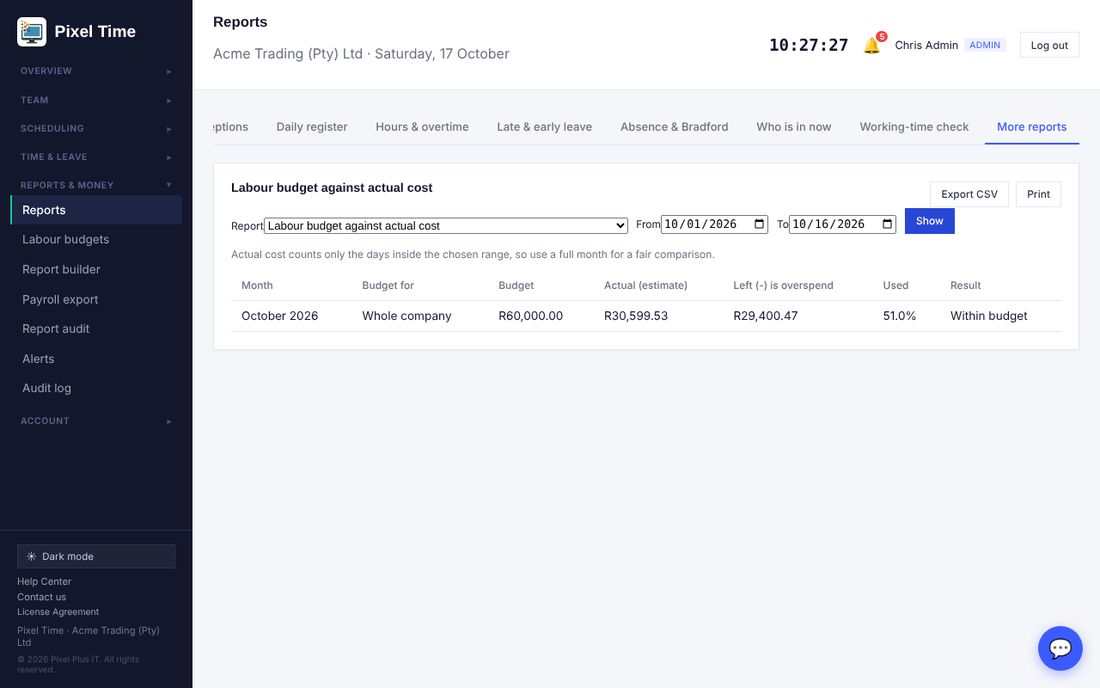
- Open Reports > More reports > Labour budget against actual cost. Use a full month for a fair comparison.
14. Reconciliation, data retention and searching results
Who: administrators and auditors. Managers can use the hours reconciliation for their own department. Where: Reports > More reports, group "Reconciliation".
Employee hours reconciliation
- Open Reports > More reports and choose Employee hours reconciliation.
- Choose the same dates you will use for the payroll export, then press Show.
- Read the Check column. "Agrees" means the clocked hours, payroll hours and last export match with nothing outstanding.
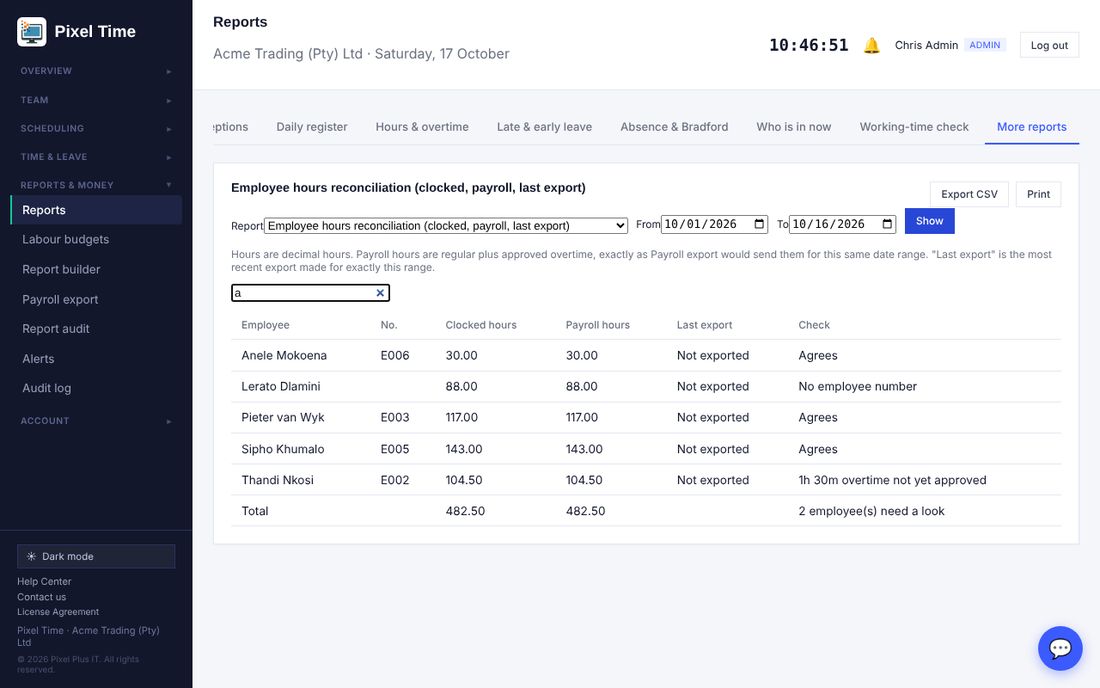
- It flags days missing a clocking, overtime not yet approved, pending adjustments, a missing employee number, and hours that changed after the export.
- The Last export column only fills in when an export was made for exactly the same dates.
Data retention review
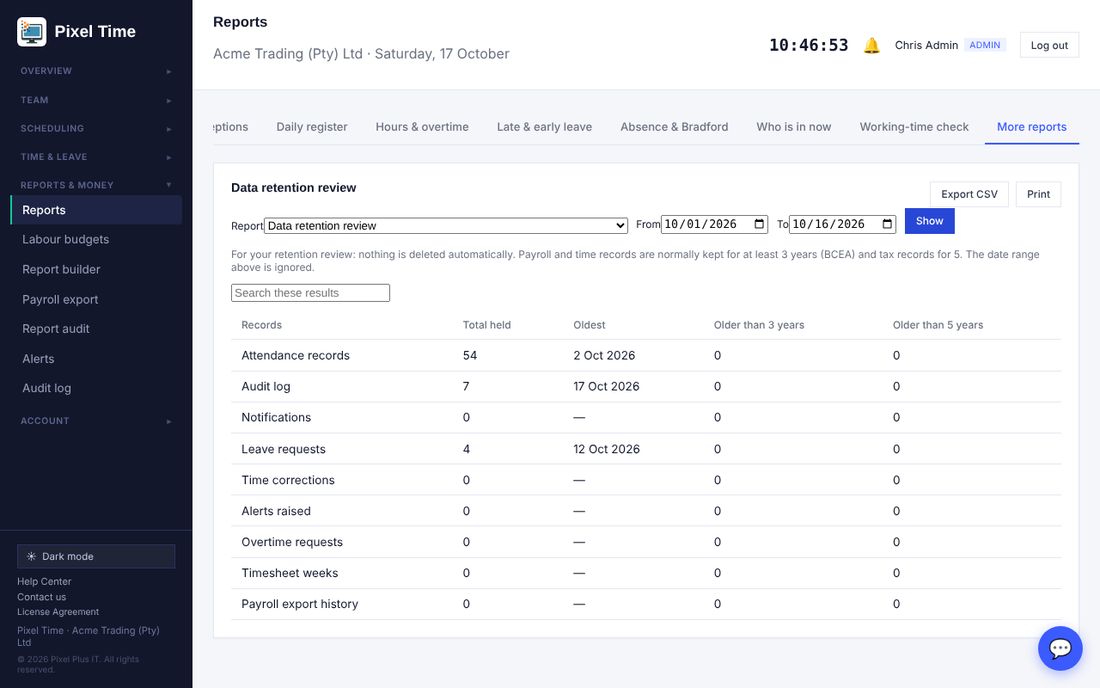
- Nothing is deleted automatically. Use this to decide what to archive or remove. Payroll and time records are normally kept at least 3 years, tax records 5.
Search inside results
- Any report with more than five rows shows a Search box above the table. Type part of a name or value and only matching rows stay visible. Clear the box to see everything again.
15. Working-time rules
Who: administrators set rules; managers (own department) and auditors can look. Where: Scheduling > Working-time rules. Reports are under Reports > More reports, group "Working-time rules".
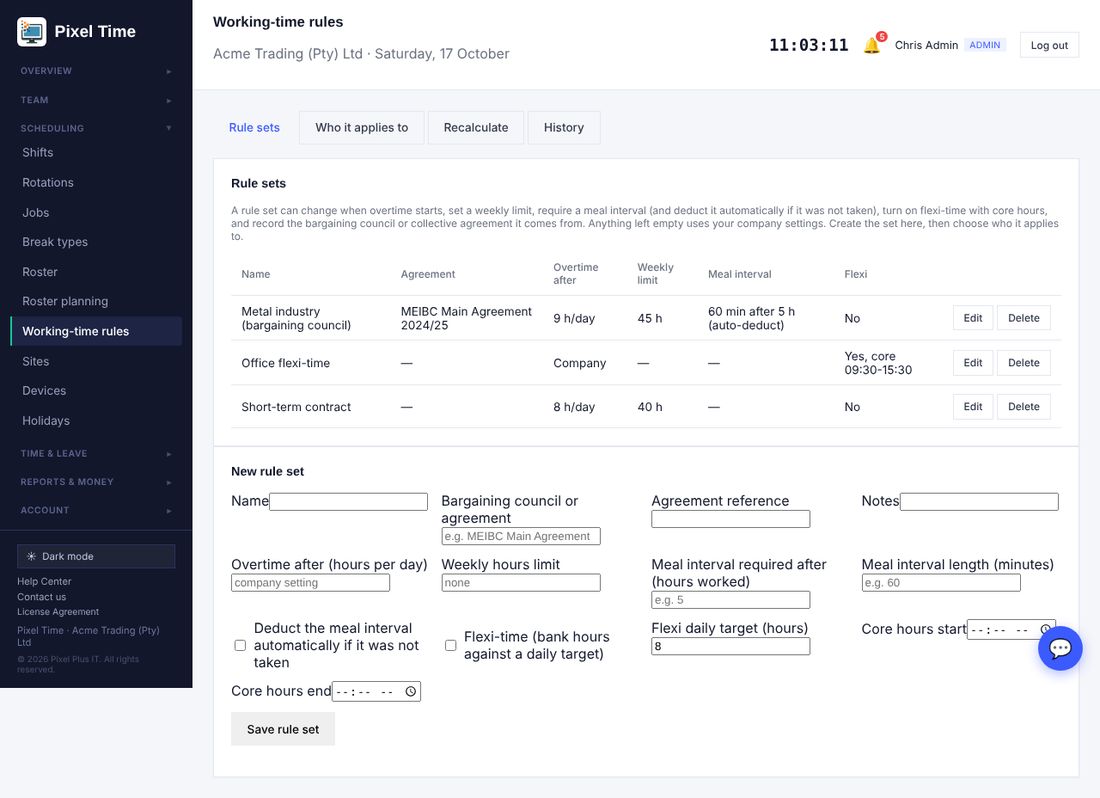
Rule sets
- Open Working-time rules and fill in New rule set. Anything you leave empty uses your company settings.
- Overtime after: the hours per day before overtime starts. Weekly hours limit: used by the weekly limit report.
- Meal interval: how many hours a person must work before a meal interval is required, and how long it is. Tick "Deduct automatically" to remove the missing time from paid hours when nobody took it.
- Flexi-time: tick it, set the daily target and (optionally) the core hours people must be in.
- Bargaining council or agreement: record which agreement the rules come from, and its reference.
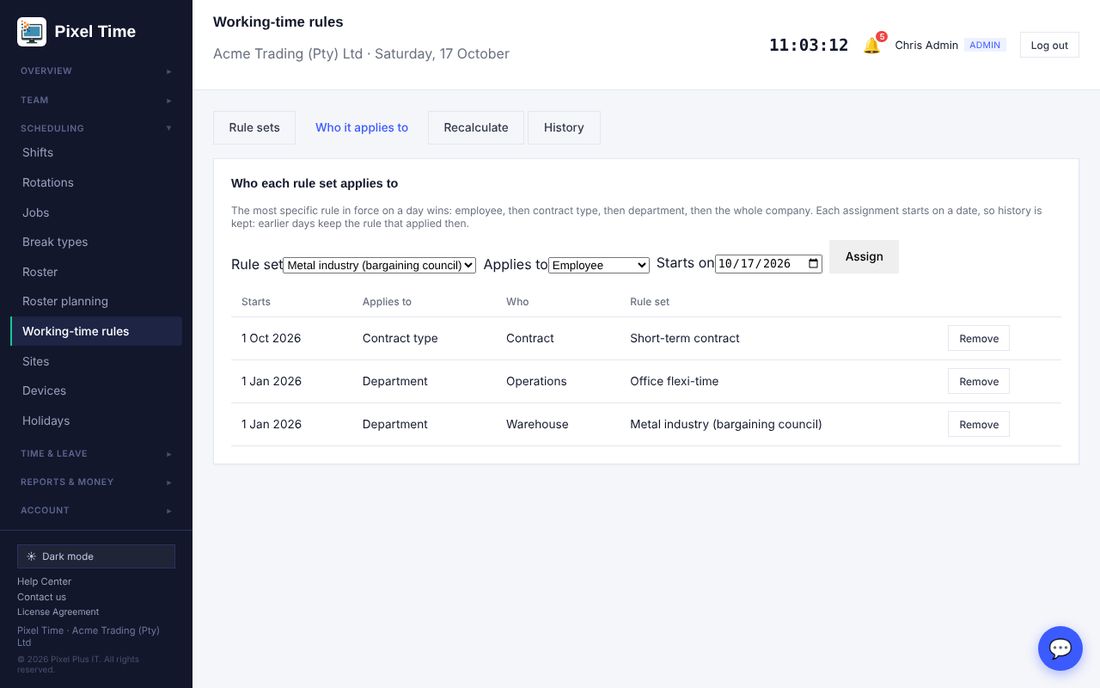
Who it applies to
- Open the Who it applies to tab, choose the rule set, who it is for (a person, a contract type, a department or everyone) and the date it starts, then press Assign.
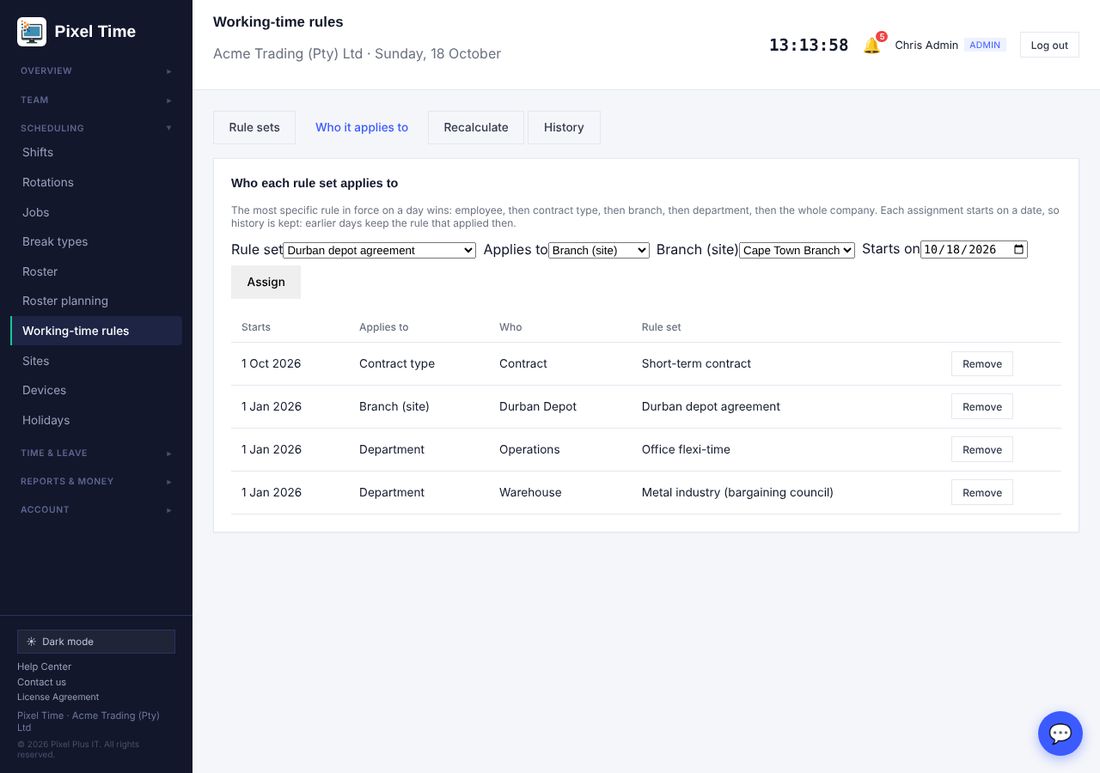
- The most specific rule in force on the day wins: employee, then contract type, then department, then the whole company.
- Because each assignment has a start date, earlier days keep the rule that applied then. Assign a new rule from a later date to change things going forward.
Recalculate
- Open the Recalculate tab. Choose the dates (up to 62 days) and, if you like, one employee.
- Press Recalculate. Hours, overtime and meal deductions are worked out again from the raw clockings under today's rules.
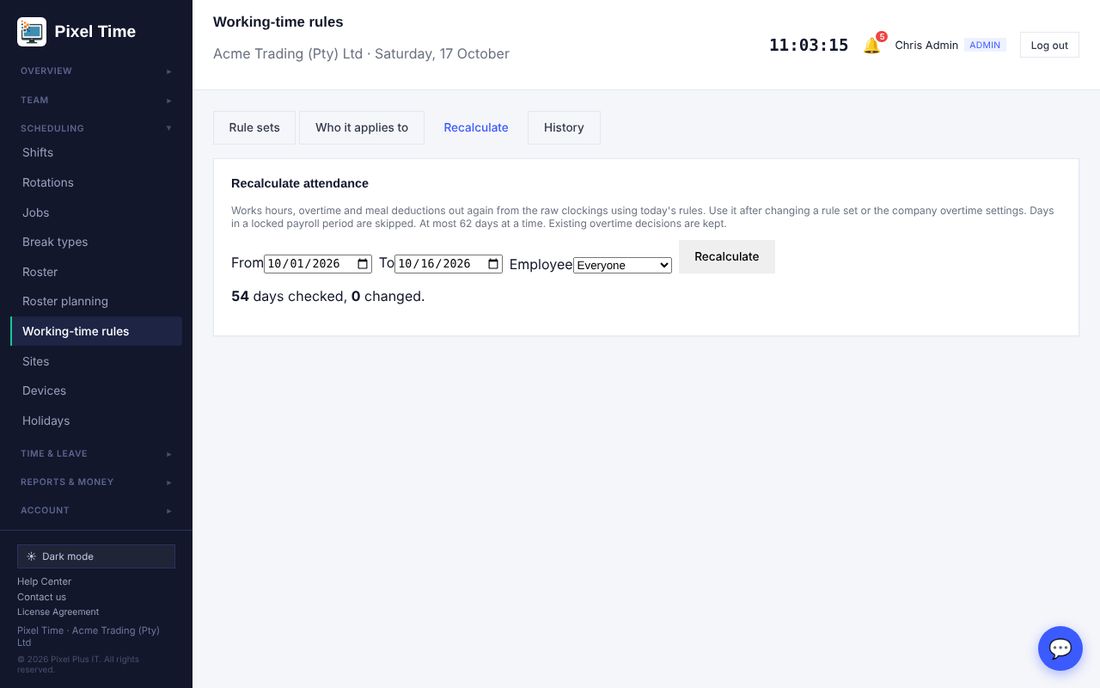
- Days inside a locked payroll period are skipped. Overtime decisions already made are kept.
- Recalculate after you change a rule set, or assign one that starts in the past.
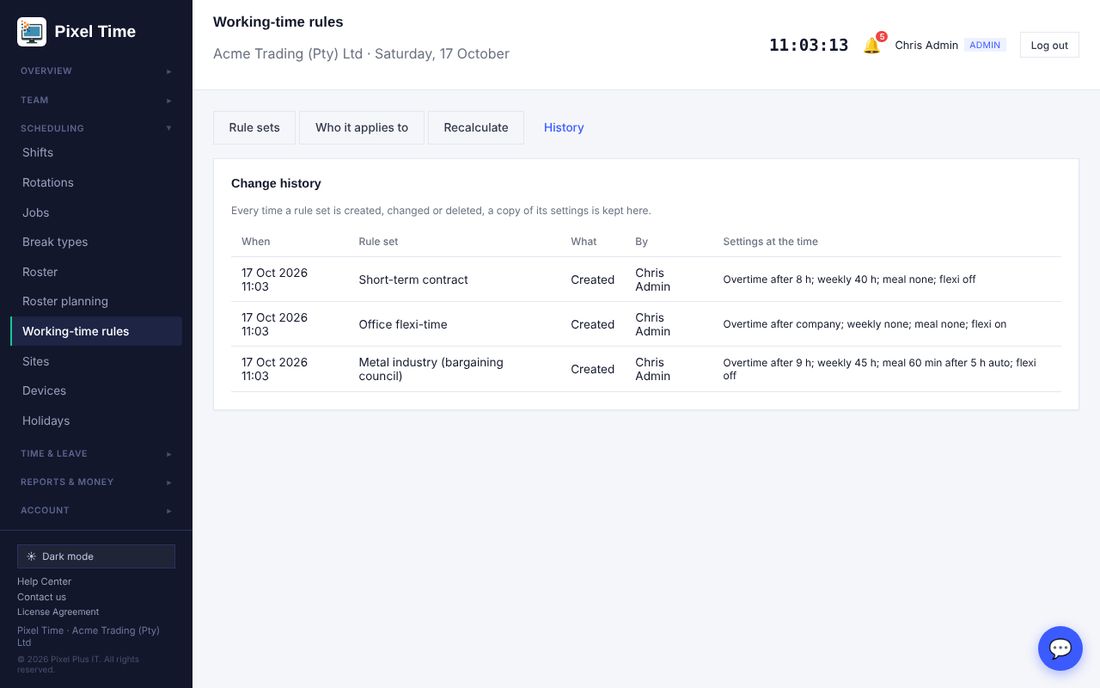
History
Reports
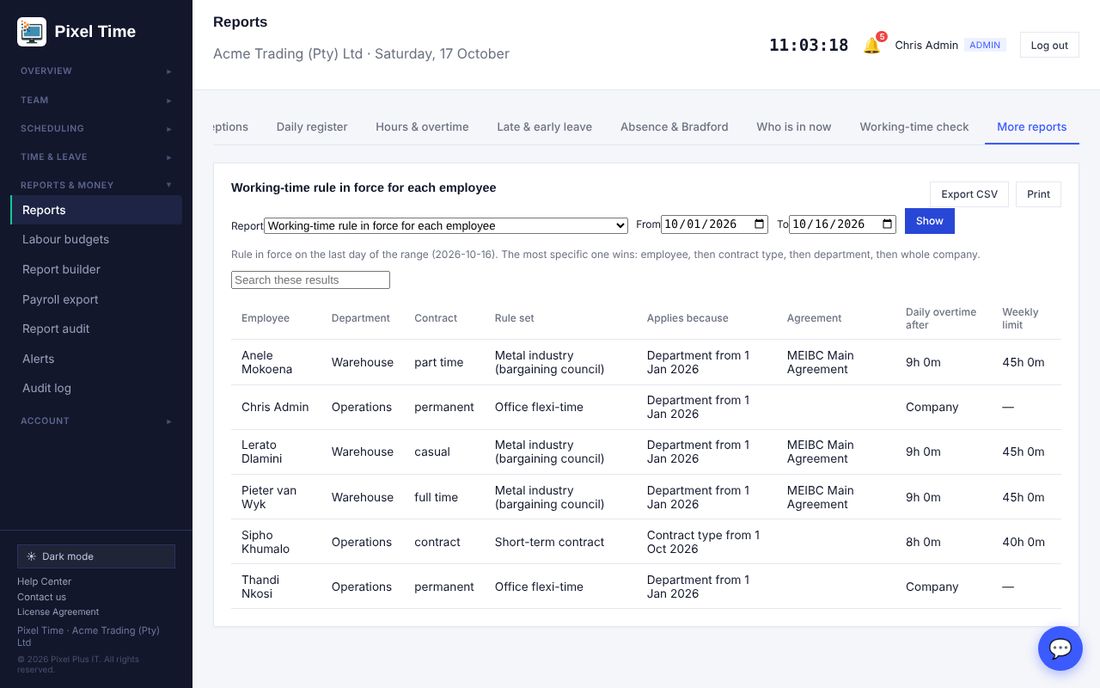
- Working-time rule in force for each employee: which rule applies to each person, and why.
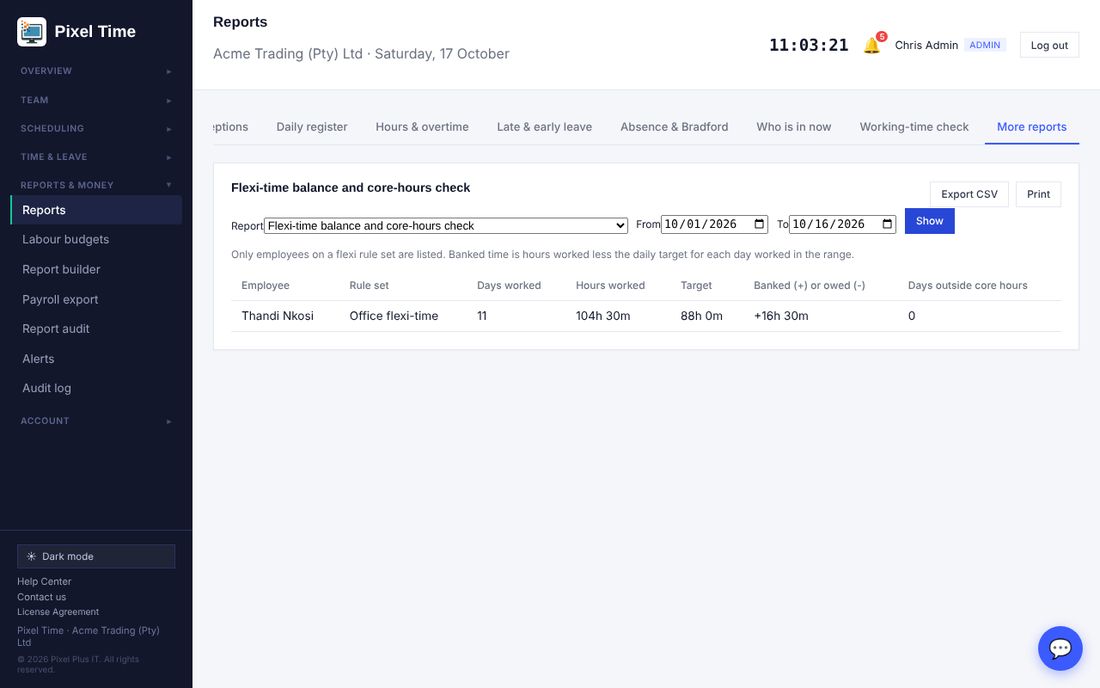
- Flexi-time balance and core-hours check: hours banked or owed against the daily target, and days outside core hours.
- Meal interval compliance: days someone worked past the limit without taking the full meal interval.
- Weekly hours against each rule's limit: weeks over or near the limit.
16. System health, retention and new alerts
Who: administrators and auditors can look; only administrators change settings or remove records. Where: Reports & money > System health.
System health
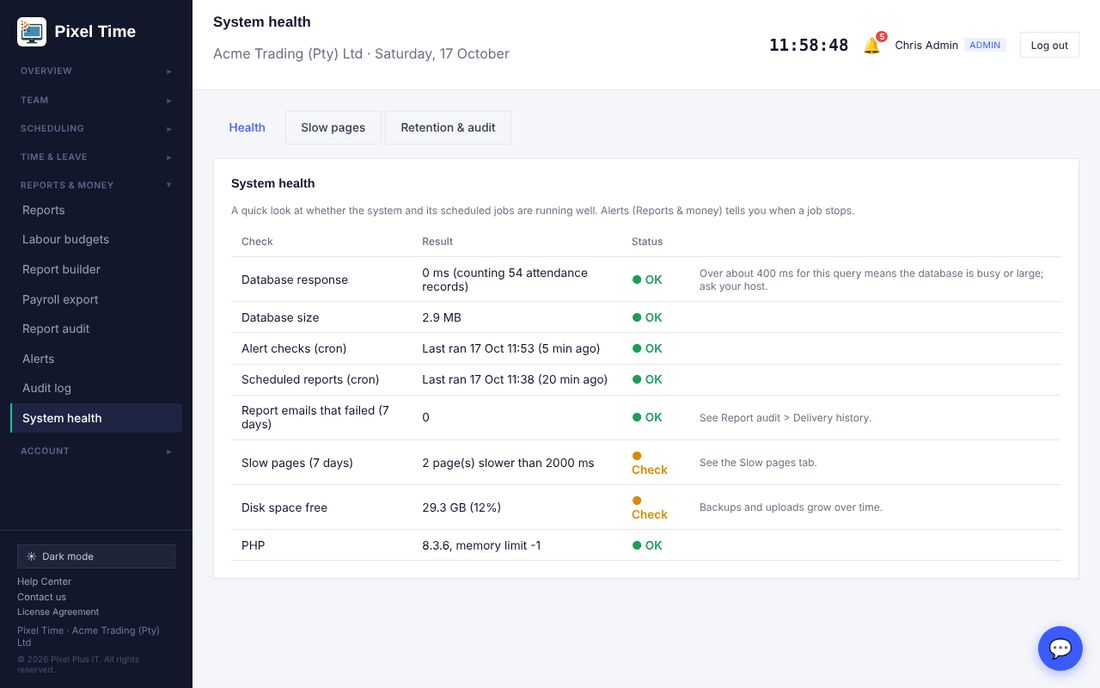
- Automatic alert checks and Scheduled reports show when each last ran. If one stops, the Alerts page raises "Scheduled job not running" so you find out.
- These run by themselves. If one stays red, contact Pixel Plus support.
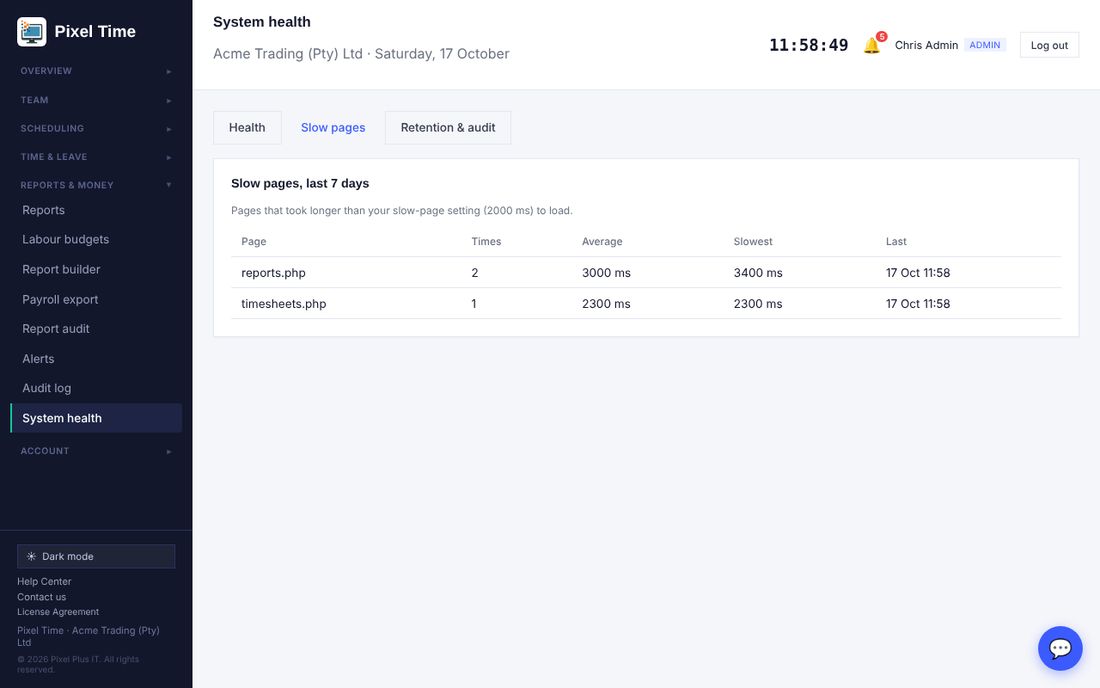
Slow pages
Retention and audit
- Open the Retention & audit tab.
- Set how many months to keep audit-log entries (12 to 240), how many days to keep read notifications, and what counts as a slow page. Press Save.
- The table shows how many records are past their retention. Press Remove them now only when you are sure; it cannot be undone and the removal is written to the audit log.
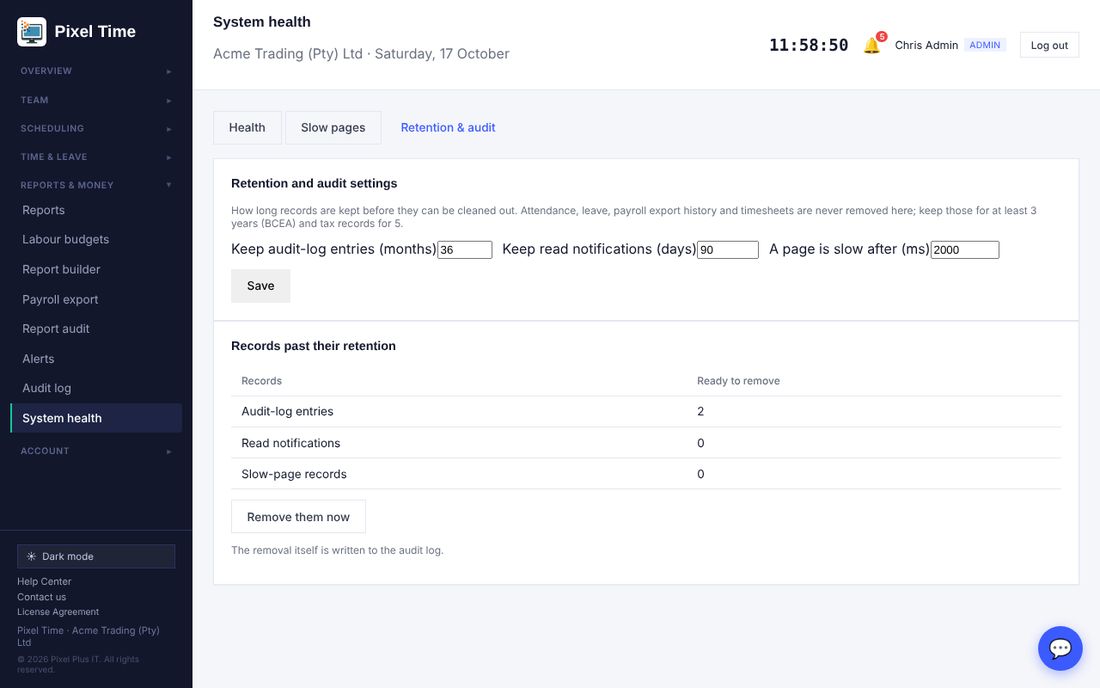
- Only audit-log entries, read notifications and slow-page records can be removed here. Attendance, leave, timesheets and payroll history are never removed.
New alerts
- Weekly hours near the limit: tells managers when someone has reached 90% (you can change this) of their weekly limit. The limit comes from their working-time rule, or 45 hours if they have none.
- Scheduled job not running: tells administrators when the alert checks or the scheduled reports have stopped.
Labour budgets page
17. ID cards (RFID) and email retry
Who: administrators and managers register cards (managers for their own department). Where: Team > ID cards. Employees use their card at the kiosk.
Register a card
- Open ID cards. Choose the employee.
- Click in Card number and scan the card with a USB card reader (it types the number and presses Enter), or type the number printed on the card.
- Press Register card. Each person can have up to 3 active cards.
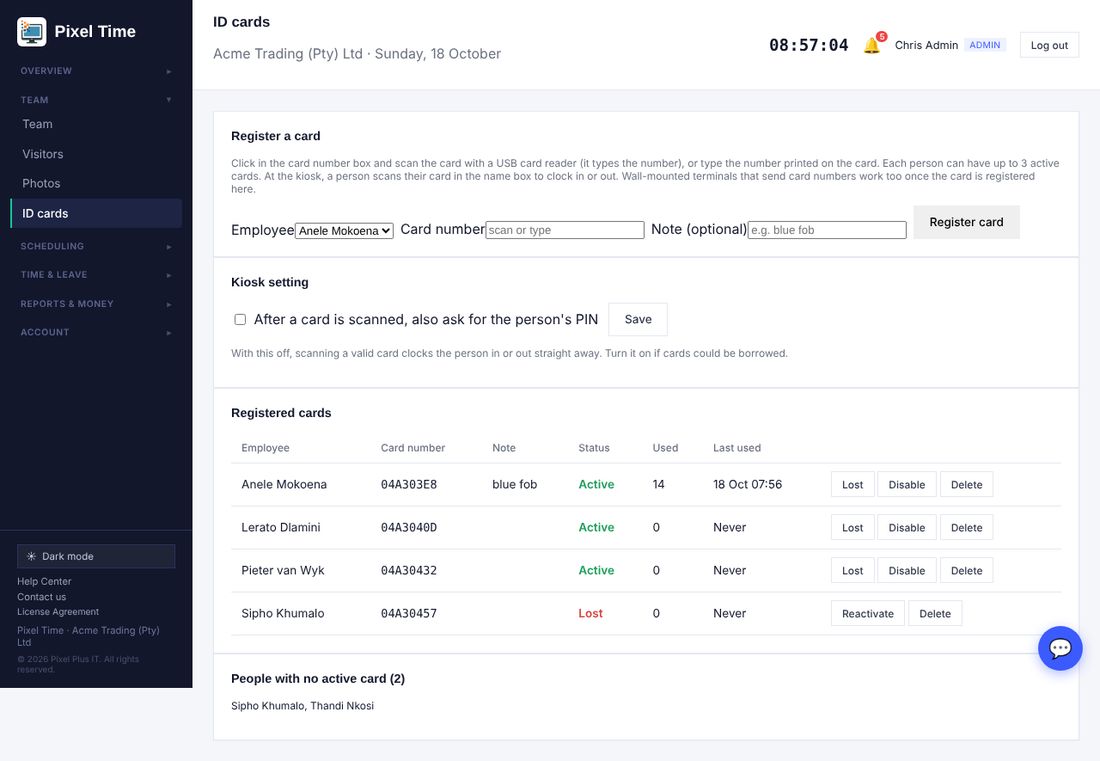
- Lost and Disable switch a card off straight away without deleting its history. Reactivate switches it back on. Only administrators can delete a card.
- A card number can belong to one person only. If a card is reissued, delete the old entry first.
Clocking with a card at the kiosk
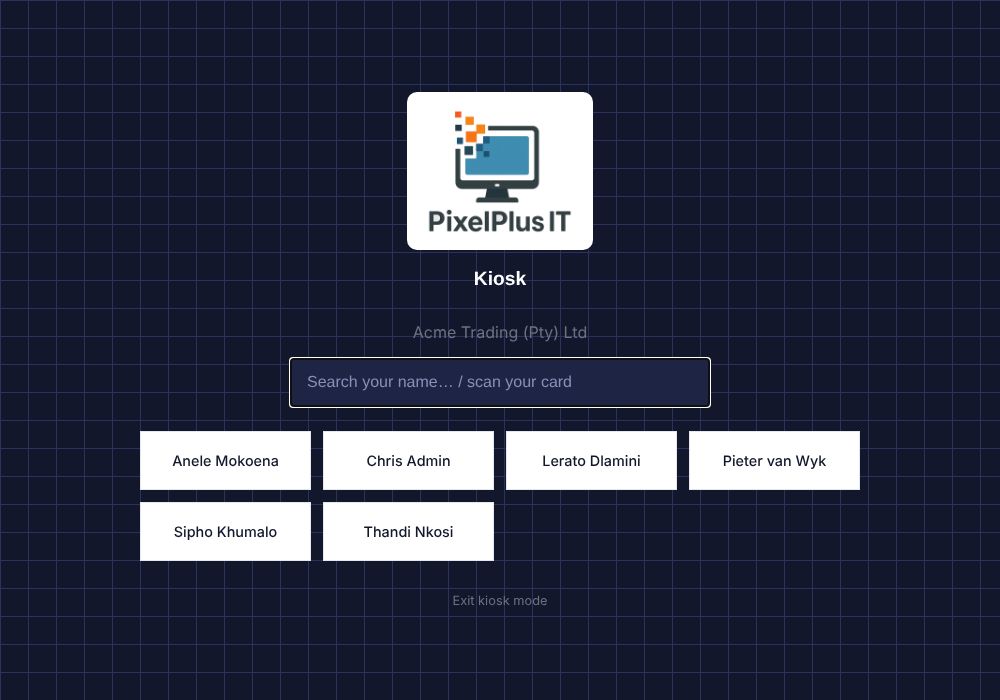
- At the kiosk, scan the card. (If the cursor is not in the name box, tap it first.)
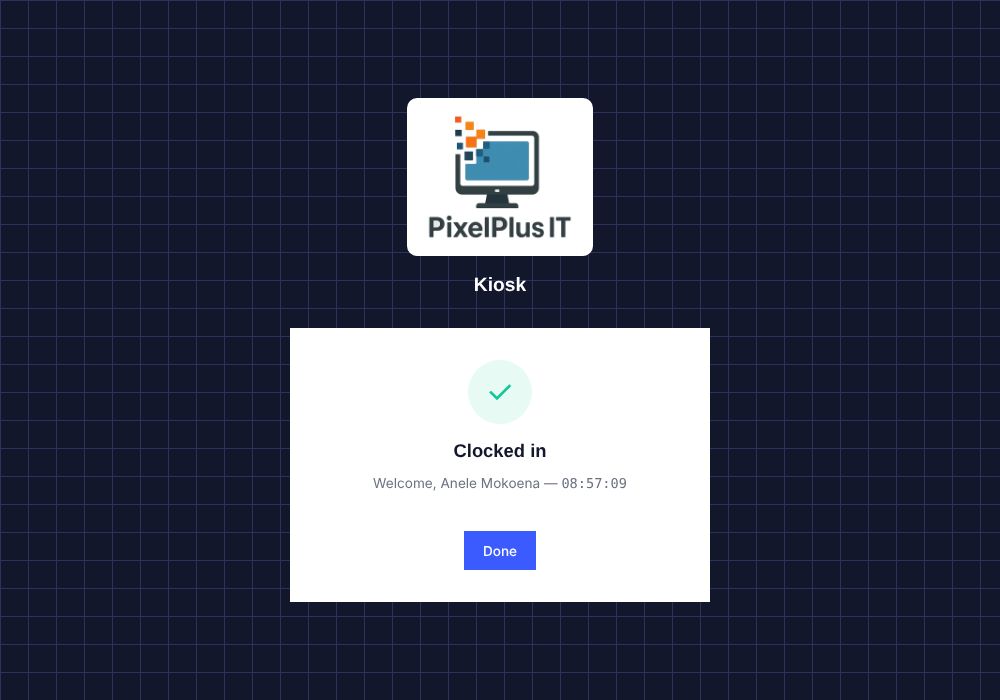
- The kiosk clocks the person in, out or on and off a break, exactly as it does after a PIN.
- A lost, disabled or unregistered card shows "Card not recognised".
- If cards could be borrowed, tick "After a card is scanned, also ask for the person's PIN" on the ID cards page.
- Wall-mounted terminals (ZKTeco and similar) that send the card number work once the card is registered here.
Failed report emails are retried
- If a scheduled report email fails, the system tries again every 30 minutes or more, up to 3 more times, for 24 hours.
- Report audit > Delivery history then shows "Sent on retry 1/2/3". After the last try it stays Failed and the alert remains.
- This happens automatically on the hour.
18. Mappings, audit events and settings history
Who: administrators change; auditors can view. Where: Reports & money > Mappings & history.
Payroll mapping
- Open the Payroll mapping tab.
- Type the code your payroll system uses for each department (cost centre), each leave type (leave code) and each contract type (category). Leave a row blank if it is not needed.
- Press Save under each block.
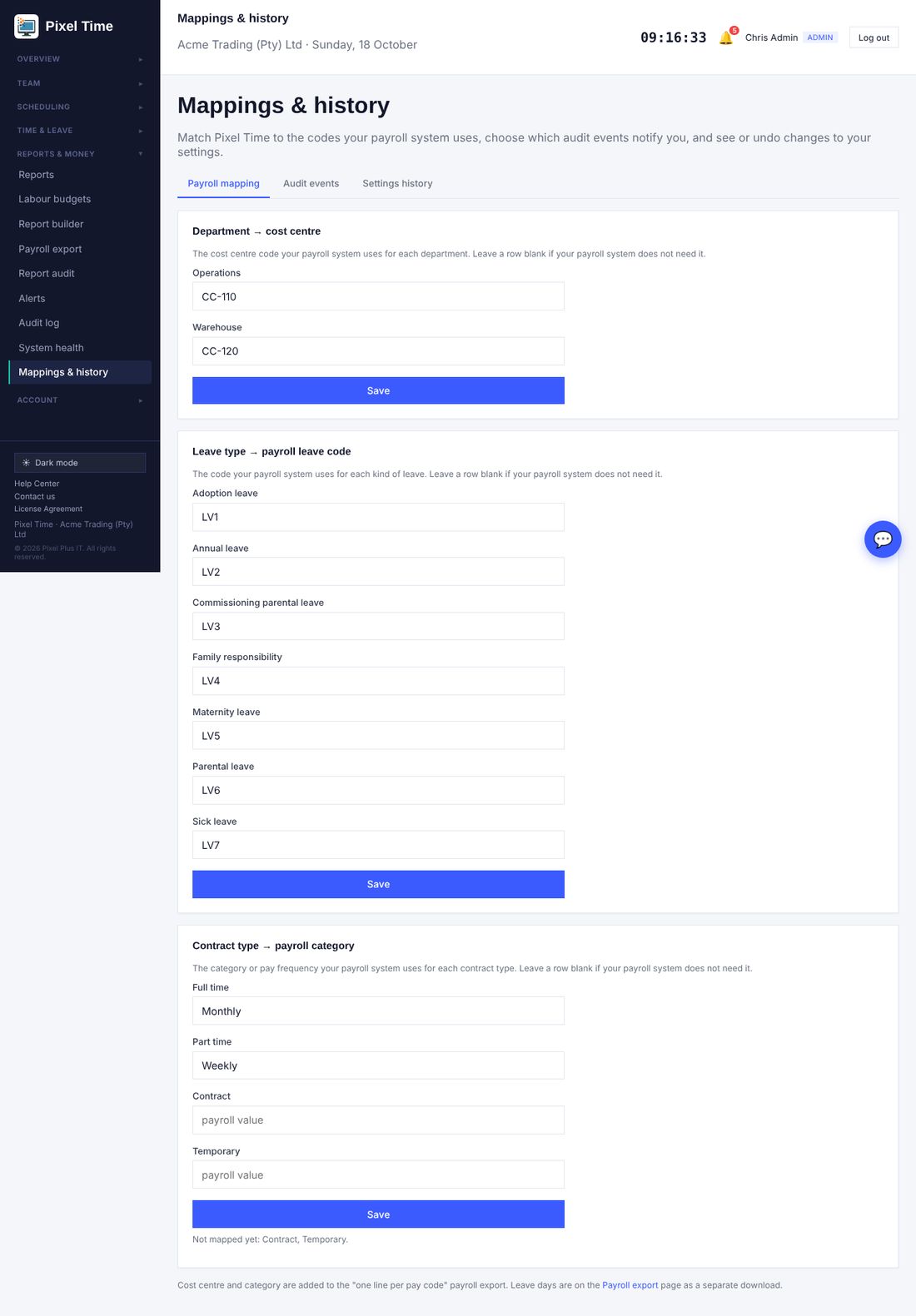
- Cost centre and category are added as two extra columns to the "one line per pay code" payroll export once any department or contract mapping exists.
- On Payroll export > Pay codes there is a download of approved leave days in the period, with each leave type's payroll code. Leave that spans the period boundary is counted only for the days inside the period.
- Two leave types cannot share one payroll leave code.
Audit events
- Open the Audit events tab.
- Tick Tell me for the kinds of event you want an alert about. Administrators get the alert within 15 minutes.
- Optionally enter a shorter keep time (6 months or more) for the less sensitive kinds.
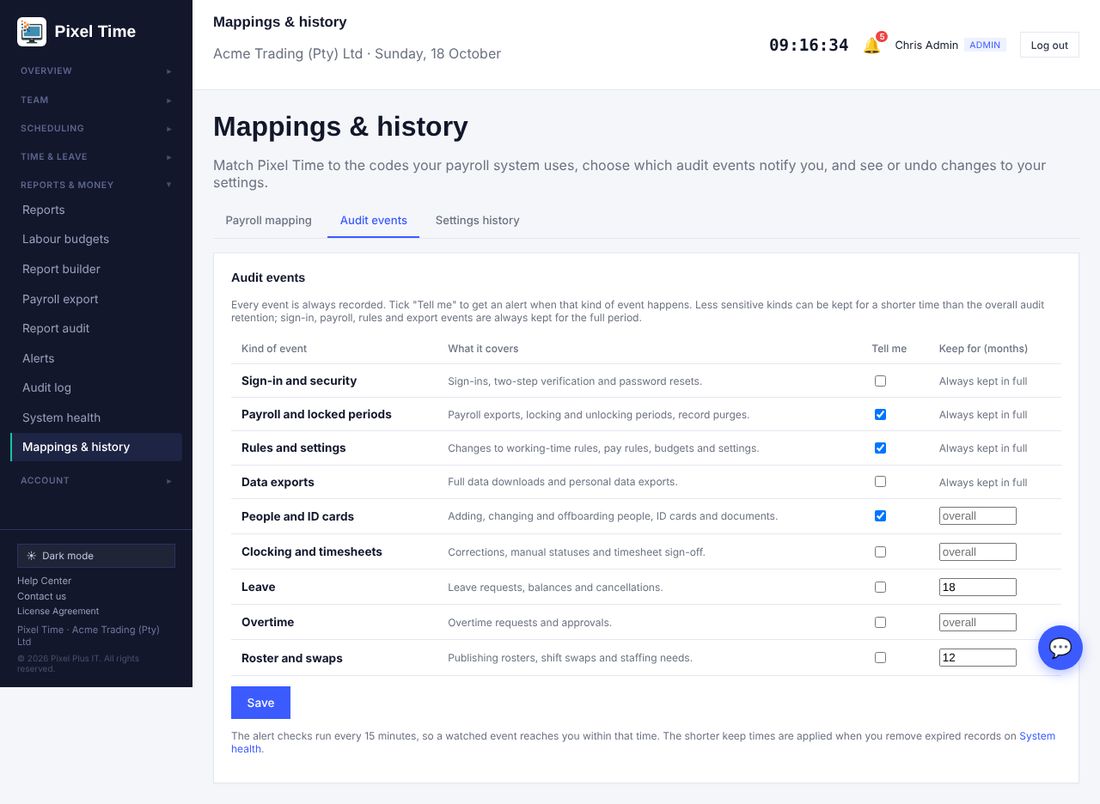
- Every event is always recorded. Sign-in, payroll, rules and export events are always kept for the full audit retention and cannot be shortened.
- Shorter keep times are applied when you remove expired records on System health > Retention & audit, which lists them separately.
Settings history
- Open the Settings history tab. Each change to company settings, pay codes, payroll mapping or audit-event settings is a numbered version with who and what.
- Choose Restore on a version. The page lists exactly what would change.
- Press Restore this version to put those settings back. The restore itself is recorded as a new version and in the audit log.
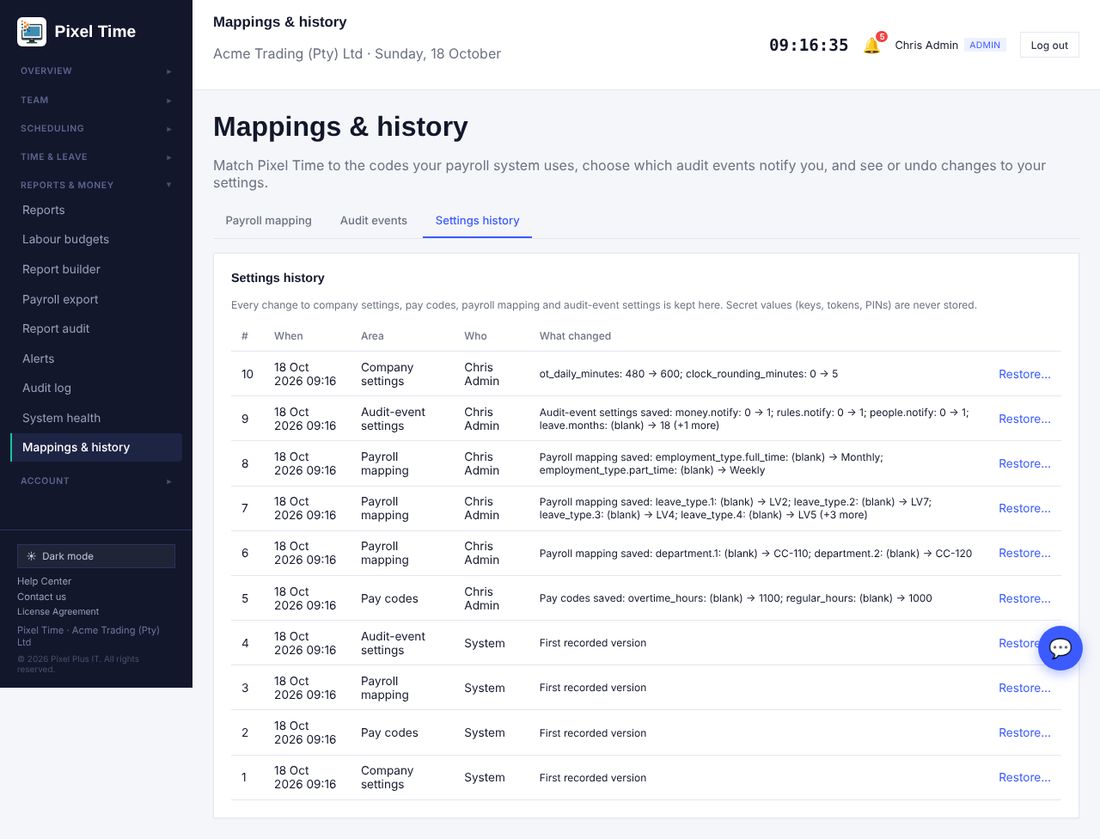
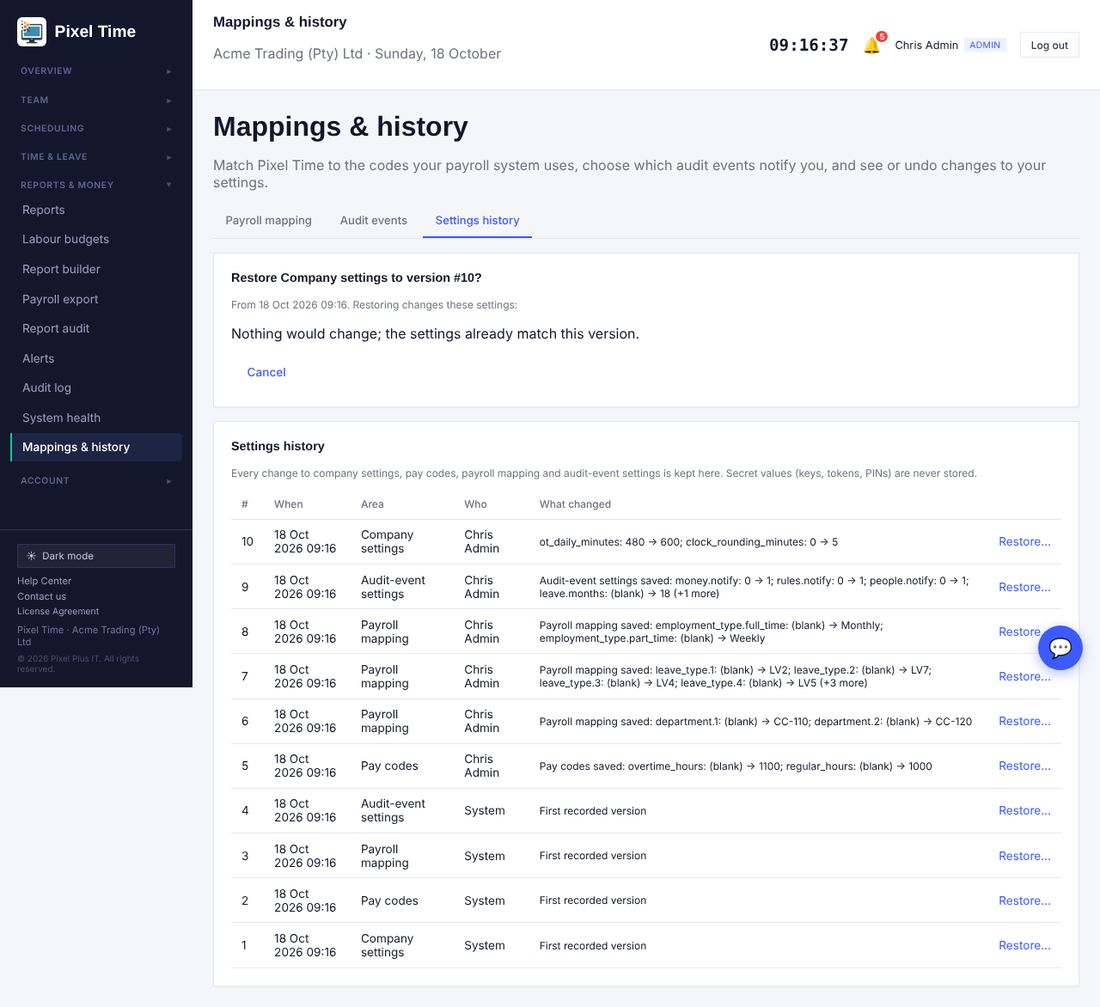
- Keys, tokens, PINs and passwords are never stored in the history.
- Changes are noticed the next time an administrator opens any page, so the history shows the person who made the change.
Security incident report
- Reports > More reports > Audit & security > Security incident report (administrators and auditors) lists resets, unlocked periods, exports, removed records, restored settings, kiosk PIN locks and hand-overs in the dates, marked High or Medium, plus accounts locked right now.
Kiosk wrong-PIN limit
- After 5 wrong PINs within 15 minutes a person is locked at the kiosk for the rest of the 15 minutes; the lock is written to the audit log. The kiosk unlock and exit PINs lock the device the same way.
19. Excel downloads, document expiry and payable hours
Who: administrators and managers (auditors can view). Where: Reports, Payroll export, Team > Document expiry.
Download as Excel
- On Reports (including More reports) press Export Excel next to Export CSV.
- On Payroll export press Download Excel instead of Download CSV. The same checks apply: blocked exports and the "already exported" reason still work.
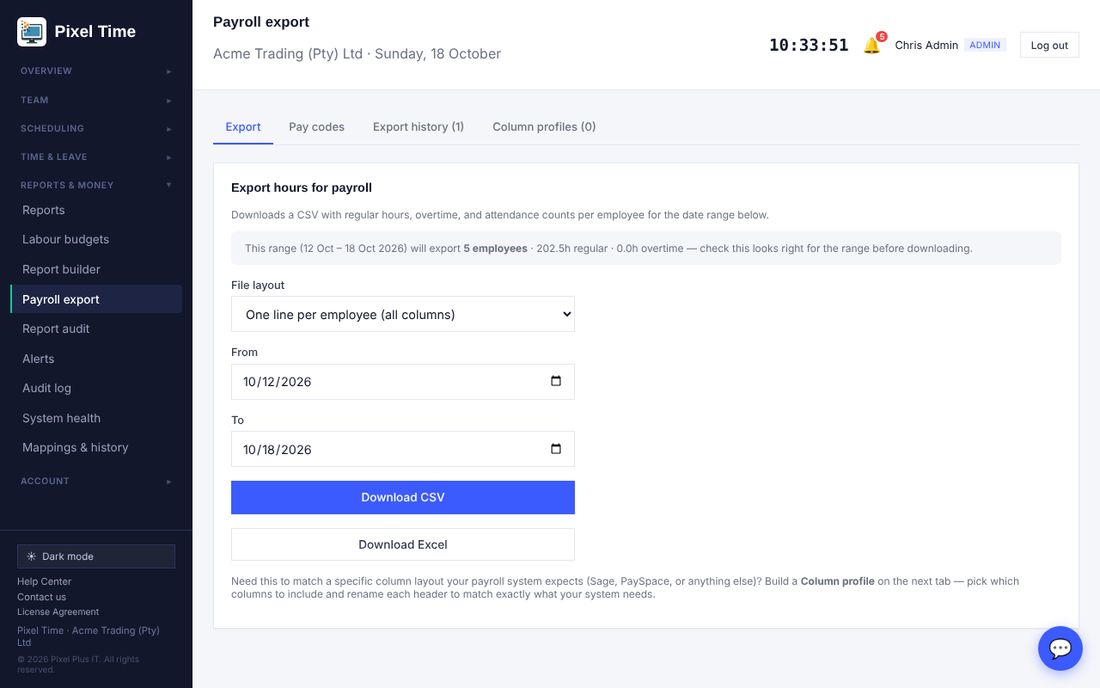
- You get a real .xlsx file: bold header row, filter buttons, frozen header and sensible column widths.
- Employee numbers and pay codes stay as text, so 007 keeps its zeros. Hours are real numbers you can add up.
Document expiry
- Upload the document on the employee's profile as before.
- Open Team > Document expiry, find the document and choose the expiry date, then Save.
- Use the tabs to see what is expired, expiring soon or still without a date.
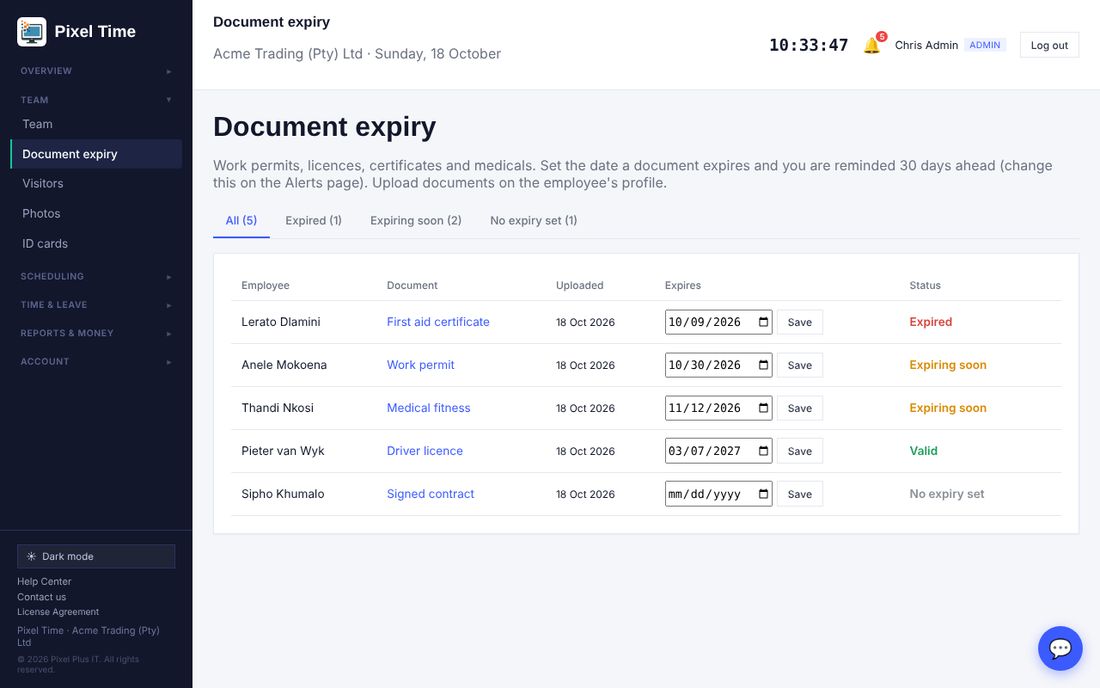
- You are alerted 30 days ahead, and again if it has expired. Change the days on the Alerts page (Employee document expiring). Managers only see their own department.
- Reports > More reports > Management > Employee documents: expiry gives the same list for printing.
Actual hours and payable hours
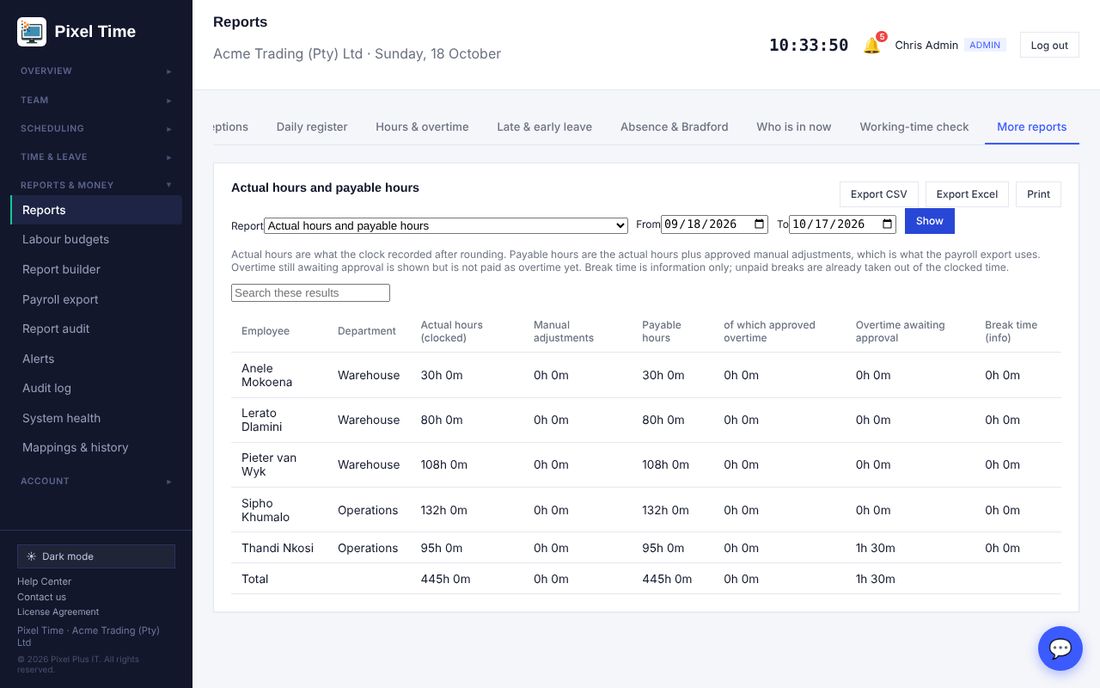
- Reports > More reports > Reconciliation > Actual hours and payable hours separates what the clock recorded from what is payable (clocked time plus approved manual adjustments), with approved overtime and overtime still awaiting approval shown separately.
Declining overtime
- Declining an overtime request now needs a reason. It is shown to the employee and kept in the history.
20. PDF reports, sign-in and device history, offline clocking, leave value
Who: administrators and managers unless stated. Where: Reports > More reports, and the Clock page.
Download as PDF
- Open any report, including More reports, and press Export PDF beside Export CSV and Export Excel.
- You get a landscape A4 document with the title, company, dates, a header row repeated on every page and page numbers.
Failed sign-in history
- Reports > More reports > Audit & security > Failed sign-in history (administrators and auditors).
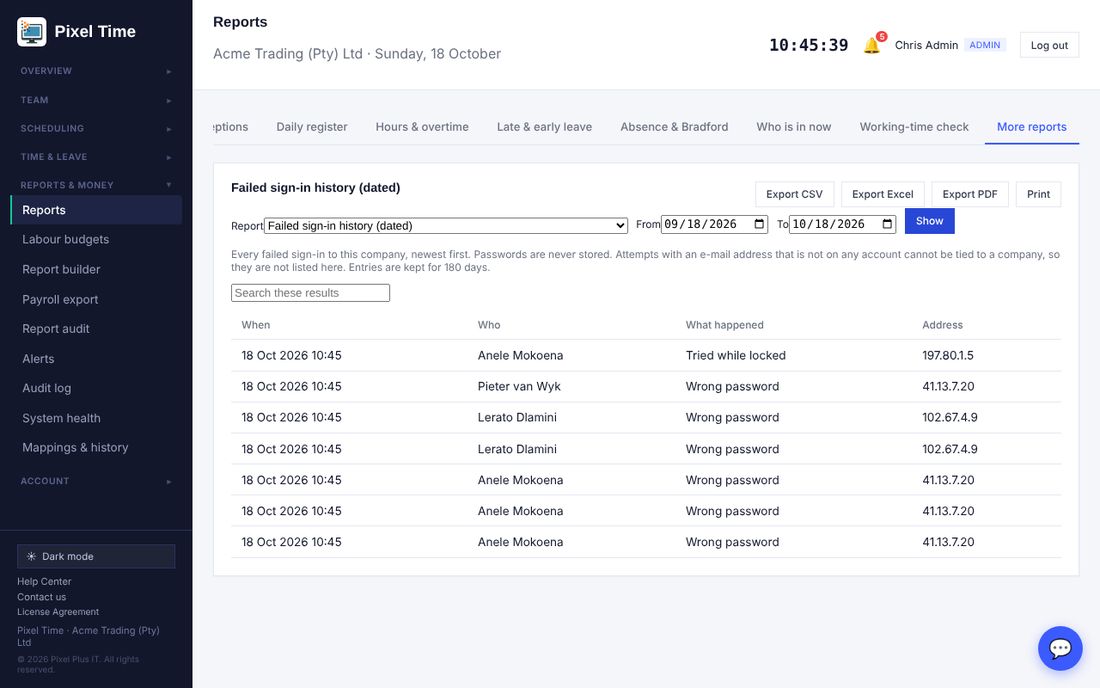
- Unknown e-mail addresses are partly hidden. You are alerted when ten failures come from one address, or five for one person, within an hour (Alerts page: Repeated failed sign-ins).
Device reports
- Device synchronisation and failures shows when each device last made contact and how many punches were received, skipped, rejected or from an unknown Device ID.
- Attendance by device and Device failures show the same detail per punch.
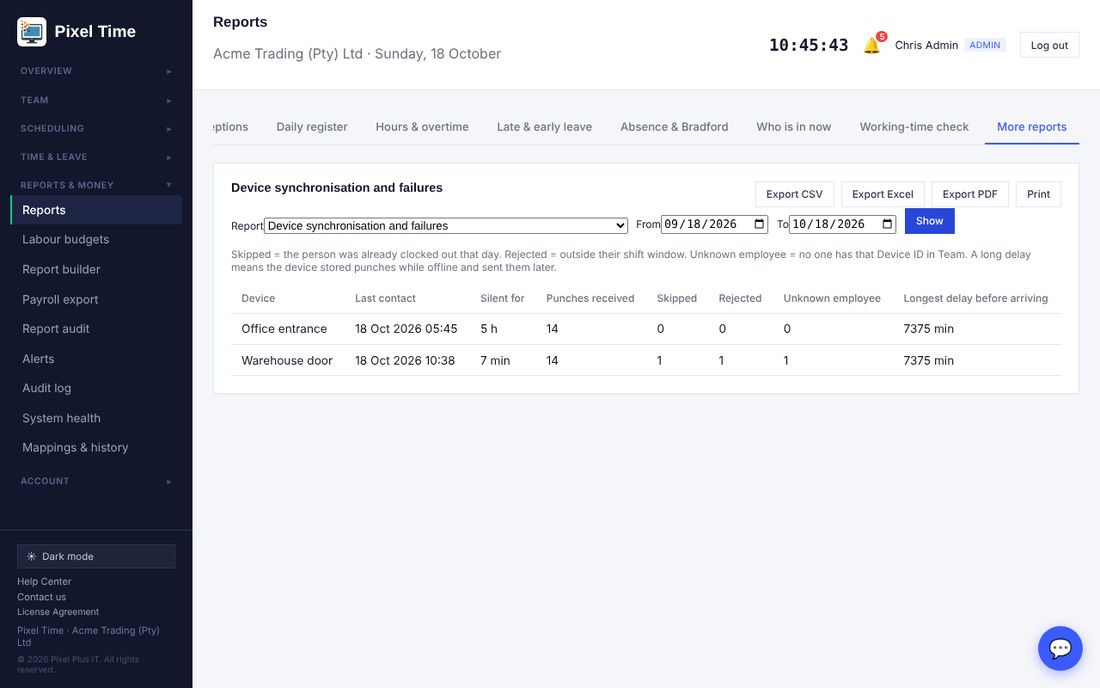
- Device records start from the day this update is uploaded. Earlier punches are not tagged with a device.
Offline clocking
- Open the Clock page while you still have a signal and leave it open.
- If the signal drops, press the button as normal. The punch is saved on the phone with the time you pressed it.
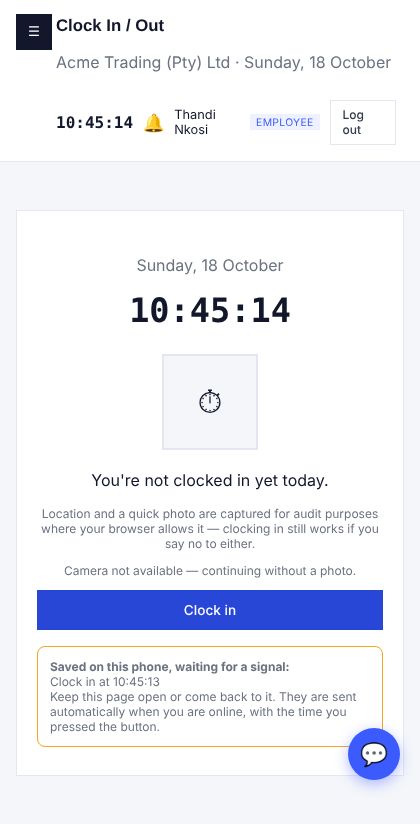
- When the phone is back online the punch is sent by itself and the page refreshes.
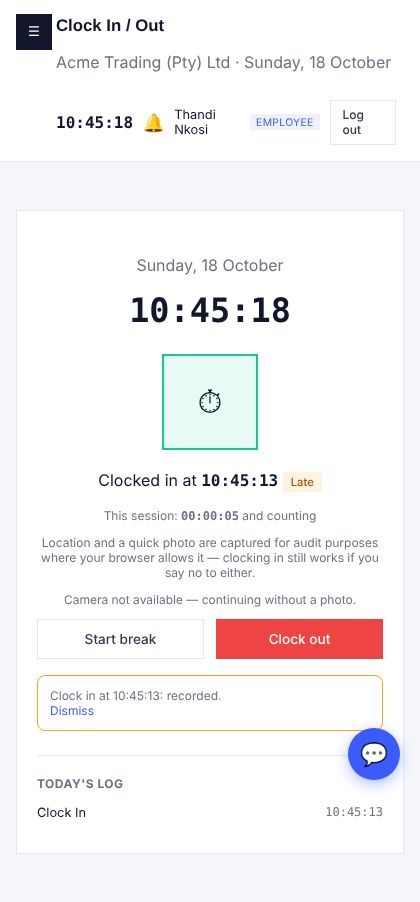
- The server checks every punch again (locked periods, order, shift window, location). Punches older than 48 hours are refused. The phone clock is corrected if it is wrong.
- The page must already have been open before the signal was lost. If the phone is switched off, or the browser data is cleared, a waiting punch can be lost.
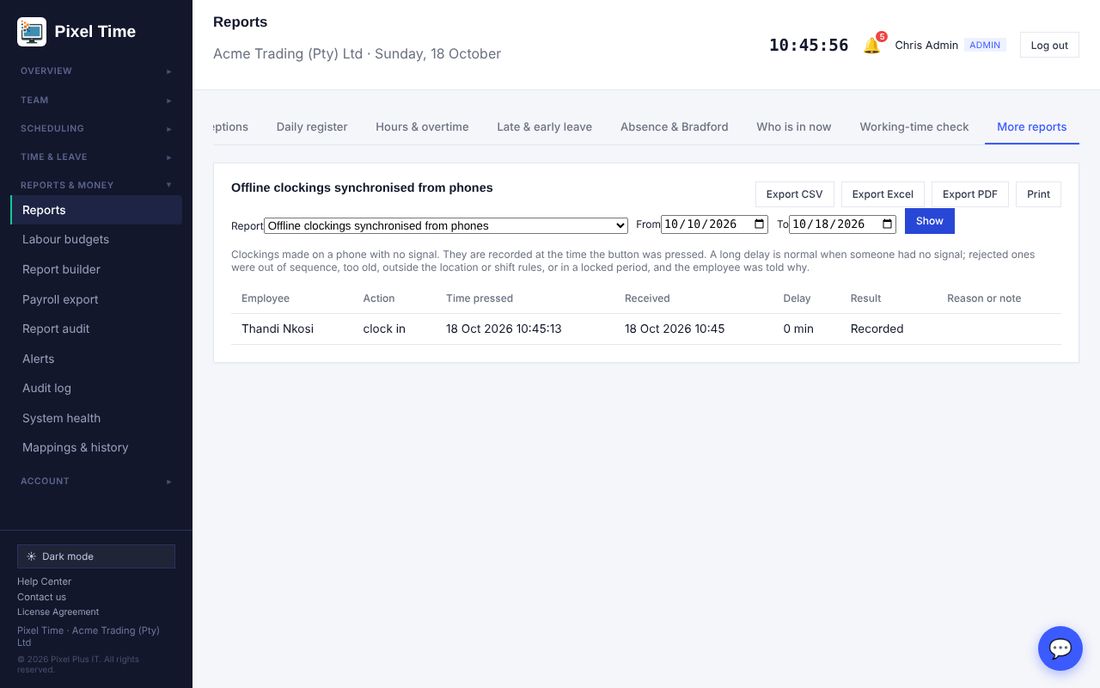
- Reports > More reports > Audit & security > Offline clockings lists each one with the delay and result.
More reports
- Clock sessions: each in-and-out pair, breaks and time between.
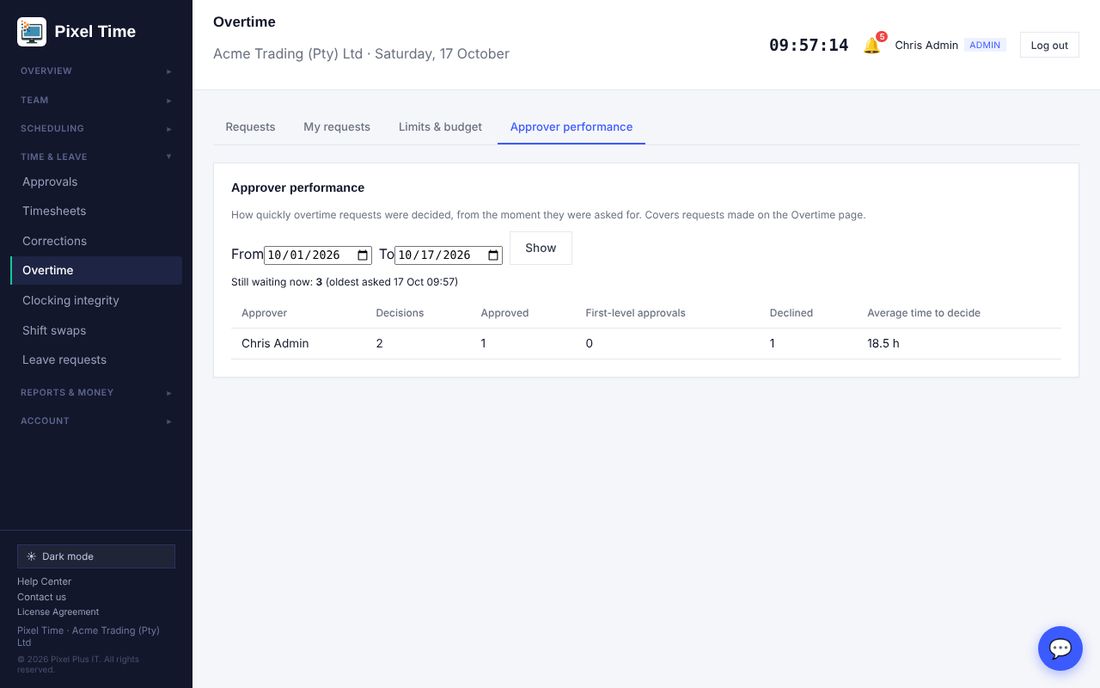
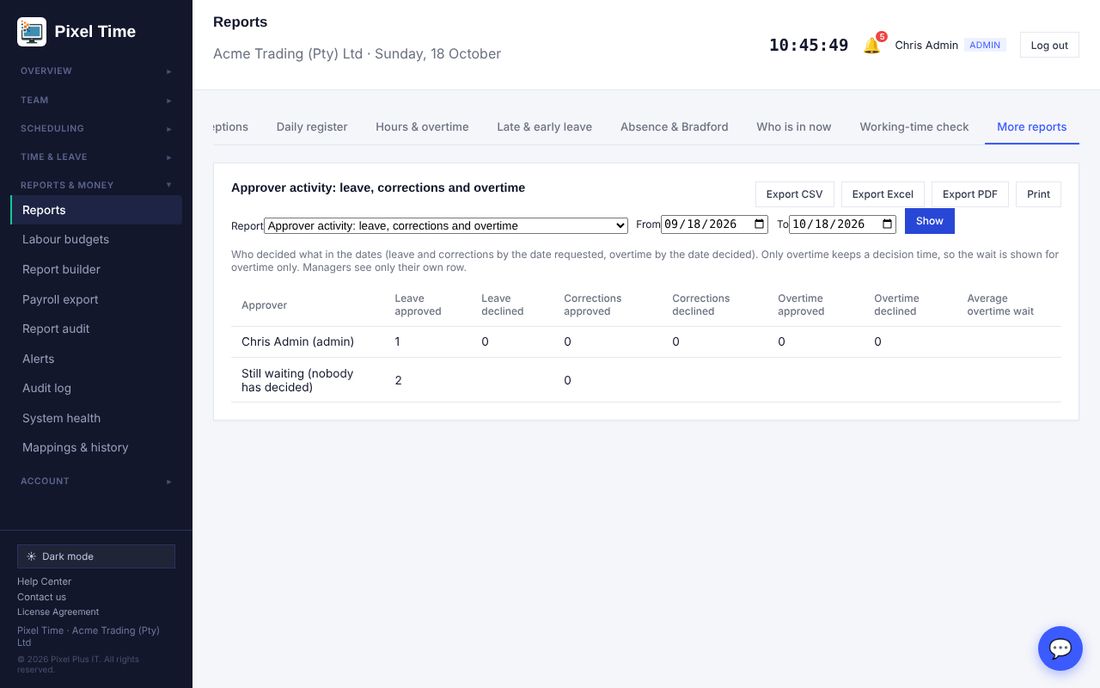
- Approver activity: leave, corrections and overtime each manager approved or declined, and how long overtime waited.
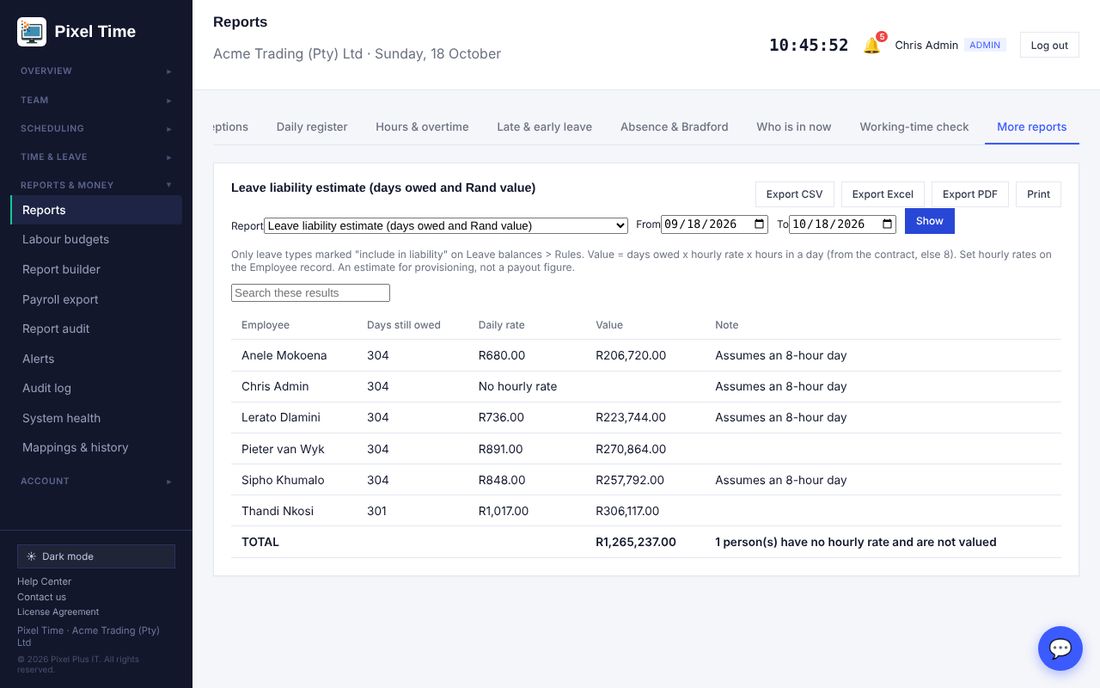
- Leave liability now shows the Rand value (days owed x hourly rate x 8-hour day). Employees without a rate are flagged. Leave ledger shows every movement behind a balance.
21. Approval rules, hours of leave and allowances
Who: administrators set these up (auditors can view). Where: Reports & money > Approval rules.
Roster changes that need approval
- Open Approval rules and tick that a manager's roster changes wait for an administrator, then Save.
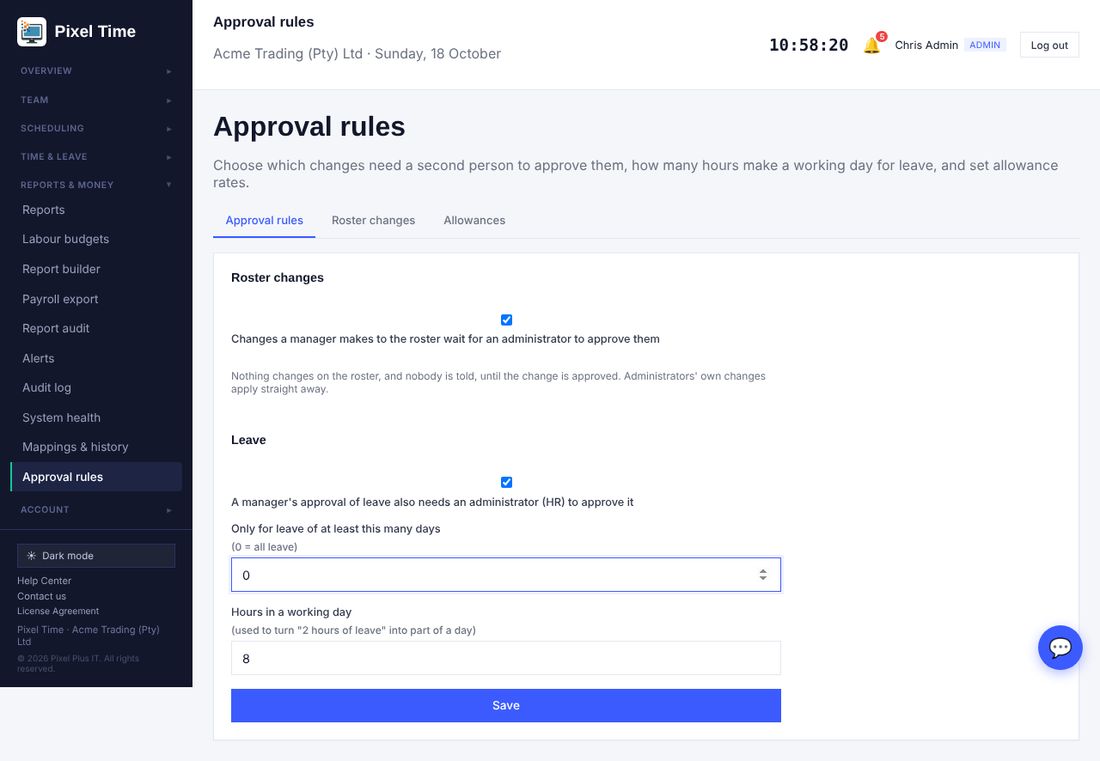
- When a manager saves the roster they are told the changes were sent for approval. Nothing changes on the roster yet.
- Open the Roster changes tab. Each waiting change shows the day, the employee, what they have now and what is proposed.
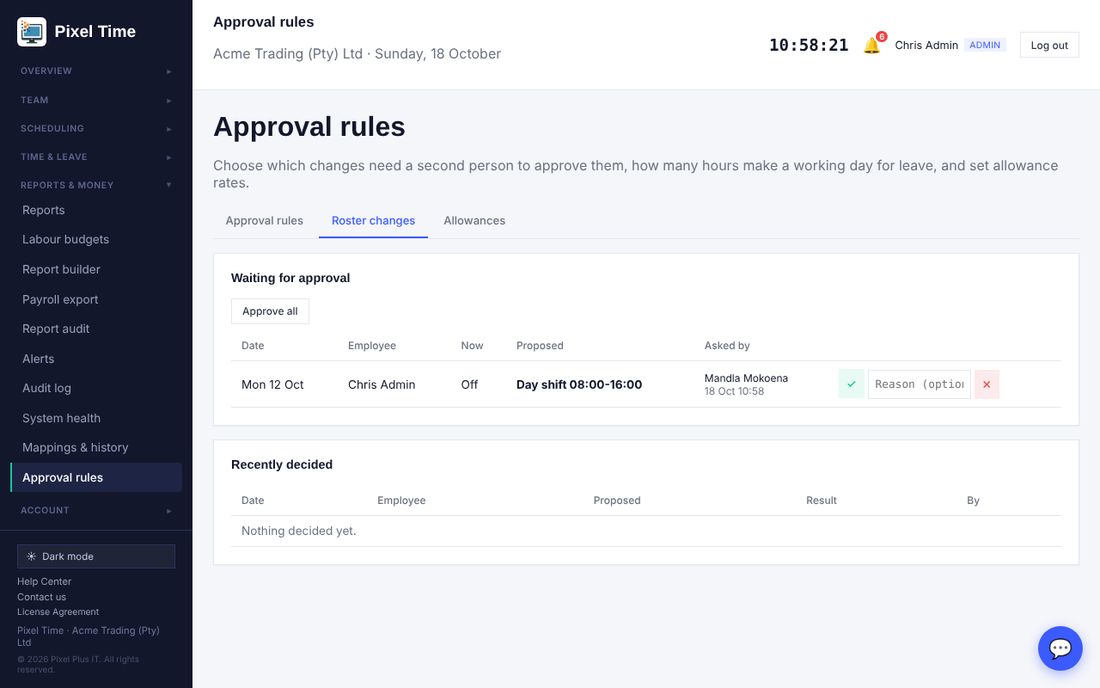
- Approve or decline each one, or choose Approve all. The employee is told only when a change is approved.
- Administrators' own changes apply straight away. A newer proposal for the same person and day replaces the waiting one. Every step is in the audit log.
Second approval for leave
- In Approval rules tick that a manager's approval of leave also needs an administrator (HR). Choose from how many days it applies; 0 means all leave.
- When the manager approves, the request shows Waiting for second approval and administrators are notified.
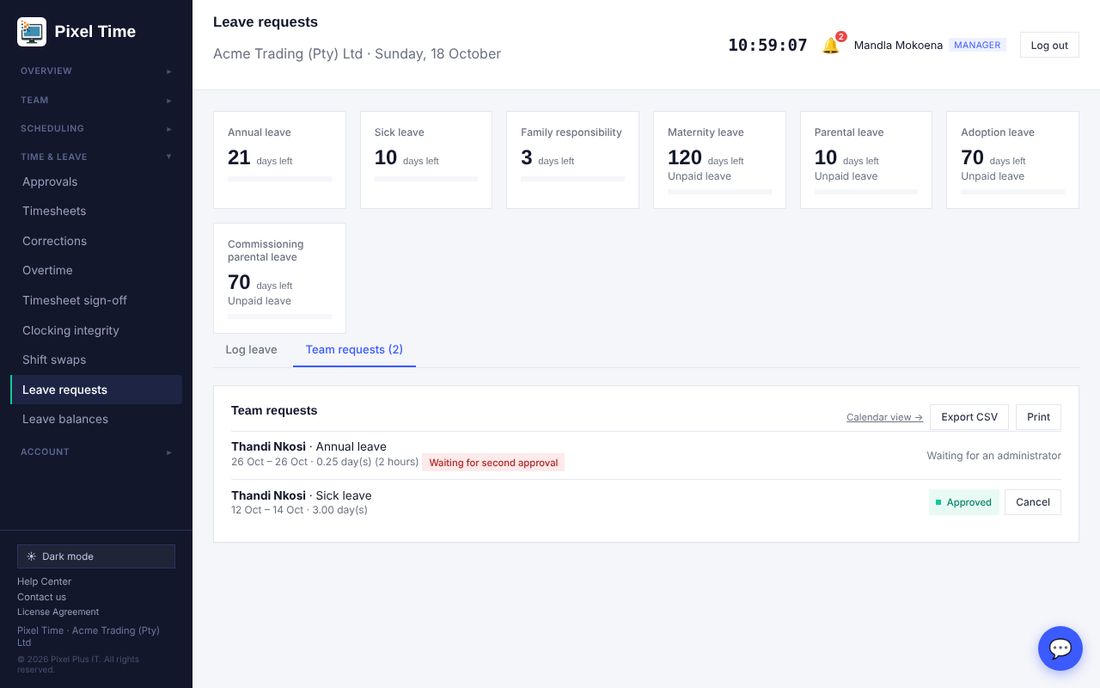
- The administrator approves or declines on the Leave page. Balances change only at the final approval.
Leave for a few hours
- On the Leave page choose the same start and end date and type the hours, for example 2.
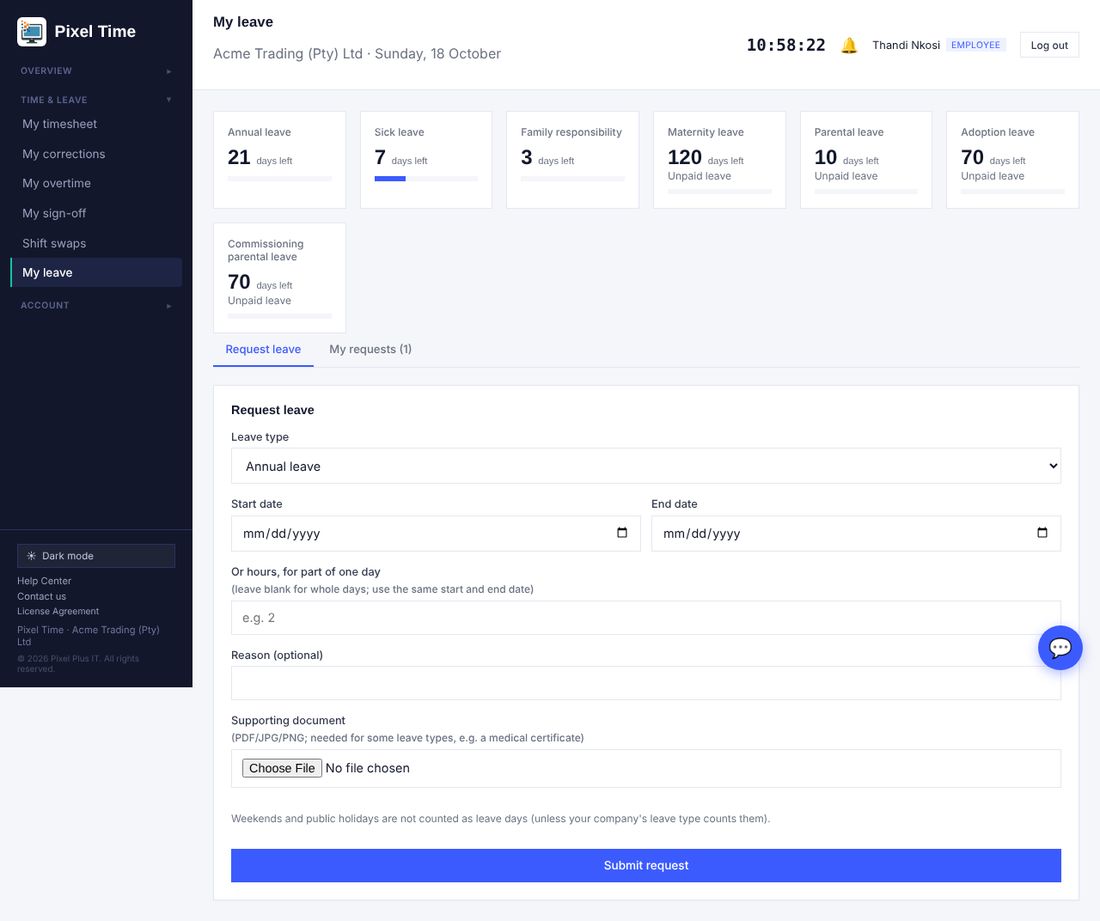
- Hours become part of a day using the length of a working day (8 hours unless you change it in Approval rules): 2 hours is 0.25 of a day. It is shown as 0.25 day(s) (2 hours) on the request.
- Part-day requests can share a day as long as they total no more than one day. More hours than a working day is refused.
- Leave balances and requests now keep two decimals, so quarter days are exact.
Allowance rates
- Open Approval rules > Allowances. Add a name, what it is paid for (night hour, Sunday hour, public holiday hour or per day worked), the rate in Rand and the date it starts.
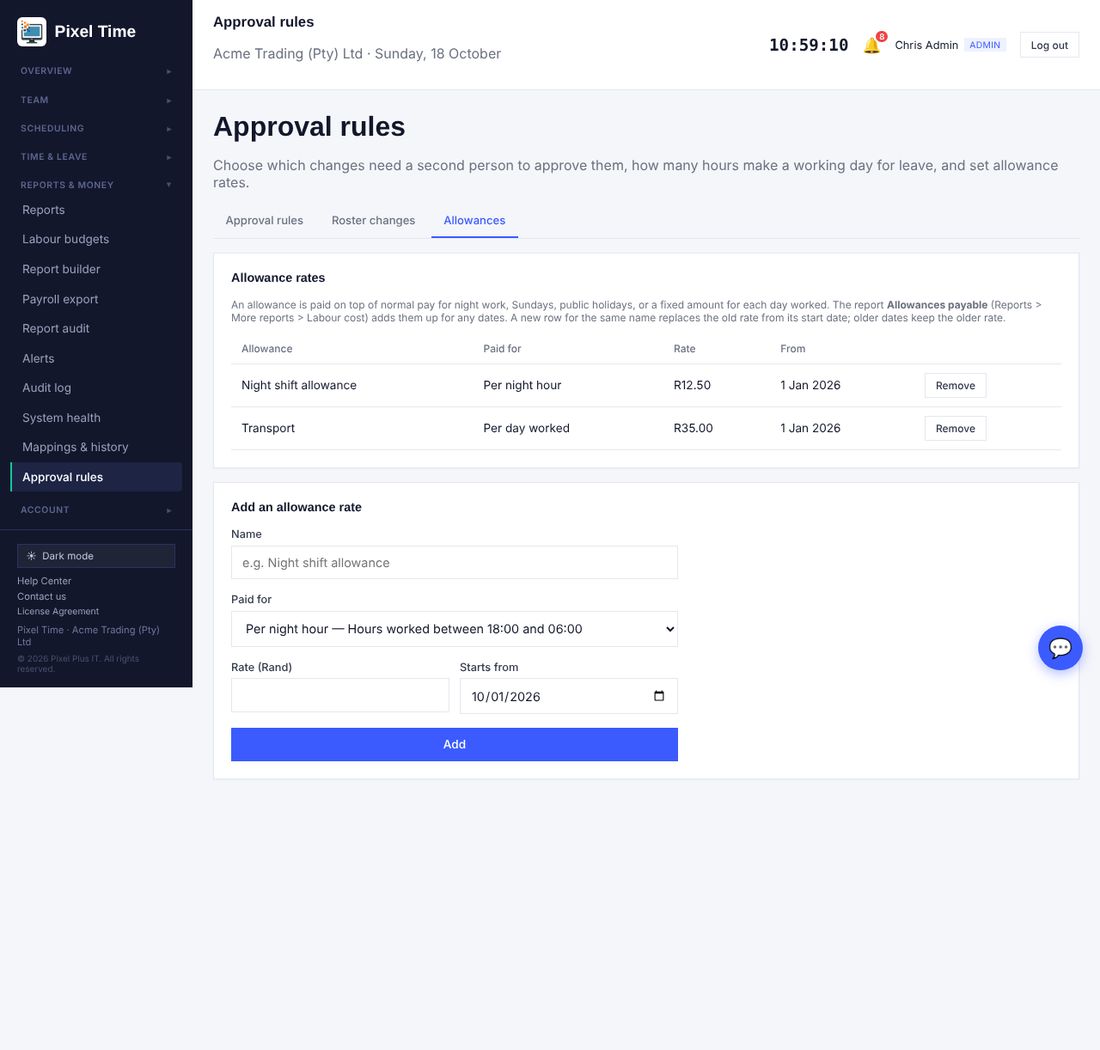
- Open Reports > More reports > Labour cost > Allowances payable and choose the dates.
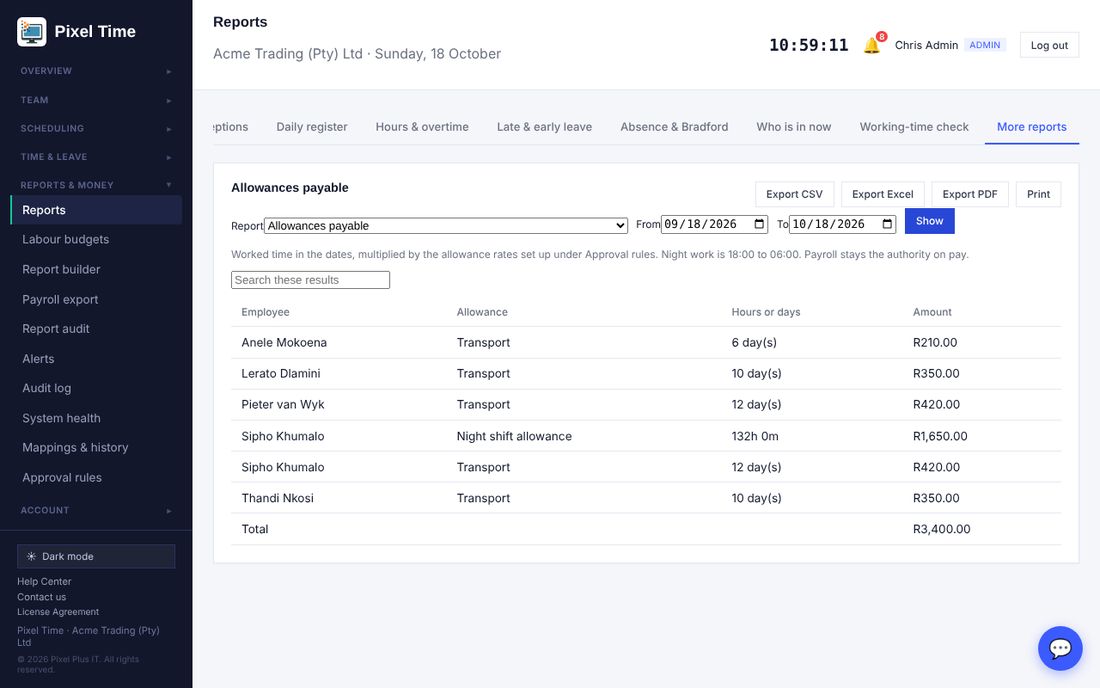
- Each day uses the rate in force on that date, so a rate change from 15 January does not change earlier days. Night work is 18:00 to 06:00. The report can also be exported to Excel and PDF.
- Allowances are shown to administrators and auditors only. Payroll stays the authority on pay.
22. Original clockings, BCEA starting points, payroll approval and checklists
Who: administrators; managers where stated. Where: Reports, Working-time rules, Payroll export, Team.
Original clockings are kept
- When a time correction is approved, or an administrator or manager sets a day's times directly, the punches that were there before are copied away first.
- Open Reports > More reports > Audit & security > Original clockings before correction and choose the dates.
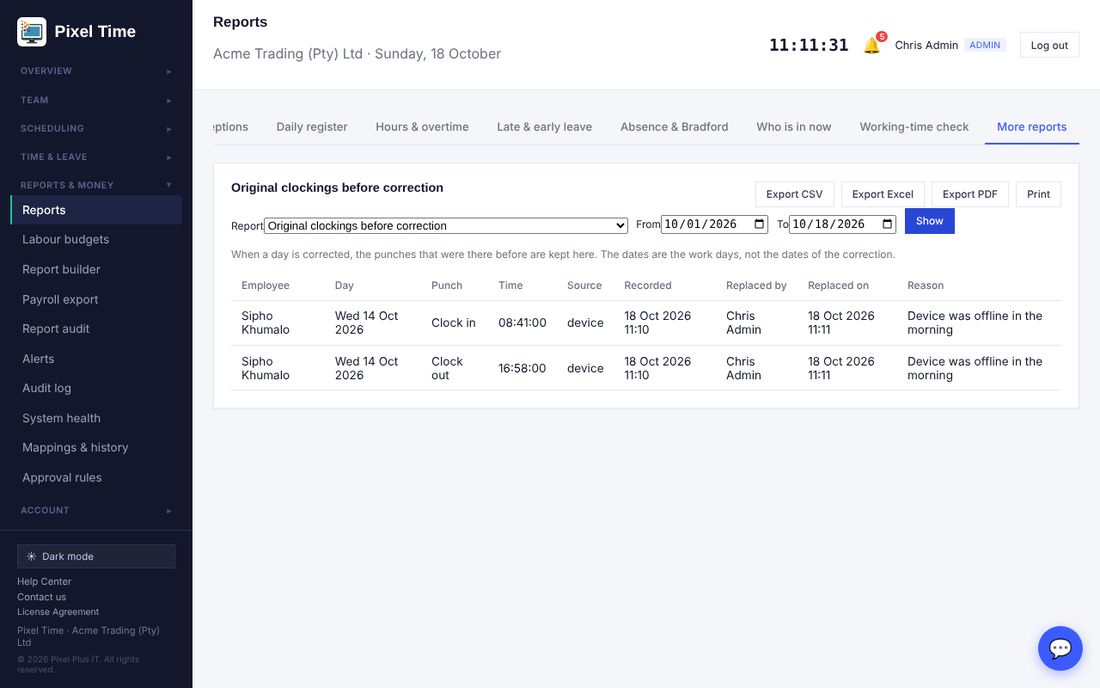
- Each line shows the punch, where it came from (device, web, kiosk), when it was recorded, who replaced it and the reason. Managers see their own department.
- Only punches replaced from this update onward are kept. Earlier corrections cannot be recovered.
BCEA starting points
- Open Working-time rules > Rule sets and use Start from the BCEA.
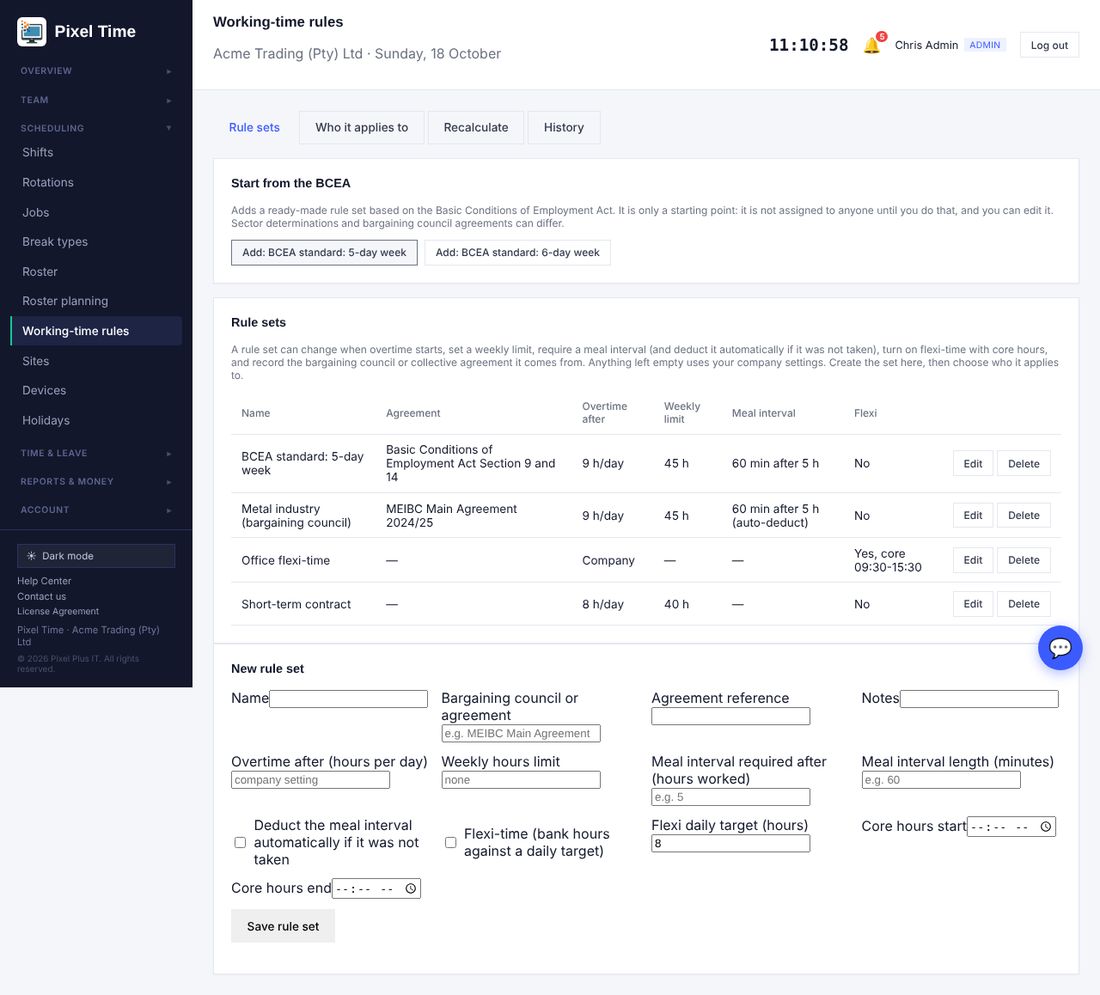
- Choose the 5-day week (up to 9 ordinary hours a day) or the 6-day week (up to 8), both with 45 hours a week and a one-hour meal interval after 5 hours.
- Assign the set on the Who it applies to tab. Nothing is assigned automatically, and you can edit the set like any other.
- These are starting points only. Sector determinations and bargaining council agreements can differ, so check them against your contracts.
Approve a pay period before it is exported
- Open Approval rules and tick that a pay period must be approved before it can be exported. Leave the second box ticked if the person who asks must not approve their own request. Save.
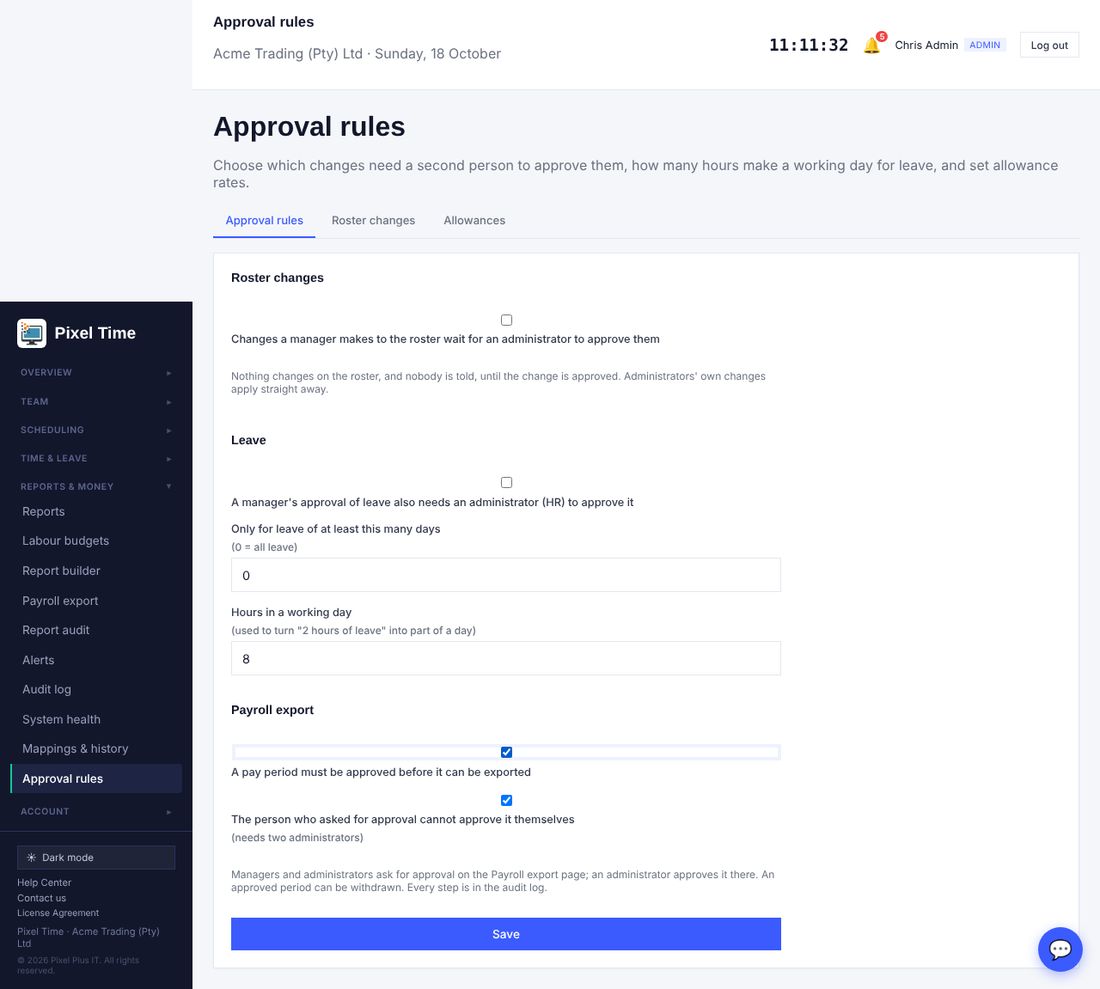
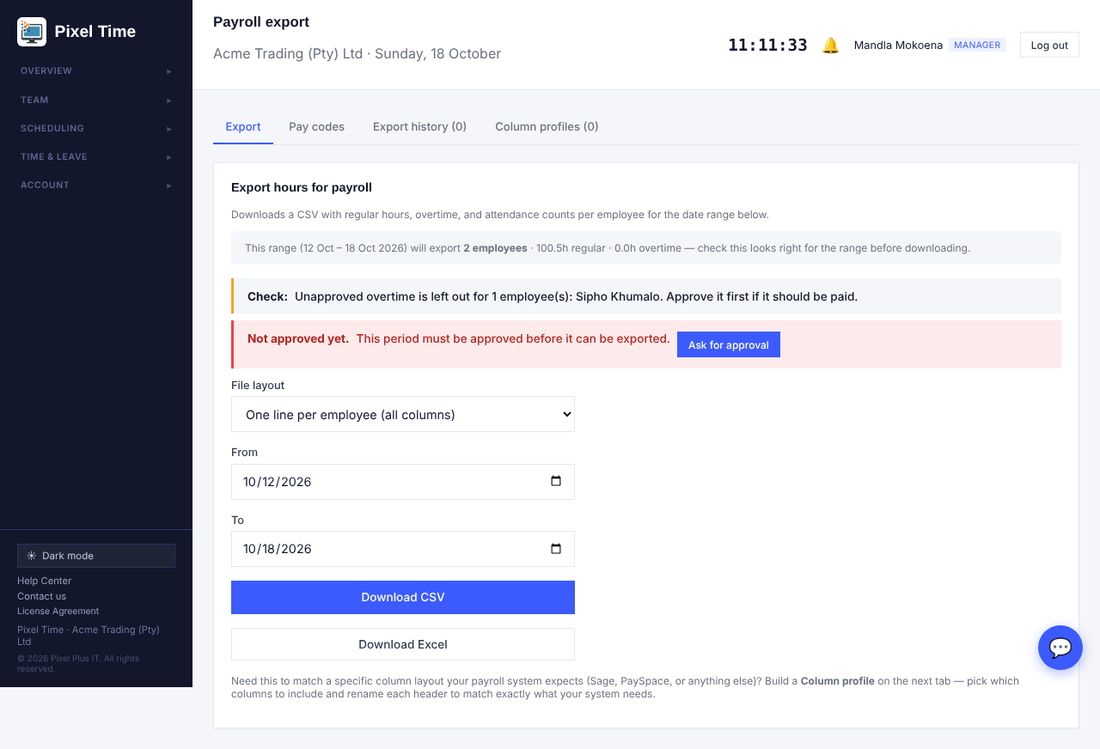
- On Payroll export, a manager or administrator presses Ask for approval for the dates chosen.
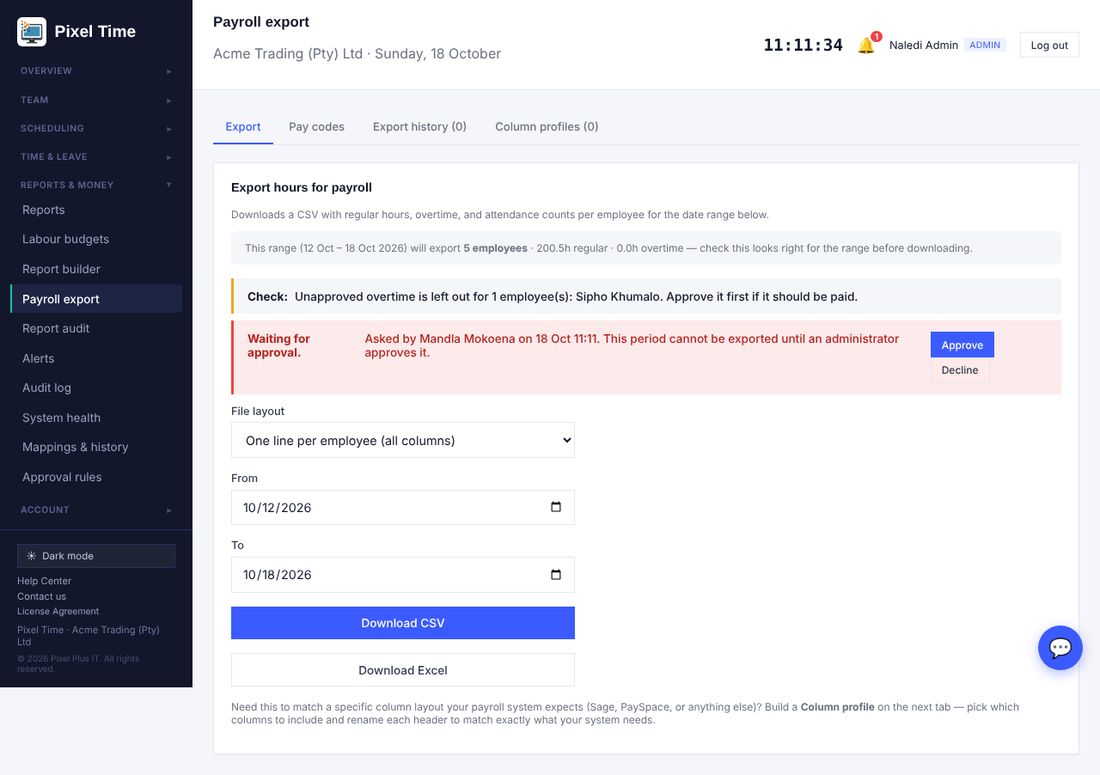
- An administrator opens the same dates and presses Approve (or Decline). Administrators are notified when a request is made.
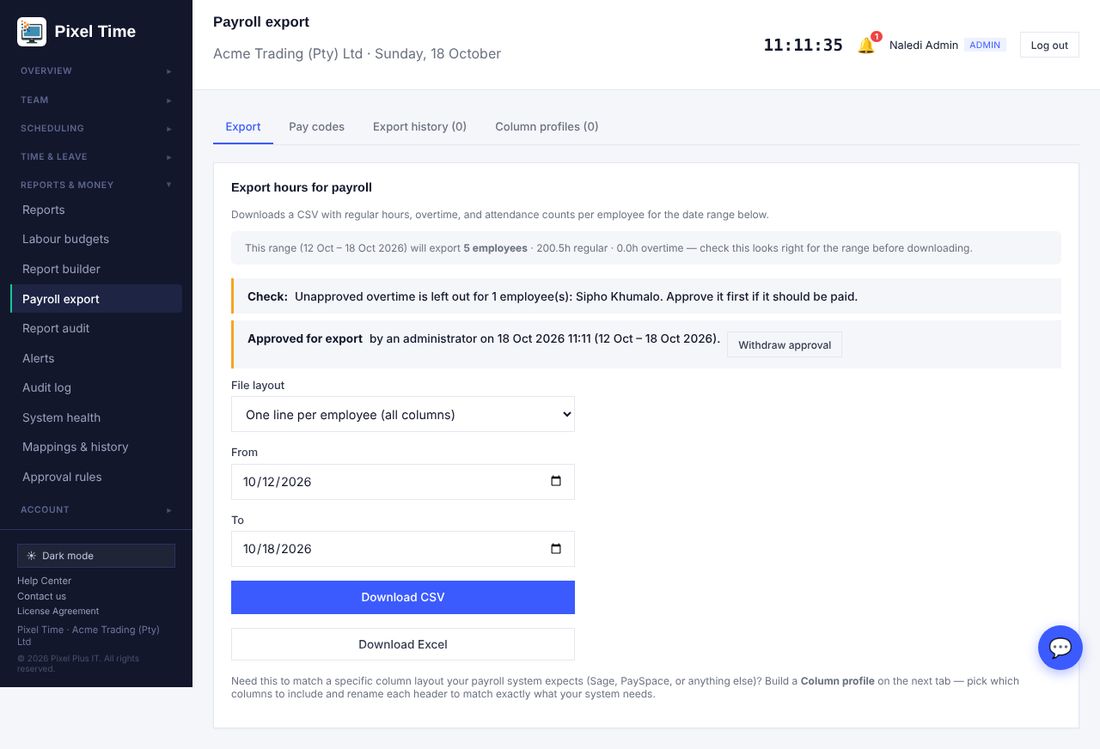
- Once approved the page says so and the download works. Withdraw approval puts the block back.
- An approval for a longer period covers any shorter period inside it. The Payroll export approvals report (Audit & security) lists every request and decision.
- If you have only one administrator, untick the second box so that administrator can approve their own request.
Onboarding and offboarding checklists
- Open Team > Onboarding & offboarding. A checklist starts by itself when you add an employee (onboarding) or offboard one (offboarding).
- Open a person on the One person tab and tick each step as it is done. Who ticked it and when is kept.
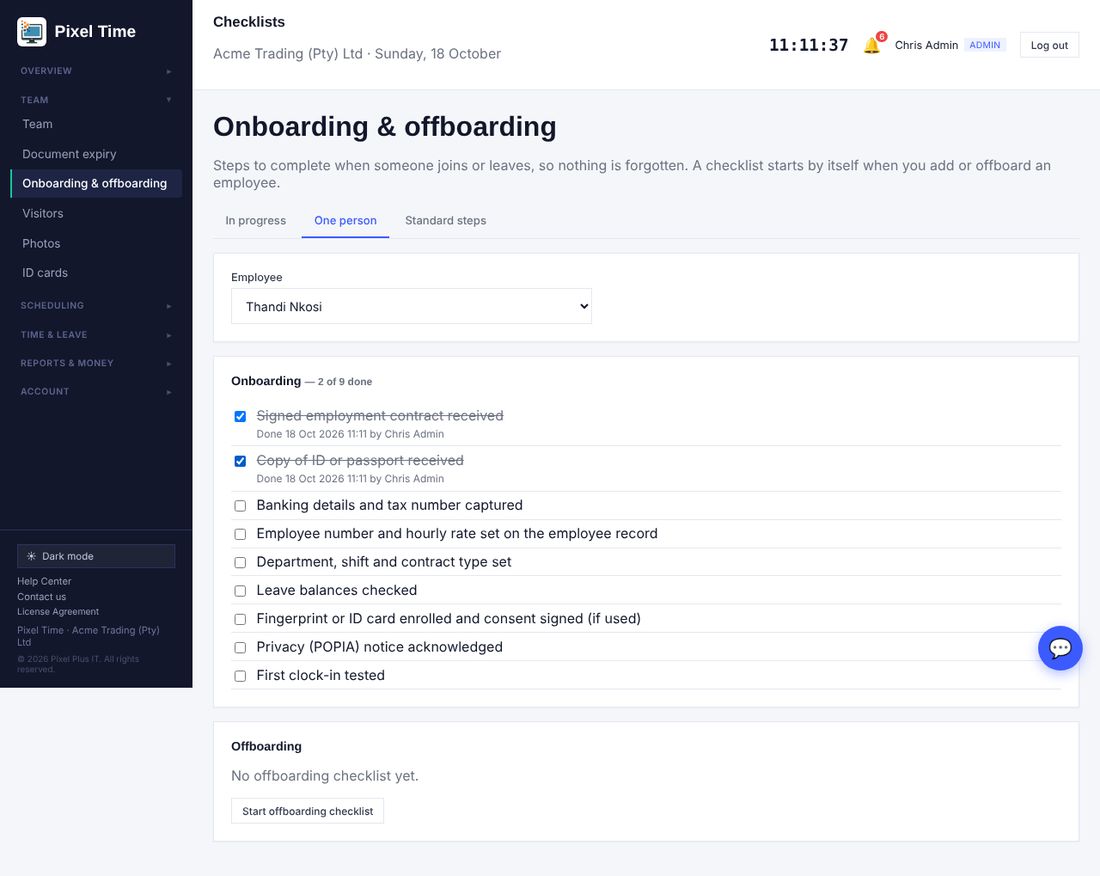
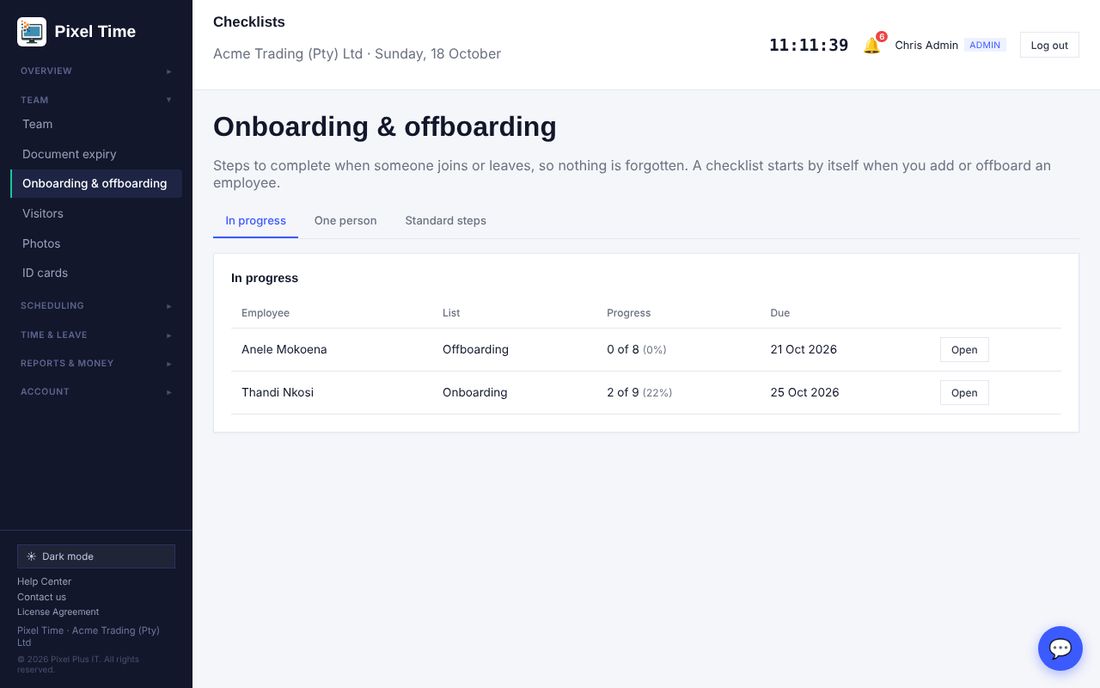
- The In progress tab shows everyone with open steps, how far they are and whether they are overdue.
- Administrators change the standard steps on the Standard steps tab. Lists already started are not changed.
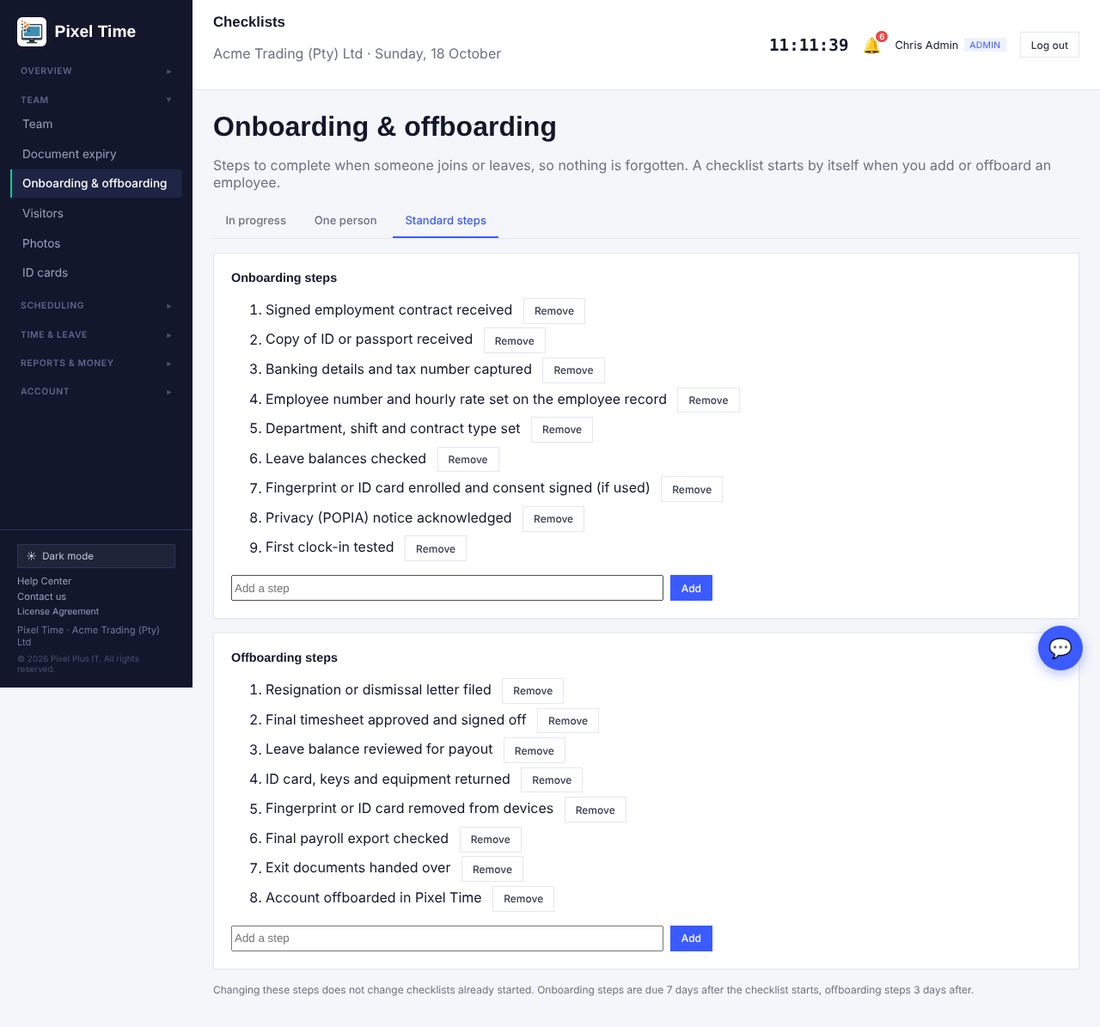
- Onboarding steps are due 7 days after the list starts, offboarding steps 3 days. You are alerted when steps stay open past their due date (Alerts page: Onboarding or offboarding steps overdue).
- Reports > More reports > Management > Onboarding and offboarding progress lists every checklist.
23. Live board, profile photos and reports on screen
Who: administrators, managers (own department) and auditors for the live board and shared reports; every person for their own photo. Where: Overview > Live board, Account > My photo, Reports & money > Report builder and Shared reports.
The live board
- Open Overview > Live board. It shows who is in right now and refreshes by itself every minute.
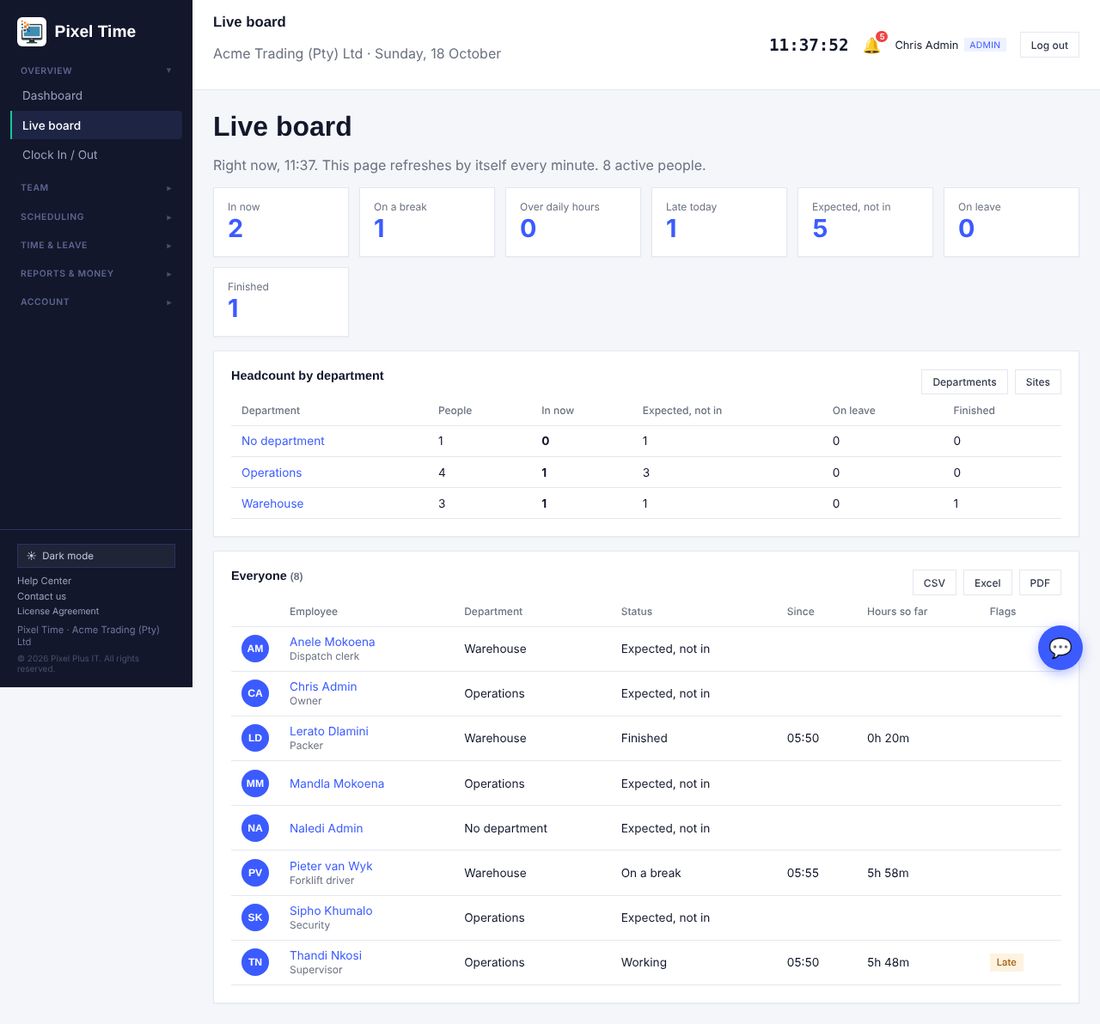
- Press a number card (for example Late today or Expected, not in) to list only those people.
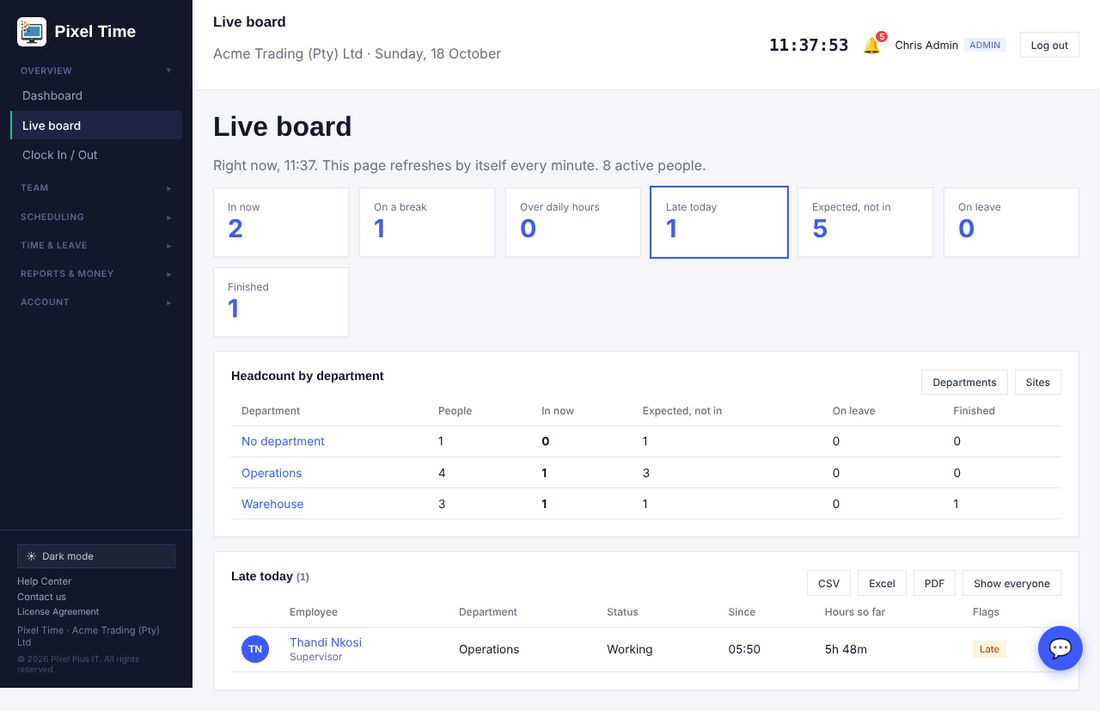
- The Headcount table can be switched between Departments and Sites. Press a department or site name to see its people.
- Use CSV, Excel or PDF to download the list you are looking at.
- Over daily hours is an estimate for people still clocked in. It is judged against their working-time rule, or the company daily limit, and is confirmed when the day closes.
- Managers see their own department only. Auditors can look but not change anything.
Timesheet downloads
- On Timesheets, next to Export this view (CSV), press Excel for a spreadsheet or PDF for a printable attendance statement.
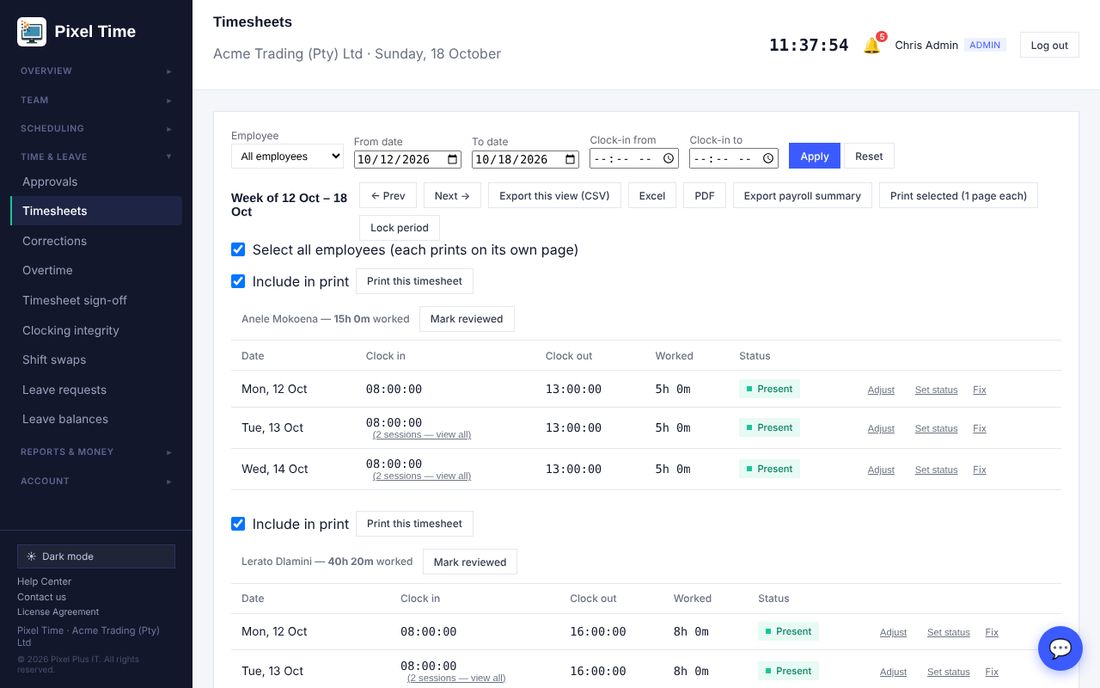
- The Excel and PDF have the same lines as the CSV for the week and people you are viewing.
Profile photos
- Open Account > My photo, choose a JPG or PNG (at least 100 x 100 pixels, up to 6 MB) and press Save photo.
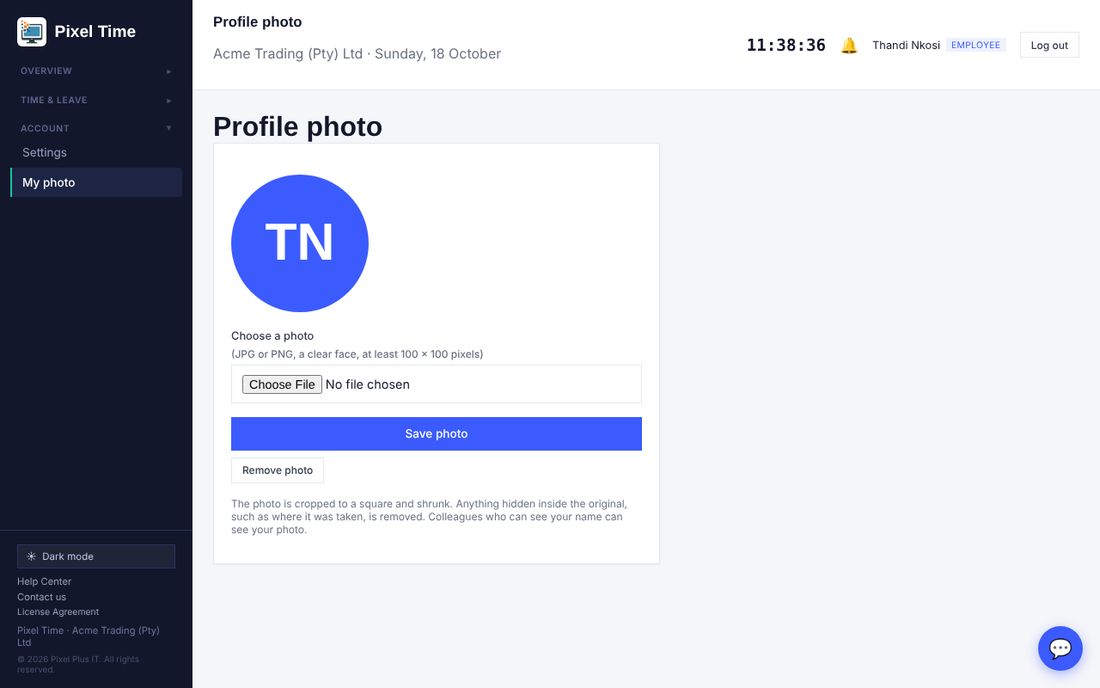
- The photo is cropped to a square and shrunk. Anything hidden inside the original, such as where it was taken, is dropped.
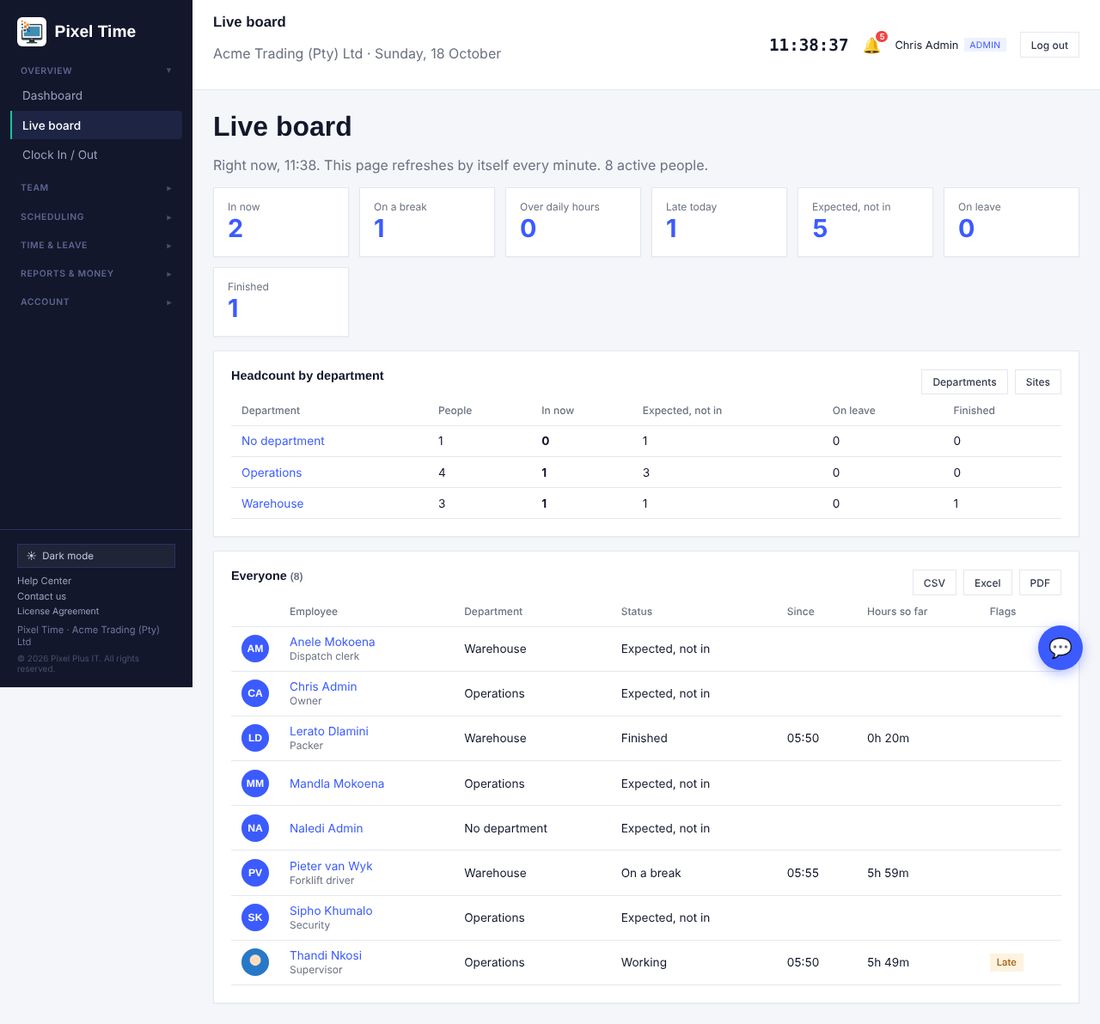
- Administrators can change anyone's photo, managers their own people's. Remove photo returns to initials. Photos are only shown to people in the same company.
- Adding an employee: the Add employee form has an optional Photo box, so the photo goes in with the new person. If the photo is not suitable, the employee is still added and you are told why.
- One person later: Team > Everyone shows each person's picture and a Photo button on their row.
- Many at once (administrators): Team > Bulk import > Upload many photos at once. Name each photo after the person's employee number or Device ID, for example E1042.jpg, and choose them all together. A table then shows which were saved and which were not, and why. Most servers accept about 20 files at a time, so send bigger groups in batches.
- A bulk CSV import cannot carry photos. Import the people first with their employee numbers, then upload the photos named by those numbers. Photos only ever match people in your own company.
Reports on screen
- Open Report builder and press View beside a saved report, or open Reports & money > Shared reports.
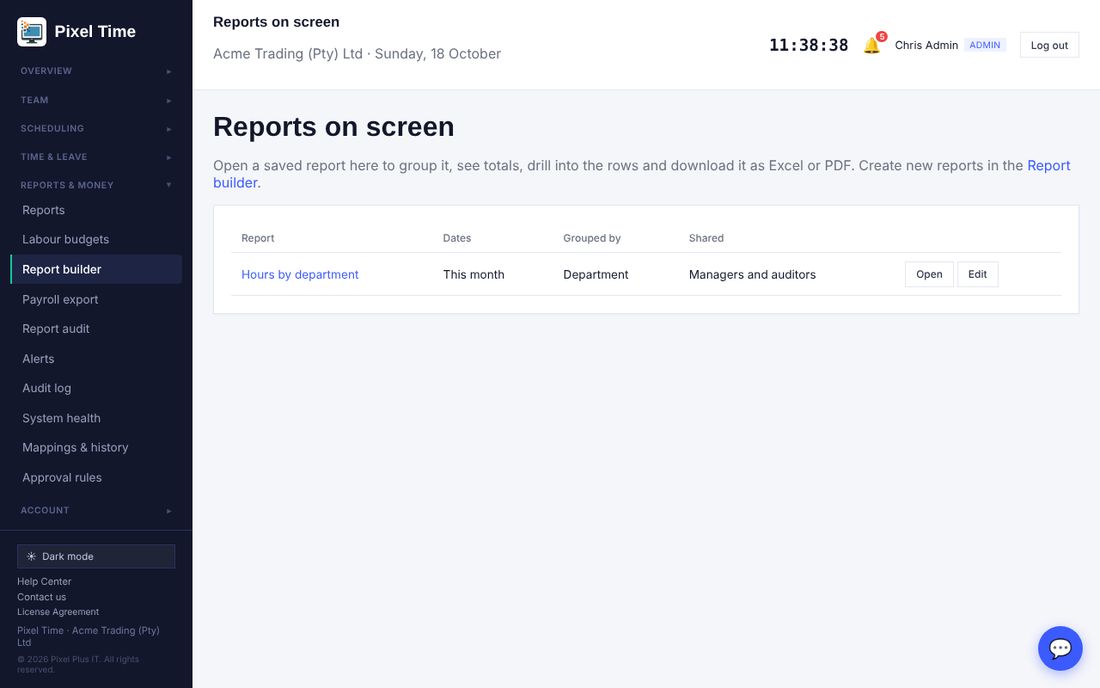
- A report set to group by department, employee, site, day or month shows one line per group with the number of rows and the totals of every minutes column.
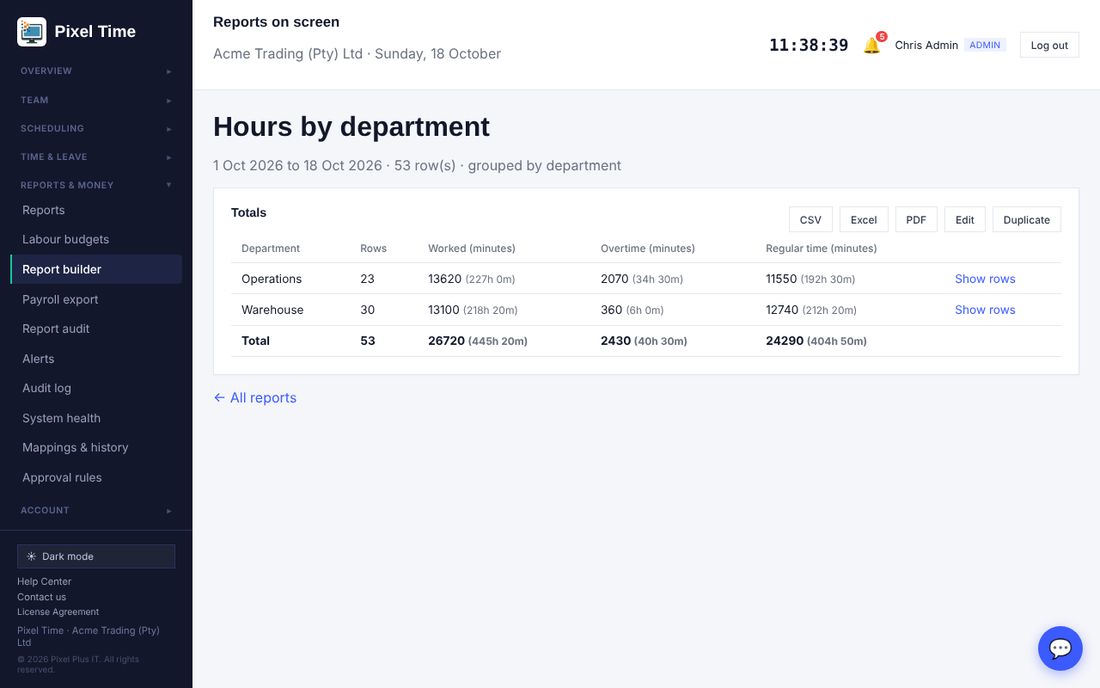
- Press Show rows on a group to see the lines behind it, and back to the totals to return.
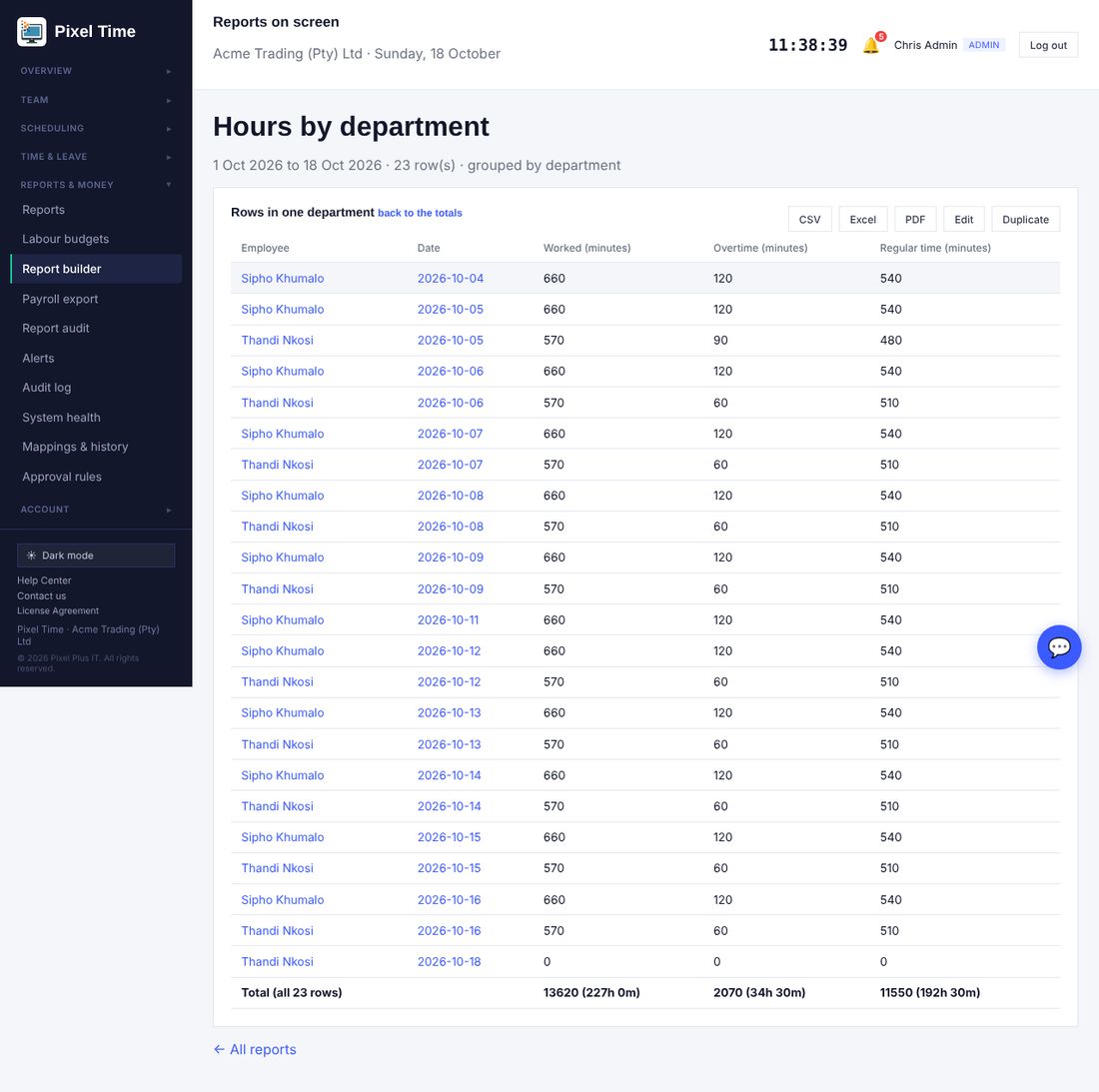
- CSV, Excel and PDF download exactly what is on screen: the totals, or the rows of the group you opened.
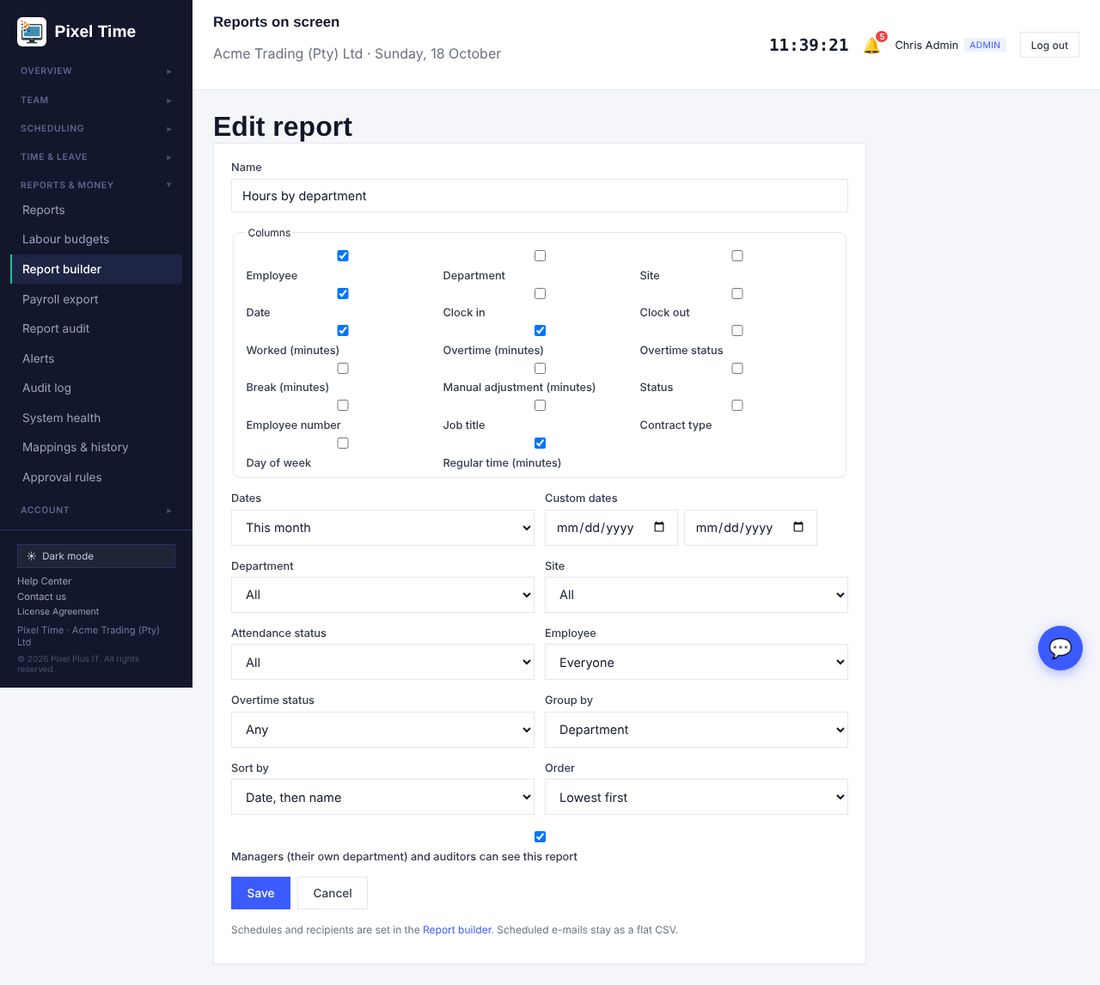
- Administrators press Edit to change the name, columns, dates, filters, grouping, sorting and who may see it.
- Duplicate makes a copy called Copy of ..., which starts private and unscheduled.
- Tick Managers and auditors can see this report to share it. Managers then see only their own department's lines.
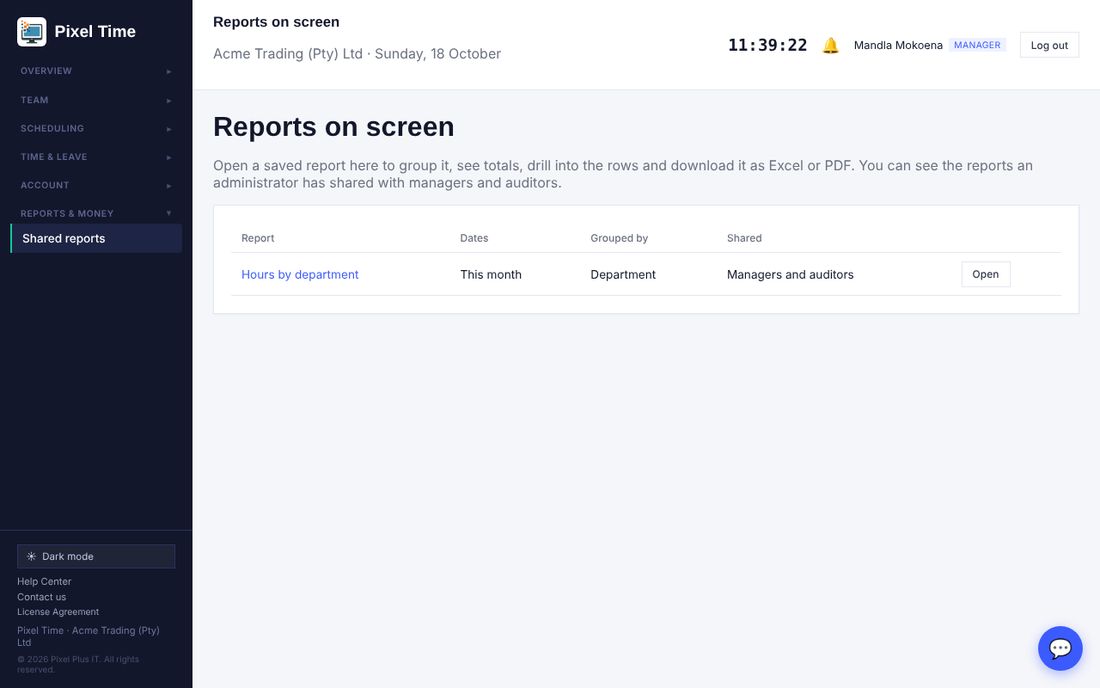
- New reports are still made in the Report builder, which now also offers Employee number, Job title, Contract type, Day of week and Regular time columns.
- Scheduled report e-mails stay as a flat CSV and are set up in the Report builder.
- On screen, a report uses up to 20 000 rows. Downloads take up to 100 000. Narrow the dates if you hit the limit.
24. Calculation breakdown, bulk overtime approval and new reports
Who: administrators, managers (own department) and auditors; employees for their own hours. Where: Time & leave > Calculation breakdown, Overtime, Reports > More reports.
Calculation breakdown
- Open Time & leave > Calculation breakdown, choose the employee and the dates (up to 62 days) and press Show.
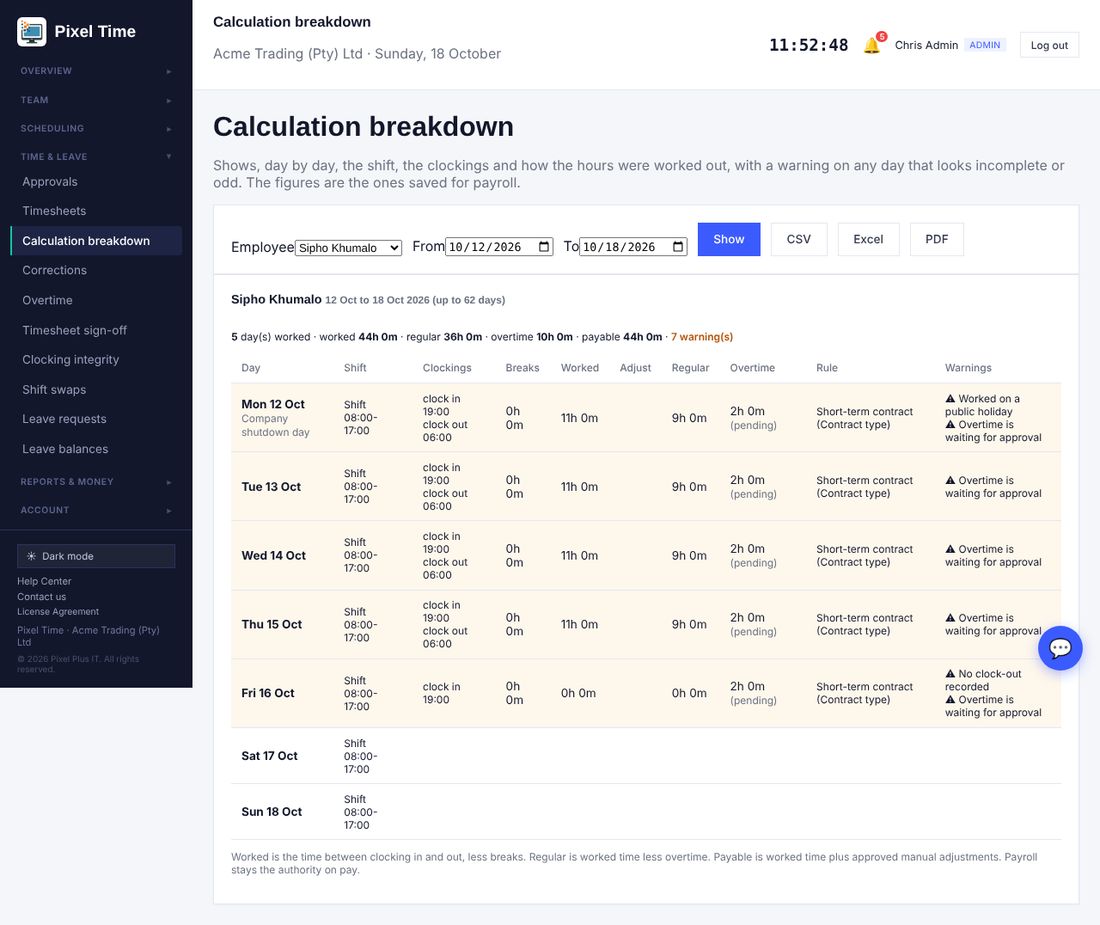
- Each day shows the shift, every clocking, breaks, time worked, any approved adjustment, regular time, overtime and its approval status, and the working-time rule that applied.
- A warning appears on a day that looks incomplete or odd: no clock-out, clockings out of order, a break never ended, more than 16 hours, work on a day with no shift, work on a public holiday, or an adjustment or overtime still waiting for approval.
- Where a day was corrected, it says how many original punches were kept.
- CSV, Excel and PDF download the same table.
- Employees open My hours explained to see the same for themselves.
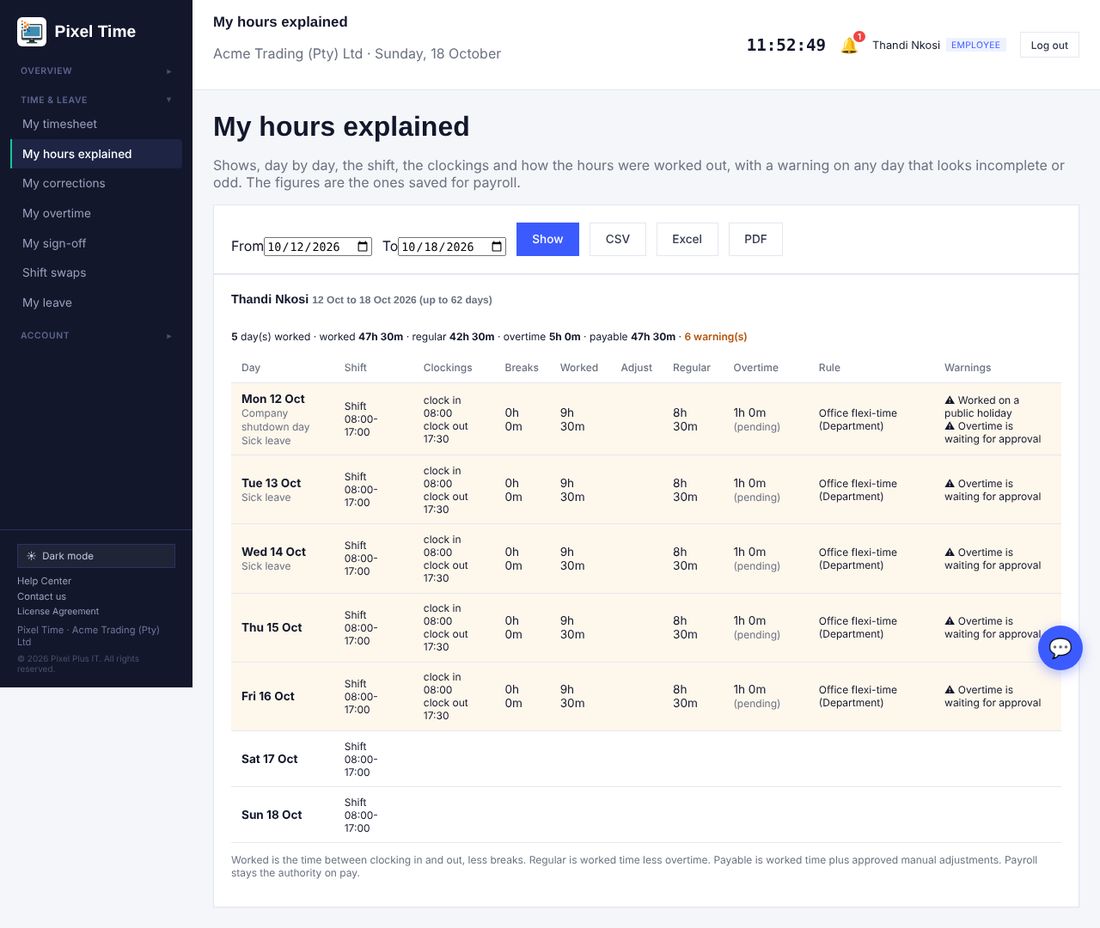
- Worked is the time between clocking in and out less breaks. Regular is worked time less overtime. Payable is worked time plus approved adjustments. Payroll stays the authority on pay.
Approve overtime in bulk
- Open Overtime > Requests. Requests that are safe to approve are marked fine to approve: the person really worked at least that much overtime, stays inside their monthly limit, and the date is not in a locked pay period.
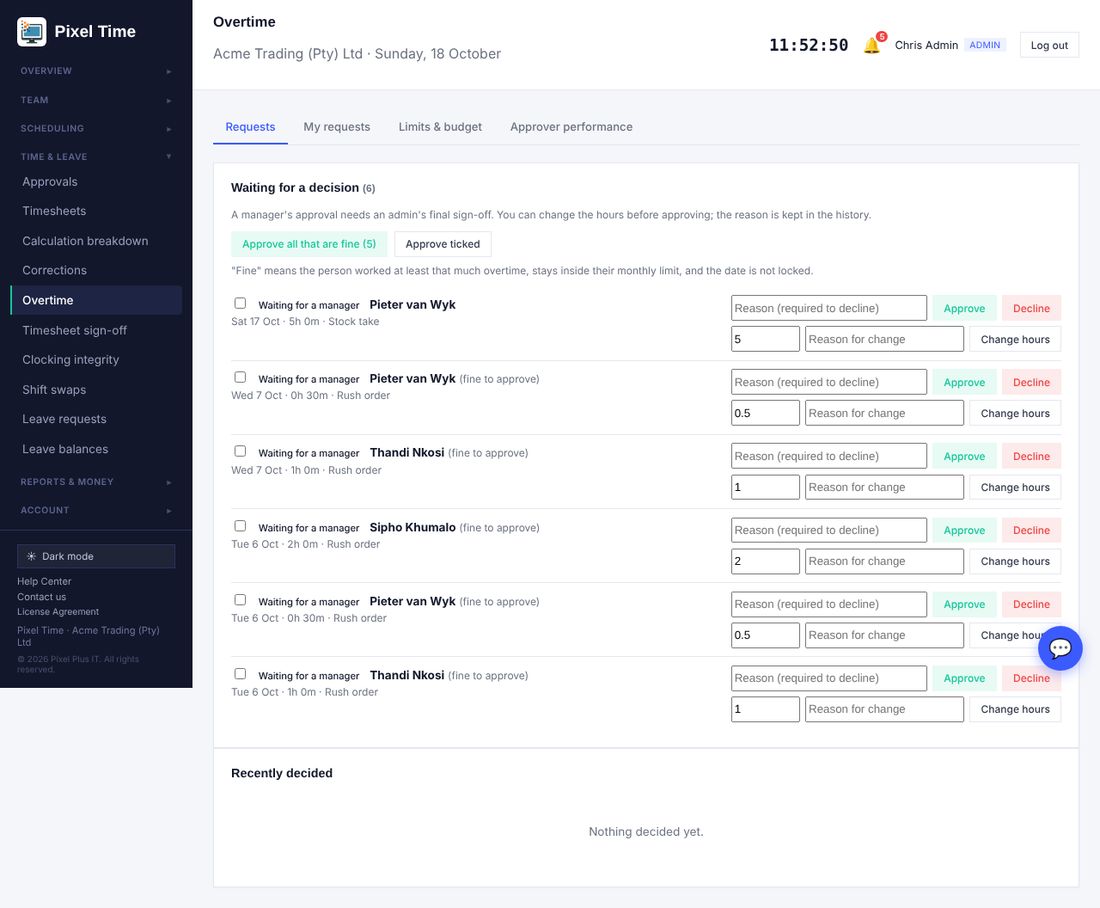
- Press Approve all that are fine to approve every such request in your scope, or tick some and press Approve ticked.
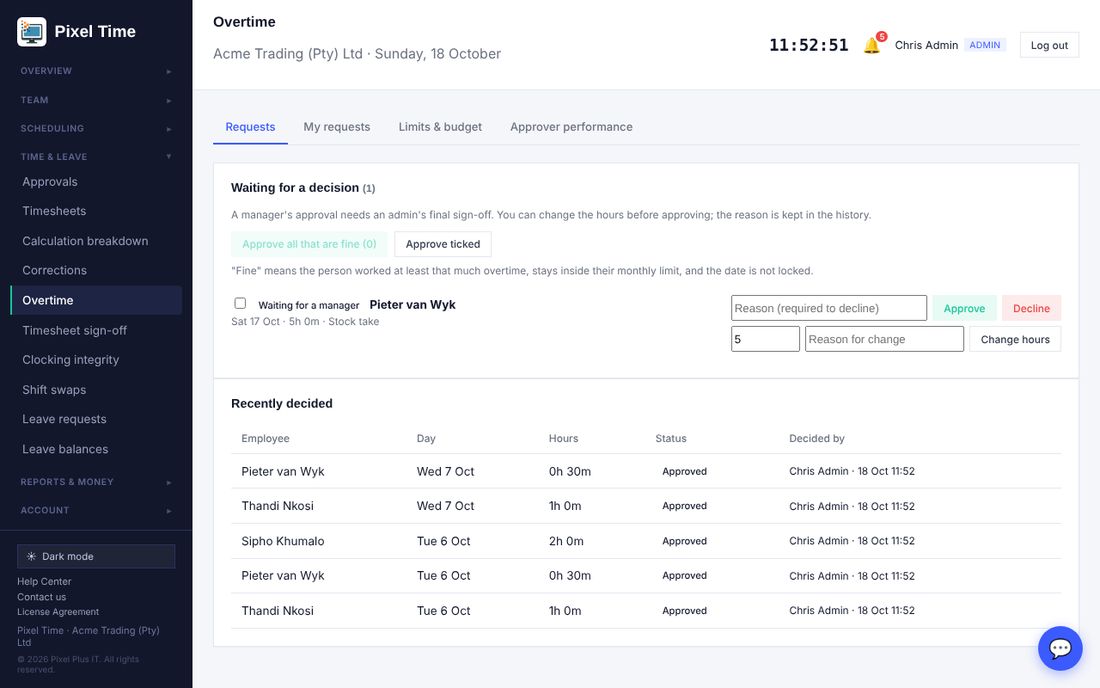
- Anything not fine is left for you to look at one by one. Managers still need an administrator's final sign-off where two-level approval is on.
New reports
- Reports > More reports now also has: Calculation warnings (Audit & security), Overtime by pay week and employee, Ordinary (regular) hours per employee, and Leave usage by employee and leave type.
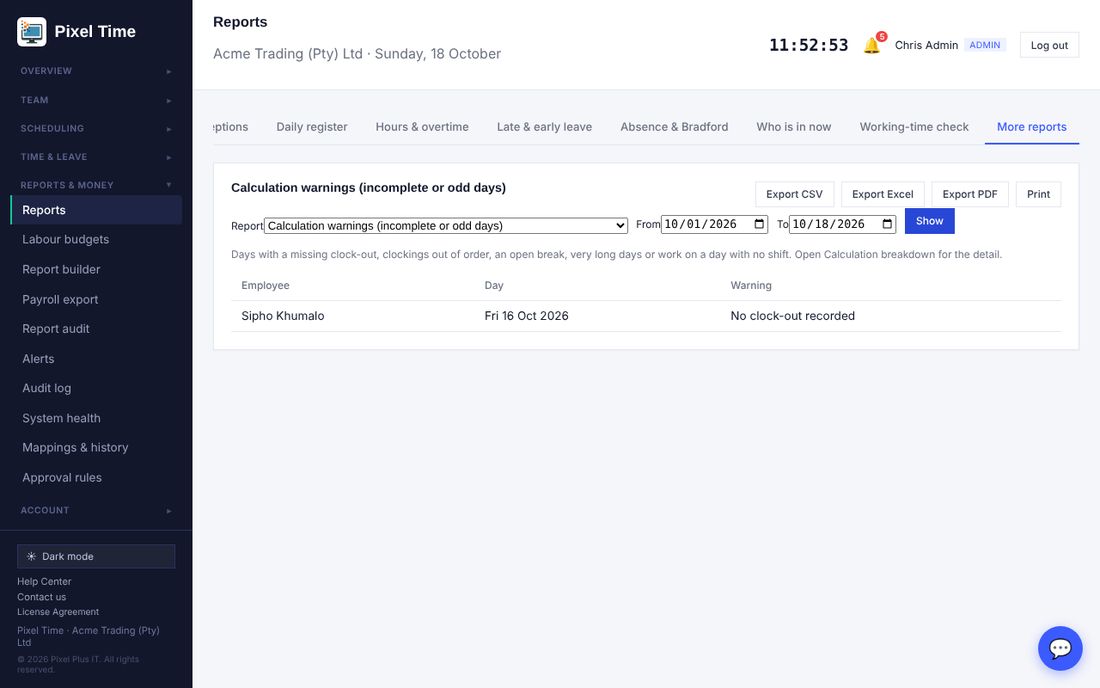
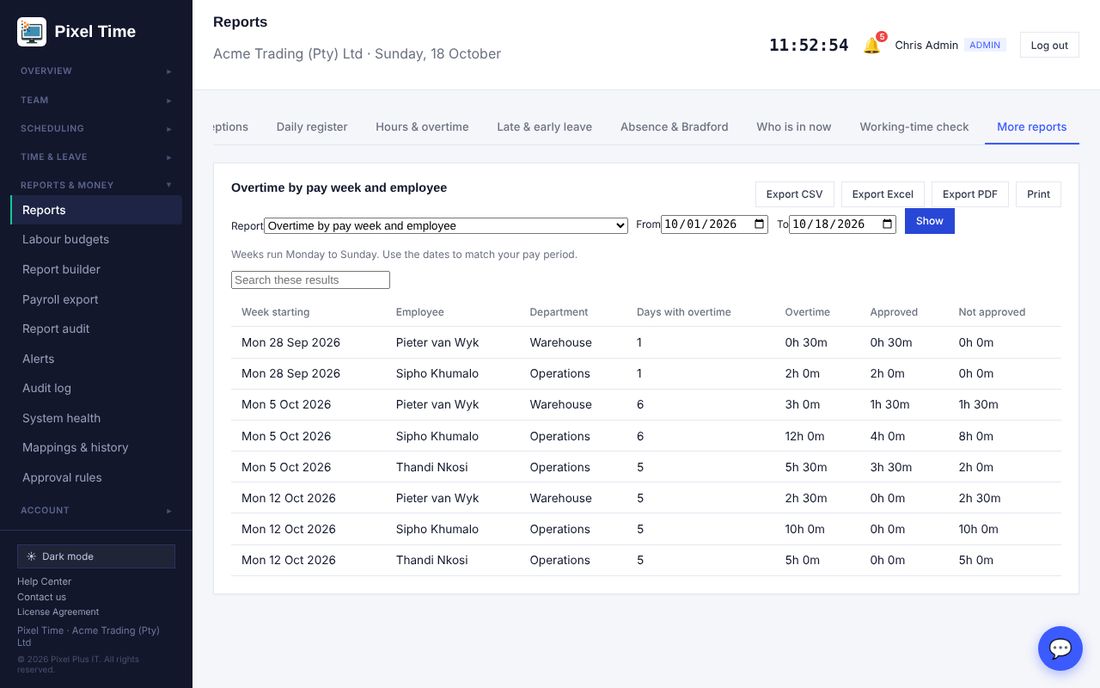
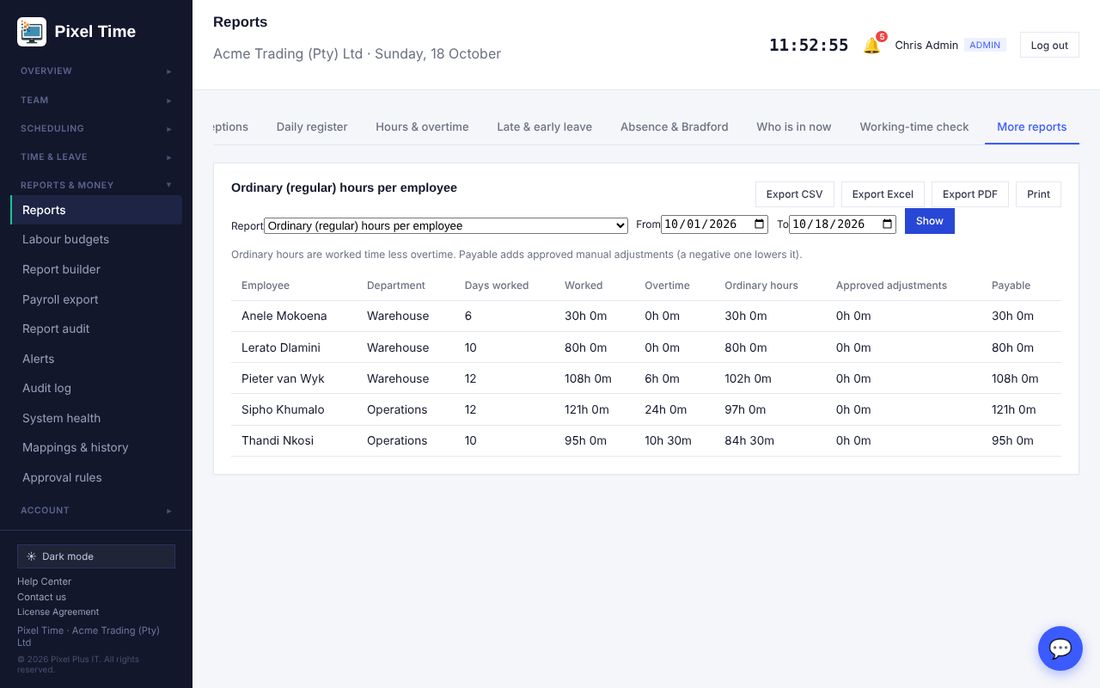
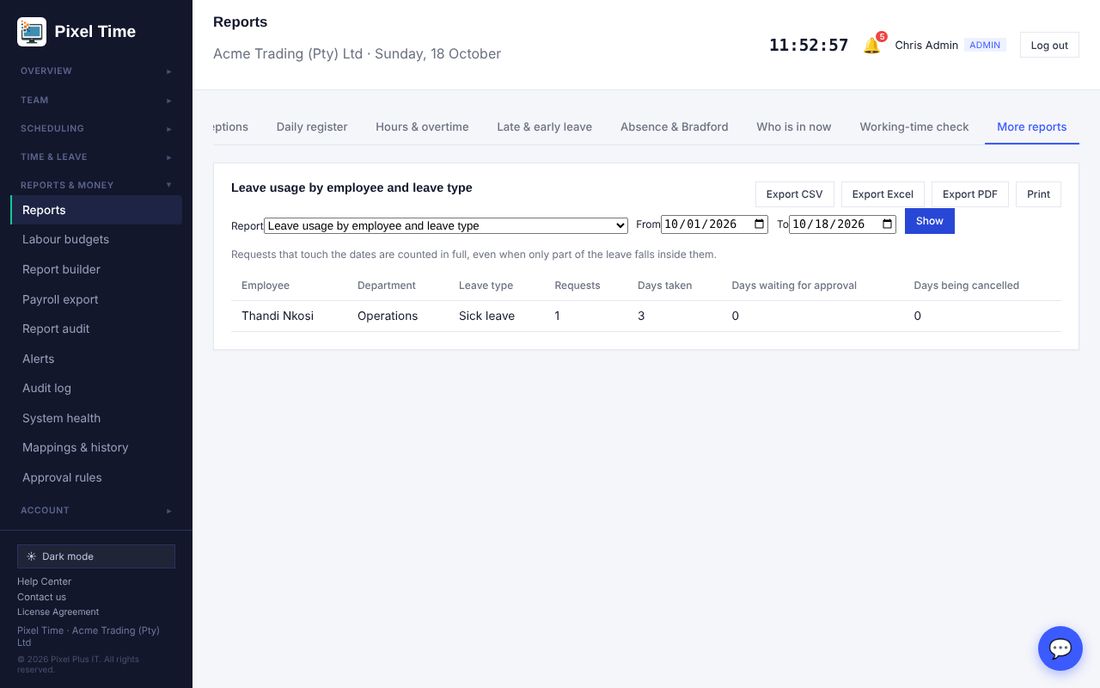
- Managers see their own department. Download any of them with the CSV, Excel and PDF buttons.
25. Printing ID cards with a barcode
Who: administrators; managers for their own department. Where: Team > ID cards > Print ID cards with a barcode.
- Open Team > ID cards and press Print ID cards with a barcode. Choose a department if you like, and tick the people.
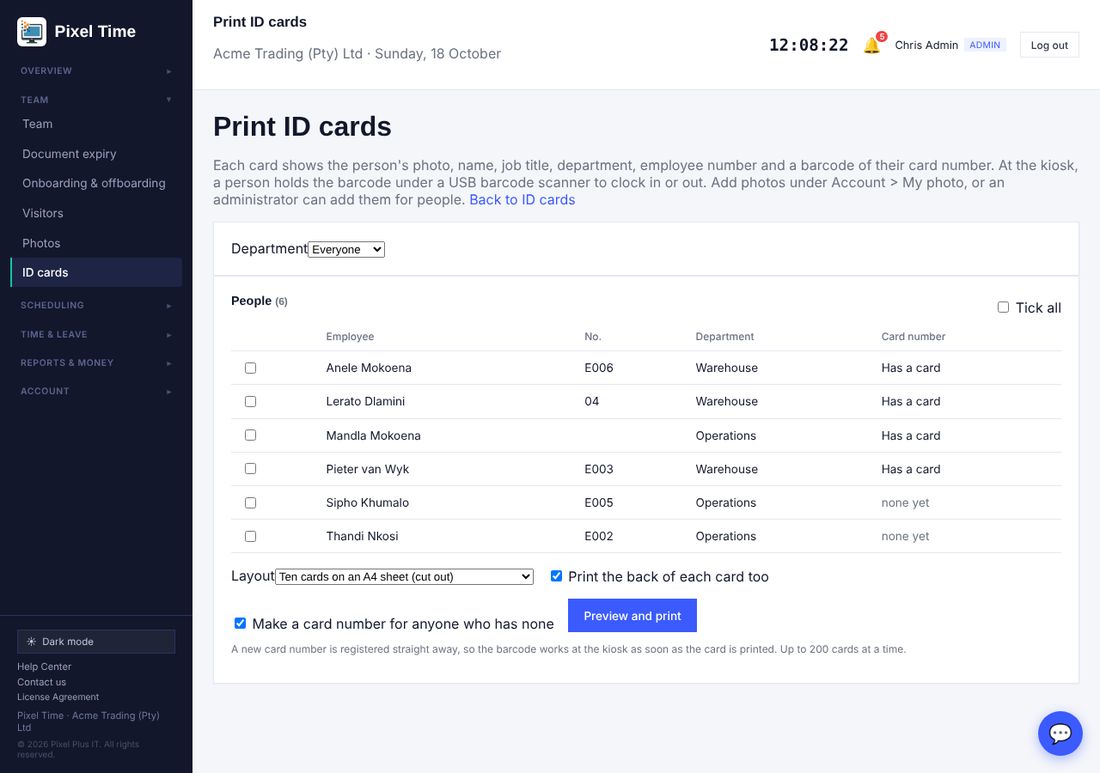
- Choose the layout: ten cards on an A4 sheet to cut out, or one card per page for a card printer (85.6 x 54 mm).
- Leave Print the back of each card too ticked if you want the back, and leave Make a card number for anyone who has none ticked so that everyone gets a working barcode.
- Press Preview and print, then Print. In the print window turn off headers and footers and set the scale to 100%.
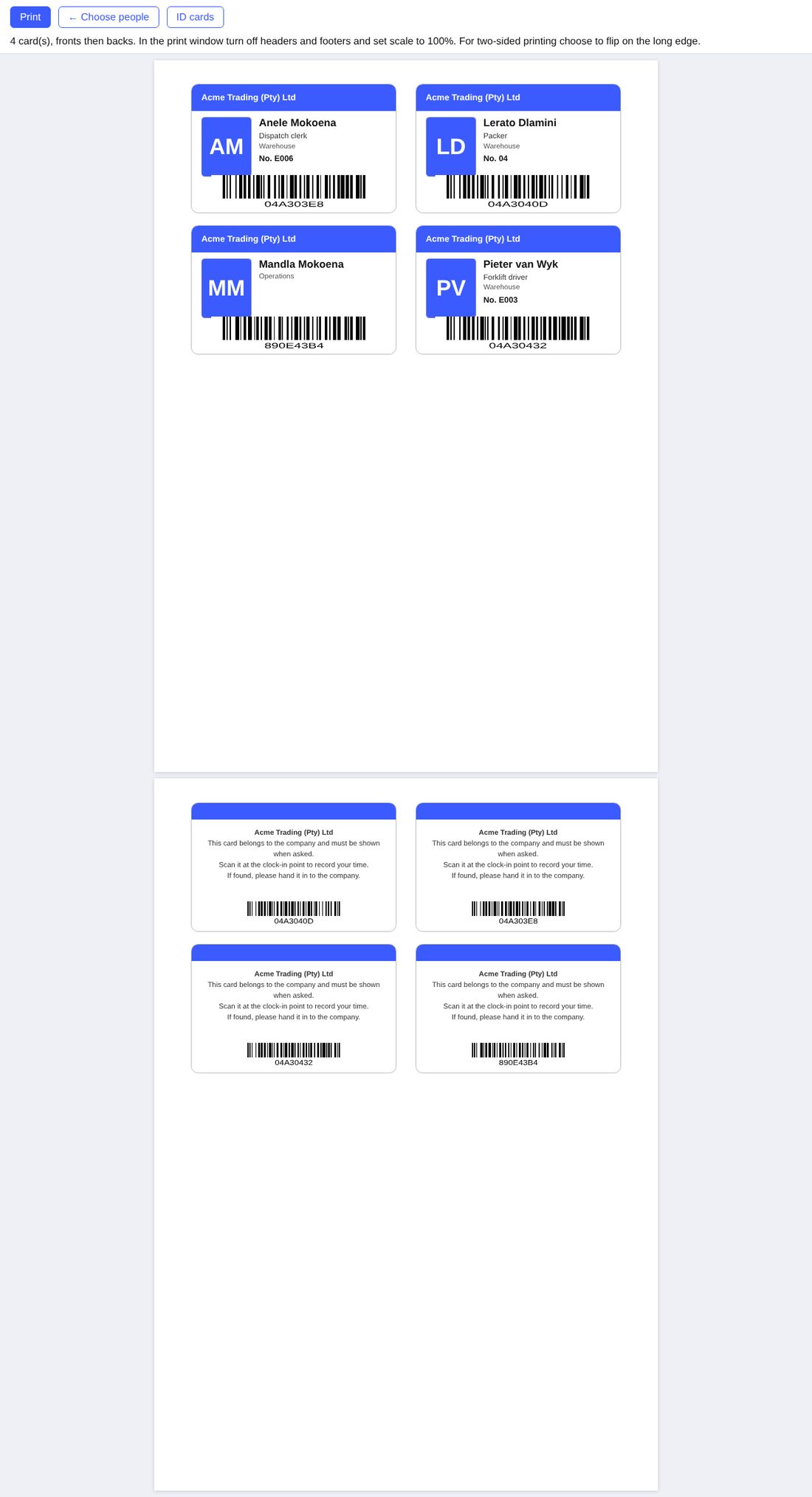
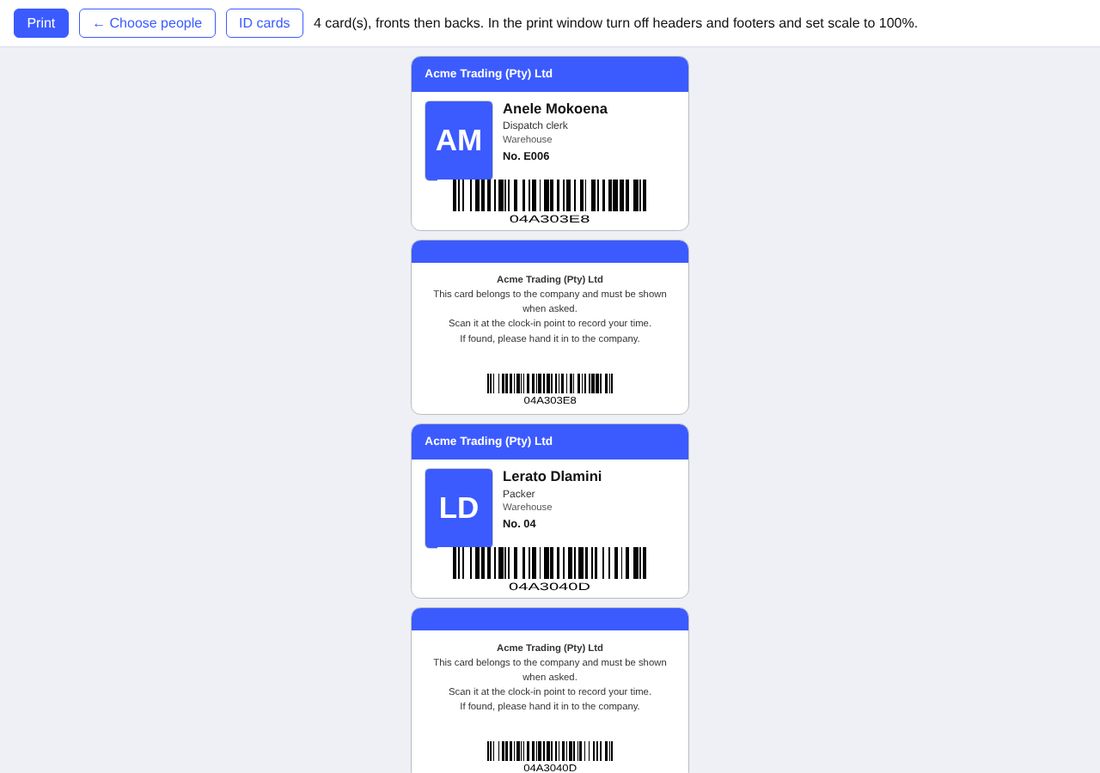
- The card shows the photo from Account > My photo (initials if there is none), the name, job title, department, employee number, your logo and brand colour, and a barcode of the card number.
- At the kiosk, click in the name box and hold the barcode under a USB barcode scanner. The scanner types the number and the person clocks in or out, the same as a proximity card. If you have chosen that cards also need a PIN, the PIN is still asked.
- A new card number is registered on the ID cards page as soon as you print, so you can mark it lost or disabled later. If a card is lost, mark it lost and print a new one: the old barcode stops working.
- Two-sided sheets: print the fronts and backs on both sides of the paper, flipping on the long edge. The backs are already arranged to line up.
- Use a scanner that reads Code 128 barcodes (almost all do) and set it to add Enter after each scan.
26. E-mail notification settings
Who: everyone for their own settings; administrators for the company defaults. Where: Account > Notification settings (or E-mail settings on the Notifications page).
- The bell at the top always shows every notification. Open Account > Notification settings to choose which topics are also sent to your e-mail address.
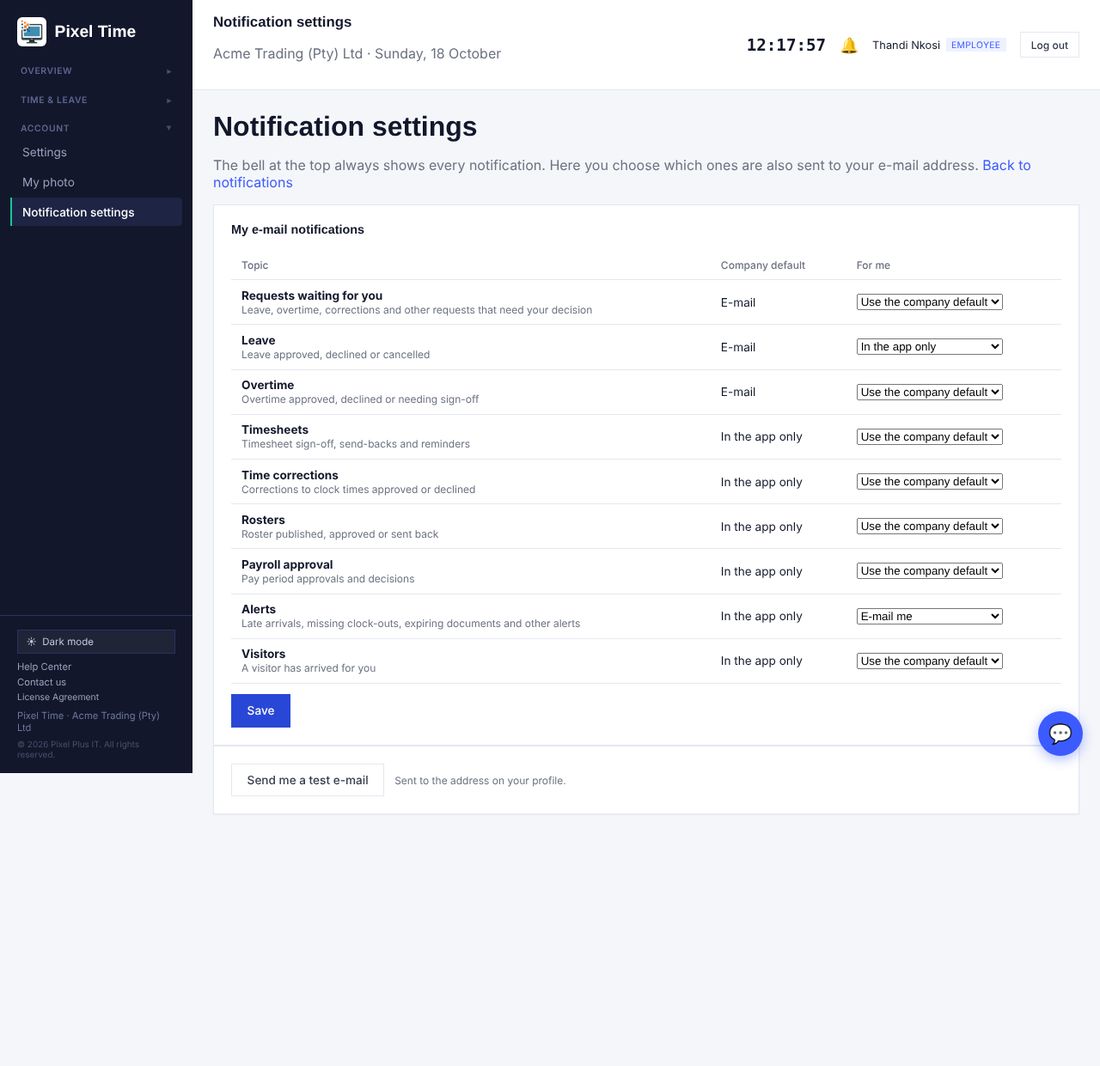
- For each topic (requests waiting for you, leave, overtime, timesheets, time corrections, rosters, payroll approval, alerts, visitors) choose Use the company default, E-mail me, or In the app only, then press Save.
- Press Send me a test e-mail to check that e-mail reaches you. Check the spam folder the first time.
- Administrators set the company defaults at the bottom: tick the topics that should be e-mailed to everyone who has not chosen. Untick Let each person choose for themselves to make the defaults apply to everyone.
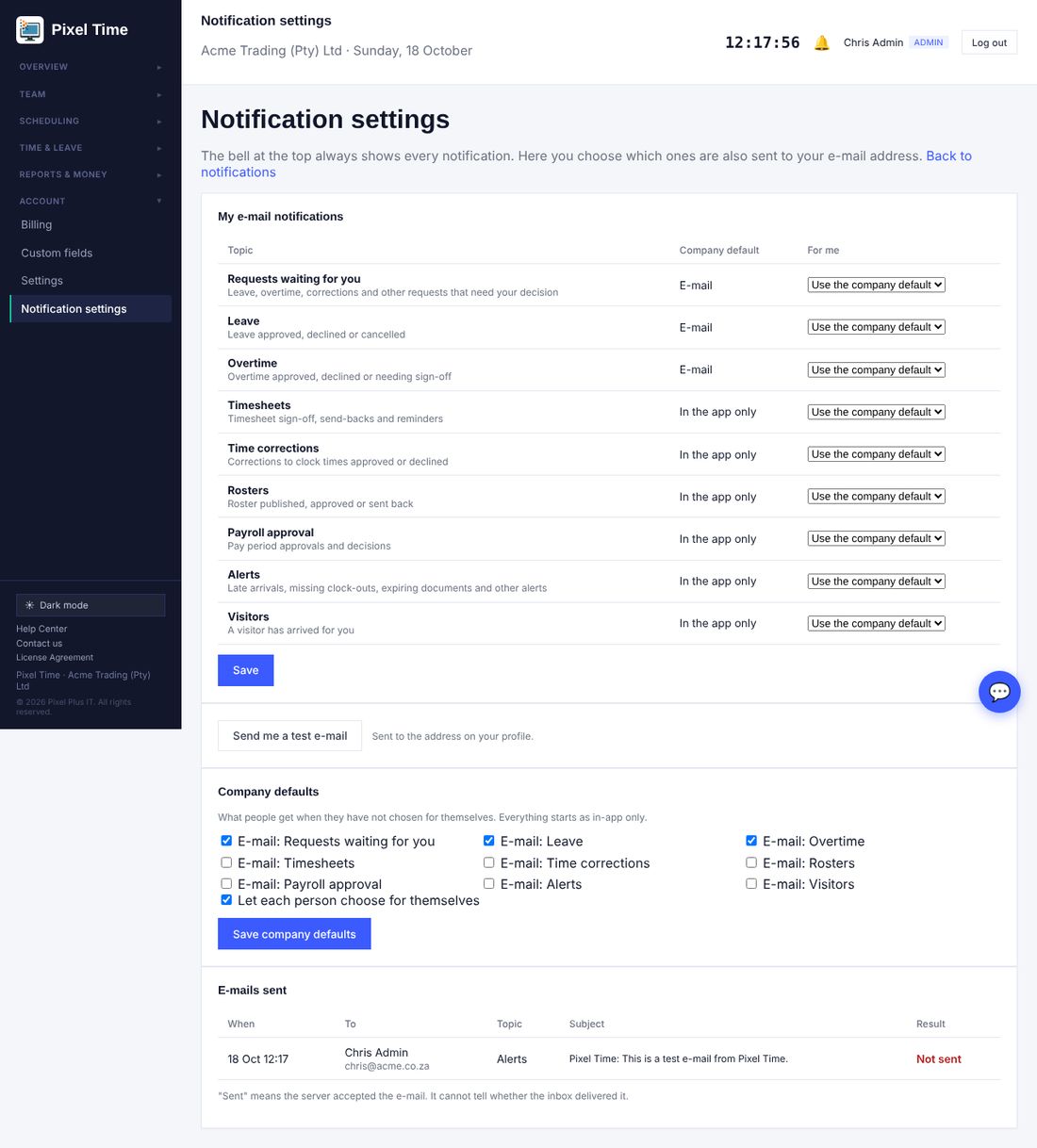
- The E-mails sent list shows each e-mail, who it went to and whether the server accepted it. Not sent means the server refused it: contact Pixel Plus support.
- Everything starts as in the app only, so nothing is e-mailed until an administrator or the person turns a topic on.
- A person with no valid e-mail address on their profile, or who is suspended, is never e-mailed.
- Sent means the server accepted the e-mail. It cannot tell whether the inbox delivered it.
27. Clocking methods
Who: administrators. Where: Team > Clocking methods.
- Open Team > Clocking methods. Tick the ways people may clock: web or phone, kiosk with name and PIN, ID card or barcode at the kiosk, QR code poster, and fingerprint, face or card devices. Press Save.
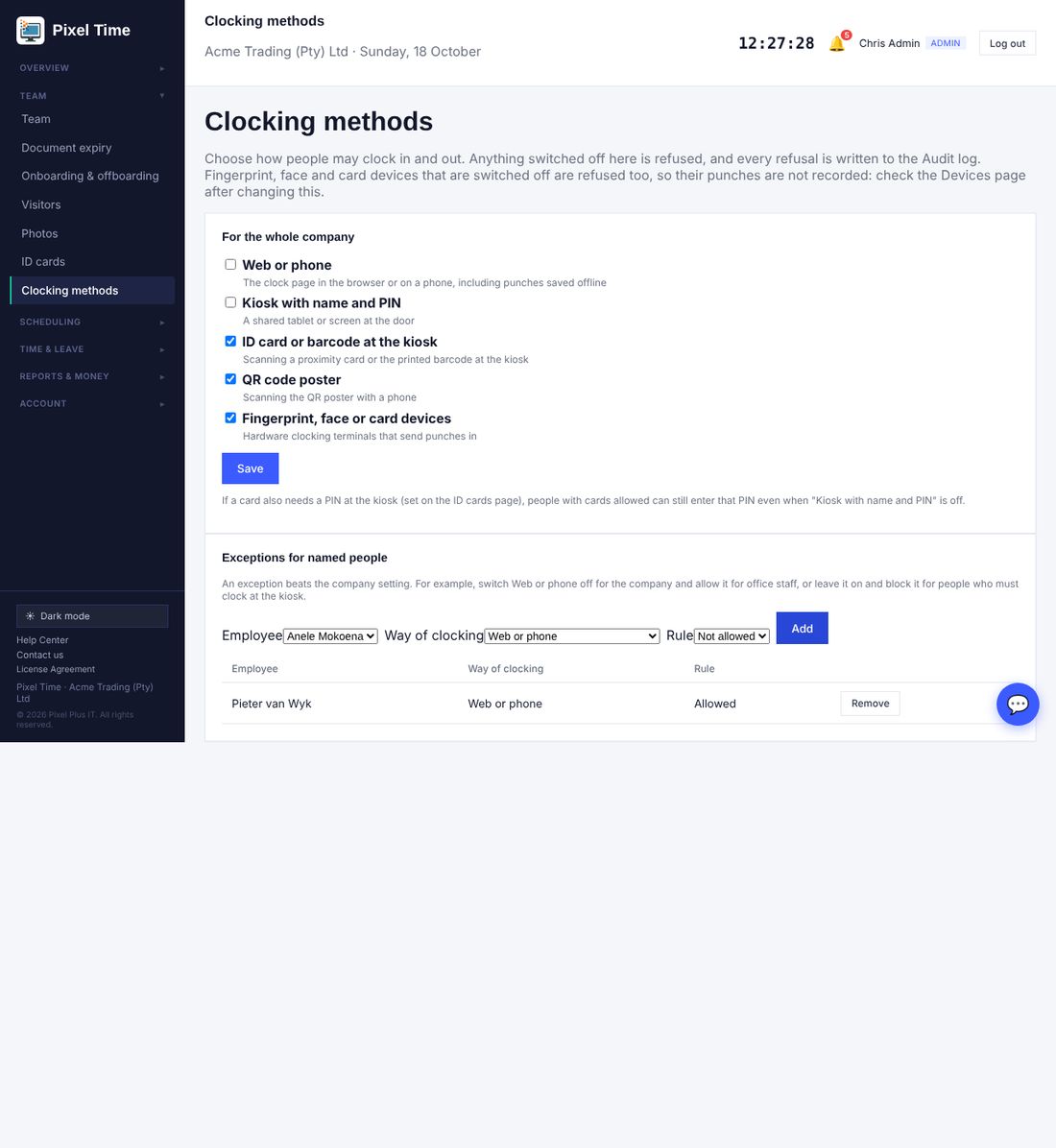
- To make an exception for a person, choose the employee, the way of clocking and Allowed or Not allowed, and press Add. An exception beats the company setting. Press Remove to go back to the company setting.
- Example: switch Web or phone off for the company and allow it for office staff, or leave it on and block it for people who must clock at the kiosk.
- A person who tries a way that is not allowed sees a message, nothing is recorded, and the attempt is written to the Audit log (clock method blocked).
- At least one way must stay on, so that nobody is locked out.
- Devices that are switched off are refused too and their punches are lost, so check the Devices page after changing this. Punches already recorded are not affected.
- If cards also need a PIN at the kiosk, people with cards allowed can still enter that PIN when Kiosk with name and PIN is off.
28. Calculation history, timezone and team filters
Who: administrators, managers (own department) and auditors for history; administrators for the timezone.
- Calculation history: when a finished day is calculated again and its figures change (a recalculation under new rules, a correction or an added clocking), the earlier figures are kept. Open Time and leave > My hours explained, choose the person and dates, and look at Earlier figures that were replaced. It shows who changed it, when, why, and the figures before and after.
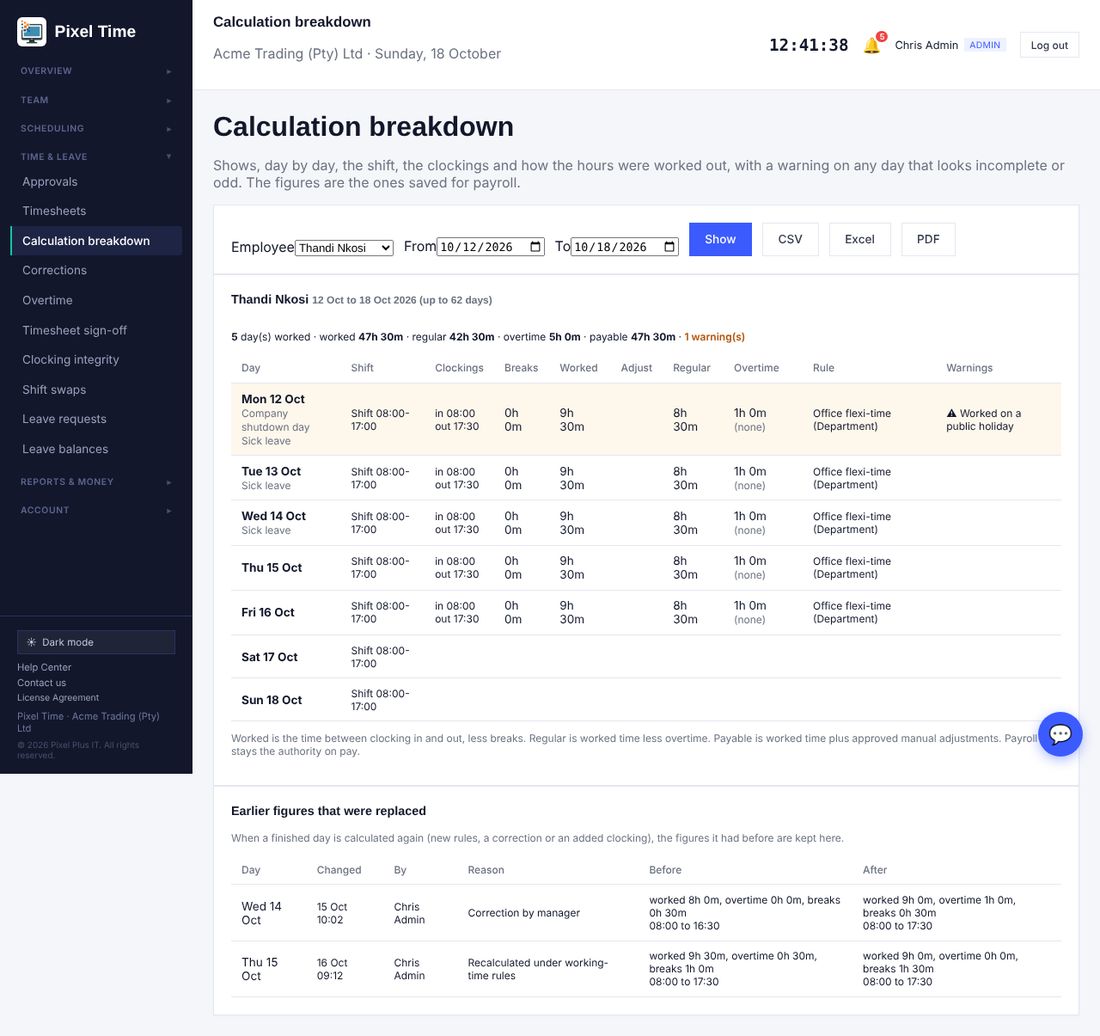
- For all people at once, open Reports > More reports > Calculation history (figures that were replaced).
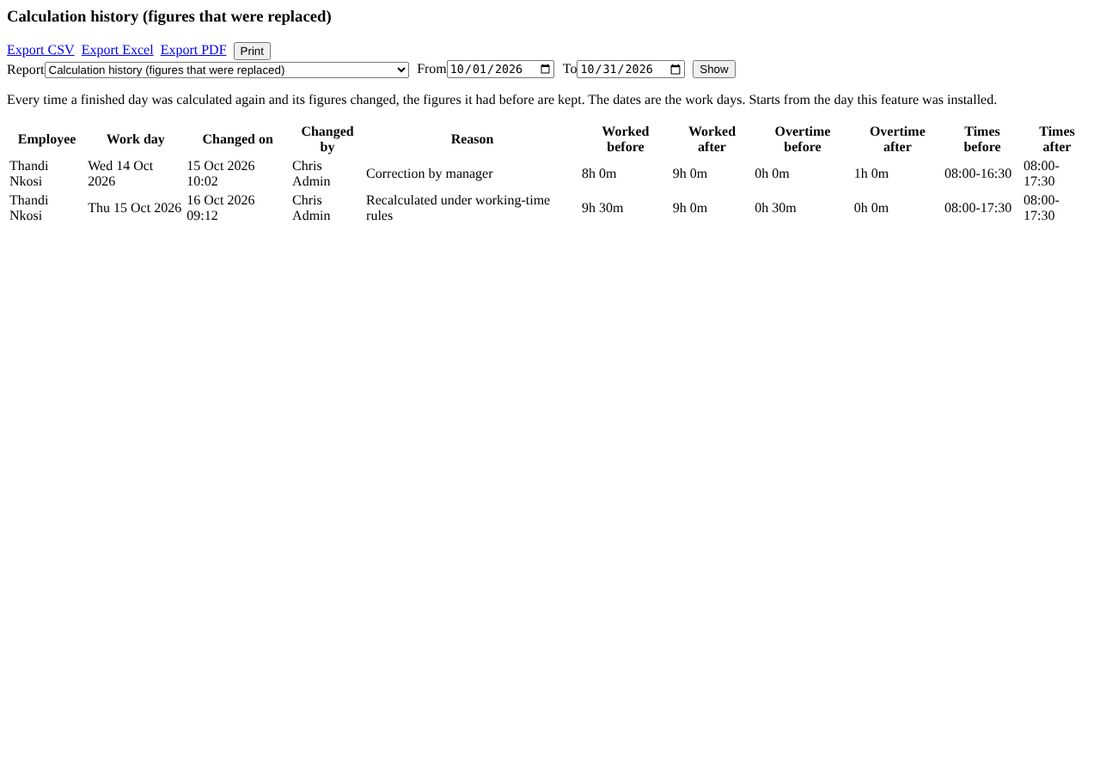
- Days still open are not logged, and neither are days that did not change. History starts from the day this update was installed.
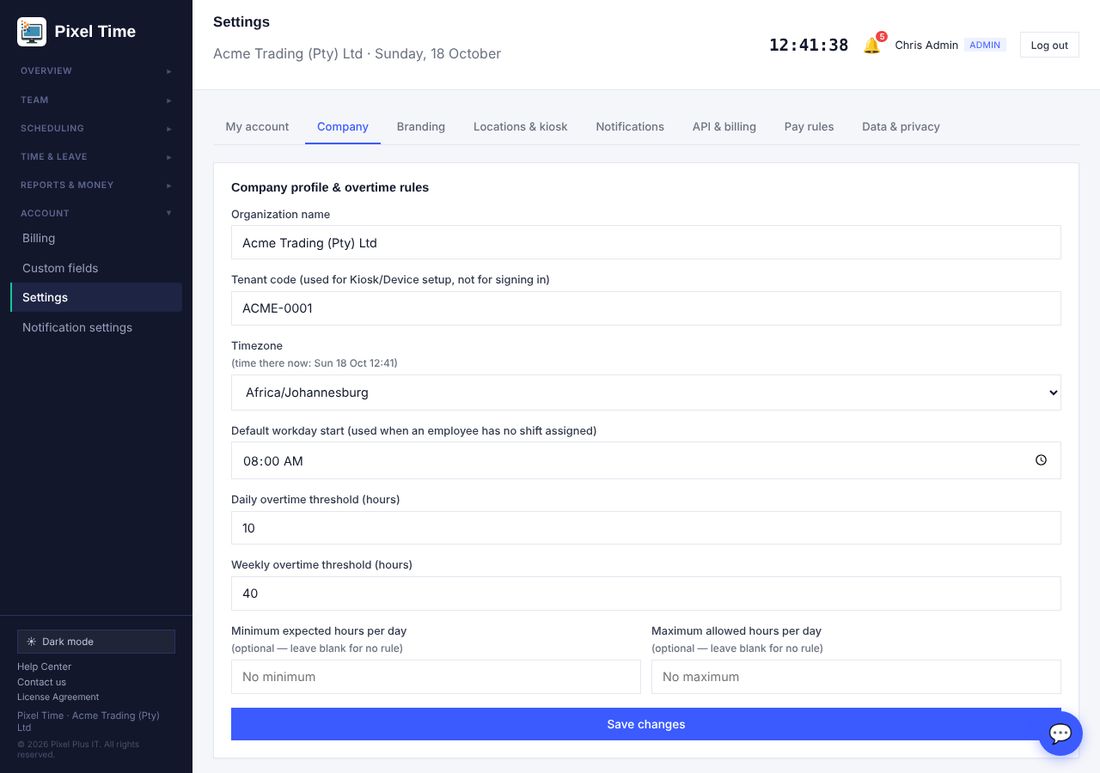
- Timezone: open Settings > Company. Timezone is now a list with South Africa first. The time shown beside it is the current time there. Pick the right one and press Save changes. A timezone that is not on the list is refused and the old one is kept.
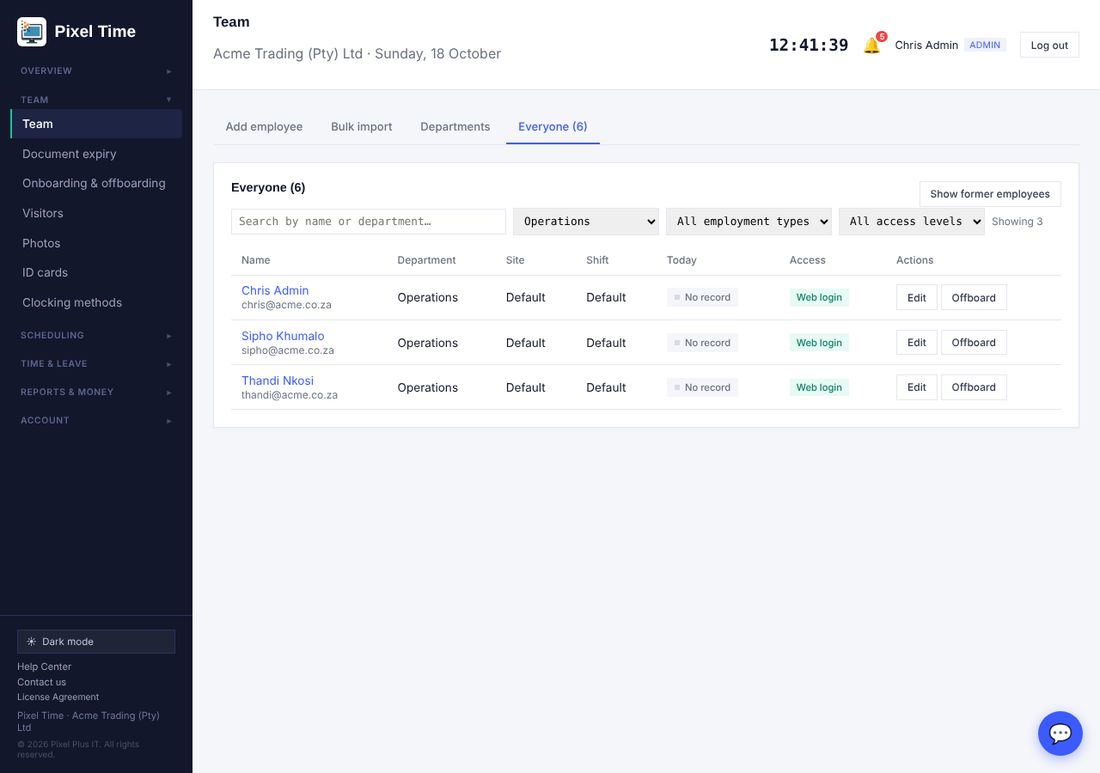
- Team filters: on Team > Everyone, use the lists beside the search box to show one department, site, employment type or access level. The number beside the lists shows how many people match.
29. Compliance and pay reports
Who: administrators and auditors see everyone; managers see their own department. Where: Reports > More reports.
- Open Reports > More reports, choose the report, set the dates and press Show. Every report can be printed or downloaded as CSV, Excel or PDF.
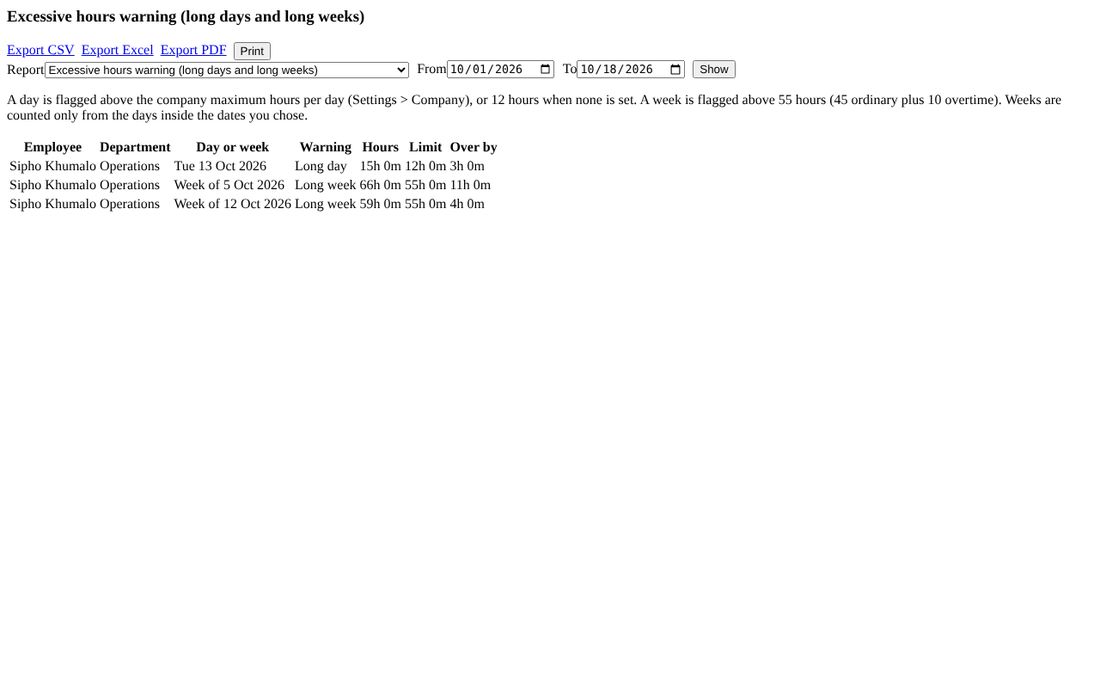
- Excessive hours warning (group Working-time rules): lists days longer than the company maximum hours per day (Settings > Company, or 12 hours when none is set) and weeks longer than 55 hours.
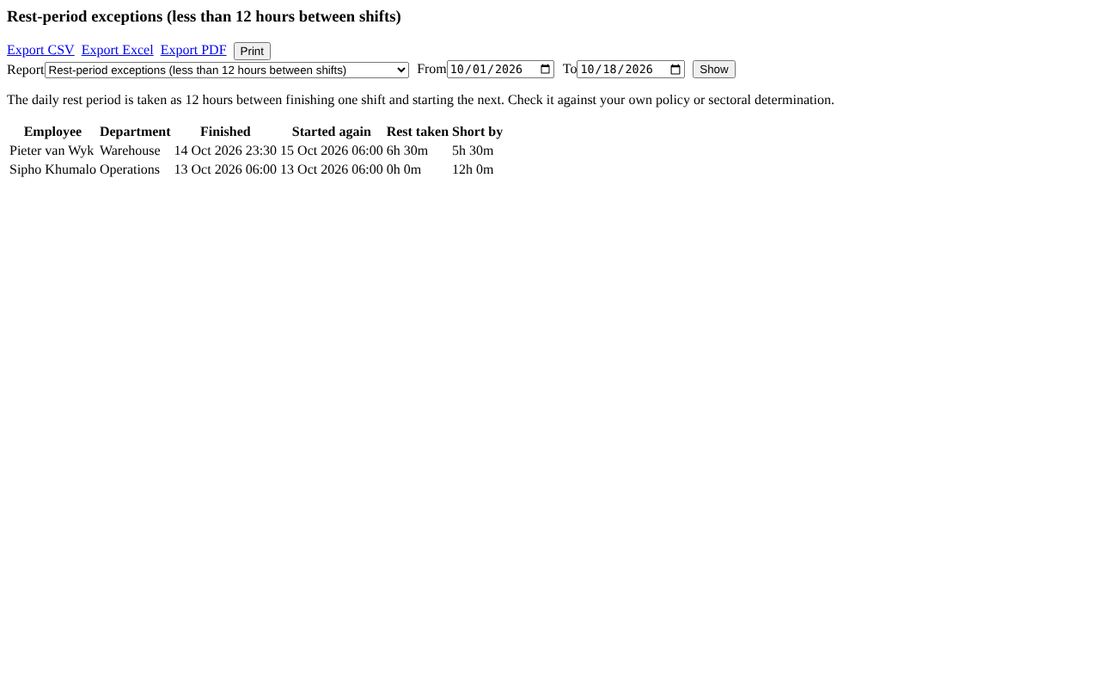
- Rest-period exceptions (Working-time rules): lists people who started a shift less than 12 hours after finishing the previous one, and by how much it was short. The day before your first date is also checked.
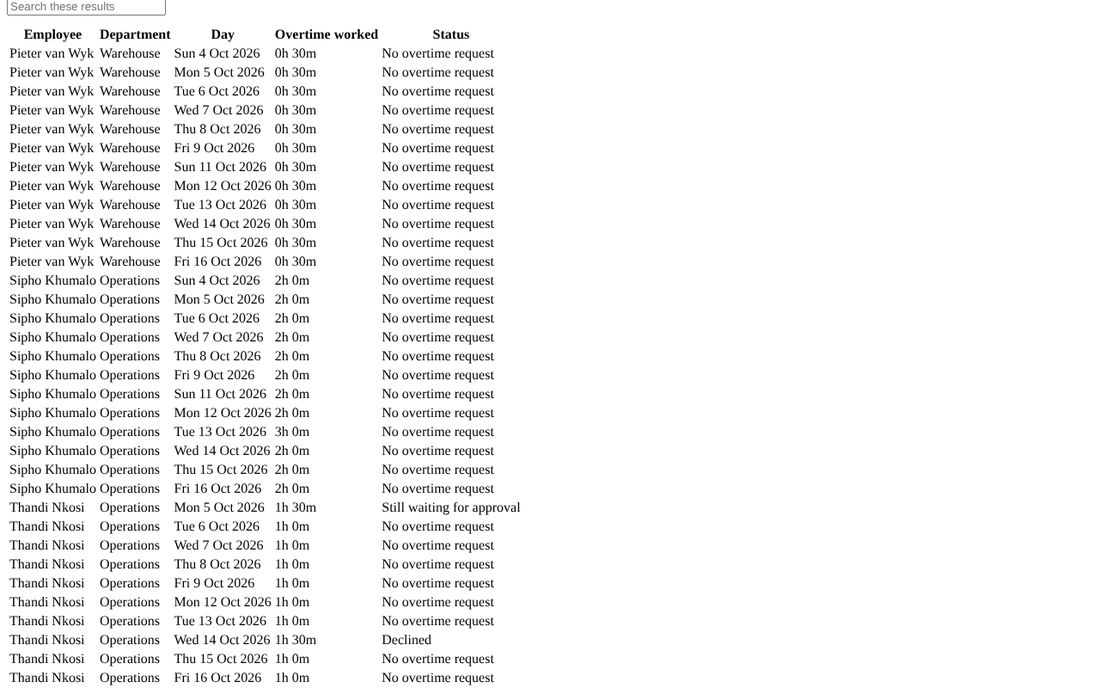
- Unauthorised overtime (Overtime and public holidays): overtime that was worked but has no request, was declined, or is still waiting for approval.
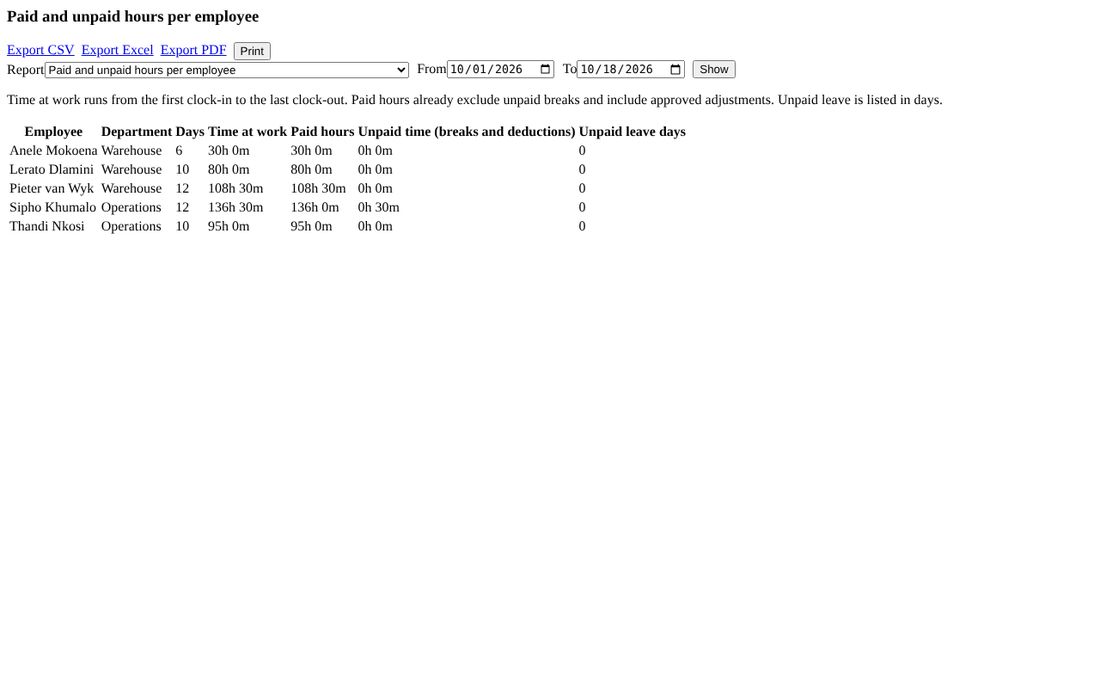
- Paid and unpaid hours per employee (Hours and timesheets): time at work, paid hours, unpaid time such as unpaid breaks, and unpaid leave days.
- The 12-hour rest and 55-hour week are guides. Check them against your own policy, contracts and current labour law.
30. Keep times and removing old personal details
Who: administrators change and remove; auditors can look. Where: System health > Retention & audit.
- Open System health > Retention & audit. Under Keep times for logs and former employees, set how long sent e-mail records, resolved alerts and calculation history are kept, and after how many years a former employee is reviewed. Press Save.
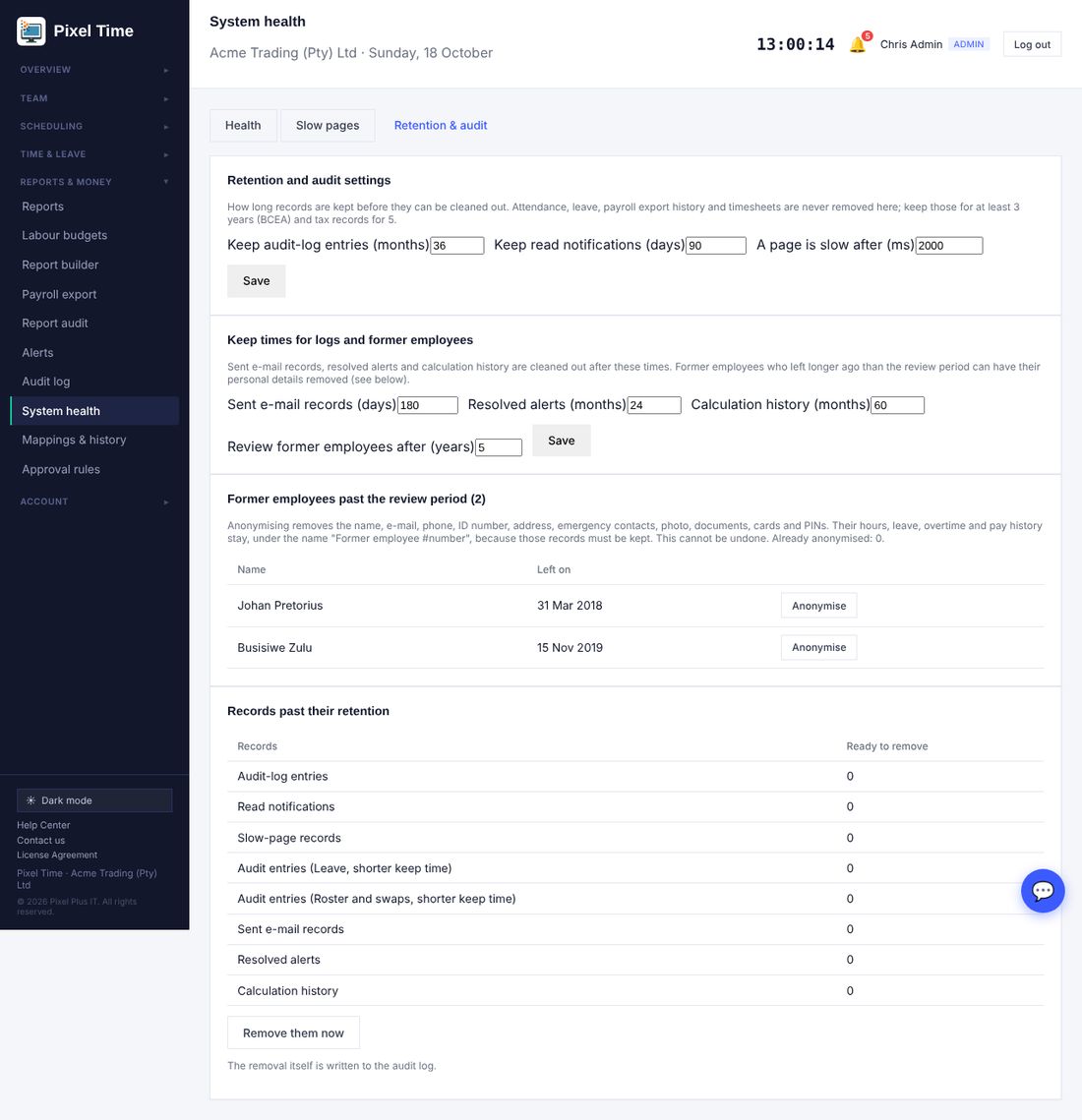
- Records past their keep time are listed under Records past their retention. Press Remove them now to clean them out. This is written to the Audit log.
- Former employees who left longer ago than the review period are listed. Press Anonymise to remove the name, e-mail, phone, ID number, address, emergency contacts, photo, documents, cards and PINs.
- Their hours, leave, overtime and pay history stay, under the name Former employee and a number, because those records must be kept.
- Anonymising cannot be undone. Administrators and people who are still active are never listed.
- Attendance, leave, overtime, timesheets and payroll export history are never deleted here. Keep time records at least 3 years and tax records 5, and confirm your own legal advice.
31. Manager access, branch rules and overtime rules
Who: administrators. Where: Team > Manager access, Scheduling > Working-time rules, and Overtime > Limits and budget.
- Manager access: a manager always sees and approves for their own department. Open Team > Manager access, choose the manager, choose a branch or a department and press Add access. From then on that manager sees those people in the Team list, approvals, reports, rosters and alerts. Press Remove to take it back.
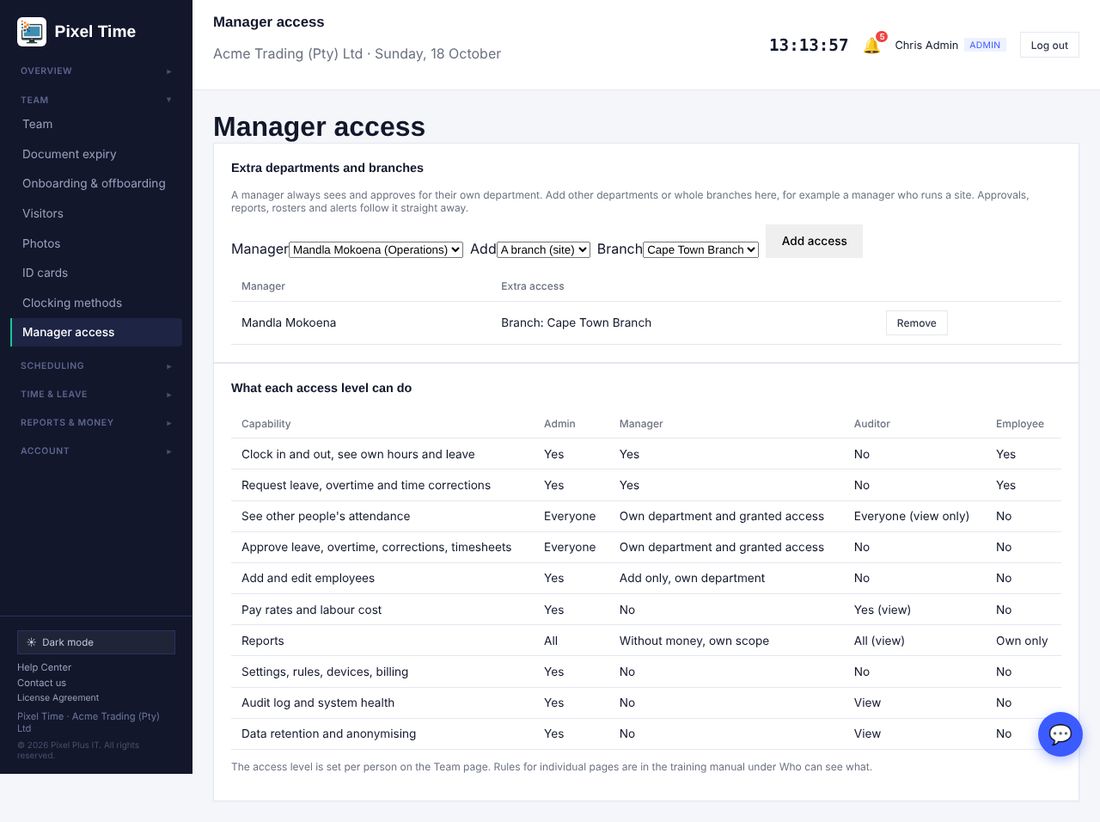
- Only people with the Manager access level can be given extra access. Every change is written to the Audit log.
- Branch rules: open Working-time rules, choose a rule set, set Applies to as Branch (site), pick the branch and the start date, and press Assign. The most specific rule wins: employee, then contract type, then branch, then department, then the whole company.
- Overtime authorisation rules: open Overtime > Limits and budget. Approve automatically up to sets a number of minutes that need no sign-off. Needs an administrator above sets the length a manager cannot finish alone. Use 0 to switch a rule off.
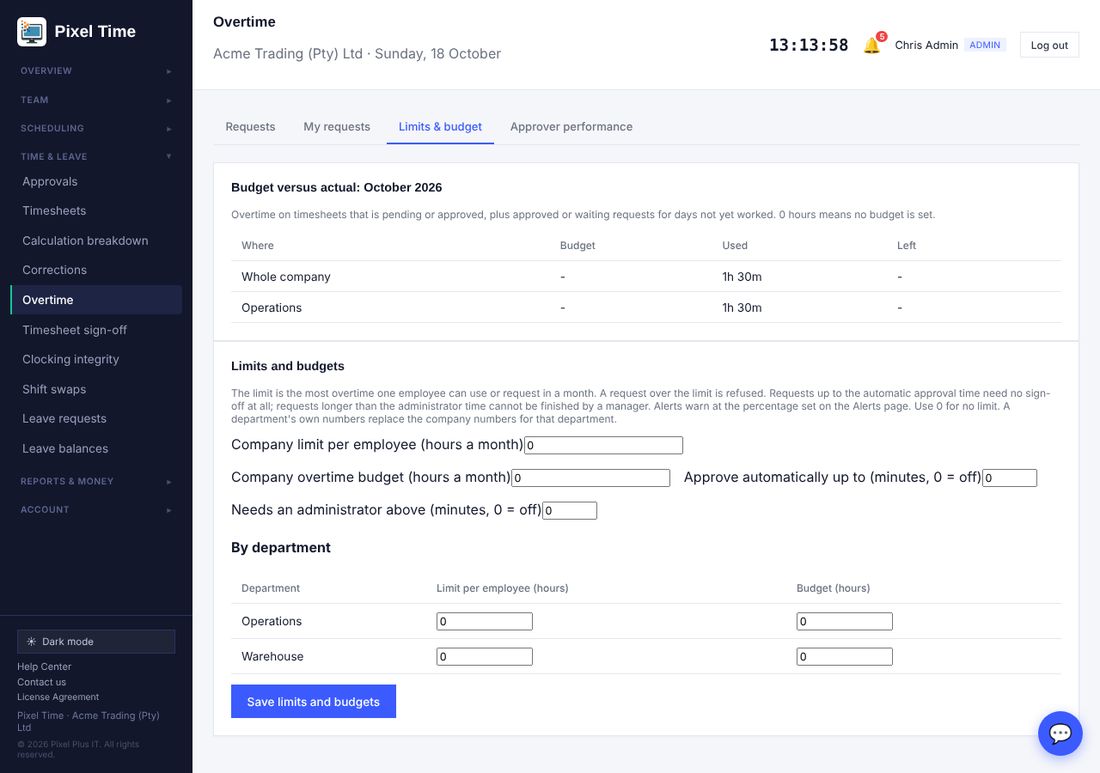
- Automatic approval still applies the monthly limit and refuses locked pay periods. Automatic approvals are marked in the request history and the Audit log.
32. Protecting and checking data
Who: administrators; managers for the roster; everyone allowed to see reports for the reports.
- Encryption: open System health > Data protection. ID or passport numbers, home addresses and emergency contacts are stored encrypted, so a copy of the database or a backup file cannot be read. Pixel Time shows them normally to people who are allowed to see them.
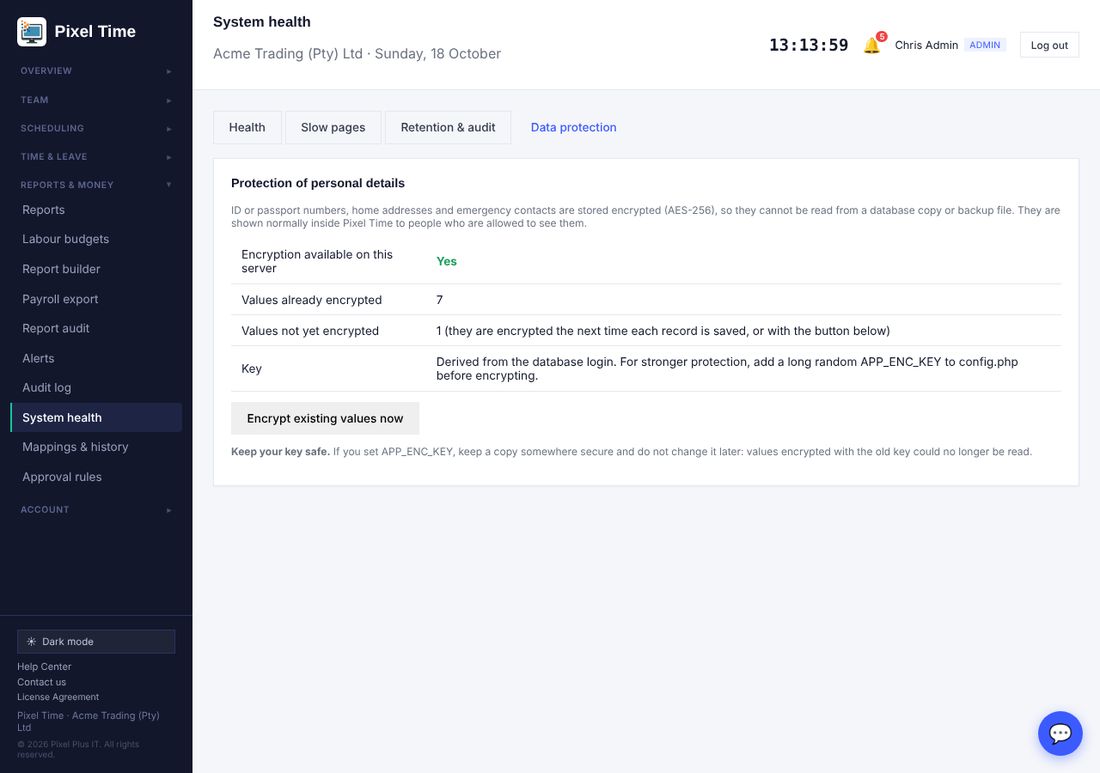
- Press Encrypt existing values now once after installing this update. New and edited records are encrypted automatically.
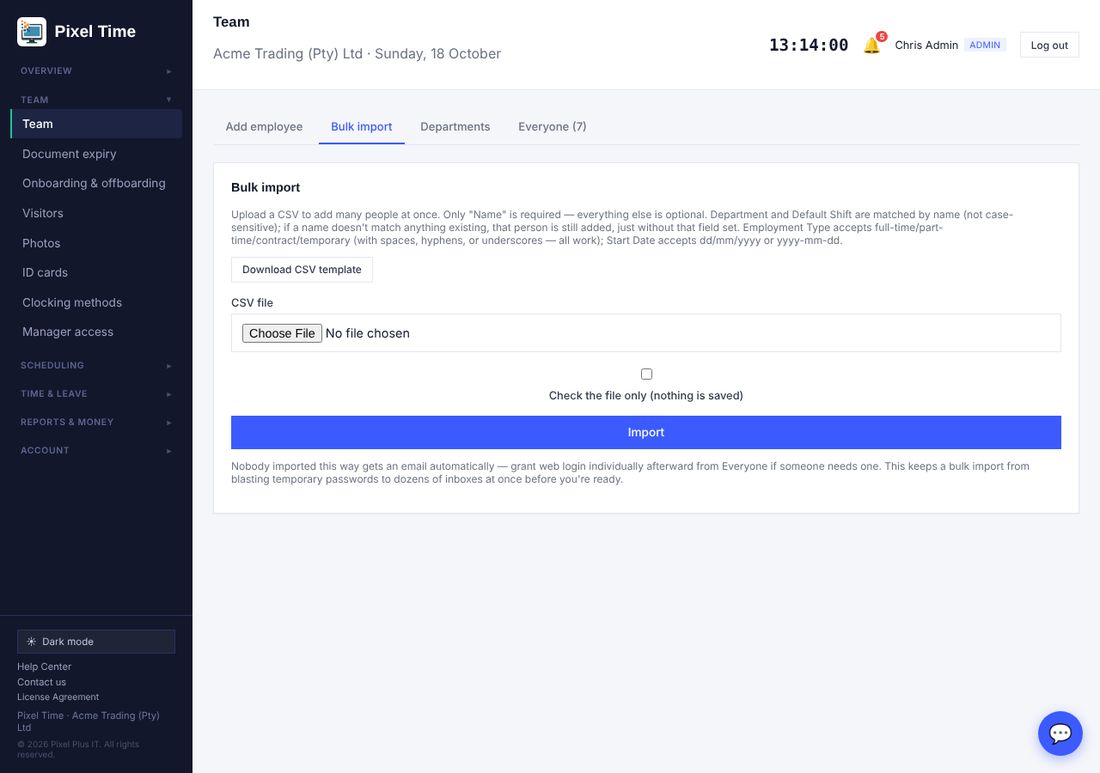
- Checking an import: on Team > Bulk import, tick Check the file only (nothing is saved) before pressing Import. You get the list of rows with problems, such as an email already in use, a device ID already used, or the same person twice in the file. Fix the file and check again, then import for real.
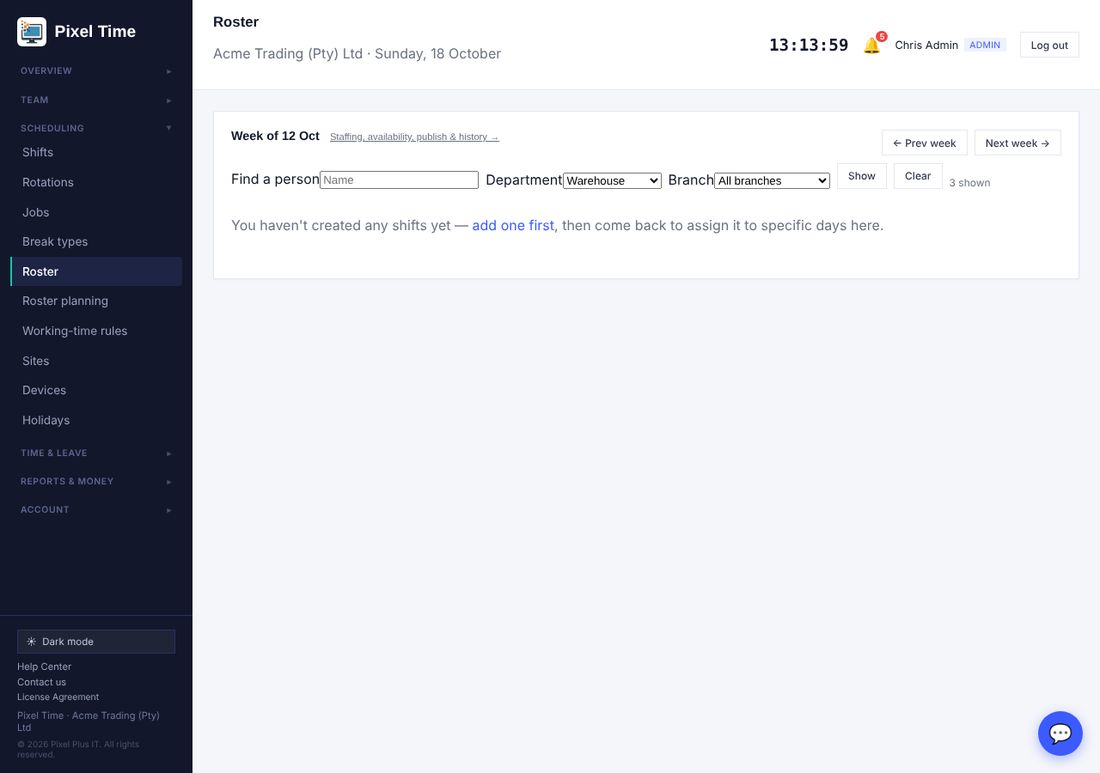
- Roster filters: on Scheduling > Roster use Find a person, Department and Branch, then press Show. Only the people shown are on the page, and saving changes only those people.
- Duplicate employees: a second person with the same ID or passport number is refused. Reports > More reports > Possible duplicate employees also finds the same phone, device ID or name.
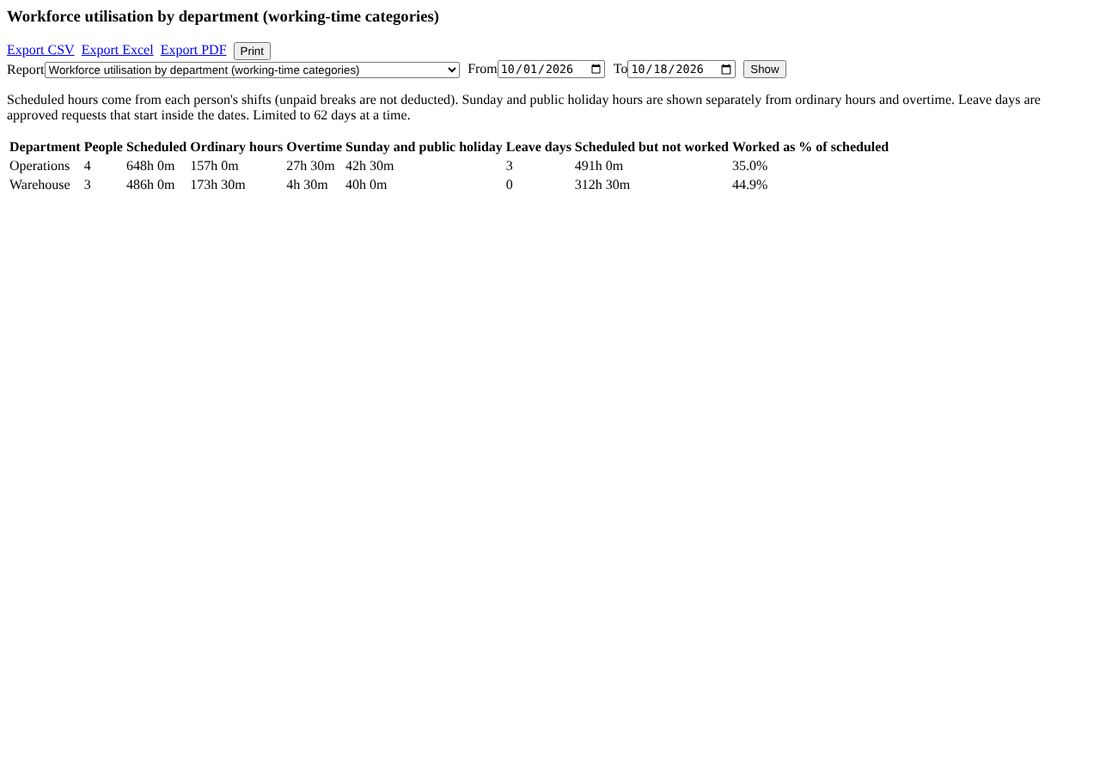
- Workforce utilisation by department (Management): scheduled hours against ordinary hours, overtime, Sunday and public holiday hours, leave days and hours not worked.
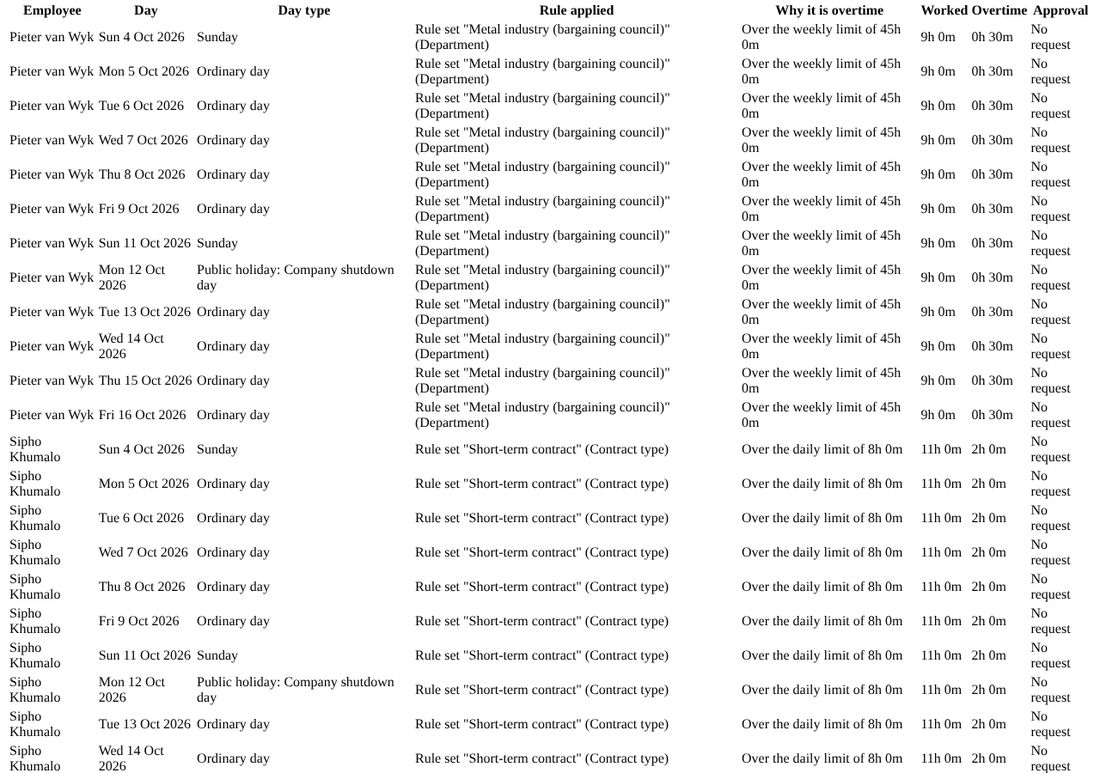
- Overtime and which rule applied (Overtime and public holidays): each overtime day with its day type, the working-time rule in force and why it counted as overtime.
33. Data checks
Who: administrators and auditors. Where: System health > Data checks.
- Open System health > Data checks, choose how many days to look back (up to 62) and press Run the checks. Nothing is changed: the page only reads your data and tells you what looks wrong.
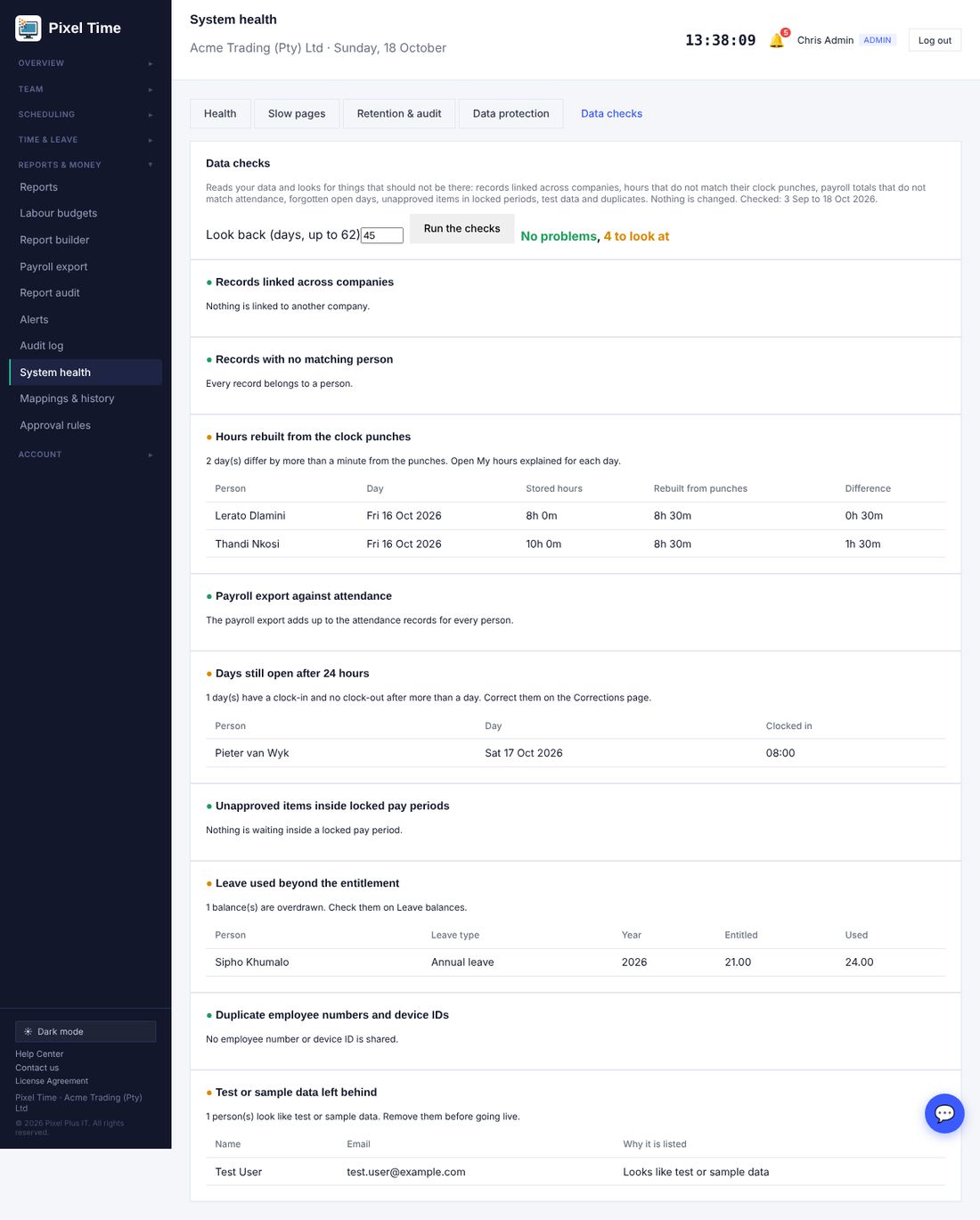
- Records linked across companies and Records with no matching person: should always be fine. A red result means contact support.
- Hours rebuilt from the clock punches: every finished day is worked out again from its original punches (unpaid breaks taken off, paid breaks kept) and compared with the stored hours. Days that differ by more than a minute are listed. This check is skipped when clock rounding is on, or for days under a meal-deduction rule, because those hours legitimately differ.
- Payroll export against attendance: the payroll export total for each person must equal their attendance total.
- Days still open after 24 hours, Unapproved items inside locked pay periods, Leave used beyond the entitlement, Duplicate employee numbers and device IDs, and Test or sample data left behind: things to tidy up before payroll or before going live.
- Run the checks before locking a pay period and again before the first real payroll.
34. Personal leave rules, payroll reconciliation, prepared reports and backup check
Who: administrators, managers and auditors. Where: Reports & money > Reports, then Prepare in background on any More report, or open Prepared reports directly.
Personal leave rules
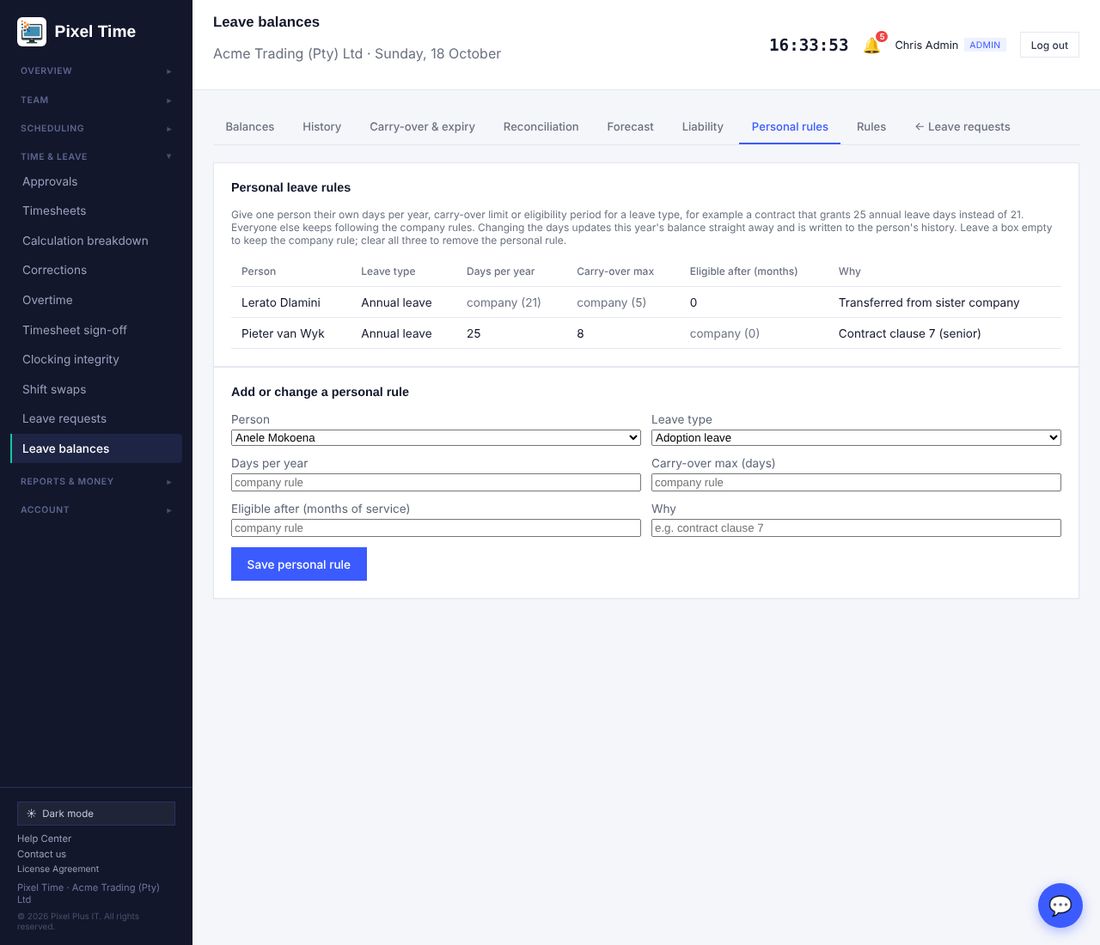
- Open Leave balances and choose the Personal rules tab. Pick the person and the leave type, then fill in only what is different for that person: days per year, carry-over maximum, or months of service before they may take it. Leave a box empty to keep the company rule.
- Write why the person has their own rule, for example the contract clause. This is required and is kept in the audit log.
- Press Save personal rule. If you changed the days, this year's balance moves by the difference straight away and the change shows on the person's balance history. Next year's balance is created from the personal days and carry-over limit.
- To remove a personal rule, clear all three boxes and save again. The balance goes back to the company days.
Reconcile with your payroll system
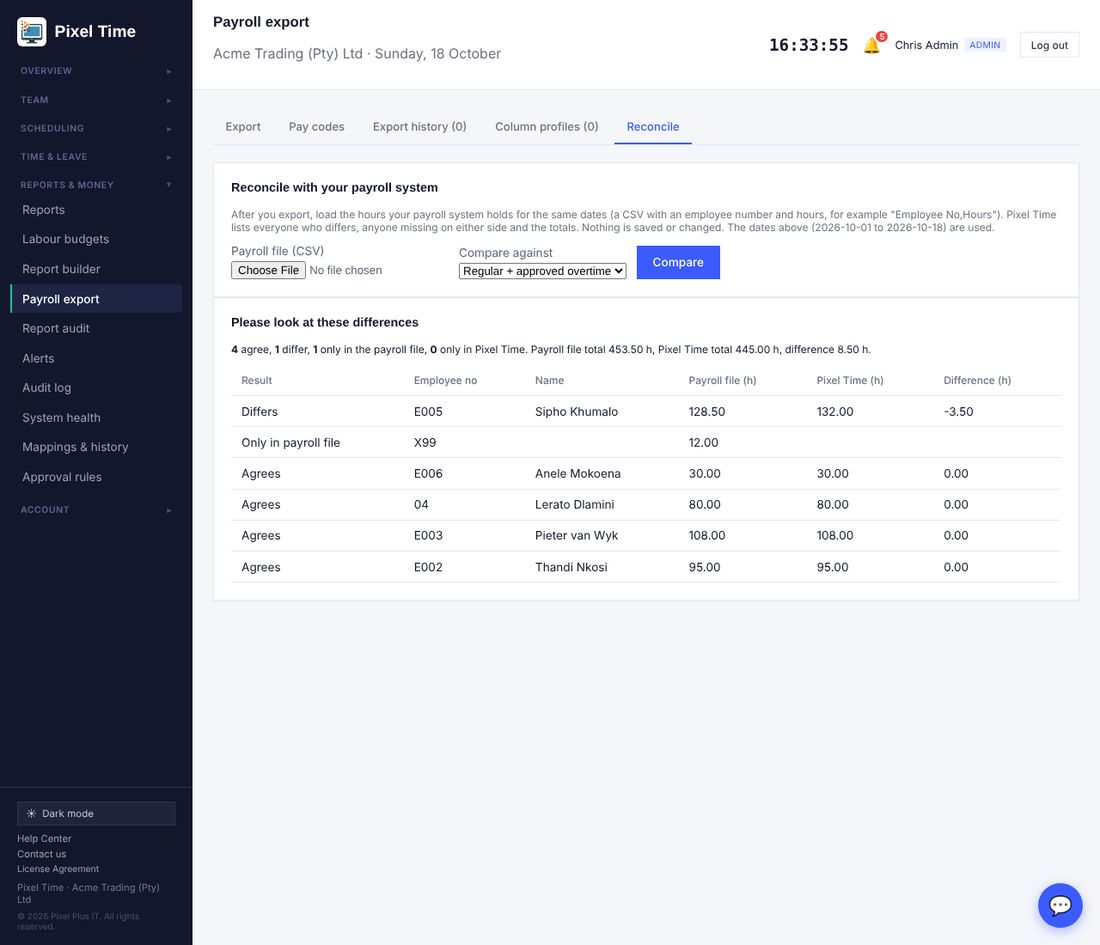
- Choose the dates on the Export tab first. Open the Reconcile tab and choose the CSV your payroll system holds for the same dates. The first row must have an employee number (or name) column and an hours column, for example Employee No,Hours. Hours may be 7.5, 7,5 or 7:30.
- Choose whether to compare against regular hours plus approved overtime, or regular hours only, and press Compare.
- The page lists everyone who differs first, then people only in the payroll file, people only in Pixel Time, and those that agree, with the totals. Nothing is saved or changed. Fix the cause in Pixel Time or the payroll system, then compare again.
Prepared reports (background reports)
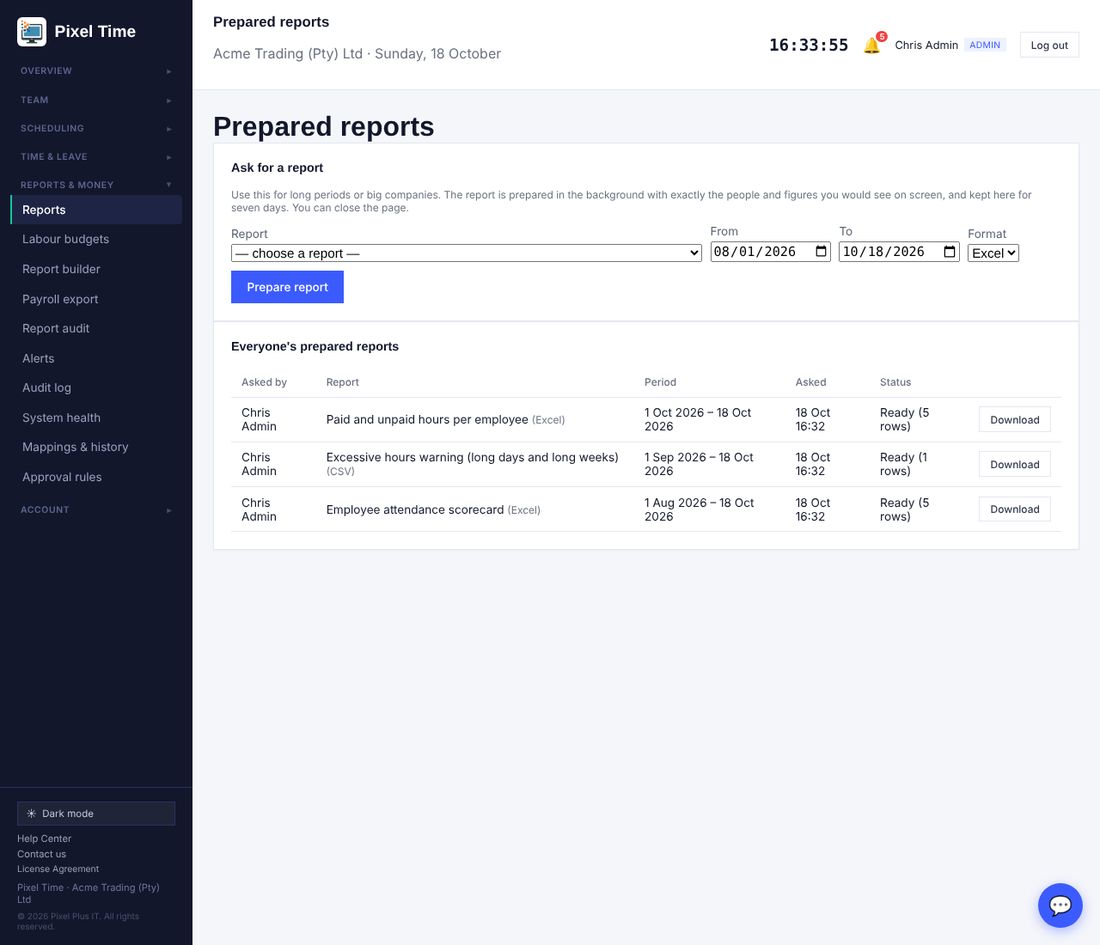
- Choose a report, the dates (up to 400 days) and Excel or CSV, then press Prepare report. You can carry on working or close the page.
- The report is built in the background with exactly the people and figures you would see on screen, then appears in your list with a Download button. Files are kept for seven days. You may have up to ten waiting at a time.
- Administrators can see and download everyone's prepared reports; everyone else sees only their own.
Payroll feed for other software
35. Night shifts, form checks and speed
Who: administrators and managers (own department). Where: Time & leave > Clocking integrity > Held clockings.
Night shifts that run past midnight
- Clock in as normal, for example at 22:00. Clock out after midnight, for example at 06:00. Pixel Time keeps the whole shift on the day you started it, so it shows as one day with the right hours.
- Breaks taken after midnight are counted on the same shift.
- While the shift is running, the Clock page, the dashboard and the live board show you as clocked in.
- A clock-in older than 14 hours is treated as forgotten. It is not counted as live time and is flagged as a missing clock-out. If nobody fixes it, the nightly auto clock-out closes it at 23:59 of its start day with the note Auto clocked-out by system.
- Late and early-departure checks for a shift such as 22:00 to 06:00 use the next morning as the end time.
- Offline phones and terminals that send punches later follow the same rule, so sending twice does not double count.
Held clockings: nothing goes missing
- When a terminal, card reader or phone sends a clocking and a rule refuses it (outside the shift window, that clocking method switched off, a locked pay period, or out of sequence), Pixel Time keeps it instead of dropping it. The number appears on the tab and in a Clockings need attention box on the dashboard.
- Open Held clockings and read why it was held. Press Accept to add it to the day exactly as received, or write a reason and press Dismiss. Nothing counts towards hours until it is accepted.
- Clock-ins with no clock-out after 14 hours are listed on the Exceptions tab as Missing clock-out, on the dashboard, and in Data checks. Add the clock-out in Corrections.
- The dashboard, reports, timesheets and payroll export now bring people who are still on the clock up to date before they add up, so Total hours today matches the live board. Present now includes people who are late.
- Corrections and Fix a day now keep real clockings: a future date, an impossible time or a clock-out that is not later than the clock-in is refused with a clear message, and giving only a clock-out for a day with an open clock-in keeps the original clock-in. The clock page keeps showing the original clock-in time after a break.
- Terminals: a punch that arrives twice, or a second touch within a minute, is counted once. A terminal that was offline and sends a backlog out of order is read in the order the punches happened. Hikvision terminals that send the face picture with the event are read as well.
- Punches from a device for a Device ID nobody has are still only in the device log. Add the Device ID in Team and the next punch will work, or use People found on devices (next).
- A punch whose time cannot be right is refused: more than a day in the future, or over a year old. This protects your hours from a terminal with a wrong clock. It shows in the device log as rejected, with the reason. Fix the terminal clock and the next punches are accepted.
Standard shifts for every new company
- A new company now starts with the shifts most businesses use: Day Shift 08:00 to 17:00, Office Hours 08:00 to 16:30, Early Shift 06:00 to 14:00, Late Shift 14:00 to 22:00, Night Shift 22:00 to 06:00 (Monday to Friday), Retail / Shop 09:00 to 18:00 (Monday to Saturday) and Weekend Shift 08:00 to 16:00 (Saturday and Sunday).
- They are ordinary shifts. Open Shifts to change the hours or the days, or delete the ones you do not use.
- A company that already exists can press Add the standard shifts on the Shifts page. Shifts you already have, matched by name, are skipped and keep their own hours.
People enrolled on the terminal
- Open Devices > People found on devices. When someone is enrolled on a ZKTeco, eSSL, Realtime or Biomax terminal, the terminal sends their Device ID, name and card number here. Nothing is created until you accept it.
- Press Ask now to make a device send everyone enrolled on it, instead of waiting for new enrolments.
- Create employee makes a clock-only employee with that Device ID, so their punches count straight away. Link to the selected employee attaches the Device ID to someone already in Team. Dismiss hides a person for good.
- You must tick the consent box first: a Device ID links a person to fingerprint or face enrolment, and POPIA needs their written consent. A person who is already linked is not offered again, and a full plan stops new employees with a clear message.
- Any brand: when someone punches on a terminal with a Device ID nobody has (Hikvision, ZKTeco or any other), they also appear here, with their name when the terminal sends one. A bridge for another brand can send its whole list of people to the same place.
- Hikvision terminals cannot be asked for their list, and they do not announce people when they are enrolled. Each person appears here the first time they clock in (with their name if the terminal sends it), so a full list builds up over the first day. Face data stays on the terminal and is not copied to Pixel Time. To avoid accepting people one by one, add the employees in Team first with the same number as the terminal's Employee No.; their first punch then counts straight away.
Setting up a Hikvision MinMoe face terminal (DS-K1T342MFWX-E1)
- Devices > Register a device > Hikvision, with a name and the terminal serial number. Under Your devices press Download setup file and save it on a Windows PC that is on the same Wi-Fi or network as the terminal. This PC is needed once only.
- If the PC has no Python, install it free from python.org and tick Add Python to PATH. On the terminal, find its IP address under Communication Settings > Wi-Fi.
- On the PC open the folder with the file, click the address bar, type cmd and press Enter, then type python pixel_time_terminal_setup.py and press Enter. Enter the terminal IP address, admin user and admin password. It should say Done.
- On the terminal switch ISUP off (Communication Settings > ISUP) and check its date and time. Add each person under User Management > Add with an Employee No. of digits only, their name and face, and enter the same number as their Device ID in Team.
- Have someone clock in. The terminal shows Online in Devices and the clocking appears in Team and Timesheets. After this one-time setup the terminal works from any network with internet.
12-hour days, overtime and the timesheet
- Working-time rules > Rule sets: add a rule set, for example 12-hour shift. Set Overtime after (hours per day) to 12 and Paid at the overtime rate after (hours per day) to 9. Assign it on the Who it applies to tab.
- On the timesheet all 12 hours show as Normal hours and only time after 12 hours shows as Overtime. For pay, hours 9 to 12 are paid at the overtime rate (the multiplier in Settings > Pay rules).
- Payroll export: a column Normal-day hours paid at the overtime rate appears when a rule uses this. On the Pay codes tab give those hours their own code; the Regular hours code then covers only the first 9 hours.
- The printed timesheet shows the Employee No., name, days worked, and for every day the Normal hours, Overtime and Total worked, with totals for the period. Below the days is a Notes box and the signature lines. Type a note on the timesheet page and press Save notes; it prints above the signatures.
Sage Pastel Payroll export and 30-minute rounding
- Pastel Payroll: set up a batch layout in Pastel that lists the items to import in order. In Pixel Time open Payroll export > Pay codes > Sage Pastel Payroll batch file, enter the Pastel company code and batch number and choose the same items as Value 1 to Value 6. Save.
- On the Export tab choose File layout > Sage Pastel Payroll batch file, pick the dates and download the .txt file. Every person needs an Employee No that matches their Pastel employee code (up to 8 letters or numbers). Try one person in a test company first.
- Rounding: Settings > Clock rounding > 30 minutes, Nearest. The first clock-in and last clock-out of the day round to the closest half hour (06:29 to 06:30, 06:59 to 07:00). Timesheets, the monthly sheet and paid hours use the rounded times; the exact punch stays on record and shows when you hold the mouse over the time.
Monthly time sheet on one page
- Timesheets > choose the person and the dates > Print this timesheet. A full month prints on one A4 page. Press Preview printed sheet to see it on screen first.
- The sheet shows Employee ID, name, title, department and start date; every day with In and Out; Normal hours; overtime on weekdays, Saturday and Sunday; and public holiday hours.
- The total hours worked for the period are at the bottom, then the Notes box and the employee and supervisor signature lines with dates.
Shifts with an overtime window
- Shifts > add or edit a shift. Enter the start and end time; a night shift may end the next morning, for example 18:00 to 06:00.
- Overtime window from and to: time worked inside this window is paid at the overtime rate, for example 15:00 to 18:00 on a day shift. A window after midnight on a night shift is understood.
- Tick Time after the shift ends is also overtime when work after the end time must count as overtime as well. Leave the window empty to keep the normal hours-based rule.
- The timesheet, payroll export and labour-cost reports use these times automatically. Use Recalculate on the working-time rules page for days already recorded.
Sick leave over 3 years, and new leave types
- Sick leave is now 36 days over a 3-year cycle (12 a year). All 36 days are available at any time, so a person who needs them all in one year can take them. Each year the balance shows 36 days minus the sick leave taken earlier in the same cycle. A new cycle starts every 3 years.
- To change it: Leave > Leave types > Sick leave. Set Days per year (or per cycle) and Cycle in years. A cycle of 0 means a normal yearly entitlement.
- Press Add South African statutory types to add Maternity, Parental, Adoption, Commissioning parental, Study, Unpaid and Other leave. Study starts at 5 days; Unpaid and Other have no set limit, so the days taken are recorded and never run out. Tick No set limit on any leave type of your own to get the same.
Other brands now have their own URL
- Devices > Register a device > Other brand now gives each device its own Push URL (like Hikvision does). Paste it into the terminal, its vendor software or a small script. Last seen, the device log and Event history then work the same as for every other device.
- The URL accepts a single punch, a list of punches, a form post, or lines such as 12,2026-10-19 08:00:00. Common field names from Dahua, Suprema and Anviz are understood, and a call with nothing in it counts as a heartbeat.
- A punch by someone with an unknown Device ID, or a list of people sent to the URL, appears on People found on devices. Every safeguard applies: a repeated punch or a second touch within a minute counts once, shift windows and clocking methods are checked, and refused punches are held, not lost.
- Regenerate key replaces the URL if it ever leaks. Update the device afterwards.
- Security: the site now tells browsers to always use https (HSTS) and limits the camera and location to Pixel Time itself. Nothing changes for staff; terminals that use plain http keep working.
- The Push URL also works over plain http, for terminals that cannot use https. The site address itself stays https only.
Stricter checks on forms
- Sites: latitude must be between -90 and 90, longitude between -180 and 180, radius a whole number of metres, and latitude and longitude must be given together.
- Corrections: the date must be a real date that has already happened, and times must be HH:MM.
- Team: a valid e-mail address is needed when the person gets web login. A department name that already exists (in any letter case) is refused.
Large reports
37. Good to know
- The leave type days (maternity, parental, adoption and so on) are starting points. Confirm them against your own policy, contracts and current labour law.
- Leave days are now working days. Leave requested before this update keeps the days it was saved with.
- A suspended employee can still clock in. Use Offboard to remove access.
- Profile photos need photo processing to be available. If the My photo page says it is unavailable, contact Pixel Plus support.
- Reconcile totals tells you when two numbers differ; it does not change anything.
- Labour cost is an estimate. Check payroll against your payroll system before paying anyone.
Clocking in
How do I clock in?
Ask your manager which method your workplace uses: scanning a QR code with your phone camera, tapping your name on a shared kiosk tablet, or a fingerprint/face scanner. Whichever it is, you'll pick your name and either enter a short PIN or use your fingerprint — no password needed for any of these.
Why does my camera turn on when I clock in?
If your browser allows it, a quick photo gets taken as part of clocking in, for audit purposes — you'll see a brief live preview right before it happens, then a small thumbnail confirming exactly what was captured. You can say no to the camera prompt and clocking in still works fine without a photo.
Can I see how long I have been clocked in for?
Yes — while you're clocked in, the Clock In/Out page shows a live-updating timer counting up from the moment you started this session.
I forgot my kiosk PIN
Ask your manager or admin to reset it — from Team, they can set a new PIN for you in a few seconds.
Can I clock in more than once a day?
Yes — if you step out and come back (a delivery run, a split shift, going home for lunch), just clock in again. Your total hours for the day add up across every session automatically.
It won't let me clock in
Some workplaces turn on location checking (you need to be near the office) or Shift Control (you can only clock in near your actual shift start/end time). If you think this is wrong, talk to your manager — they can adjust it or clock the time in for you manually via Corrections.
Why does my clocked time look rounded?
Some workplaces round payable hours to the nearest 5, 10, or 15 minutes — this only ever affects paid time, never the exact time recorded, and never whether you're marked late. Only your very first clock-in and very last clock-out of the day are rounded, not breaks or extra sessions.
What is a QR clock-in code?
A free, no-hardware way to clock in: your employer prints a QR code and sticks it up at the entrance. Scan it with your own phone's camera, pick your name, enter your PIN — no shared device needed, and it uses your phone's own GPS if location checking is on.
We work night shifts that end after midnight. Which day do the hours go on?
The day the shift started. Clock in at 22:00 and out at 06:00 and you get one day with the full hours, on the start day. Breaks after midnight count on the same shift. The clock page and live board show you as clocked in until you clock out.
For admins & managers
Can I see all the individual clock-ins on a day with multiple sessions?
Yes — on any day with more than one session, Timesheets shows a "view all" link next to the clock-in time. It lists every individual clock-in/out for that day with exact times and source, so a summarized "first in, last out" figure never hides what actually happened — useful especially since not every workplace bothers setting up formal Shifts, and this works regardless of whether they have.
Is there one place to see everything waiting for approval?
Yes — Approvals brings together every pending leave request, correction, shift swap, overtime approval, and manual adjustment in one list, oldest first, admin/manager only. It's not a separate approval system — clicking Approve or Decline there runs the exact same checks as doing it from Leave, Corrections, Shift swaps, or Timesheets directly; it's just one place to see and act on all of it instead of checking four pages.
How does sick leave work (36 days over 3 years)?
Sick leave is 36 days over a 3-year cycle, which is 12 days a year. The whole 36 days are available at any time, so a person who needs all of it in one year can take it. Each year's balance is 36 days minus the sick leave taken earlier in the same cycle. The cycle starts in the year the person started work (or was added) and a new cycle starts every 3 years, with a fresh 36 days. To change this, go to Leave > Leave types and edit Sick leave: Days per year (or per cycle) and Cycle in years. Set the cycle to 0 for a normal yearly entitlement. A medical certificate can be required after a number of days you choose.
What are Study leave, Unpaid leave and Other leave?
Go to Leave > Leave types and press Add South African statutory types. This adds Maternity, Parental, Adoption, Commissioning parental, Study, Unpaid and Other leave if you do not have them. Study leave starts at 5 days (change it to match your policy). Unpaid leave and Other leave have no set limit: the days taken are recorded and never run out, and approvers are not warned about a negative balance. You can tick No set limit on any leave type you add yourself.
How do I set up a 12-hour day with 9 hours at the normal rate and 3 at overtime?
Go to Working-time rules > Rule sets and add a rule set (for example '12-hour shift'). Set Overtime after (hours per day) to 12 and Paid at the overtime rate after (hours per day) to 9. Save, then on the Who it applies to tab assign it to the company, a department, a site, a contract type or one person, with the date it starts. On the timesheet all 12 hours then show as Normal hours and only time after 12 hours shows as Overtime. For pay, hours 9 to 12 are paid at the overtime rate (the multiplier in Settings > Pay rules, 1.5 by default). The labour-cost reports use this automatically. In the payroll export, a new column Normal-day hours paid at the overtime rate appears, and the Regular hours pay code then covers only the first 9 hours. On the Pay codes tab give the overtime-rate hours their own code. Use Recalculate on the rules page to apply a new rule to days that are already recorded.
What is on the timesheet that employees sign?
Timesheets > Print this timesheet (or Print selected for one page each). Each employee's sheet shows their Employee No., name, the number of days worked, and for every day the clock in and out, Normal hours, Overtime and Total worked, with the totals for the period at the top. Below the days there is a Notes box and then the signature lines for the employee and the manager. Add a note by typing in the Notes box on the timesheet page and pressing Save notes; it prints in the box above the signatures. Employees can add a note to their own timesheet. The Employee No. comes from the employee record in Team.
What happens if I approve leave that exceeds someone's balance?
It's still approved — Pixel Time doesn't block it, since there are legitimate reasons to allow it (an agreed advance, a special exception). But you'll see a clear warning both on the pending request itself, before you approve it, and again in the confirmation after — so it's never silent, even though it's allowed.
How do I fix a day for a device-only employee?
Corrections > Fix a day — applies immediately, no separate approval step needed, since you're doing it directly. Picking a date shows which day of the week it is and which Timesheets week it falls in, so it's clear exactly what you're changing before you submit; after applying, you're taken straight to that week in Timesheets to confirm it looks right. Dates in the future, impossible times, and a clock-out that is not later than the clock-in are refused with a plain message. If you give only a clock-out for a day that has an open clock-in, the original clock-in is kept.
What happens if a terminal sends the same punch twice, or a few at once after being offline?
A punch with an impossible time (over a day ahead, or over a year old, usually a terminal with a wrong clock) is refused and shown in the device log with the reason. Nothing is counted twice. A punch that arrives again, or a second touch within a minute of the first, is ignored and shown in the device log as already received. If a terminal was offline and sends its backlog in the wrong order, Pixel Time reads the punches in the order they actually happened, so clock-ins and clock-outs stay the right way round. Hikvision terminals that send the face picture together with the event are read as well. Punches that cannot be used (an unknown Device ID, for example) are kept in the device log so you can see why.
I enrolled someone on the terminal. How do they get into Pixel Time?
Devices > People found on devices. ZKTeco, eSSL, Realtime and Biomax terminals send each new person (Device ID, name, card) there. Press Create employee to add them as a clock-only employee, or Link to the selected employee if they are already in Team. Tick the consent box first, as POPIA requires. Press Ask now to make a device send everyone enrolled on it. Any brand: someone who punches with a Device ID nobody has also appears there. Hikvision terminals do not announce people when they are enrolled, so each person appears the first time they clock in (with their name if the terminal sends it) and the full list builds up over the first day; face data stays on the terminal. To skip accepting people one by one, add them in Team first with the same number as the terminal's Employee No. A bridge for another brand can send its full list. Other-brand devices (Dahua, Suprema, Anviz and others) each get their own Push URL in Devices, like Hikvision, which accepts JSON, a form post or plain lines such as 12,2026-10-19 08:00:00.
Why are there shifts I did not create?
New companies start with the shifts most businesses use (Day, Office Hours, Early, Late, Night, Retail and Weekend) so the list is never empty. Open Shifts to change the hours or days, or delete any you do not use. Missing some? Press Add the standard shifts on the Shifts page: shifts you already have are skipped.
Do alerts and scheduled reports run by themselves?
Yes. Alert checks and scheduled reports run by themselves; there is nothing for you to set up. System health shows when each last ran. If one stays red, contact Pixel Plus support.
Where do I store emergency contacts, ID numbers and contract details?
Team > Employee records in the menu (admin only): press Open record on the person. It is also under Team > Everyone > Edit > Employee record. It holds the employee number (unique in your company), ID/passport number, address, emergency contact, contract start and end dates, contracted hours and days per week, hourly rate and status. Changes are logged, and private details are logged as "changed" without the value.
How do I mark someone as suspended or on leave?
In Employee record, set Status to Suspended or On leave, add a note and optional dates. It shows as a badge on the Team list and in Reports > More reports > Suspended and on-leave employees. It does not stop the person clocking in; to remove access use Offboard.
How do I add the South African leave types (maternity, parental, adoption)?
Leave requests > Leave types (admin only) > Add South African statutory types. It adds annual, sick, family responsibility, maternity, parental, adoption and commissioning parental leave if you do not already have them. The days are starting points: check them against your own policy and contracts, and edit them there.
How do carry-over, monthly accrual and unpaid leave work?
Each leave type has its own settings under Leave requests > Leave types: paid or unpaid, earned at the start of the year or monthly (1/12 per month), a carry-over limit, and whether a document is needed after N days. New-year balances are created automatically with the carry-over added, up to the limit.
How do I set overtime, Sunday and public holiday pay rules?
Settings > Pay rules (admin only): set the overtime, Sunday, public holiday and night multipliers and the date they start from. Defaults are the BCEA: overtime 1.5, Sunday and public holiday 2. Set each person's hourly rate in Employee record. They feed the labour-cost estimates in Reports > More reports; payroll remains the authority on pay.
Which new reports are there and where are they?
Reports > More reports has a picker with over 60 reports grouped by topic: attendance, hours, overtime, leave, workforce and audit. Labour-cost reports show pay rates, so only administrators and auditors can see them; managers see their own department's hours and attendance only.
What can a manager see that an admin can't, or vice versa?
A manager only sees and acts on people in their own department — their team, their team's timesheets/leave/corrections/approvals. Reports and Payroll export are available to managers too, but both stay scoped to their own department for anything person-specific; broad trend/comparison views show company-wide context. Managers can't touch company-wide settings, Shifts, Holidays, Billing, or the Audit log — those need either configuration access or company-wide visibility that doesn't fit a department-scoped role.
Where can I see everyone's leave balance in one place?
Reports > Leave — every active employee's current-year balance per leave type, plus a summary of leave taken by type overall. Managers see their own department; admins and auditors see everyone.
What is the Auditor role?
A genuinely read-only role for compliance purposes — an auditor can see everything an admin can (company-wide, not department-scoped), across Dashboard, Reports, Audit log, Timesheets, and Payroll export, but can't create, edit, approve, or delete anything anywhere. Set someone's role to Auditor from Team when adding them.
How do I assign a manager or supervisor to an employee?
Team > edit an employee > Manager/supervisor — a specific person, separate from the department-scoped Manager role. It's informational (shows on the employee's profile) and doesn't change what anyone can see or approve — that's still controlled by role and department.
What are Early Departure and Missing Clocking statuses?
Two auto-detected statuses alongside Present/Late/Absent: Early Departure means someone clocked out meaningfully before their shift ended (and wasn't also late — late arrival takes priority if both apply). Missing Clocking flags a day in the past where someone clocked in but never clocked out — today's still-in-progress sessions are never flagged this way, only genuinely past unclosed days.
What does Not Scheduled mean, and how is it different from Rest Day?
Not Scheduled means the employee has no shift assigned at all — there was never a schedule to miss. Rest Day means they DO have a shift, but today falls outside that shift's working days (set in Shifts). Both are different from Absent, which means they were expected to work and didn't show up.
Can I set minimum or maximum hours per day?
Settings > Company profile — both optional and off by default. Once set, Timesheets shows an "Under minimum" or "Over maximum" badge on any day outside the range you configured. It's a flag for review, not something that blocks clocking in or out.
Can I set an employee's status to Work From Home, Half Day, Business Trip, or Training?
Yes — Timesheets > "Set status" next to any day, admin/manager. This overrides whatever would otherwise be auto-computed from clock data (or the lack of it) for that specific day, and takes priority until you clear it. You can also add a short note explaining why.
What are paid vs unpaid break types?
Break types (admin) lets you define named breaks (like "Tea break" or "Lunch") and mark each as paid or unpaid. A paid break's time counts as worked hours; an unpaid one doesn't, same as breaks always worked before this existed. Off by default — with no break types defined, every break is treated as unpaid.
What does "mark reviewed" mean on a timesheet?
A lightweight record-keeping button, admin-only, per employee per week — it just documents that someone actually looked at the whole week. It doesn't block or change anything: payroll export already respects the individual overtime/adjustment approval statuses regardless of whether a week's been marked reviewed.
Can I set a maximum break duration?
Yes — Break types lets you set an optional maximum length (in minutes) per break type. If a break runs over, it's flagged live in Timesheets (not stored permanently, so it's never out of date) — a heads-up, not something that blocks anyone from ending their break late. Break types itself also shows how many times each type's limit has actually been exceeded, so you can see at a glance whether a limit you set is realistic without checking Timesheets day by day.
What does the attendance score mean?
Shown on an employee's profile: of the days they actually worked in the last 30 days, what percentage had no lateness, early departure, or missing clock-out. Approved leave, public holidays, and rest days don't count against it either way — only days they were actually expected to be at work.
How do I see if someone worked on a day off?
Reports > Exceptions has a "Worked on a day off" section — flags anyone who clocked in on a public holiday or a rest day (a day outside their shift's scheduled working days). Not automatically a problem — sometimes it's a genuine business need — just something worth a quick look.
How do I track billable vs non-billable time?
With Job Costing turned on (Jobs), employees get a Time type option (Billable / Non-billable) alongside the job picker at clock-in on the web app. Reports > By job shows the billable/non-billable split for the month. Kiosk, QR, and device clock-ins don't currently offer this picker — only the web Clock In/Out page does.
How do I add an employee?
Team > Add employee. Most people don't need a login — just a name, and either a Device ID (for fingerprint/face devices) or a Kiosk PIN. Adding many people at once? Use Bulk import on the same page — upload a CSV, download the template first if you're not sure of the format.
How do I add many employees at once?
Team > Bulk import (admin only). Upload a CSV — Department and Shift are matched by name, so an unmatched name still adds the person, just without that field set. The template also has columns for Job Title, Employment Type, and Start Date if you want those filled in too. Nobody gets an automatic login email from a bulk import — grant that individually afterward if someone needs it.
Can I search for an employee in the Team list?
Yes — a search box above the Everyone list filters instantly by name or department as you type.
How do I set up departments?
Team > Departments tab — add as many as you need. Managers can then be scoped to just their own department for everything they see and approve. If you have multiple branches, you can optionally scope a department to a specific Site — the same department name (like "Sales") can then exist once per branch instead of once for the whole company.
Can I record an employee's job title, employment type, or start date?
Yes — Team, either when adding someone or from their "Job details" edit section. Employment type is full-time, part-time, contract, or temporary. Start date is their actual employment start date, not when their account was created in the system — those can differ if they were hired before being added here.
Can I add my own custom fields for employees?
Yes — Custom fields (admin only) lets you define your own fields (text, number, or date) for anything Pixel Time doesn't have built in, like an ID number or bank details. Set values per employee from Team's edit panel.
How do I offboard someone?
Team > Everyone tab, find them, click Offboard. Their login is disabled but their history is kept (required by law for a minimum period) — you can reinstate them later if needed, from "Show former employees".
How do I set up a fingerprint or face scanner?
Devices > Register a device. ZKTeco covers ZKTeco, eSSL, Realtime, and Biomax terminals (same underlying protocol). Hikvision is separate — different setup steps, shown once you pick it. For Suprema, Anviz, Dahua, or anything else, use "Other brand": each device gets its own push address under Your devices to set in the terminal or its software, and software that cannot send to an address can use the downloadable connector template.
How do I set up a Hikvision MinMoe face terminal (DS-K1T342MFWX-E1)?
1) Devices > Register a device, choose Hikvision, enter a name and the serial number. 2) Under Your devices press Download setup file and save it on a Windows PC that is on the same Wi-Fi or network as the terminal (needed once only). 3) If the PC has no Python, install it free from python.org and tick Add Python to PATH. 4) On the terminal find its IP address: menu > Communication Settings > Wi-Fi. 5) On the PC open the folder, click the address bar, type cmd and press Enter, type python pixel_time_terminal_setup.py and press Enter. Enter the terminal's IP address, admin user and admin password. It should say Done. 6) On the terminal switch ISUP off (Communication Settings > ISUP) and check its date and time. 7) Add each person on the terminal (User Management > Add) with an Employee No. of digits only, their name and face, and enter the same number as their Device ID in Team. 8) Have someone clock in: the terminal shows Online in Devices and the clocking appears in Team and Timesheets. After this one-time setup the terminal works from any network with internet, and the PC is not needed again.
Why does my Other brand device show "Never connected"?
Devices that send to their own push address (shown under Your devices) turn Online as soon as they send anything. If you use the connector template instead, include the device's serial number as device_serial in each request, otherwise clocking still works but the status stays "Never connected".
I have two devices that both assign employee number 23 to different people
Team > edit that employee > "Device enrollments" (only shown once you have more than one device registered) — set up a device-specific pin there instead of relying on the general Device ID field. Each physical device numbers its own enrollments independently, so the same number can mean different people on different terminals; a device-specific mapping tells Pixel Time exactly which device's "23" you mean, so both people can be represented correctly at the same time.
How do I avoid a Device ID collision before it happens?
Devices > Your devices shows a "Pins already in use" table once you have more than one device — check it before enrolling someone new, and pick a number that isn't already taken. This can't stop a device from assigning a number during enrollment (that happens on the hardware, before Pixel Time ever sees it), but it lets you plan around what's already in use instead of only discovering a collision after the fact.
How do I set up a shared kiosk tablet?
Settings > Locations & kiosk — set a Kiosk PIN, then open kiosk.php on the shared device. Employees tap their name and enter their own personal PIN to clock in.
How do I get a printable QR code poster?
Settings has a QR code section with a printable poster link, or use the guided setup wizard when you're new. It's a clean, print-only page — big QR code, simple instructions, nothing else.
What is the setup wizard?
A short guided flow for brand-new companies: pick a clock-in method, add a few employees, done. New admins see it automatically after signup, but it's reachable any time from the "Run guided setup" link on the Dashboard onboarding card.
How do I set up shifts?
Shifts (admin only) — set a name, start/end time, grace period before someone's marked late, and tick which days it applies to. Any day left unticked becomes a rest day for anyone on that shift, rather than counting as an absence. Assign a default shift per employee from Team, or override it for one specific day from Roster.
What are rotations?
Rotations let you define a repeating pattern (e.g. "Day shift 7 days, then Night shift 7 days, repeat"), assign employees to it, and click Generate to auto-fill the Roster for however many weeks ahead you choose — instead of manually scheduling every day by hand. Genuinely safe to re-run any time: it only ever overwrites days it generated itself, and never touches a day you've manually set via Roster, even for someone also on a rotation.
What happens if I delete a rotation?
Everyone assigned to it falls back to their own default shift going forward, and any already-generated future roster days from that rotation get cleared too. Past roster days that were already generated are left untouched — they're historical data, not something deleting a rotation should retroactively change.
How does the roster work?
Roster is for one-off shift overrides on a specific day — someone covering a different shift than usual. For an ongoing repeating pattern, use Rotations instead.
How do multiple locations/sites work?
Sites — for businesses with more than one location, each site can have its own geofence, IP restrictions, and QR code. Employees without a site assigned fall back to your company-wide settings.
What is Shift Control?
An optional, stricter setting (off by default, in Settings) that actively blocks a clock-in or clock-out outside someone's assigned shift window — rather than just flagging it as late afterward. Applies everywhere, including fingerprint devices. Most businesses don't need this on.
How do public holidays work?
South African public holidays load automatically — every new company gets this year's and next year's the moment it's created, and existing companies get next year's added automatically each December. Nobody needs to click anything, though a manual reload option exists in Holidays if you ever need it. The Holidays list groups entries by year, with a "Remove all" option per year if you ever load one you didn't need.
How does approval work?
If you have managers, their approval is a first step, not the final word — an admin still needs to give final sign-off before it actually counts (for payroll, corrections, or manual adjustments). If you're admin-only with no managers, your approval is always final immediately.
How do I manually adjust someone's hours?
Timesheets > Adjust, next to any day. Add or subtract minutes with a reason — the original clock-derived time is never overwritten, the adjustment sits alongside it. If a manager proposes one, it needs admin approval before it actually changes anything.
How do I lock a payroll period?
Timesheets — lock a week once payroll's been run for it, so corrections/adjustments can no longer silently change numbers you've already paid out. Unlock it again if something genuinely needs fixing.
What is job costing?
An optional feature (off by default, in Jobs) that lets employees pick a job/project at clock-in on the web app, so you can see hours per project in Reports > By job. Only turn it on if you actually bill or report by project.
Can I set a client and hourly rate per job?
Yes — both optional, set when adding a job. With a rate set, Reports > By job shows an estimated cost (hours × rate) for that job, plus a running total across all rated jobs for the month. A job with no rate set shows no cost at all, not zero — it's simply not being costed.
What reports are available?
Reports has 6 tabs: 7-day trend, 8-week trend, by department, by job (if job costing is on), a punctuality grid, and Exceptions (missed clock-outs, no-shows, and short shifts in one place). Every tab has Print and Export CSV buttons.
Can I build my own custom reports?
Yes — Report builder lets you pick columns, filters, and a date range, save it with a name, and even schedule it to email itself to someone automatically on a daily, weekly, or monthly basis.
How do I know a scheduled report will actually send correctly?
Saved reports > "Send test now" (only shown once you've saved a recipient email) — sends an immediate copy without waiting for the schedule, so you can catch a typo'd address or a mail delivery issue right away instead of finding out weeks or a month later. It doesn't affect the real schedule at all.
How do I export hours for payroll?
Payroll export downloads a CSV for a date range. A summary above the Download button — employee count, total regular and overtime hours, late/absent days — updates automatically when you change the dates, so you can check it looks right before downloading. If your payroll system needs specific column names (Sage, PaySpace, etc.), build a Column profile once (on the same page) and reuse it every time — there are quick-start presets to save typing. If your system wants one row per employee per day instead of a period total (Sage Pastel's "Clock Card Batch" is like this), use Report builder's daily-transaction preset instead.
Can I see a history of everything that happened?
Audit log — every meaningful action (approvals, exports, deletions, logins) is recorded with who and when. Filterable by action type, and exportable as a full CSV.
Can I print any of the reports or lists?
Yes — Reports, Timesheets, Audit log, Visitors, Leave, Corrections, and Shift swaps all have a Print button that produces a clean printout (no sidebar or navigation), not just your browser's raw page print.
How does visitor sign-in work?
Visitors — a separate log from employee attendance. Set up a tablet at reception with the visitor check-in screen (same kiosk-PIN unlock as employee Kiosk mode); visitors sign themselves in with their name and who they're visiting, and their host gets notified the moment they arrive. A search box above the list filters by name, company, or who they're visiting.
Can I see clock-in photos?
Photos — browse clock-in photos as a grid, filterable by date and employee, instead of opening each one individually. Click any thumbnail to view it full-size. Only appears for clock-ins from the web app where the camera was allowed and photo capture is on.
Can I add my company logo and colors?
Settings > Branding — upload a logo and pick a brand color, applied throughout the app for your company.
How do I restrict clock-ins to the office?
Settings > Locations & kiosk — set your office coordinates and an allowed radius. Leave it blank to disable this entirely (the default). For multiple branches, use Sites instead.
How do I get WhatsApp notifications?
Settings > WhatsApp — this uses your own Twilio account, not a shared one, so you sign up and pay for your own usage directly with Twilio. Full sign-up steps are right there on the page: create a free Twilio account, grab your Account SID and Auth Token from their console, and paste them in. Then add employee phone numbers in Team. Used for things like leave/correction approval updates.
Can I change the language for employees?
Settings — set a default language (English, Afrikaans, or isiZulu) for the screens employees actually clock in on (Clock In/Out, Kiosk, QR clock-in). Admin screens stay in English.
What is the API key for?
Settings > API & billing — a per-company key for the read-only REST API (employees, attendance, leave) and for the generic device webhook if you're bridging a non-standard biometric brand.
How do I delete my company data?
Settings > Data & privacy — permanently deletes everything. Read the retention warning shown first: South African law (BCEA, SARS) requires certain records to be kept for 3–5 years, so export your data first if you're not certain it's safe to delete yet.
Are backups made of my data?
Whole-installation backups (covering every company on the platform) are handled by whoever operates this Pixel Time installation, not by individual company admins — ask them about their backup schedule if you need to know.
What are the workday start time and overtime settings?
Settings > Company profile — your company name, timezone, default workday start time (used as a fallback for lateness calculations when someone has no shift assigned), and the daily/weekly hour thresholds after which time counts as overtime.
How do I find duplicate or wrong clockings?
Open Clocking integrity (Time & leave). Exceptions checks every raw clocking in time order and lists duplicates (a double tap or retried device message), conflicting sources (the same clocking from a device and a phone), out-of-sequence clockings (clock out with no clock in, clock in while already in, break problems), a clock-out earlier than the clock-in, and device clockings that arrived late after the device was offline. Event history shows every raw clocking for a person and day, with where it came from and when it was received; these are never edited. Devices & sync shows each device's last contact and how many clockings arrived late. Contract expiry lists contracts ending in 90 days. Fix mistakes in Corrections; a new Clocking exception alert tells you when one is found.
How do I see if a scheduled report was emailed, and check report totals?
Open Report audit (Reports & money). Delivery history lists every emailed report per recipient, sent or failed with the reason; a failed scheduled report also raises an alert. Audit trail shows who generated which report, for which period, and how many rows. Reconcile totals compares the hours in the payroll export and in reports with the attendance records for any period and tells you if they differ. In Report builder you can also schedule a report on the payroll cut-off day: it is sent for the pay period that just ended (set the cut-off day on the Alerts page).
How do I plan the roster: staffing, availability, publishing?
Open Roster planning (Scheduling menu, or the link at the top of the Roster page). Coverage & staffing shows who is on each shift for a week, two weeks or a month and flags shifts below the minimum or over the maximum you set. Availability records which weekdays a person can work and any days off they asked for; the Roster page warns you if you roster someone on a day they cannot work. Publish tells every employee working that week that their roster is ready. Change history lists every roster change: who, which day, from what to what. A shift that is short in the next few days also raises an Uncovered shift alert.
How do I approve or send back timesheets, set approval levels and deadlines, or reopen an approved week?
Open Timesheet sign-off (Time & leave), or Approvals, where submitted weeks appear with leave and overtime. To approve lists submitted weeks: press Approve, or type what needs fixing and press Send back. Week overview shows every employee's status for a week, and flags a week whose hours changed after it was approved. History lists every submission, approval, rejection and reopening with who did it and the hours at the time. Admins use Levels & deadlines to choose whether a manager's approval is final or needs an admin (separately for timesheets and overtime requests), whether employees must submit, the submit deadline, and how many days approvers have. An admin can Reopen an approved week with a reason; if the week is in a locked payroll period, unlock the period on Timesheets first. The Alerts page has Timesheet not submitted and Timesheet approval overdue.
How do I see labour budget against actual, payroll variance, staffing shortages and cost per hour?
Open Reports > More reports and look under the Management group. Payroll variance compares each person's estimated cost with the period just before. Staffing shortage lists dates and shifts under the minimum or over the maximum. Staff availability and Forecast against actual compare the plan with who turned up. Cost per working hour, Labour cost, last six months and Labour budget against actual show the money; only admins and auditors see money. Time correction resolution time shows how long corrections took to decide. Admins set monthly budgets (whole company or a department) on the Labour budgets page. Costs are estimates from clocked hours and pay rules; payroll stays the authority.
How do I check hours before payroll, review old data, or search within a report?
Open Reports > More reports > Employee hours reconciliation, choose the same dates you will export, and press Show. Each person shows clocked hours, payroll hours and the last export for those dates, with a Check column that flags missing clockings, unapproved overtime, pending adjustments, a missing employee number and hours changed since the export. Data retention review (admins and auditors) shows how many records are held, the oldest, and how many are over 3 and 5 years old; nothing is deleted automatically. Any report with more than five rows has a Search box above the table.
How do I set different working-time rules for a department, contract type or person (overtime, meal breaks, flexi-time)?
Open Working-time rules (Scheduling menu). On Rule sets create a set: when overtime starts each day, a weekly limit, a meal interval (with automatic deduction if it was not taken), flexi-time with a daily target and core hours, and the bargaining council or agreement it comes from. Anything left empty uses your company settings. On Who it applies to assign the set to a person, a contract type, a department or everyone, with the date it starts; the most specific rule in force wins (person, contract, department, company) and earlier days keep the rule that applied then. After changing a rule or assigning one from a past date, use Recalculate to work hours and overtime out again for up to 62 days (locked payroll periods are skipped). History keeps every change. Reports under More reports > Working-time rules show the rule in force per employee, flexi balances, meal interval compliance and weekly limits.
How do I check that the system and its scheduled jobs are healthy, and how long records are kept?
Open System health (Reports & money). Health shows your records, when the automatic alert checks and scheduled reports last ran, quiet devices, failed report emails and slow pages. Only your own company's information is shown. Slow pages lists pages that took longer than your slow-page limit. Retention & audit lets an admin choose how long audit-log entries (12 to 240 months) and read notifications are kept, and remove records past that; attendance, leave, timesheets and payroll history are never removed there. Two alerts help: Weekly hours near the limit and Scheduled job not running. If an automatic check stays red, contact Pixel Plus support.
How do I use RFID or proximity cards for clocking, and what if a card is lost?
Open ID cards (Team menu). Choose the employee, click in Card number and scan the card with a USB card reader (or type the number printed on it), then press Register card. Each person can have up to 3 active cards. At the kiosk, the person scans their card in the name box and is clocked in, out or on a break straight away; admins can tick a setting to also ask for their PIN. Terminals that push card numbers (such as ZKTeco readers) work once the card is registered. If a card is lost, press Lost (or Disable): it stops working immediately but its history stays, and Reactivate switches it back on. A person without a card can still clock with their PIN. Failed scheduled report emails are also retried automatically up to 3 times.
How do I see leave balances on a past date, a person's leave history, or leave that will expire?
Open Leave balances (Time & leave). Balances shows what everyone had earned, taken and left on any date you pick. History lists every change for one person, leave type and year: yearly days or monthly earnings, carry-over, adjustments, leave taken and expiry, with the balance after each line. An admin can add or remove days there; a reason is required and is kept. Carry-over & expiry shows days carried into this year and when unused ones expire. Reconciliation checks that the days recorded as used match the approved leave and lets an admin correct a difference. Forecast shows leave booked for the next 6 months and projected year-end balances. Liability (admins and auditors) estimates the value of unused leave from each person's hourly rate. Rules sets, for each leave type, how many months of service make someone eligible, when carried-over days expire, and whether the type counts in the liability. The Alerts page has a new Leave about to expire check.
How do I approve, change or limit overtime?
Open Overtime (Time & leave), or Approvals, where overtime requests appear with leave and corrections. On Requests press Approve or Decline (add a reason when declining), or change the hours with a reason: the change is kept in the history and the employee is told. Limits & budget (admins) sets the most overtime one employee can use or request in a month, and a monthly overtime budget for the company and for each department; it shows used versus budget for the month. Approver performance shows how many requests each approver decided and how long they took. The Alerts page has two new checks, Overtime near monthly limit and Overtime budget warning, and the Pending approval reminder now includes overtime requests nobody has decided.
How do I set up alerts (late, missing clock-in, overtime, expiring contracts)?
Go to Alerts in the menu (Reports & money). Alert rules lets you switch each check on or off, set the number (for example 30 minutes after shift start), choose who is told (manager and admins, admins only, or the employee), and how (in the app, email, or both). You can add an extra email per rule and set an escalation time so an alert nobody resolves goes to every admin again. Open alerts lists what needs attention, with a Resolve button and Run checks now. Delivery history shows what was sent and to whom. Checks run every 15 minutes and raise each alert once per person per day.
How do pay codes and export warnings work in Payroll export?
Payroll export > Pay codes: type the code your payroll system uses for regular, overtime, Sunday and public holiday hours, then pick 'One line per pay code' as the file layout. Before you download, the page lists anything that would break the import (a missing or duplicated employee number, hours with no pay code) and anything to check (unapproved overtime that is left out). Fixes are required for the first group; the file will not download until they are sorted.
Can I export the same pay period twice? How do I see what changed after I exported?
A period that was already exported asks for a reason before it will export again, and the repeat is recorded. Payroll export > Export history lists every download with who made it and the totals. 'Check for changes' compares the saved numbers with today's, naming each employee whose hours were corrected after the file went to payroll, so you can tell payroll.
What's new in Pixel Time?
Recently added: a full employee record (contract, emergency contact, status), South African leave types with carry-over and cancellation, pay rules and labour-cost estimates, over 60 extra reports, and payroll export controls (pay codes, warnings, export history). Step-by-step guides with screenshots are on the Help Center.
Where are the training manuals and guides?
On the Help Center: the Complete Training Guide, the Full Training Manual and the What's New manual (all PDF, with screenshots), plus a training video and step-by-step guides for every new feature.
Will my company logo be on printed reports, PDFs and emails?
Yes. Upload your logo under Settings > Branding and it is used on printed reports and lists, PDF downloads (such as the attendance statement), ID cards, the QR poster, the biometric consent form and the emails Pixel Time sends to your people. Spreadsheet and CSV downloads are data files, so they carry no logo. Without a logo, the Pixel Time mark is shown instead.
How do I match cost centres and leave codes to my payroll system?
Open Mappings & history (Reports & money, admin) and use the Payroll mapping tab. Type the code your payroll system uses for each department, leave type and contract type. Cost centre and category then appear as two extra columns in the "one line per pay code" payroll export, and the Pay codes tab has a download of approved leave days with each leave code. Leave a row blank if your payroll system does not need it.
How do I get told when something important is changed?
Open Mappings & history > Audit events and tick Tell me for the kinds of event you want to hear about, such as rules and settings, payroll or ID cards. Administrators get an alert within 15 minutes of it happening. Every event is still always recorded. Less sensitive kinds can be kept for a shorter time than the overall audit retention; sign-in, payroll, rules and export events are always kept in full.
Can I see or undo a change to my settings?
Yes. Mappings & history > Settings history keeps a version each time company settings, pay codes, payroll mapping or audit-event settings change, with who changed it and what changed. Choose Restore on a version to see exactly what would change, then confirm. Keys, tokens and PINs are never stored in the history.
Can I download a report as a PDF?
Yes. On Reports (including More reports) press Export PDF next to Export CSV and Export Excel. You get a landscape A4 document with the report title, company, dates, a repeated header row and page numbers.
Can I see failed sign-in attempts?
Yes. Reports > More reports > Audit & security > Failed sign-in history (administrators and auditors) lists wrong passwords, unknown e-mail addresses and attempts on locked accounts, with the address they came from. Unknown e-mail addresses are partly hidden. You are also alerted when many failures arrive in an hour (Burst of failed sign-ins on the Alerts page).
How do I know my clocking devices are sending punches?
Reports > More reports has Device synchronisation and failures, Device failures and Attendance by device. They show when each device last made contact, how many punches arrived, and which were skipped, rejected or came from a Device ID that matches nobody. The Alerts page can tell you when failures pile up. Device records start from the day this feature is switched on.
How much leave do we owe in Rand?
Reports > More reports > Leave liability shows days still owed for each employee and, using their hourly rate and an 8-hour day, the Rand value. Employees without an hourly rate are flagged. Leave ledger lists every movement (opening, accrual, taken, adjustments) behind the balance.
Can I make roster changes need approval?
Yes. Approval rules (Reports & money, admin) > Approval rules tab: tick that a manager's roster changes wait for an administrator. A manager who saves the roster is told the changes were sent for approval; nothing on the roster changes until an administrator approves them on the Roster changes tab (one by one or Approve all). Employees are told only after approval. Administrators' own changes apply straight away.
Can leave need a second approval from HR?
Yes. In Approval rules tick that a manager's approval of leave also needs an administrator (HR), and choose from how many days it applies (0 means all leave). The manager's approval is recorded and the request shows Waiting for second approval; an administrator then approves or declines it. Days and balances only change at the final approval.
How do I set up night, Sunday or public holiday allowances?
Open Approval rules > Allowances and add a rate: a name, what it is paid for (night hour, Sunday hour, public holiday hour, or per day worked), the Rand rate and the date it starts. The report Allowances payable (Reports > More reports > Labour cost) adds up the allowance for each employee for any dates. A later start date replaces the rate from that date; earlier dates keep the old rate. Administrators and auditors only.
Are the original clockings kept when a day is corrected?
Yes, from this update on. When a correction is approved, or someone sets a day's times directly, the punches that were there are copied away first. See Reports > More reports > Audit & security > Original clockings before correction: it shows each punch, its source, who replaced it, when and why. Corrections made before the update cannot be recovered.
Is there a BCEA setting for working hours?
Yes, as a starting point. On Working-time rules > Rule sets use Start from the BCEA to add a ready-made set: 9 ordinary hours a day for a 5-day week or 8 for a 6-day week, 45 hours a week and a one-hour meal interval after 5 hours. It is not assigned to anyone until you do that on the Who it applies to tab. Sector determinations and bargaining council agreements can differ, so check it against your contracts.
Can a pay period need approval before payroll is exported?
Yes. In Approval rules tick that a pay period must be approved before it can be exported. A manager or administrator then presses Ask for approval on the Payroll export page, and an administrator approves it there. By default the person who asked cannot approve their own request (untick that if you have only one administrator). Approval can be withdrawn, and the Payroll export approvals report lists every request and decision.
Is there an onboarding or offboarding checklist?
Yes. Team > Onboarding & offboarding. A checklist starts by itself when you add an employee or offboard one, using your standard steps (edit them on the Standard steps tab). Tick each step as it is done; who ticked it and when is kept. You are alerted when steps stay open after their due date (7 days for onboarding, 3 for offboarding).
How do I see who is in right now?
Open Overview > Live board. Cards show how many are in, on a break, over their daily hours, late, expected but not in, on leave or finished. Press a card to list those people, or a department or site name for its headcount. It refreshes every minute and can be downloaded as CSV, Excel or PDF. Managers see their own department; auditors can view it.
How do I add photos for many employees, and make sure each photo goes to the right person?
When adding one employee, use the optional Photo box on the Add employee form. For many people, open Team > Bulk import > Upload many photos at once and choose photos named after each person's employee number or Device ID (for example E1042.jpg). Each photo is matched to the person with that number in your company only, and a results table shows which were saved. A CSV import cannot carry photos, so import the people with their employee numbers first, then upload the photos.
Can I group a report and see the totals on screen?
Yes. In the Report builder press View beside a saved report. A report grouped by department, employee, site, day or month shows totals per group; press Show rows to see the lines behind one. CSV, Excel and PDF download what is on screen. Administrators can Edit, Duplicate and tick that managers and auditors may see a report (managers see only their own department). Managers and auditors open them under Shared reports.
Can I download a timesheet as Excel or PDF?
Yes. On Timesheets, next to Export this view (CSV), press Excel or PDF (attendance statement). They hold the same lines as the CSV for the week and people you are viewing.
How do I see how a day's hours were worked out?
Open Time & leave > Calculation breakdown, pick the person and dates. Each day shows the shift, every clocking, breaks, worked, regular and overtime time, and the rule that applied, with a warning on days that look incomplete (no clock-out, clockings out of order, an open break, over 16 hours, work on a day with no shift). Employees see their own under My hours explained. The Calculation warnings report lists every warning in a period.
Can I approve many overtime requests at once?
Yes. On Overtime > Requests, press Approve all that are fine, or tick some and press Approve ticked. A request is fine when the person worked at least that much overtime, stays inside their monthly limit and the date is not in a locked pay period. Others are left for you to check.
Can I print ID cards with a barcode?
Yes. Open Team > ID cards > Print ID cards with a barcode, tick the people, choose an A4 sheet (ten cards) or one card per page for a card printer, and press Preview and print. Each card has the photo, name, job title, department, employee number, your logo and a Code 128 barcode of the card number. People without a card number get one automatically, so the barcode works at the kiosk with a USB barcode scanner straight away. A lost card can be marked lost and a new one printed.
Can I control how people are allowed to clock in?
Yes. Open Team > Clocking methods (administrators). Switch on or off web or phone, kiosk with name and PIN, ID card or barcode, QR poster, and fingerprint, face or card devices. You can also make exceptions for named people, for example to make factory staff clock at the kiosk only. A refused clocking is not recorded and is written to the Audit log. Keep at least one way on, and check the Devices page after switching devices off, because their punches are refused.
Can I see what a day looked like before it was recalculated?
Yes. When a finished day is calculated again and its figures change, the earlier figures are kept. Open My hours explained, choose the person and the dates, and look at Earlier figures that were replaced. Administrators, managers (own department) and auditors can also open Reports > More reports > Calculation history. History starts from the day the feature was installed.
How do I change the company timezone?
Open Settings > Company and choose the timezone from the list. The current time there is shown beside it so you can check it. A timezone that is not on the list is refused and the old one is kept.
Can I filter the team list by department or site?
Yes. On Team > Everyone, use the lists beside the search box to pick a department, site, employment type or access level. The number beside them shows how many people match.
How do I set day and night shifts with an overtime window?
Go to Shifts and add or edit a shift. Enter the start and end time (a night shift can end the next morning, for example 18:00 to 06:00). Under Overtime window, enter from and to times, for example 15:00 to 18:00. Time worked inside that window is paid at the overtime rate. Tick Time after the shift ends is also overtime if work after the shift end should count as overtime too. Leave the window empty to keep the normal hours-based overtime rule. The timesheet, payroll export and cost reports use these times automatically. Use Recalculate on the working-time rules page to apply a change to days already recorded.
How do I print a monthly time sheet on one page?
Open Timesheets, pick the person and set the dates (for example 22 Sep to 21 Oct, or the whole month). Press Print this timesheet. The printed sheet fits a full month on one A4 page and shows the Employee ID, name, title, department and start date, every day with In and Out, Normal hours, overtime on weekdays, Saturday and Sunday, and public holiday hours. Totals and the total hours worked for the period are at the bottom, then the Notes box and the employee and supervisor signature lines. Press Preview printed sheet to see it on screen first.
How do I export hours for Sage Pastel Payroll?
In Pastel Payroll set up a batch layout listing the items to import in order (for example Normal hours, then Overtime hours). In Pixel Time open Payroll export > Pay codes, find Sage Pastel Payroll batch file, enter your Pastel company code and batch number, and choose the same items in the same order as Value 1 to Value 6. Save. Then on the Export tab set File layout to Sage Pastel Payroll batch file, choose the dates and download. The file is a text file (.txt) that you import in Pastel Payroll as a batch. Every person needs an Employee No in Pixel Time that is the same as their employee code in Pastel (up to 8 letters or numbers); anyone without one stops the export so nobody is left out silently. Test with one person in a test company first.
How do I make clock times round to the nearest 30 minutes?
Go to Settings, find Clock rounding, choose 30 minutes and Nearest, and save. The first clock-in and the last clock-out of each day are then rounded to the closest half hour: 06:29 becomes 06:30 and 06:59 becomes 07:00 (06:14 becomes 06:00, 06:15 becomes 06:30). Timesheets, the printed monthly sheet and paid hours all use the rounded times; hold the mouse over a rounded time to see the exact punch. The exact punches are always kept. Use Recalculate on the working-time rules page to apply a new setting to days already recorded.
How do I find people working too many hours or without enough rest?
Open Reports > More reports. Use Excessive hours warning for long days and weeks, and Rest-period exceptions for shifts that started less than 12 hours after the previous one finished. Managers see their own department. The limits are guides, so check them against your own policy and labour law.
How do I see overtime that was never approved?
Open Reports > More reports > Unauthorised overtime. It lists overtime that was worked but has no request, was declined, or is still waiting for approval.
Where can I see paid and unpaid hours?
Open Reports > More reports > Paid and unpaid hours per employee. It shows time at work, paid hours, unpaid time such as unpaid breaks, and unpaid leave days.
How long are records kept, and can I remove old personal details?
Open System health > Retention & audit. You can set how long sent e-mail records, resolved alerts and calculation history are kept, and clean them out. Former employees who left longer ago than your review period are listed, and an administrator can press Anonymise to remove their personal details. Their hours, leave, overtime and pay records stay under a neutral name because those must be kept. Anonymising cannot be undone.
Can a manager look after more than one department or a whole branch?
Yes. Open Team > Manager access, choose the manager, choose a branch or a department and press Add access. That manager then sees those people in the Team list, approvals, reports, rosters and alerts. Remove it from the same page. Changes are written to the Audit log.
How do I set a different working-time rule for one branch?
Open Working-time rules, choose the rule set, set Applies to as Branch (site), pick the branch and the start date, and press Assign. The most specific rule wins: employee, then contract type, then branch, then department, then the whole company.
Can small overtime requests be approved automatically?
Yes. Open Overtime > Limits and budget and set Approve automatically up to (minutes). Requests up to that length are approved at once. You can also set a length above which only an administrator can give the final sign-off. Use 0 to switch either rule off.
Is personal information such as ID numbers encrypted?
Yes. ID or passport numbers, home addresses and emergency contacts are stored encrypted. Open System health > Data protection to see how many values are protected and to encrypt existing ones with one button. For a stronger key add APP_ENC_KEY to config.php and keep a copy safe.
Can I test a bulk import before saving anything?
Yes. On Team > Bulk import tick Check the file only (nothing is saved) and press Import. You get a list of the rows that would have problems. Fix the file and check again, then import for real.
How do I see which working-time rule created overtime, or how busy each department was?
Open Reports > More reports. Overtime and which rule applied shows the rule in force on each overtime day. Workforce utilisation by department compares scheduled hours with ordinary hours, overtime, Sunday and public holiday hours and leave. Possible duplicate employees finds people entered twice.
How can I check that my data and hours are correct?
Open System health > Data checks and press Run the checks. It rebuilds each finished day from its clock punches and compares it with the stored hours, compares the payroll export with attendance, and lists open days, unapproved items in locked periods, overdrawn leave, duplicate numbers and leftover test data. Nothing is changed. Run it before locking a pay period.
Can my payroll software read the hours automatically?
Yes. Settings shows your API key. Send it as an X-Api-Key header to /api/v1/payroll.php?start=YYYY-MM-DD&end=YYYY-MM-DD (up to 92 days). You get one line per person with regular, overtime, Sunday and holiday hours, cost centre and category, plus a checksum and whether the period is locked. It only reads: nothing is changed or duplicated.
How do I give one person more leave days than everyone else?
Open Time & leave > Leave balances > Personal rules, pick the person and the leave type, enter their own days per year (and, if needed, their own carry-over limit or months of service before they may take it) and say why, for example the contract clause. This year's balance changes straight away and the change is on the person's history. Clear all three boxes to go back to the company rule.
How do I check the hours against my payroll system?
After exporting, open Payroll export > Reconcile, choose the CSV your payroll system holds for the same dates (an employee number column and an hours column) and press Compare. Everyone who differs, anyone missing on either side and the totals are listed. Nothing is changed.
A report is very big. Can I let it run in the background?
Yes. On any More report press Prepare in background, or open Prepared reports. Choose the dates and Excel or CSV. The report is built with exactly the people you can see and appears in your list ready to download. Files are kept for seven days.
Someone forgot to clock out. What happens?
A clock-in older than 14 hours is treated as forgotten: it is flagged as a missing clock-out and does not keep counting live time. If nobody corrects it, the nightly auto clock-out closes it at 23:59 on its start day with the note Auto clocked-out by system. Fix it with a correction if the real time is known.
A person swears they clocked in but it is not on their day. Where did it go?
If a terminal, reader or phone sent the clocking and a rule refused it, it is kept in Time & leave > Clocking integrity > Held clockings with the reason. Press Accept to add it to the day as received, or Dismiss with a reason. The dashboard shows a Clockings need attention box while any are waiting. Clock-ins with no clock-out are listed there too.
Why was my site, correction or new team member refused?
Pixel Time now checks forms before saving. Sites need latitude -90 to 90, longitude -180 to 180 and a whole-number radius, with latitude and longitude given together. Corrections need a real past date and HH:MM times. Team members with web login need a valid e-mail, and department names cannot repeat.
Is there a security incident report?
Yes. Reports > More reports > Audit & security > Security incident report (administrators and auditors). It lists, for the dates you choose, two-step verification resets, password resets, unlocked payroll periods, data exports, removed records, restored settings, kiosk PIN locks and hand-overs, marked High or Medium, plus accounts that are locked right now.
Can I download reports and payroll as a real Excel file?
Yes. On Reports (including More reports) and on Payroll export there is an Export Excel / Download Excel button next to the CSV one. You get a proper .xlsx file with a bold header row, filters and sensible column widths. Employee numbers and pay codes are kept as text so a number like 007 does not lose its zeros.
How do I get reminded when an employee document expires?
Upload the document on the employee's profile as before, then open Team > Document expiry and set the date it expires. You are alerted 30 days ahead (change this on the Alerts page, rule Employee document expiring) and again if it has expired. The tabs show what is expired, expiring soon, or has no date yet.
What is the difference between actual hours and payable hours?
Actual hours are what the clock recorded. Payable hours are the actual hours plus any approved manual adjustments, and are what the payroll export uses. See Reports > More reports > Reconciliation > Actual hours and payable hours. Overtime awaiting approval is shown separately.
Why must I give a reason when declining overtime?
So the employee is told why. The Decline button needs something in the reason box next to it; the reason is shown to the employee and kept in the history.
For employees
What does the Dashboard show?
Your at-a-glance view: today's clock status, a punctuality snapshot for the last few workdays, and recent activity. Admins and managers also see a live company-wide snapshot — who's clocked in right now, overtime today, total hours today — plus a "Waiting on you" summary of pending leave requests, corrections, shift swaps, overtime approvals, and manual adjustments, and a setup checklist until the workspace is fully configured.
How do I request leave?
If you have a login to the web app, go to Leave requests, pick a leave type and your dates, and submit — your manager gets notified to approve it. If you don't have a login, ask your manager to log it for you.
How do I see my leave balance?
Leave requests shows your remaining balance for each leave type at the top of the page, updated automatically as requests get approved.
Can I see who else is on leave?
Yes — the Calendar view on Leave requests shows approved leave for your team on a real month grid, not just a list.
How do I see my hours?
Timesheets shows your worked hours, broken down by day, for any full week — Monday through Sunday. If you have web login access, you can check this any time, and print or export it yourself.
What counts as overtime?
Time worked beyond your company's daily and/or weekly hour thresholds (set by an admin in Settings). It shows on your Timesheet with an "OT" badge. If your workplace has managers, a manager's approval isn't the final word — an admin still signs off before it counts for payroll.
I clocked in at the wrong time
Go to Corrections (if you have a login) and submit a request with the correct time and a short reason — your manager or admin reviews and approves it. If there's a manager involved, their approval isn't final by itself — an admin still signs off before the time actually changes. If you don't have a login, tell your manager directly.
How do I swap a shift?
Shift swaps — pick who you're swapping with and the date, and submit. Your manager approves it before it's final, and the roster updates automatically for both of you. If neither of you has a shift assigned for that date at all (no roster entry and no default shift), there's nothing to swap — you'll need a shift assigned first.
Can I switch to dark mode?
Yes — there's a toggle at the bottom of the sidebar (the sun/moon icon). It remembers your choice next time you visit.
Why did my leave request count fewer days than I picked?
Weekends and public holidays are not taken off your balance unless your company's leave type counts them. A request made up only of weekends or holidays is refused because there is nothing to take leave for.
How do I attach a medical certificate, or cancel leave?
On Request leave, attach a PDF, JPG or PNG under Supporting document; some leave types require one after a number of days. To cancel, open My requests: pending leave cancels straight away, and approved future leave becomes a cancellation request that your manager approves or refuses. Leave that has already started must be cancelled by your manager.
How do I ask for overtime before I work it?
Open My overtime (Time & leave). Pick the day, the hours and a short reason, then press Send request. Your manager and the admins are told. A manager's approval still needs an admin's final sign-off. Once it is approved, the overtime you work that day is approved on your timesheet automatically, up to the hours approved. You can cancel a request until the day has passed. If you work overtime without a request, it waits on your timesheet for a manager to approve. If a monthly limit is set and the request would go over it, the page tells you so.
How do I submit my timesheet for approval, and what if it is sent back?
Open My sign-off (Time & leave). Each recent week shows your hours. Press Submit once the hours are right. If a day has a missing clock-in or clock-out, ask for a correction first; the week cannot be submitted until that is fixed. A manager then approves the week or sends it back with a reason, which you will see here and in your notifications. Fix the problem (usually a correction) and press Resubmit. If your company requires submission, there is a deadline, shown on the page; managers are warned when someone is late.
Can I take leave for a few hours?
Yes. On the Leave page choose the same start and end date and type the number of hours (for example 2) in the hours box. It is turned into part of a day using your company's working-day length (8 hours unless your administrator changed it), so 2 hours is 0.25 of a day. Several part-day requests can share a day as long as they total no more than one day.
How do I add a profile photo?
Open Account > My photo, choose a JPG or PNG (at least 100 x 100 pixels, up to 6 MB) and press Save photo. It is cropped to a square and hidden details in the original are dropped. Administrators can set anyone's photo and managers their own people's: open Team > Everyone and press Photo on the person's row. To load many at once, an administrator opens Team > Bulk import > Upload many photos at once and chooses photos named after each person's employee number or Device ID (for example E1042.jpg); about 20 at a time works on most servers. Without a photo your initials show.
Can I get notifications by e-mail?
Yes. Open Account > Notification settings. For each topic (requests waiting for you, leave, overtime, timesheets, time corrections, rosters, payroll approval, alerts, visitors) choose the company default, E-mail me or In the app only. The bell always shows everything. Use Send me a test e-mail to check it arrives. Administrators set the company defaults on the same page and see a list of e-mails sent. Nothing is e-mailed until a topic is switched on.
Can I ask the Help chat in Afrikaans, isiZulu or isiXhosa?
Yes. Type your question the way you would say it. The Help chat understands everyday wording, small typing mistakes and common Afrikaans, isiZulu and isiXhosa words, for example 'hoe klok ek in', 'ek het my wagwoord vergeet' or 'ngikhohlwe iphasiwedi yami'. The answers are in English. If the chat does not find an answer it suggests related questions, and your admin can see what people asked so the Help can be improved.
Account & security
I forgot my password
Use "Forgot your password?" on the sign-in page.
How do I log in?
Go to the sign-in page, enter your email and password, then confirm with your authenticator app (MFA is required on every login and can't be skipped). If you don't have a web login at all — many employees don't need one — you clock in via kiosk, QR code, or a fingerprint device instead; ask your manager which one your workplace uses.
What if I lose my authenticator device?
Use one of the backup codes you saved when you first set up MFA to sign in, then set up MFA again on your new device from Settings. If you didn't save your backup codes and no longer have the old device, contact us — self-service recovery isn't possible without one of those two, by design, since that's exactly what keeps MFA secure.
Can I upload documents for an employee?
Yes — an employee's profile page has a Documents section for admins/managers to upload files against that person (ID copies, signed contracts, etc.), viewable only by admins, that manager, and the employee themselves.
How do I change my login email address?
Go to Settings > My account > Change my login email. Type the new email address, then your password and a current code from your authenticator app (or a backup code). The new address works the next time you sign in, and a notice goes to both the old and the new address. An address already used by another account cannot be used. If you cannot sign in at all, ask your administrator.
Why do I need an authenticator app?
Multi-factor authentication (MFA) is mandatory for every web login on Pixel Time and can't be turned off — it's what keeps your account secure even if your password is ever guessed or leaked. Any app like Google Authenticator, Authy, or 1Password works. Save your backup codes when you set it up — they're shown only once.
How do I see or log out other devices?
Settings > My account > Active sessions — shows everywhere you're currently signed in (as a readable summary like "Chrome on Windows", not a raw technical string), with a Log out button for each.
Why am I locked out after wrong passwords?
After 5 incorrect password attempts, an account locks for 15 minutes as a security measure against automated guessing. Just wait and try again, or use Forgot Password.
Why do I need to consent to my fingerprint being used?
South African law (POPIA) treats fingerprint/face data as especially sensitive and requires your explicit written consent before enrollment. Your employer should have you sign a consent form before setting up your Device ID — ask them if you haven't seen one.
Clocking in & out
What if my phone has no signal when I clock in?
With the Clock page already open, press the button as usual. The punch is saved on your phone with the time you pressed it and a banner says it is waiting for a signal. When the phone is back online it is sent automatically. The server still checks everything (locked periods, order of punches, shift window, location). Punches older than 48 hours are refused, and a punch cannot be saved if the Clock page was never opened while online. Managers see the result under Offline clockings in More reports.
Billing & data
What is the Software License Agreement?
The legal agreement covering your subscription to use Pixel Time — what's licensed, payment terms, liability, and termination. You accepted it when your company was created; read it any time from the sidebar footer or Settings.
How do I export or delete my company data?
Settings > Data & privacy (admin only) — covers POPIA-related export and deletion requests for your whole company. Need just one employee's own data instead? Export that from their profile page instead.
How does billing work?
Billing (admin only) shows your current plan and payment status, plus all plans side by side with their pricing — your current one is clearly marked, the others let you switch directly. For questions about your specific plan or an invoice, contact us.
Why am I seeing a banner about my trial or a failed payment?
Admins see a heads-up on the Dashboard when a trial has 7 days or less left, or when the last payment didn't go through — it links straight to Billing to sort it out. It only shows for admins, since that's who can actually act on it, and it goes away once you're on an active paid plan.
Will I be charged automatically every month, or do I have to pay manually each time?
It renews automatically — choosing a plan sets up a genuine recurring subscription, not a one-time charge, so you won't need to come back and pay by hand each month. If a renewal fails, you'll see a heads-up banner on Dashboard the same way you would for an ending trial. Already on a paid plan and want to switch? Contact us rather than clicking a new plan directly, since we handle changing an active subscription on our side to avoid it double-billing you.
Still stuck? Contact us — email only.